Multi-Stop Shipments
A multi-stop run puts two or more draft shipments on one truck. Every pickup and delivery becomes a numbered stop on a single route. You choose the shipments, Piyovi builds and optimizes the route on a map, and you save it as a run that you can ship as one load. Use a multi-stop run when several orders can travel on the same truck, for example:
- several deliveries leaving the same warehouse;
- several supplier pickups going to your warehouse.
Key terms
| Term | Meaning |
|---|---|
| Run | One planned truck route with its shipments, stops, equipment and totals. |
| Stop | One address on the route: a Pickup, a Delivery, or both. |
| Optimize | Let Piyovi re-order the stops (and split shipments across trucks if needed). |
| Rule | A saved multi-stop rule that fills in the run settings automatically. |
| Master shipment | The single shipment that carries all the run’s packages and is booked with the carrier. |
How it works
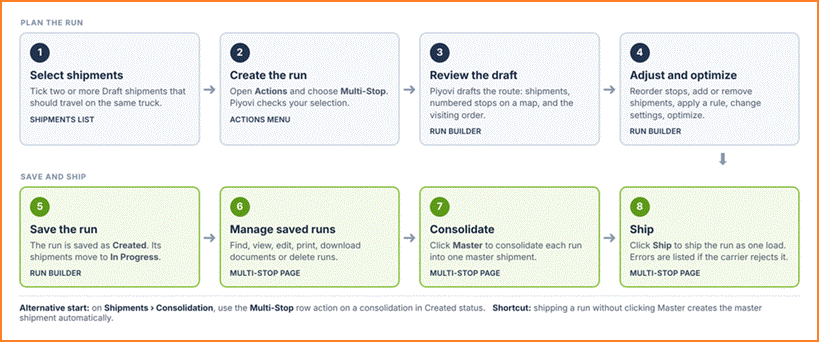
Figure 1. The multi-stop workflow
Before You Start
- Multi-Stop is switched on for your company and your role has the Manage Multistop permission (or Multistop Read Only to view runs). If you cannot see Multi-Stop, ask your administrator.
- You select at least 2 shipments, all in Draft status and not already in another run.
- All shipments are in the same country (runs are domestic only), with ship-from and ship-to countries filled in.
- Every shipment has packages with a weight, and correct addresses.
Note : Your administrator sets up equipment types (Settings › Equipment), a routing connector such as HERE Maps, PC*MILER or MileMaker, and optional multi-stop rules. Without a routing connector, Piyovi can only build a manual draft with estimated distances.
Steps
Select the Shipments
Every run starts on the Shipments list, where you pick the draft shipments that should travel together.
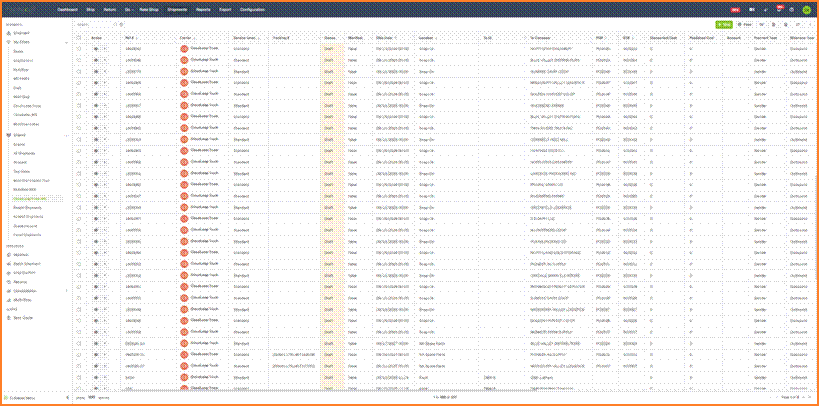
Figure 2. Shipments list
- Click Shipments in the top menu.
- Use Filter to show Draft shipments.
- Tick the checkbox of two or more shipments that should go on the same truck. The Actions button appears above the list.
| Tip Choose shipments with the same carrier where possible. Shipments you add to a run later must match the carrier of the run’s first shipment. |
|---|
Create the Run
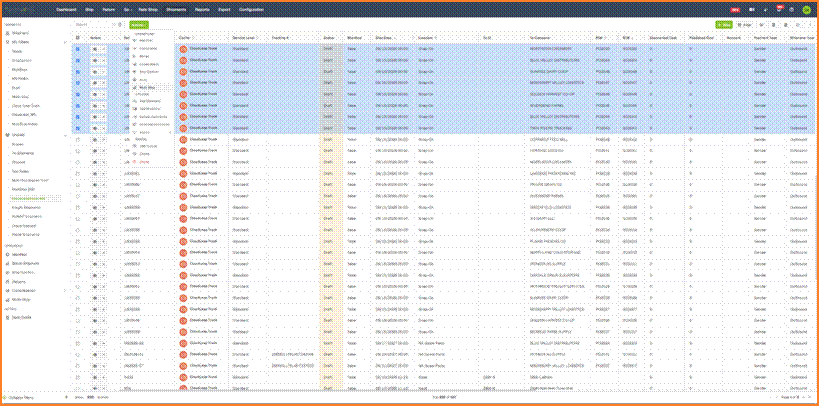
Figure 3. Shipments selected, with the Actions menu open
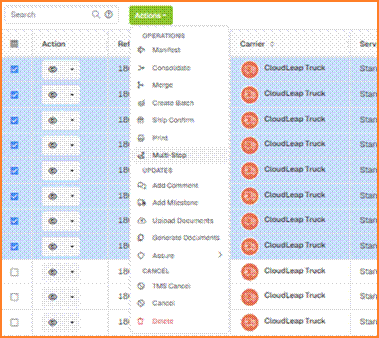 Figure 4. Multi-Stop in the Actions menu Figure 4. Multi-Stop in the Actions menu | 1. Click Actions.2. Under Operations, click Multi-Stop.3. Piyovi checks your selection. If everything is fine, the run builder opens with a draft route.If a check fails, a message tells you why (for example Only draft shipments are allowed or Domestic shipments only) and the run builder does not open. See section 10.You can also start a run from Shipments › Consolidation with the Multi-Stop row action on a consolidation in Created status. |
|---|
Review the Route
The run builder shows the shipments on the left, the route on the map, and the stop order underneath. Piyovi drafts the route for you; with a routing connector it is already optimized with road distances. Shipments that cannot be planned (bad address, missing country or weight) are left out and listed under the Issues icon.
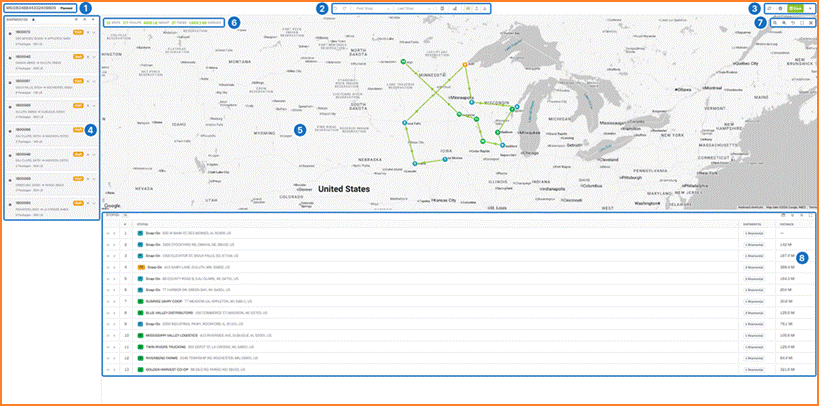
Figure 5. Run builder. The numbers match the table below.
| # | Area | What it does |
|---|---|---|
| 1 | Run name and status | The run ID and its status. |
| 2 | Route tools | Undo / Redo, First Stop / Last Stop, Apply rules, Optimize, and the All / Pickup / Delivery filter. |
| 3 | Screen actions | Refresh, Settings (gear), Save and close (X). |
| 4 | Shipments panel | The shipments on this run. Add (+) and remove (X) shipments here. |
| 5 | Map | Numbered pins for each stop, joined by the route line. Click a pin to see its details. |
| 6 | Totals | Stops, pickups/deliveries, weight, pieces and distance. A ~ means the distance is an estimate. |
| 7 | Map controls | Zoom, reset, fit all stops, and resize the map. |
| 8 | Stop list | The stops in visiting order. Expand a row to see its shipments; drag to reorder. |
If the plan needs more than one truck, a separate tab appears for each run, with a Save all button. Stop types
| Badge | Meaning |
|---|---|
| P (blue) | Pickup: freight is loaded here. |
| D (green) | Delivery: freight is unloaded here. |
| PD (amber) | Pickup and delivery at the same address. |
Note : Nothing is saved until you click Save.
Adjust the Run (Optional)

Figure 6. Route tools: Undo, Redo, First Stop, Last Stop, Apply rules, Optimize and the stop filter
Change the stop order
- Make sure the filter is set to All.
- Drag a stop by the handle on the left of its row and drop it in a new position.
- Piyovi renumbers the stops and redraws the route. Use Undo if you change your mind.
Warning : A shipment cannot be delivered before it is picked up. If you try, the stop jumps back and a message explains why.
Optimize the route
- Optional: pick a First Stop and a Last Stop (they must be different).
- Click Optimize (route icon).
- Piyovi re-orders the stops and calculates road distances. If the shipments do not fit on the equipment, it splits them into extra runs.
Apply a rule
Click Apply rules (checklist icon). If a multi-stop rule matches your shipments, its settings are applied to the run. If no rule matches, nothing changes.
Add or remove shipments
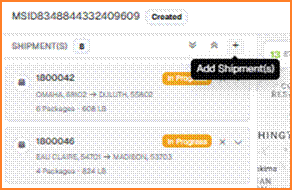 Figure 7. Add Shipment(s) Figure 7. Add Shipment(s) | To add: click + in the Shipments panel, tick the shipments in the list, and click Select.To remove: click the X on a shipment card.Piyovi then asks Re-optimize stops? Choose Yes to re-plan the route, No to keep the current order, or Cancel. |
|---|
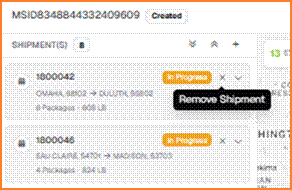 Figure 8. Remove Shipment Figure 8. Remove Shipment | • A run must keep at least 2 shipments. To break up a run, delete it from the Multi-Stop page.• To remove several shipments, select their cards and click the bin icon in the panel header. |
|---|
Check the Run Settings
Click the Settings (gear) icon to open the Configuration panel. Here you choose the equipment and how Piyovi should plan the route.
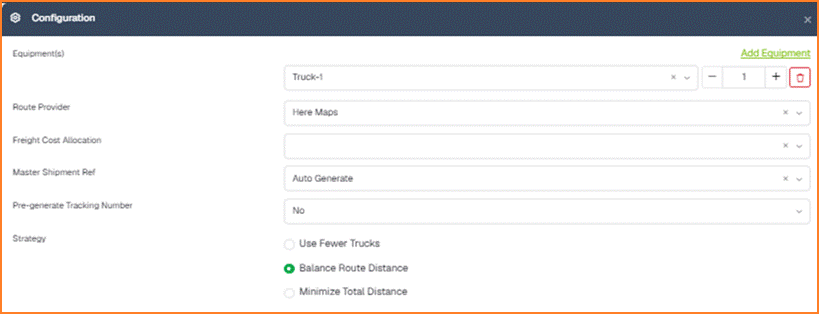
Figure 9. Configuration panel
| Setting | What it means | Default |
|---|---|---|
| Equipment(s) | The trucks or trailers this run can use, with a quantity. Click Add Equipment for another type. | One empty row |
| Route Provider | The routing service used for distances and optimization. | Your default provider |
| Freight Cost Allocation | How the freight cost is shared across the shipments. | Miles |
| Master Shipment Ref | How the master shipment’s reference number is set. | Auto Generate |
| Pre-generate Tracking Number | Whether tracking numbers are created before shipping. | No |
| Strategy | Use Fewer Trucks, Balance Route Distance or Minimize Total Distance. | Balance Route Distance |
Click Apply to save the settings, or Cancel to discard them.
Note : Applying new settings re-plans the route, so the stop order and number of runs can change.
Save the Run
- If a red or amber Issues icon appears at the top right, click it and fix any errors.
- Click Save (or Save all if there are several runs).
The run is saved with status Created, its shipments change to In Progress, and you are taken to the Multi-Stop page. To leave without saving, click X and choose Discard.
Manage and Ship Runs
Go to Shipments › Multi-Stop (side menu, under Operations) to see all saved runs.
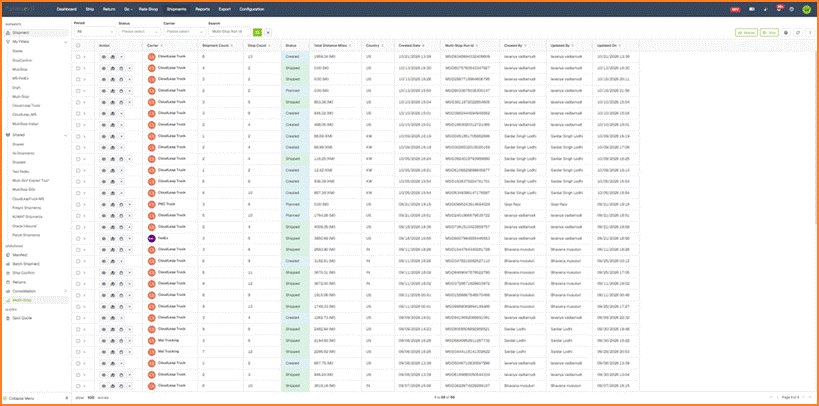
Figure 10. Multi-Stop page

Figure 11. Filters and row actions Use Period, Status, Carrier and Search to find a run, then click the green search button. Click the arrow at the left of a run to see its shipments.
Row actions
| Action | What it does |
|---|---|
| View (eye) | Shows the run’s stops and shipments (read-only). |
| View run (map) | Opens the run builder. You can edit only while the run is Created. |
| Master shipment (box) | Opens the master shipment, if the run has one. |
| Download docs | Downloads the run’s documents as a zip file. |
| Delete | Deletes the run. Shipped runs cannot be deleted. |
Consolidate and ship

Figure 12. Master, Ship, Print and Refresh buttons
- Tick one or more runs.
- Click Master to consolidate each run into one master shipment (runs must be Created).
- Click Ship to ship the runs (status Created, Planned or Error). If shipping fails, an error list opens; fix the problem and click Ship again.
| Tip You can ship a Created run directly. Piyovi creates the master shipment automatically. |
|---|
Edit a saved run
Double-click a Created run to reopen it in the run builder, make your changes and click Save.
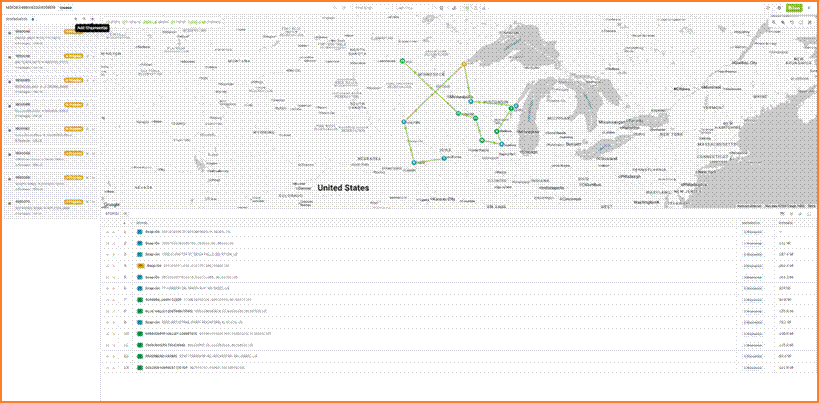
Figure 13. A saved run reopened: status Created, shipments In Progress
Common Messages
| Message | What to do |
|---|---|
| Select at least two shipments | Tick 2 or more shipments. |
| Only draft shipments are allowed | Untick shipments that are not in Draft status. |
| Shipment already in a multistop run | Untick it, or remove it from its current run first. |
| Domestic shipments only | Select shipments within one country and fill in missing countries. |
| Delivery cannot come before pickup | Drop the stop after its pickup. |
| First and last stop must differ | Pick a different First Stop or Last Stop. |
| No rule matched | Set the run settings with the gear icon instead. |
| A run needs at least two shipments | Remove fewer shipments, or delete the whole run. |
| Wrong status for Master / Ship | Untick runs that are not in an allowed status. |
| Cannot delete shipped runs | Shipped runs cannot be deleted. Untick them. |
Quick answers
Why does the distance show a ~? The run is not optimized yet, so the distance is an estimate. Click Optimize to get the road distance. Why did my run split into two? The shipments did not fit on the equipment. Add equipment in Settings or choose Use Fewer Trucks, then optimize again.