Document Share
Document Share generates a secure, self-service link to a shipment's documents — packing slips, labels, bills of lading, customs documents, or any other file attached to the shipment — that a customer, broker, or carrier can open without a Piyovi account.
Reach for it whenever paperwork needs to go to someone outside your organization: you choose which documents are included, whether the link needs a code or email verification to open, and when it expires.
How Document Share Works
Document Share has two entry points. You create a new share from an individual shipment's Docs tab, where you pick the files to send — this is a per-shipment action anyone working that shipment can do.
Every share ever created, across every shipment, is listed and managed centrally at Configuration → File Exchange → Document Share, where you look one up, copy its link, check activity, or revoke it.
Navigation
Configuration → File Exchange → Document Share.
Creating a Share
Step 1: Select documents and open the share panel
- Open the shipment you want to share documents from and select its Docs tab.
- Tick the checkbox next to each document you want to include — one or several.
- Click the Share icon in the toolbar above the document list (to the right of the print and email icons).
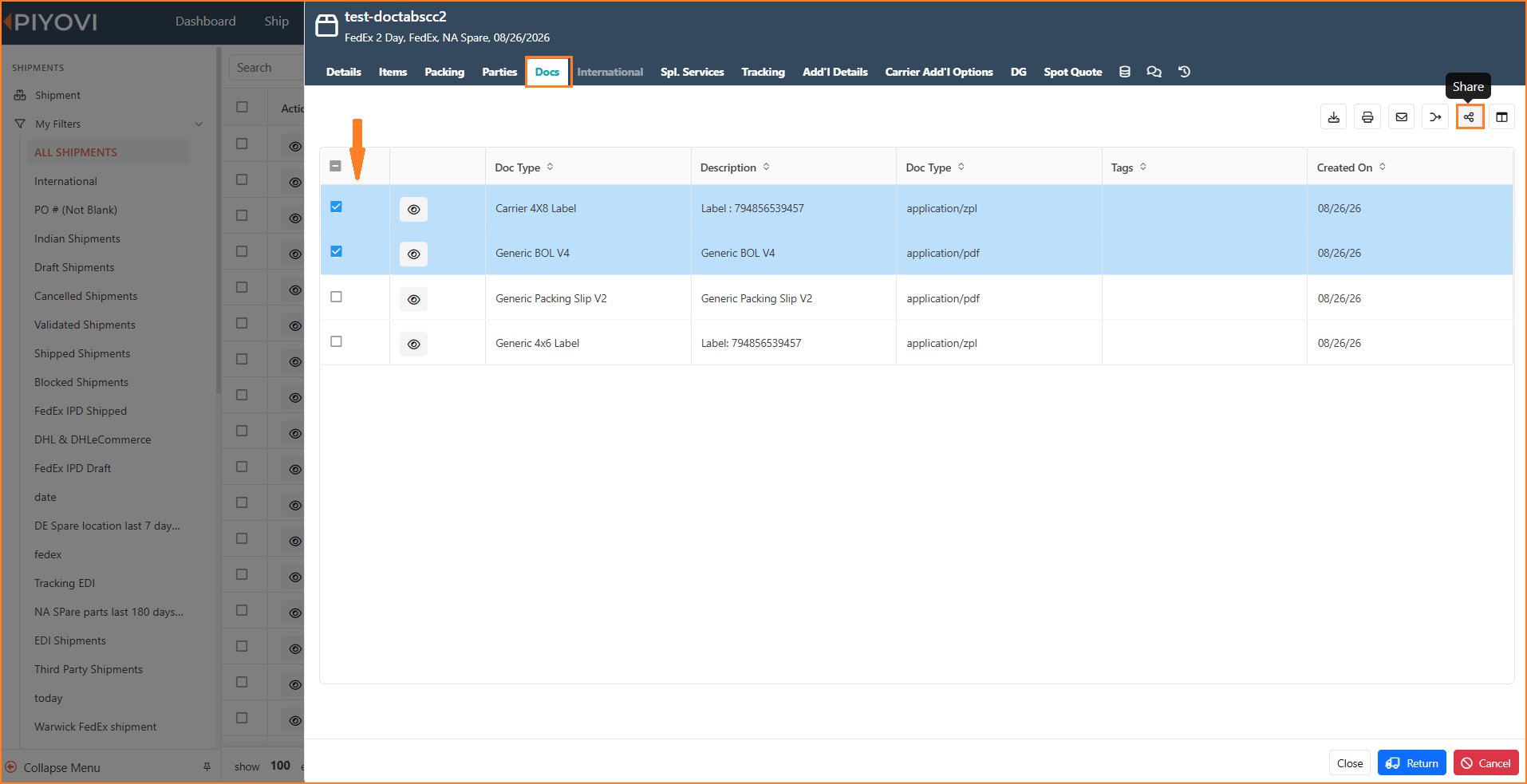
The Docs tab with two documents checked and the Share icon called out in the toolbar.
Note:
The Share action only becomes meaningful once at least one document is checked. The Create Document Share panel that opens shows the exact count you selected — for example, "2 document(s) selected."
Step 2: Complete the share form
The Create Document Share panel opens with the following fields:
| Field | What it controls |
|---|---|
| Documents | Read-only summary of how many files you selected in Step 1. |
| Display Name | The label the recipient sees as the share portal's page title, and the name you'll recognize later in the Document Share grid. Piyovi suggests a default such as "Shipment Documents (<tracking number>)," which you can edit. |
| Access Type | Public (anyone with the link can open it immediately, no login or code required.) or Private (the recipient must pass an authentication step before the documents are shown.) |
| Authentication Type (Private only) | Access Code ( a single code you set or Piyovi generates, shared with the recipient however you choose.) or Email OTP (the recipient enters their email address and Piyovi emails a one-time 6-digit code.) |
| Access Code (Private + Access Code only) | The code the recipient types to unlock the link. Piyovi pre-fills a random code, which you can overwrite with something easier to communicate. |
| Email Recipients (Optional) | One or more email addresses Piyovi sends the share link to automatically. For Private + Email OTP shares, this list also acts as the allow-list of addresses permitted to request a one-time code. |
| Expires On (Optional) | A date/time after which the link stops working. Leave as "Never expires" for an open-ended share. |
| Notes (Optional) | An internal note, not shown to the recipient — useful for recording why the share was created. |
The form adapts as you change Access Type.
Choosing Public hides the authentication fields entirely, since no verification step is needed.
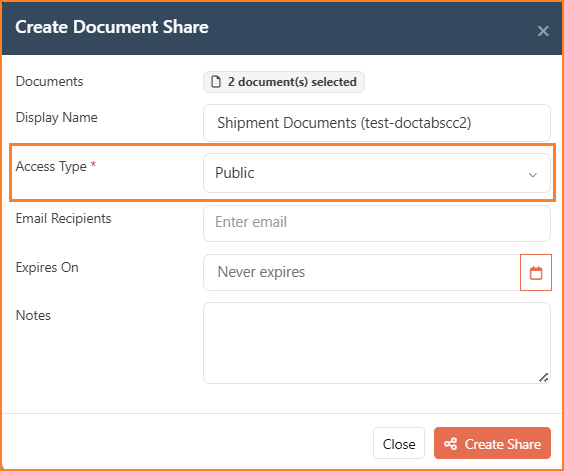
Create Document Share panel with Access Type set to Public (no authentication fields) are shown.
Choosing Private reveals Authentication Type: selecting Access Code adds the Access Code field; selecting Email OTP removes it, since recipients are verified by email when they open the link instead (see Private shares — Email OTP).
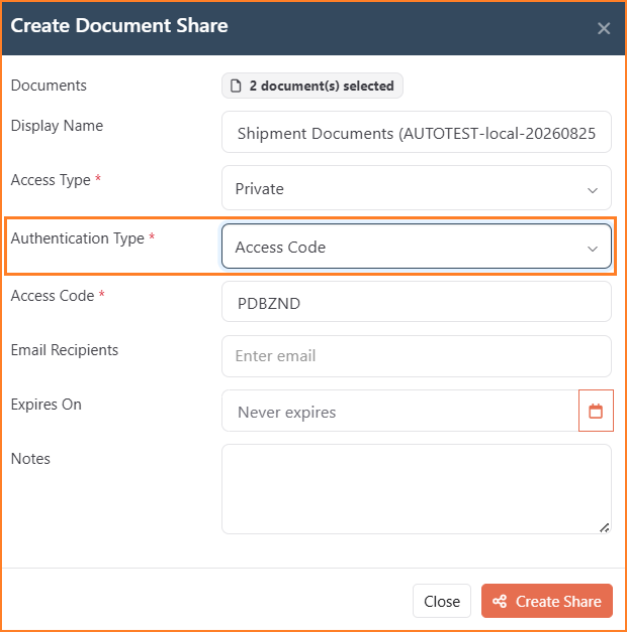
Panel with Access Type set to Private and Authentication Type set to Access Code — the Access Code field appears, pre-filled with a generated code.
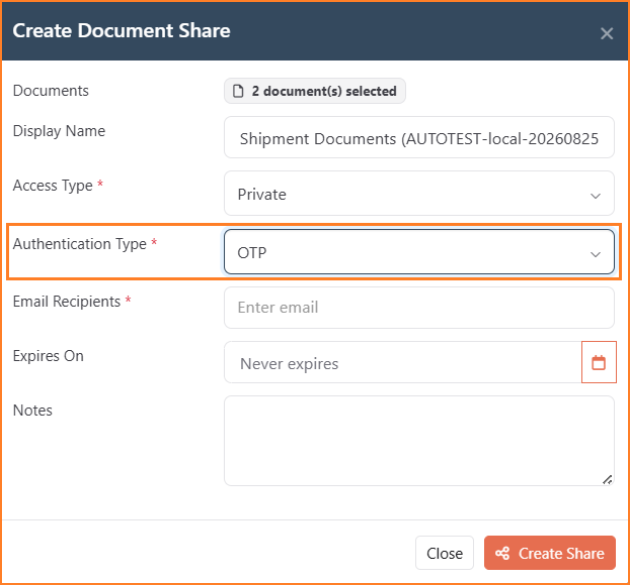
Panel with Authentication Type set to Email OTP instead — the Access Code field is replaced by a required Email Recipients field.
Step 3: Generate the link
Click Create Share. Piyovi generates a unique link immediately and, if you entered any Email Recipients, sends each of them a notification email containing the link, and for Access Code shares, the code.
The new share appears in the Document Share grid (File exchange), where you can retrieve the link at any time with Copy Link.
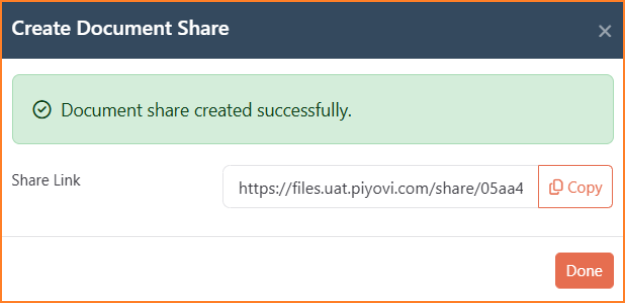
Confirmation that the share was created, with the generated Share Link and a Copy button.
What Your Recipient Sees
Opening the link always lands the recipient on a branded Piyovi page. What happens next depends on the Access Type and Authentication Type you chose.
Public shares
The recipient sees the document list immediately : no code, login, or email verification required.
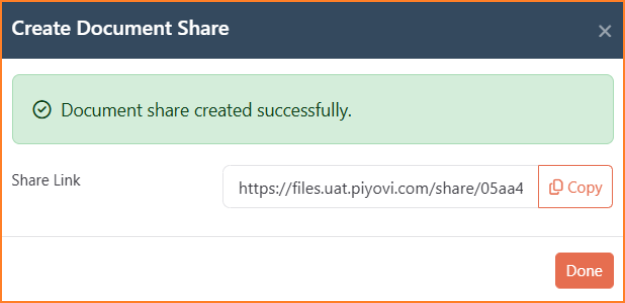
Admin-side share-creation confirmation, not the recipient's actual view — see the callout below.
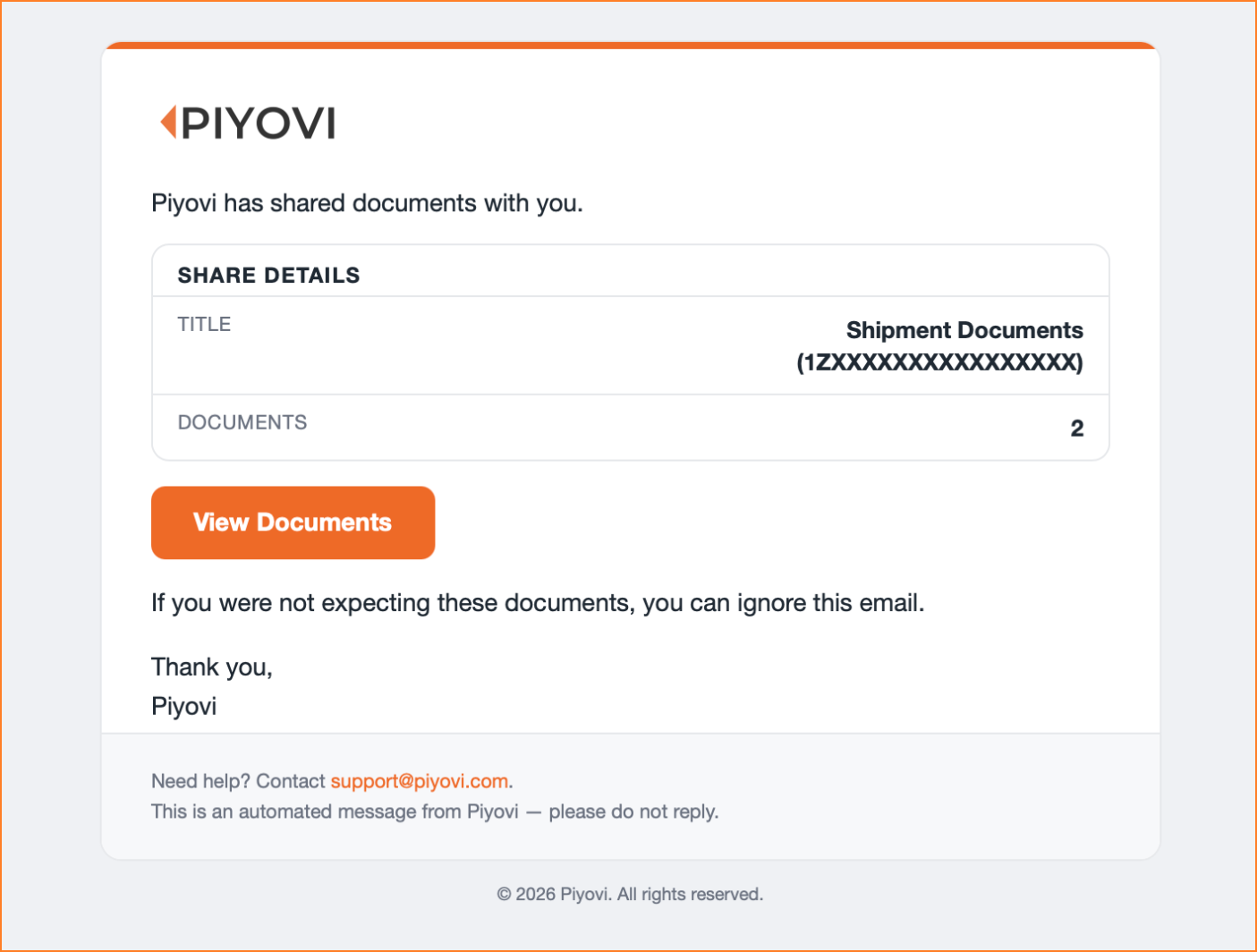
The branded notification email recipients receive, with a View Documents button linking to the share.
Private shares — Access Code
The recipient sees a lock screen and must enter the exact access code you configured before the document list appears. An incorrect code is rejected and the documents stay hidden.
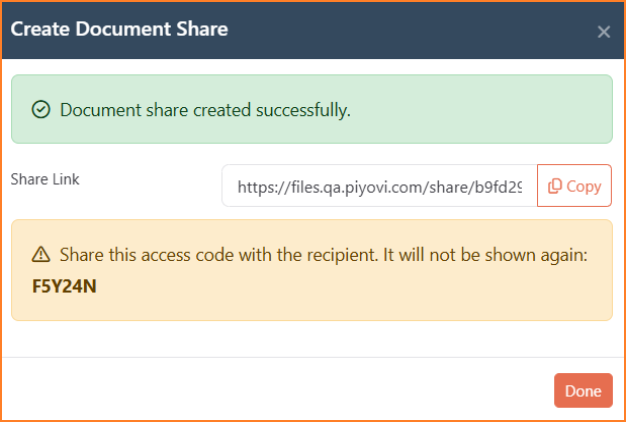
Admin-side confirmation with the one-time access-code warning, not the recipient's lock screen — see the callout below.
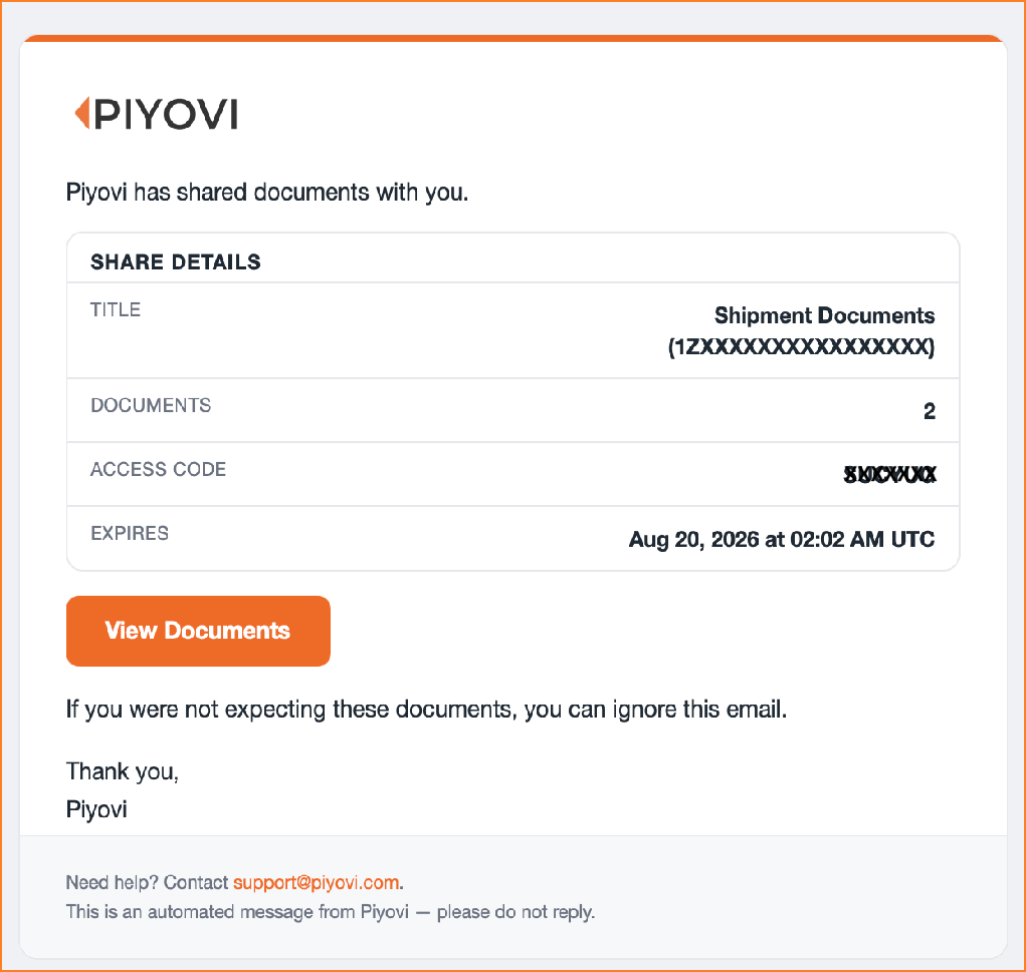
The branded notification email for an Access Code share, including the expiration date.
Private shares — Email OTP
Piyovi emails that address a 6-digit one-time code, which the recipient enters to unlock the documents.
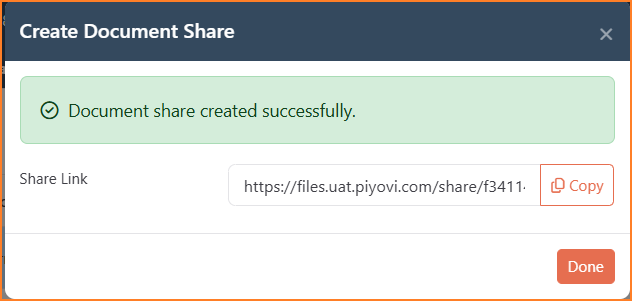
Admin-side confirmation, not the recipient's OTP entry screen — see the callout below.
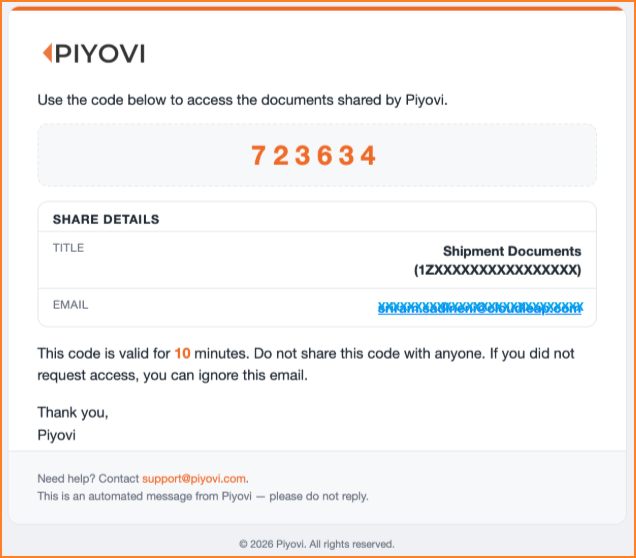
The branded notification email for an Email OTP share.
Note: Each one-time code expires 10 minutes after it's issued. After that, the recipient has to request a new one.
Viewing and downloading documents
Once unlocked or immediately (for Public shares) : the recipient sees a document list showing the share's Display Name, an expiry note if one is set, and a search box for finding a file by name.
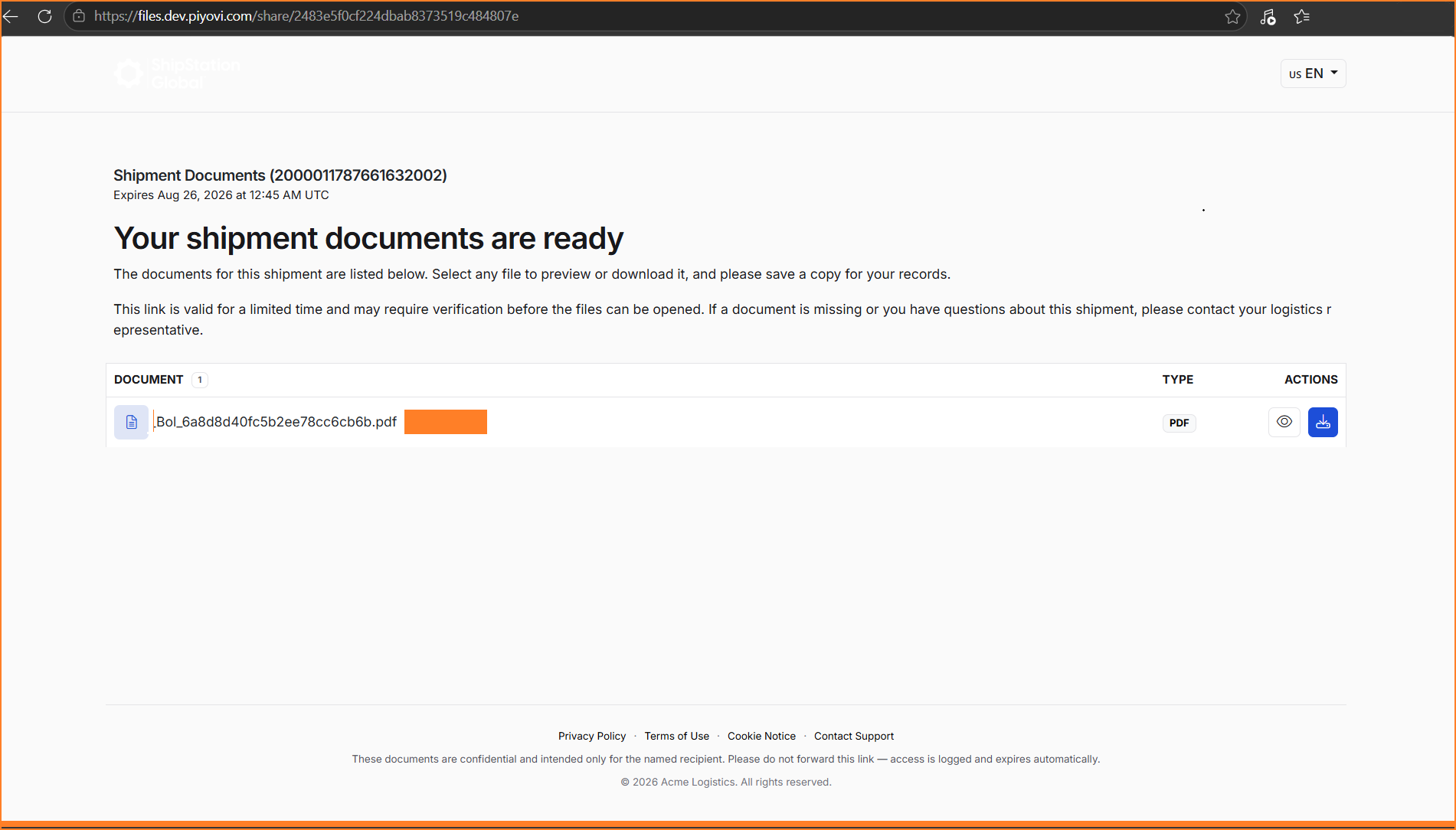
Recipient-facing portal: document title, expiry note, search box, and the document list with preview/download icons.
For each document, the recipient can:
- Preview it inline — PDFs and images open in an in-browser viewer without downloading first.
- Download it individually using the download icon in that row.
- Download every document in the share at once using the download-all icon at the top of the page, which bundles all included files into a single ZIP archive.
Notes:
Carrier label files (ZPL format) preview as a readable document in the browser, but the file the recipient actually downloads is the original .zpl file needed for label printing — not a converted image or PDF.
Managing Shares After Creation
The Document Share grid
Go to Configuration → File Exchange → Document Share to see every share link your organization has created, regardless of which shipment it came from.
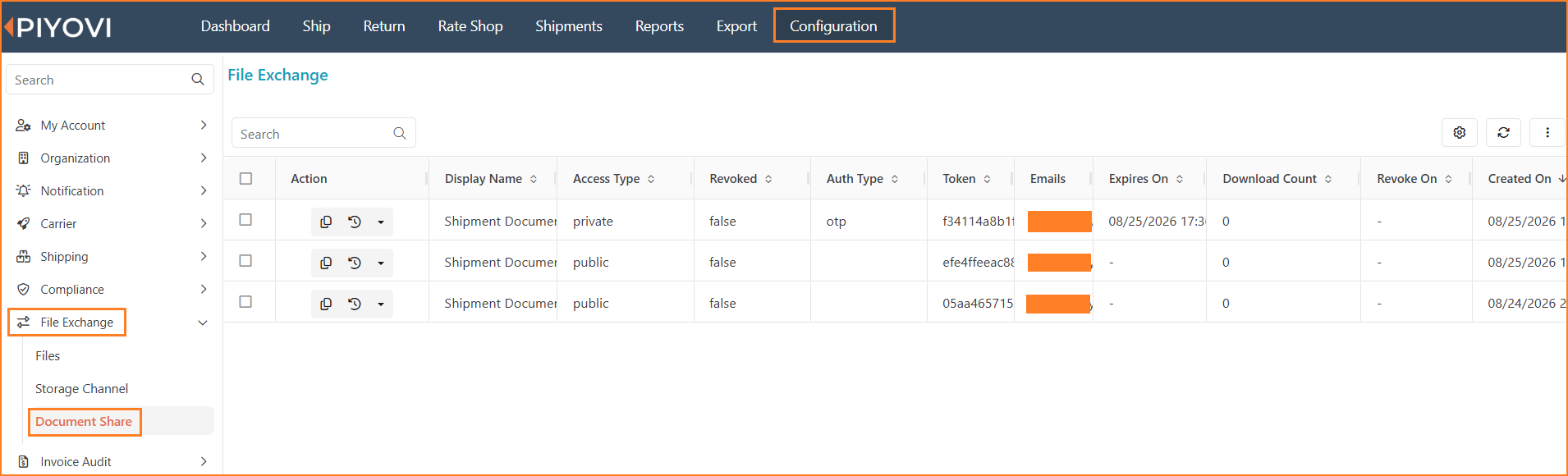
Document Share grid listing every share created across the organization.
Use the column settings (gear icon) or scroll to reveal the columns that track a share's full lifecycle:
| Column | What it shows |
|---|---|
| Display Name | The label entered when the share was created. |
| Access Type | Public or Private. |
| Revoked | true once a share creator has manually revoked the link; otherwise false. |
| Auth Type | code or otp for Private shares; blank for Public shares. |
| Token | The unique identifier embedded in the share URL. |
| Emails | The recipient address(es) associated with the share, if any were entered. |
| Expires On | The configured expiry date/time, or a dash if the share never expires. |
| Download Count | Running total of downloads performed by any recipient of this share. |
| Revoke On | The date/time the share was revoked, if applicable. |
| Created On / Updated On | Audit timestamps for when the share was created and last modified. |
Copy Link
Use Copy Link to place the share's URL on your clipboard again at any time — useful if the original notification email was missed, or the link needs to go out through another channel.
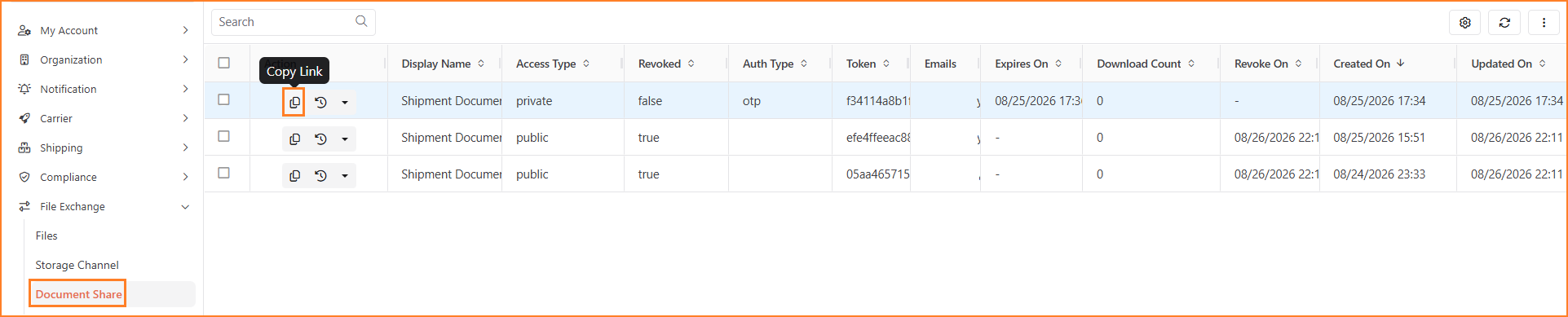
Copy Link action highlighted for a selected share in the grid.
View Activity
Select View Activity to open the audit trail for a share: who created it, when it was viewed and every download, each with a timestamp.
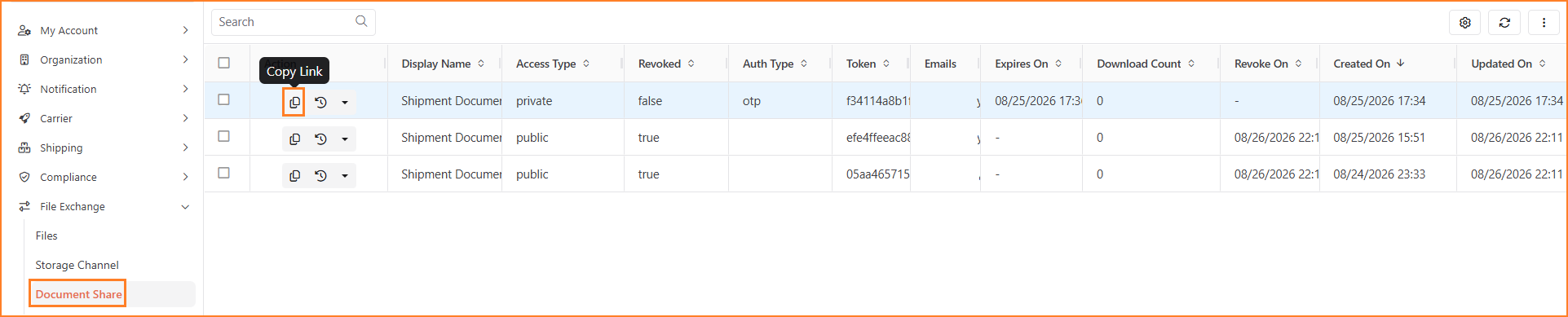
View Activity action highlighted for a selected share in the grid.
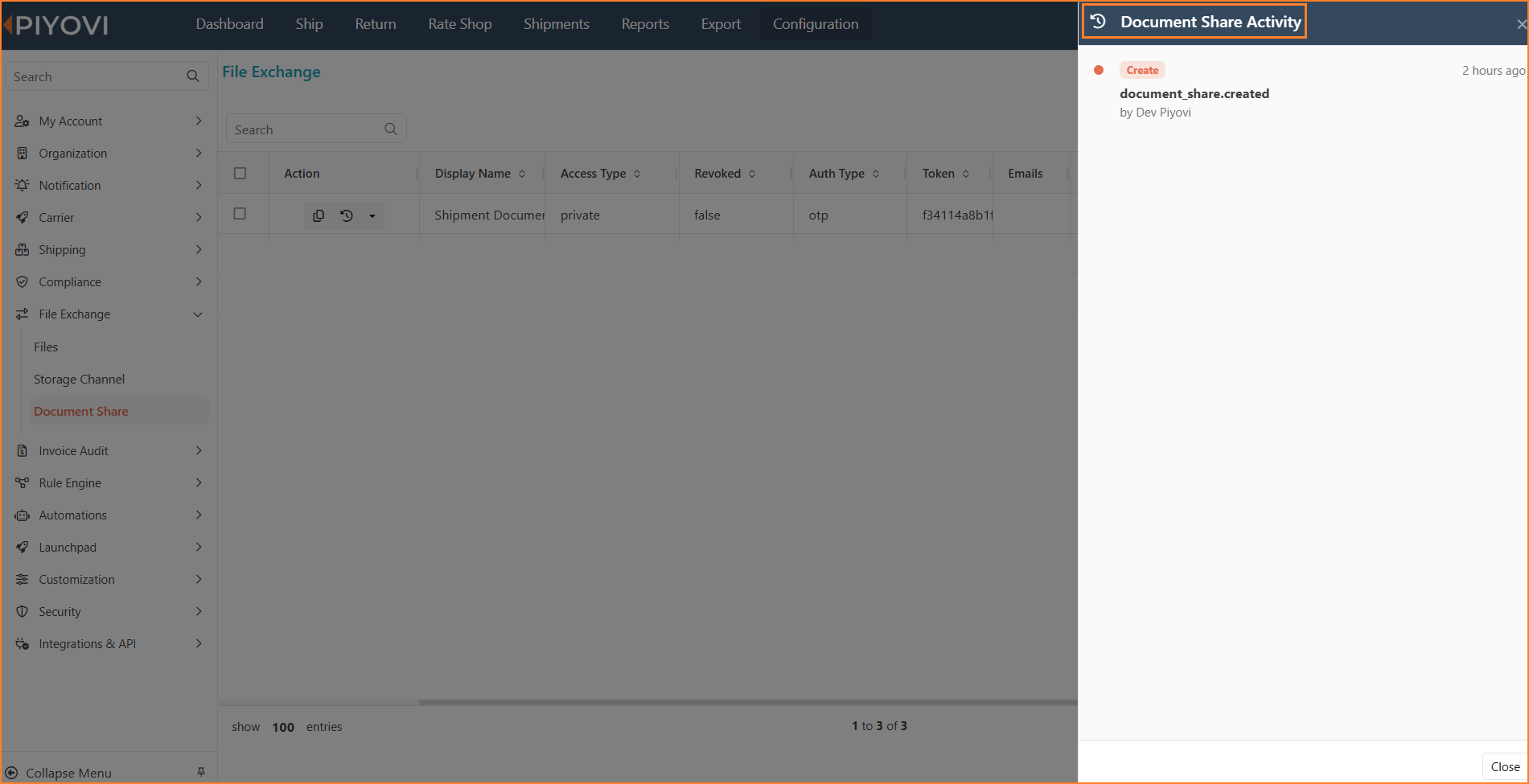
Document Share Activity panel, showing an entry for when the share was created.
Revoke
Alert
Revoke permanently disables a share. This cannot be undone, create a new share if access needs to be restored.

Revoke action highlighted for a selected share in the grid.
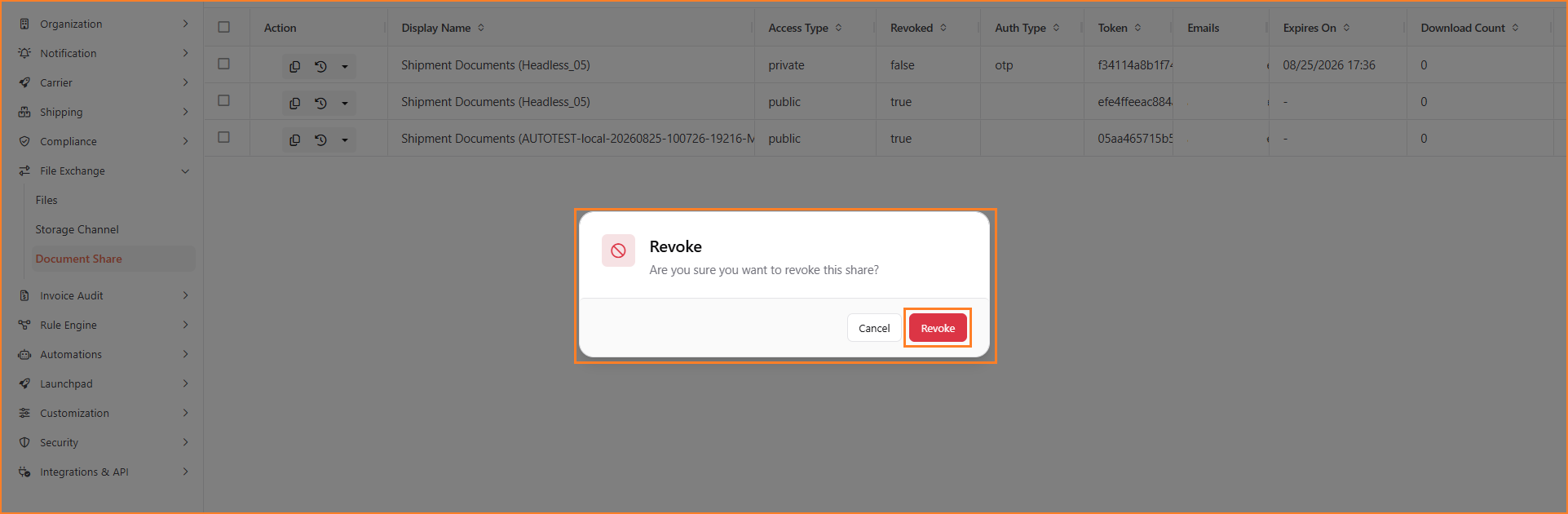
A confirmation dialog to revoke a document share
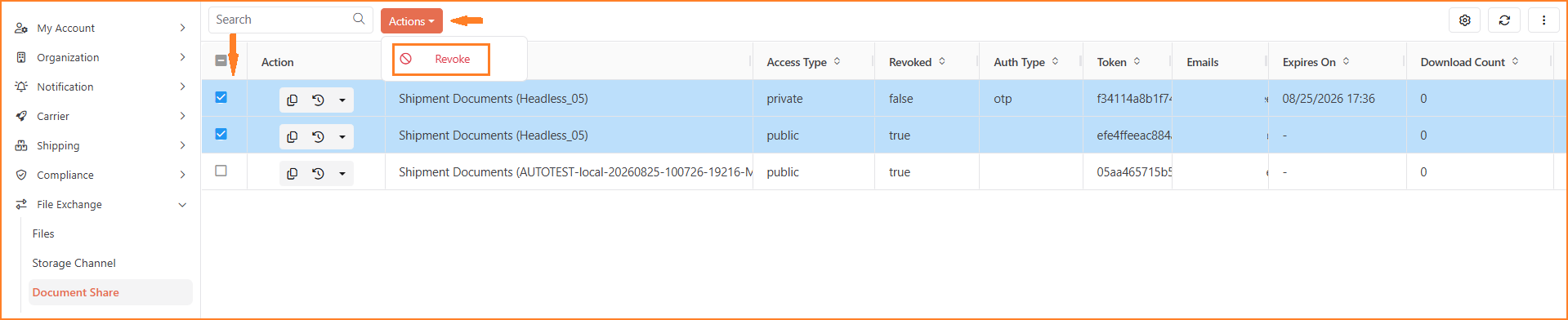
Actions menu open on a share row, with Revoke selected
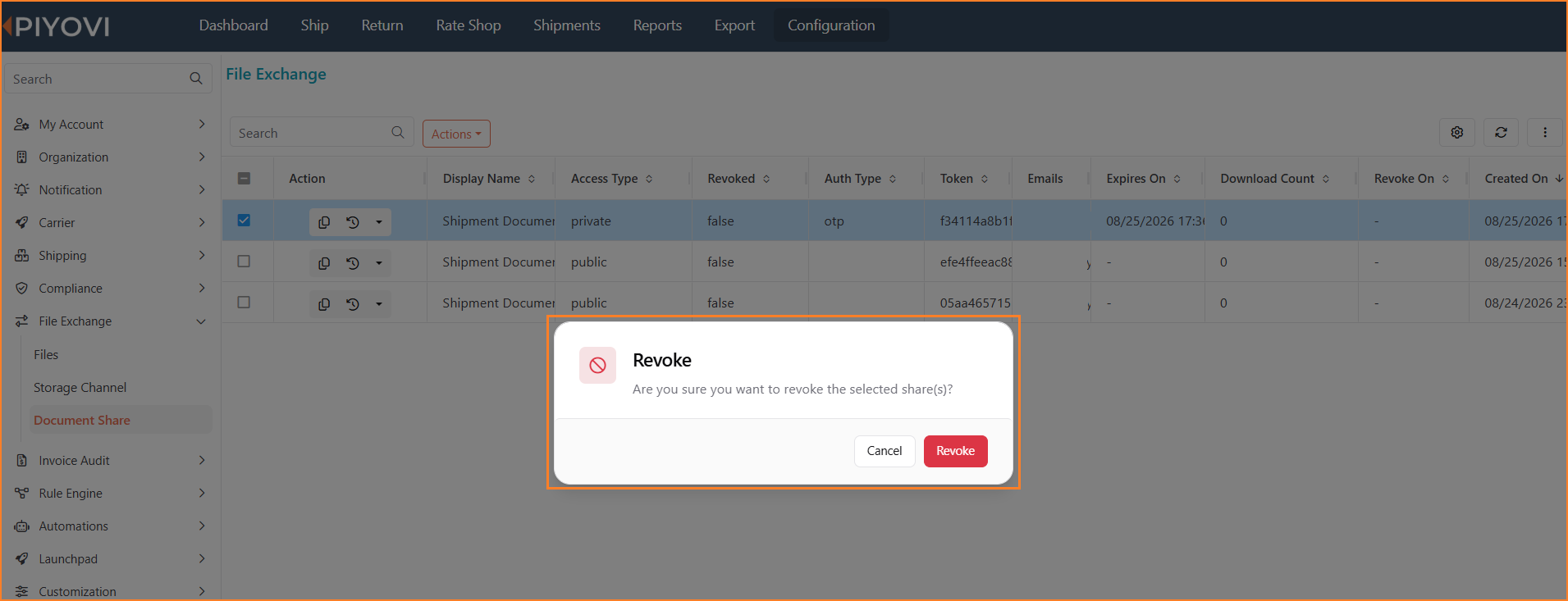
Confirmation dialog shown before a share is revoked.
A revoked or expired link stops granting access on the very next page load. A recipient who already has the page open loses access as soon as they refresh or navigate within it; both cases show a "Link Unavailable" message instead of the document list.
Branding the Share Portal
The page recipients land on can be styled to match your company's brand instead of showing Piyovi's defaults. Open Portal Settings from the gear icon above the Document Share grid.
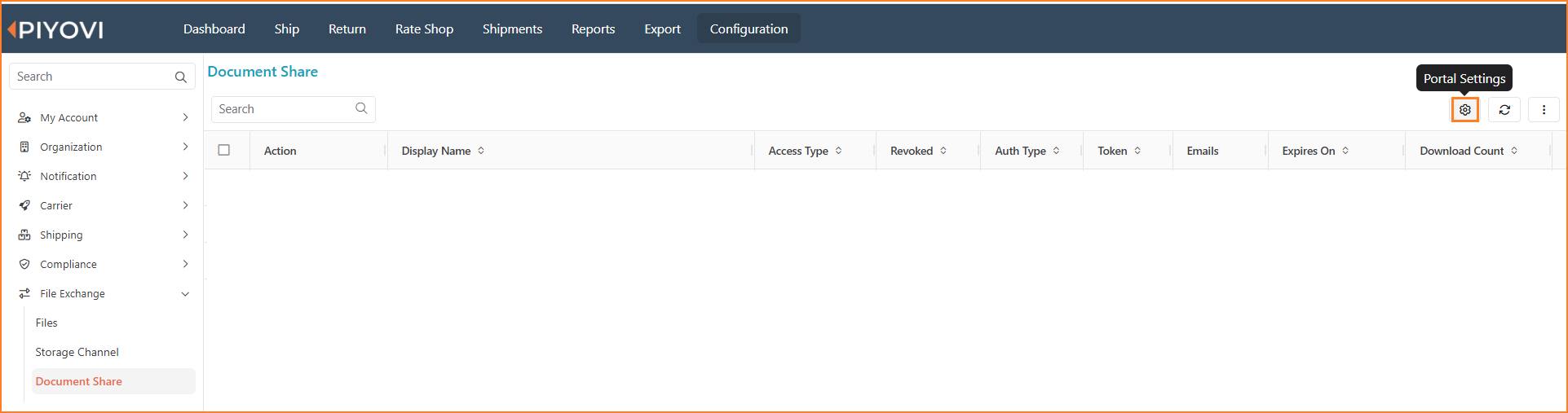
Portal Settings option, opened from the gear icon above the grid.
Note:
Portal Settings applies to every share your organization creates. it's a one-time, organization-wide configuration, not a per-share setting.
| Setting | Purpose |
|---|---|
| Brand Name | Name shown in the portal header and footer. Falls back to your company name if left blank. |
| Logo URL | Absolute URL of the logo shown in the header, or upload an image directly. Falls back to your company logo. |
| Logo Size | Display size of the header logo. |
| Primary Color | Brand color used for buttons and links throughout the portal. |
| Primary Text Color | Text color used on primary (dark/colored) buttons. |
| Header Background | Background color of the header bar; defaults to the body background if left blank. |
| Footer Background | Background color of the footer bar. |
| Body Background | Background color of the page itself. |
| Font Family | Font stack used across the portal. |
| Border Radius | Corner rounding applied to cards and buttons. |
| Color Scheme | Pins the portal to Light or Dark mode; leave empty to follow the visitor's device/browser preference. |
| Page Title | Overrides the browser tab title for the portal page. |
| Default Language | Default portal language (culture code). Visitors can still switch languages using the language selector. |
| Body Content | Rich-text message shown above the document list — instructions for the recipient, contact information, or other guidance. |
| Head HTML / Head Script | Raw HTML or script injected into the page head — for meta tags, custom fonts, a favicon, or tracking. |
| Footer HTML / Footer Script | Raw HTML or script injected into the portal's footer, or before the closing body tag. |
| Custom CSS | Raw CSS injected into the page for advanced styling beyond the fields above. |
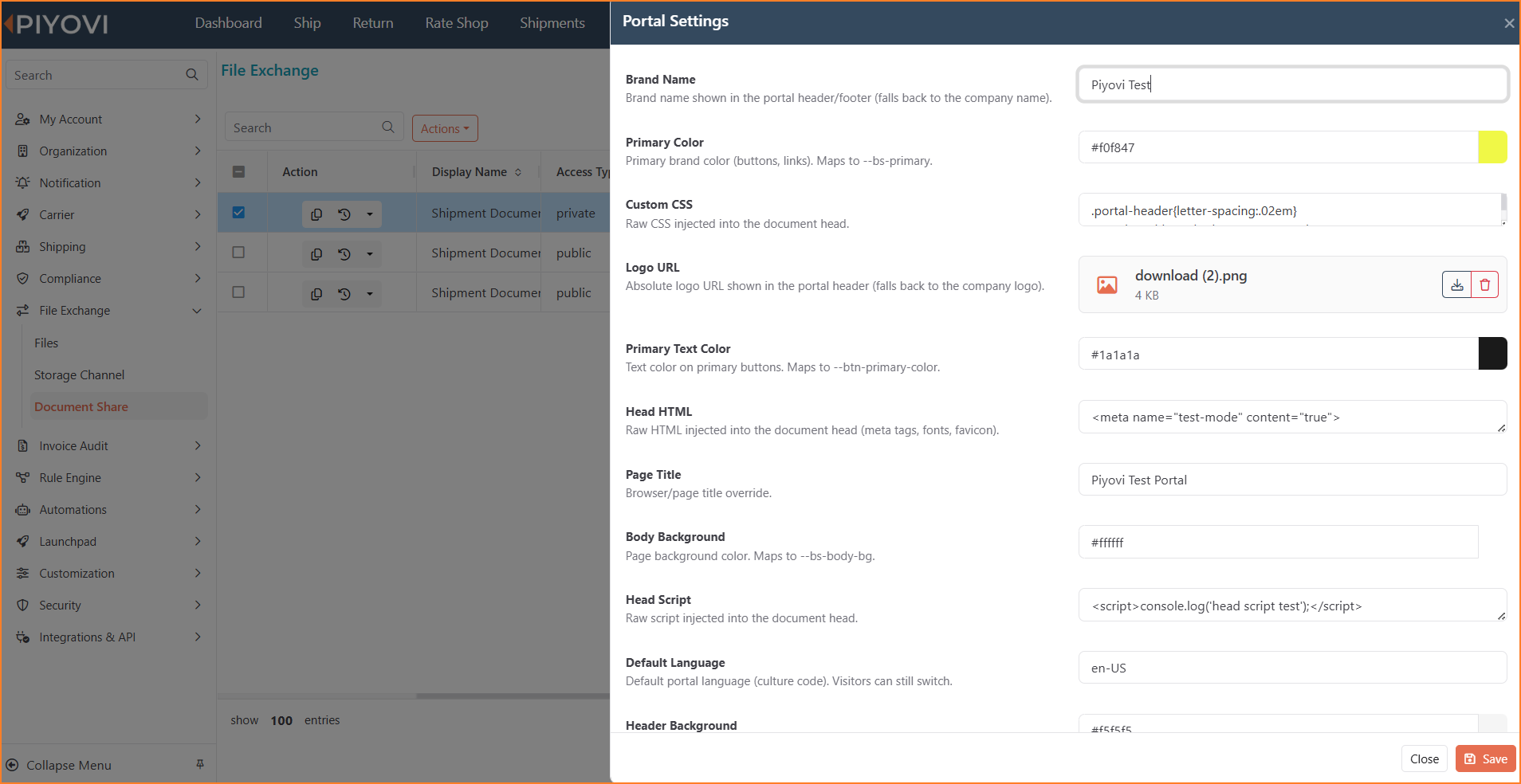
Portal Settings panel — first set of fields (branding colors, logo, header content).
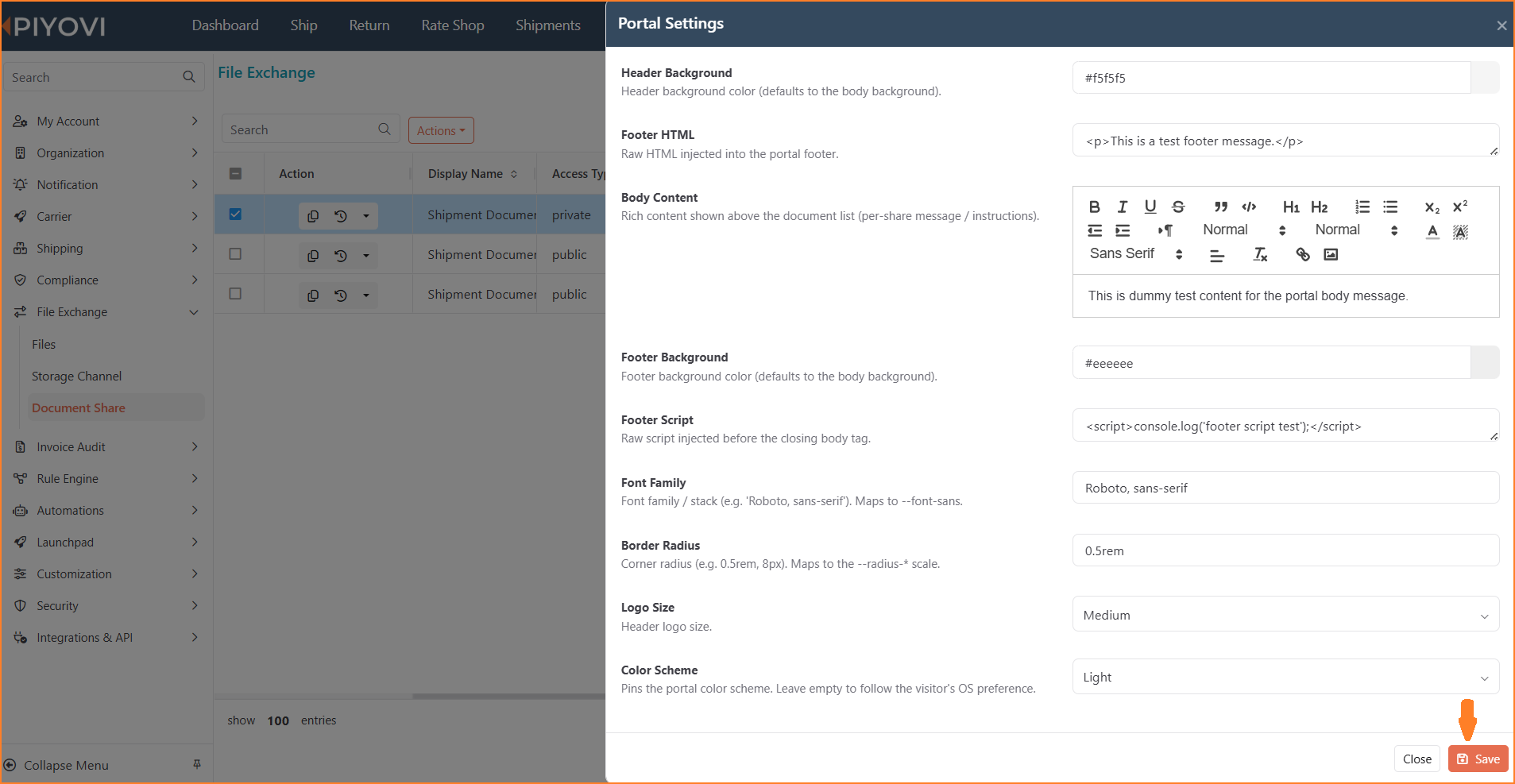
Portal Settings panel — remaining fields (backgrounds, body content, fonts, layout) and the Save button.
Click Save to apply changes.
Updates take effect the next time any existing or future share link is opened. No need to recreate active shares after a branding change.