Shipment Consolidation
1. What is Shipment Consolidation?
Shipment Consolidation lets you group multiple individual shipments into a single Master Shipment. Grouping is driven by Consolidation Rules that you define - the rules decide which shipments belong together and how data (freight cost, documents, tracking) is distributed once the Master Shipment is shipped.
Key Benefits
- Fewer records to manage - multiple shipments under one Master
- Automatic freight distribution to child shipments based on your chosen rule
- Webhook events fire automatically when consolidation rules are triggered
- Flexible grouping: match by Location, Carrier, Ship-To ID, or any combination
Throughout this guide, "child shipment" and "individual shipment" are used interchangeably to mean the original shipments that get grouped under a Consolidation ID.
2. Setting Up a Consolidation Rule
Before you can consolidate shipments, you need at least one active Consolidation Rule. Every rule has three parts: Rule Information, Preferences, and Criteria.
Navigation path: Configuration > Rule Engine > Consolidation Rules > Add Rule
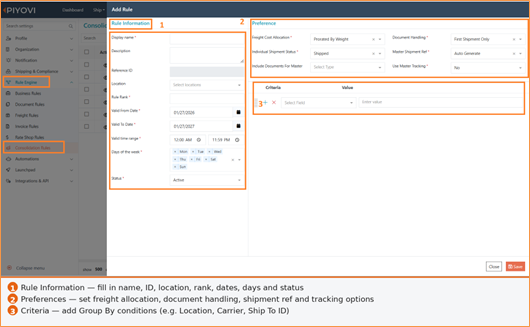
Figure 1 - Add Rule screen showing all three sections
2.1 Rule Information
This section controls when and where the rule is active.
Display Name: A friendly label for this rule
Description: Optional free-text notes about the rule purpose
Reference ID: Auto-generated unique identifier
Location: Which warehouse / origin location the rule applies to
Rule Rank: Priority order - lower number = higher priority when multiple rules match
Valid From / To Date: The date range during which this rule is active
Valid Time Range: The time window within each day (e.g. 12:00 AM - 11:59 PM)
Days of the Week: Which days the rule runs
Status: Active = rule is live; Inactive = rule is paused
2.2 Preferences
Preferences control how data is allocated to child shipments after the Master Shipment is shipped. These settings are covered in detail in Section 6. Set them to sensible defaults for now and adjust later.
2.3 Criteria
Criteria define what conditions a shipment must meet to qualify for this rule. The most important setting is Group By - it tells the system which fields must match for two shipments to be placed in the same group.
Example: Group By = Location, Carrier, Ship To ID means two shipments are only grouped together if they share the same Location AND Carrier AND Ship To ID.
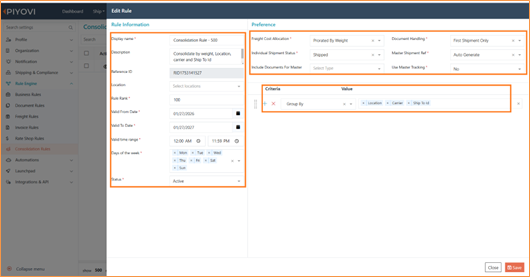
Figure 2 - Completed rule example with Group By = Location, Carrier, Ship To ID
3. How Consolidation Works - Step-by-Step
The process moves through these stages: create individual shipments > trigger consolidation > system groups matching shipments under a Consolidation ID > you then promote the Consolidation ID to a Master Shipment.
3.1 Create an Individual Shipment
Step 1 : Open a new shipment and fill in the required fields. The fields that matter for consolidation matching are the ones referenced in your rule Group By criteria - in this example: Location, Carrier, and Ship To ID.
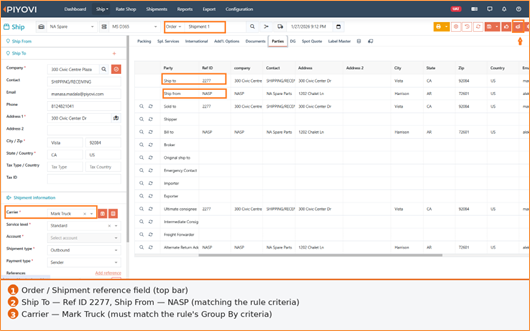
Figure 3 - Shipment 1: Ship To = 2277, Ship From (Location) = NASP, Carrier = Mark Truck
3.2 Trigger Consolidation
Step 2: click the Consolidation . The system checks the shipment against all active rules. If it matches a rule criteria, it is assigned a Consolidation ID.
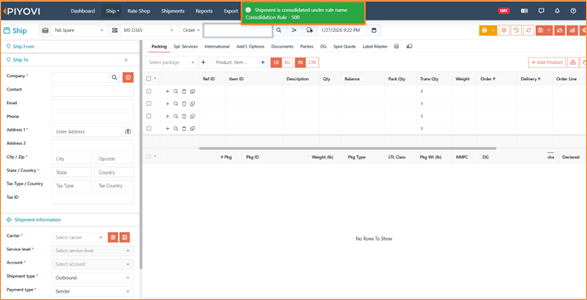
Figure 4 - Success: Shipment is consolidated under rule name Consolidation Rule 500
3.3 Repeat for Additional Shipments
Create more shipments with different combinations of criteria. Shipments whose Group By values match will be placed in the same Consolidation ID. Shipments with different values get their own separate Consolidation ID.
Shipment 1
- Location: NASP
- Ship-To ID: 2277
- Carrier: Mark Truck
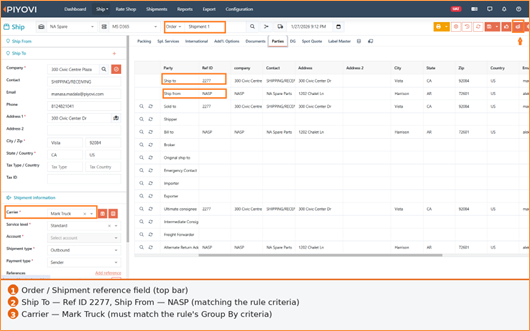
Figure 5 - Shipment 1 (NASP / 2277 / Mark Truck)
Shipment 2 (same criteria as Shipment 1)
- Location: NASP
- Ship-To ID: 2277
- Carrier: Mark Truck
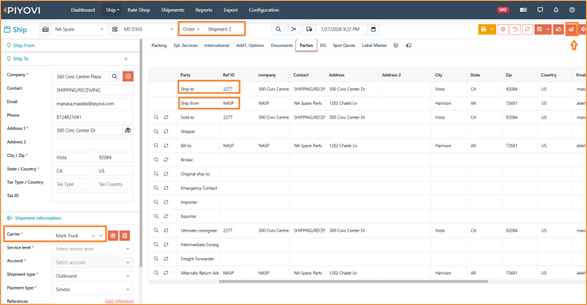
Figure 6 - Shipment 2 (NASP / 2277 / Mark Truck) - will join Shipment 1 group
Shipment 3 (different criteria)
-
Location: DESP
-
Ship-To ID: 3355
-
Carrier: Bollore
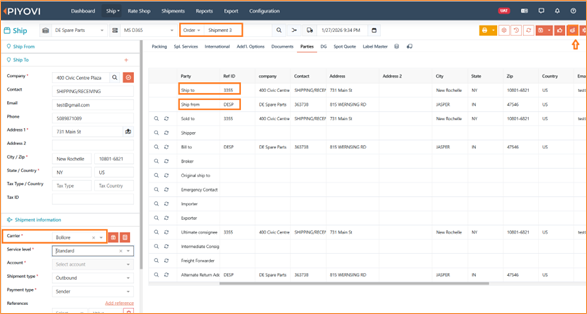
Figure 7 - Shipment 3 (DESP / 3355 / Bollore) - starts a new group
Shipment 4 (same criteria as Shipment 3)
- Location: DESP
- Ship-To ID: 3355
- Carrier: Bollore
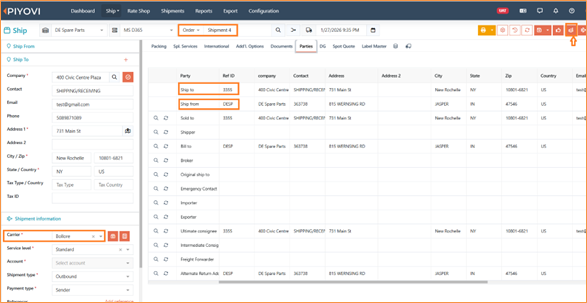
Figure 8 - Shipment 4 (DESP / 3355 / Bollore) - joins Shipment 3 group
Result:
- Consolidation ID 1 -> Shipments 1 & 2 (NASP / 2277 / Mark Truck)
- Consolidation ID 2 -> Shipments 3 & 4 (DESP / 3355 / Bollore)
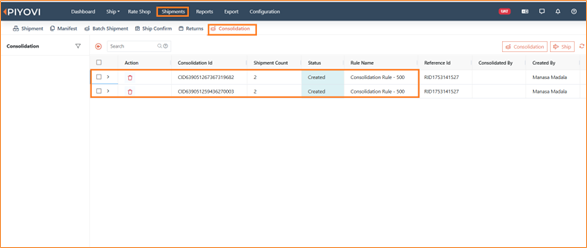
Figure 9 – showing Consolidation ID’s list
3.4 Webhook - Shipment Consolidate Event (Optional)
If you want an external system to be notified every time a consolidation rule is applied, add the Shipment Consolidate event to your webhook configuration.
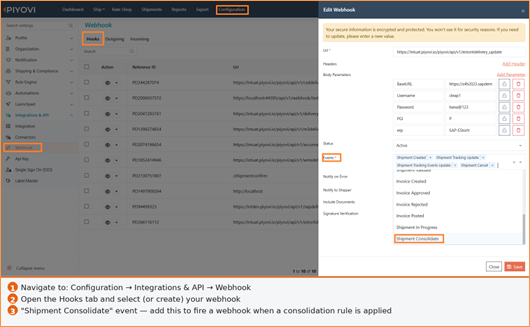
Figure 10 - Webhook configuration: add "Shipment Consolidate" to the Events list
4. Creating the Master Shipment
Once the individual shipments have been grouped under Consolidation IDs, navigate to the Consolidation screen to promote them into a Master Shipment.
- Step 1 : Go to Shipments > Consolidation
You will see a list of all active Consolidation IDs. Each row shows the Consolidation ID, how many shipments are in the group, the current status, and the rule name.
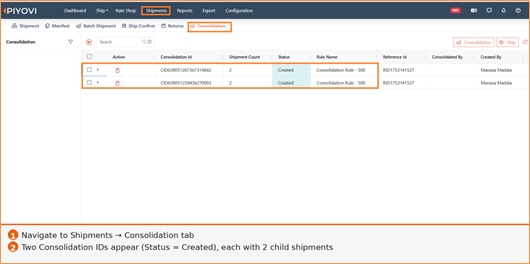
Figure 11 - Consolidation screen: two Consolidation IDs with Status = Created
- Step 2 : Select a Consolidation ID row (click anywhere on the row)
The detail panel expands to show all child shipments in the group.
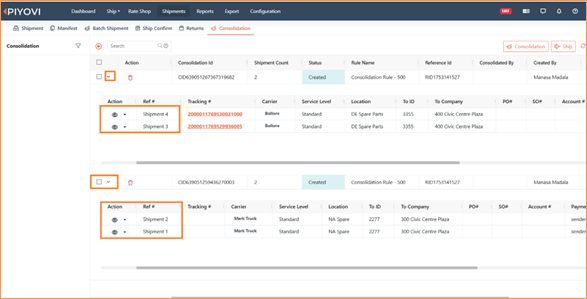
Figure 12 - Consolidation screen: two Consolidation IDs with child shipments
- Step 3 : Select the Consolidation ID you want to Consolidate into Master Shipment
Tick the checkbox next to the row, then click the Consolidation button in the top-right corner. The button becomes available as soon as at least one row is selected
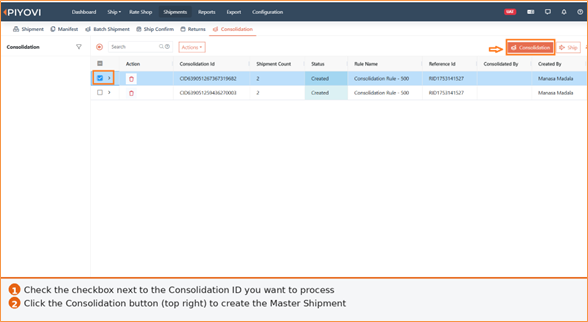
Figure 13 – Select the checkbox ①, then click the Consolidation button ②
- Step 4 : The Master Shipment is created
Watch the status column update through the following stages:
- Consolidation in progress: Processing has started (green banner at top)
- Consolidated: Master Shipment has been created — status column turns purple
- Ship icon : Appears in the Action column once the Master Shipment is ready to ship
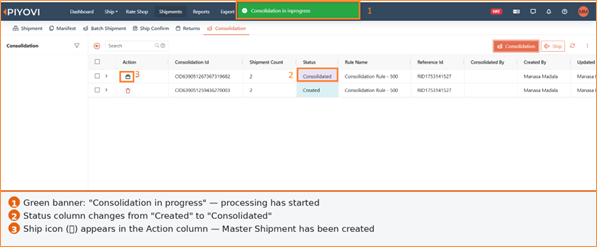
Figure 14 – Status changes: ① banner confirms progress, ② status = Consolidated, ③ Master shipment icon appears
After confirming, the Master Shipment is created. It inherits the following from the child shipments:
- Ship From and Ship To addresses - taken from the first child shipment
- Carrier and Service - taken from the first child shipment
- Package and item information - combined from all child shipments
- Master Shipment Reference Number - generated according to the Master Shipment Ref preference (see Section 6.1)
Important: The Master Shipment Ref preference is the only Preference that applies during creation. All other Preferences (freight, documents, status, tracking) apply after the Master Shipment is shipped.
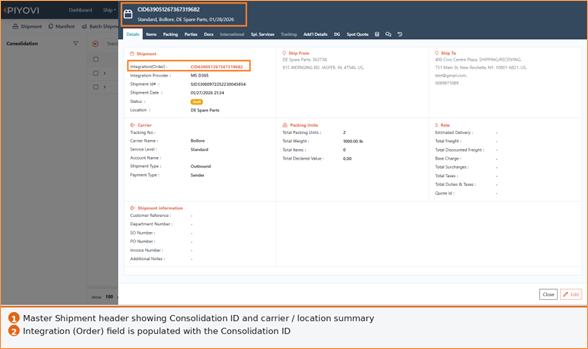
Figure 15 – Master Shipment detail: ① header shows the Master Consolidation ID
5. Shipping the Master Shipment & Webhook Events
Once the Master Shipment is consolidated and ready, you can ship it directly from the Consolidation screen.
- Step 1: Select the consolidated row (status = Consolidated).
- Step 2 : Click the Ship (top-right, next to the Consolidation).
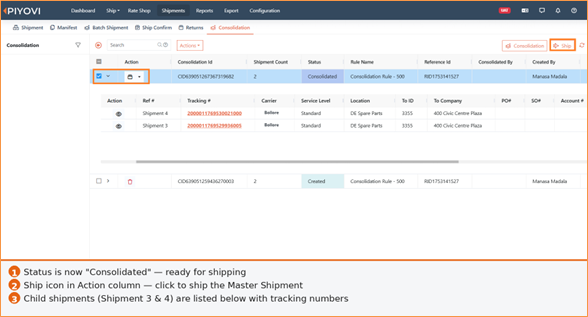
Figure 16 – Status = Consolidated, ship icon and Ship button are active
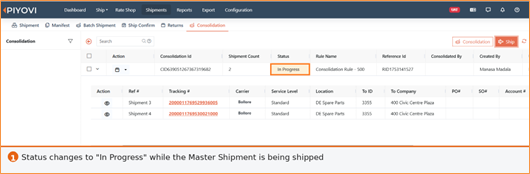
Figure 17 - Status changes to "In Progress" while shipping is being processed
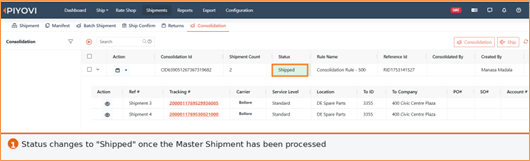
Figure 18 – Master shipment processed Successfully.
5.1 Webhook Events After Shipping
After shipping, the system fires webhook events for the Master Shipment and each individual child shipment. Which events fire depend on the Individual Shipment Status preference (see Section 6.4):
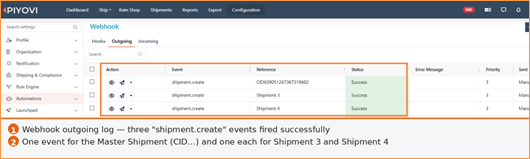
Figure 19 - Webhook Outgoing log: three "shipment. Create" events - one for the Master, two for child shipments
- If status is set to Shipped -> a "shipment. create" event fires for each child shipment
- If status is set to Cancelled -> a "shipment.cancel" event fires for each child shipment
- A "shipment.create" event always fires for the Master Shipment itself
6. Rule Preferences Reference
All Preferences (except Master Shipment Ref) are applied after the Master Shipment is shipped. They control how freight, documents, status, and tracking are distributed to child shipments.
6.1 Master Shipment Ref
Defines how the Master Shipment reference number is generated.
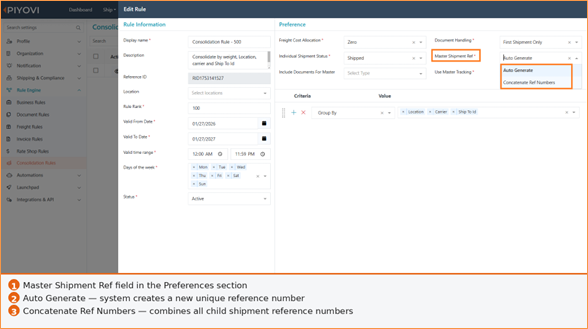
Figure 20 - Master Shipment Ref options: Auto Generate or Concatenate Ref Numbers
- Auto Generate: The system creates a new, unique reference number automatically
- Concatenate Ref Numbers: The reference number is built by joining all child shipment reference numbers together
6.2 Freight Cost Allocation
Controls how the Master Shipment total freight cost is split across child shipments.
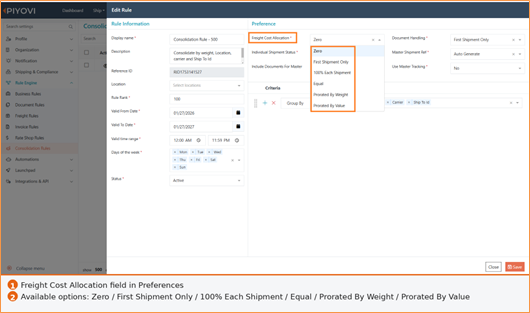
Figure 21 - Freight Cost Allocation dropdown with all six options
-
Zero: No freight assigned to any child. 100% stays at Master level.
Example: Master Freight = $200 -> Child 1: $0, Child 2: $0 -
First Shipment Only: Full freight assigned to the first child only. All others receive $0.
Example: Master Freight = $200 -> First child: $200, All others: $0 -
100% Each Shipment: Full freight amount applied to every child shipment individually.
Example: Master Freight = $200, 2 children -> Each child: $200 -
Equal: Freight split equally across all child shipments.
Example: Master Freight = $200, 2 children -> Each child: $100 -
Prorated By Weight: Freight distributed proportionally to each child weight.
Example: Master Freight = $200, Ship1=60kg, Ship2=40kg -> Ship1: $120 | Ship2: $80 -
Prorated By Value: Freight distributed proportionally to each child total customs value.
Example: Master Freight = $200, Ship1=$600, Ship2=$400 -> Ship1: $120 | Ship2: $80
6.3 Document Handling
Controls which child shipments receive the documents generated for the Master Shipment.
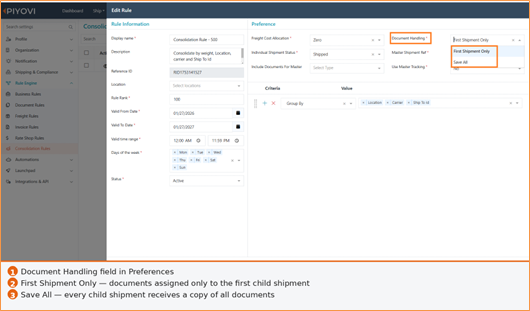
Figure 22 - Document Handling options
- First Shipment Only: Documents are assigned only to the first child shipment
- Save All: Every child shipment receives a copy of all Master Shipment documents
If you also configure Include Documents for Master (see Section 6.5), only the selected document types will be generated. Documents not configured for the carrier are skipped even if selected.
6.4 Individual Shipment Status
Sets the status applied to each child shipment after the Master Shipment is shipped.
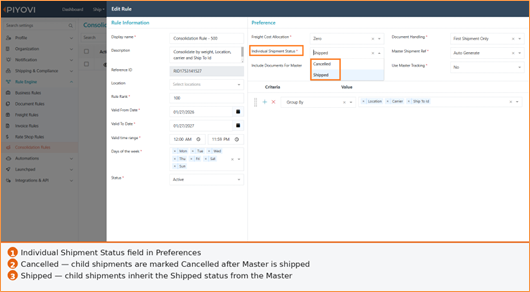
Figure 23 - Individual Shipment Status: Cancelled or Shipped
- Cancelled: Child shipments are marked as Cancelled once the Master is shipped
- Shipped: Child shipments inherit the Shipped status from the Master Shipment
6.5 Include Documents for Master
If documents are selected under Include Documents for Master, then only the selected documents will be generated for the master shipment shipped
All other documents configured in the system will be ignored.
Additionally, if any selected document is not configured for the carrier in the system, that document will not be generated, even if it is selected in the rule.
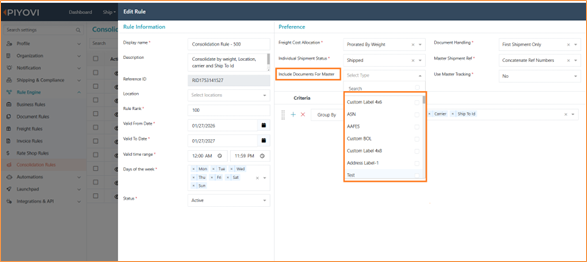
Figure 24 -Include Document Selection
6.6 Use Master Tracking
Controls whether the Master Shipment tracking number is propagated to child shipments.
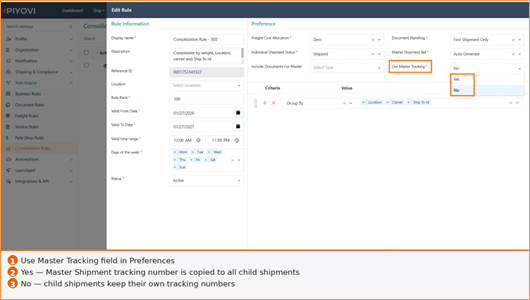
Figure 25 - Use Master Tracking: Yes or No
- Yes: Master Shipment tracking number is copied to every child shipment
- No: Child shipments retain their own individual tracking numbers
7. Applying Consolidation from the Shipments Module
In addition to the ship screen, you can apply consolidation rules directly from the Shipments list. This lets you consolidate one or more shipments on the spot, without leaving the Shipments module.
7.1 How It Works
When you select one or more shipments in the Shipments list and click the Action button, a Consolidation option appears. The system checks all active consolidation rules in rank order:
- If a matching active rule is found and all criteria are satisfied, the rule is applied and the shipment(s) are consolidated automatically.
- If no active rule matches the selected shipment(s), an error is shown: "No matching rule found."
- If all consolidation rules are inactive, the system falls back to the older (legacy) consolidation process.
Tip: Make sure at least one Consolidation Rule is Active and covers the location, carrier, and other criteria of the shipments you want to consolidate. Otherwise the system will either show an error or fall back to the legacy flow.
7.2 Step-by-Step
- Step 1 : Go to the Shipments module
Navigate to the main Shipments list from the left-hand menu.
- Step 2 : Select the shipment(s) you want to consolidate
Use the checkboxes on the left of each row to select one or more shipments that share the same Group By criteria (e.g. same Location, Carrier, and Ship-To ID)
- Step 3 : Click the Action button.
The Action menu appears at the top of the list. Click it to reveal available bulk actions.
- Step 4 : Choose Consolidation from the Action menu.
The system evaluates the selected shipments against all active consolidation rules.
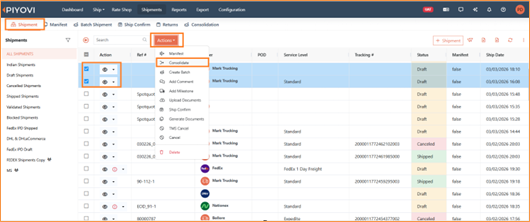
Figure 26 - Selecting shipments and clicking Action -> Consolidation in the Shipments module
- Step 5 : Review the outcome.
If consolidation succeeds, the shipments are assigned a Consolidation ID and their status updates. If no rule matches, an error message is displayed.
What if all rules are Inactive? The system falls back to the older consolidation process. In this fallback mode, shipments are grouped without rule-based criteria. It is recommended to always keep at least one rule Active to ensure consistent, rule-driven behaviour.
8. Auto-Consolidation via Carrier Account Settings
If you always want to consolidate shipments for a particular carrier and account - without having to click the Consolidation button each time - you can enable the Always Consolidate option at the carrier account level.
Once enabled, every shipment created using that carrier and account is automatically evaluated against active consolidation rules. If a matching rule is found and satisfied, the shipment is consolidated immediately. If no rule matches, the shipment is processed normally.
8.1 When to Use This Setting
- You have a dedicated carrier account that always ships consolidated loads.
- You want to remove the manual step of clicking Consolidation on every shipment.
- Your consolidation rules are stable and well-tested, so automatic application is safe.
8.2 How to Enable Always Consolidate
- Step 1: Go to Configuration > Carrier Accounts
Find the carrier account you want to configure.
- Step 2: Open the carrier account record
Click the account name or the edit icon to open the account settings.
- Step 3: Set Always Consolidate = Yes
Locate the Always Consolidate field and switch it to Yes.
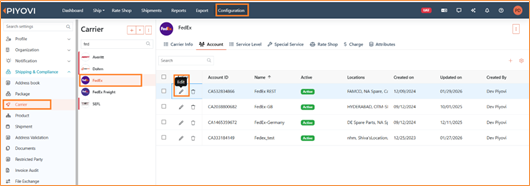
Figure 27 - Carrier Account settings: Always Consolidate = Yes
- Step 4 : Save the carrier account
All future shipments created with this carrier and account will now be automatically consolidated when a matching rule is found.
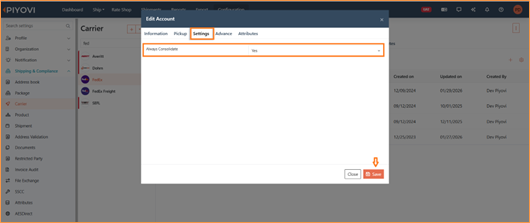
Figure 28 - Shipment automatically consolidated on ship- no manual trigger needed
8.3 Behavior Summary
| Scenario | Always Consolidate Setting | Result |
|---|---|---|
| Matching active rule exists | Yes | Shipment is automatically consolidated on |
| No matching rule found | Yes | Shipment is processed normally (not consolidated) |
| All consolidation rules inactive | Yes | Shipment is processed normally (legacy fallback does not apply here) |
9. Filtering & Column Options
9.1 Using the Consolidation Filter
The filter lets you quickly find Master and Child shipments using search criteria such as tracking number, location, or who created the consolidation.
-
Step 1 : On the Consolidation tab, click Create Filter.
-
Step 2 : Choose a Field - what you want to search by.
- Tracking # : The shipment tracking number
- Location: The shipment origin or destination location
- Consolidation Created By: The user who created the consolidation entry
-
Step 3 : Select an Operator
- Equals: Exact match
- Contains: Partial match - value appears anywhere in the field
- Does Not Equal: Exclude exact matches
- In: Match any item from a comma-separated list
-
Step 4 : Enter the Value - what you are searching for
Example filter: Field = Tracking # | Operator = Equals | Value = 2343456789674584
This returns all Master and Child shipments where the tracking number matches exactly._
-
Step 5 : Click Run to apply the filter. Results show all matching shipments.
-
Step 6 : Click Save (optional) to save the filter for reuse.
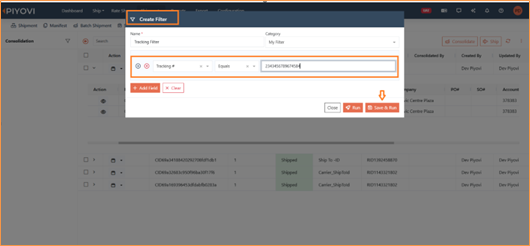
Figure 29 - Create Filter panel with field and operator options
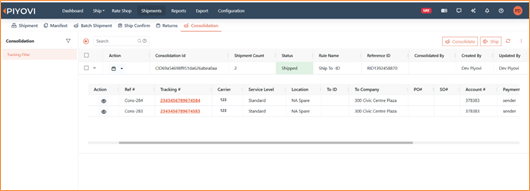
Figure 30 - Filter results showing matching Master and Child shipments
9.2 Customising Columns
You can choose which columns appear on the Consolidation screen. There are separate column pickers for Master Shipments and Child Shipments.
- Click Column Options under Master to add or remove Master Shipment columns
- Click Column Options under Child to add or remove Child Shipment columns
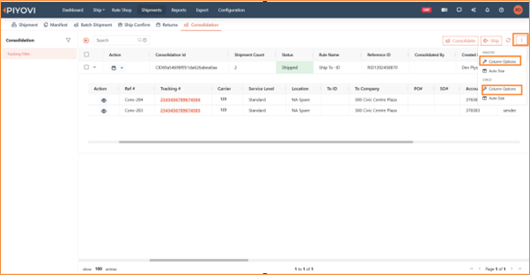
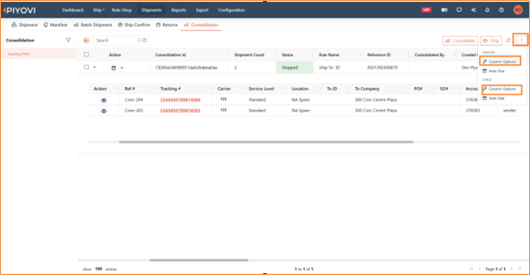
Figure 31& 32 - Column Options picker for Master and Child shipments