Kitting
What kitting is
Kitting is the process of grouping individual components or parts together into a single package, or "kit", that is handled, stored, and shipped as one unit — so that a customer ordering one kit receives every part of it in the same shipment.
Example : An order for 1 Cricket Kit - Medium is really an order for 3 bats, 6 balls, 2 pairs of gloves and 1 bag. The picker brings those four components to your station. You pack the components.
Three kinds of line appear on a kit order:
- Kit line (parent) : The sellable kit — “Cricket Kit - Medium”. This is a heading, not something you physically pack.
- Component line (child): The real items — bats, balls, gloves, bag. These are what you pack.
- Ordinary line (standalone) : Anything on the order that is not part of a kit.
Note:
Kits cannot be created or packed manually in Ship. Kit structures come from your ERP or order system, and Piyovi packs them from the components on the order.
Recognizing a kit order
You do not have to turn anything on. As soon as a shipment contains at least one kit line or one component line, the item grid on the Packing screen switches to a grouped layout.
What changes on screen
| What you see | What it means |
|---|---|
| An expand arrow at the far left of a row | That row is a kit line. Click the arrow to show or hide its components. |
| Kit lines start collapsed | Components are hidden until you expand the kit. This keeps a long order readable. |
| A bold row with a stronger blue background | This is the kit line (parent). |
| An indented row with a lighter blue background | This is a component of the kit above it. |
| Rows with no color | Ordinary standalone items. |
| Order of rows | Each kit line first, followed by its own components, then the next kit, and finally all standalone items. |
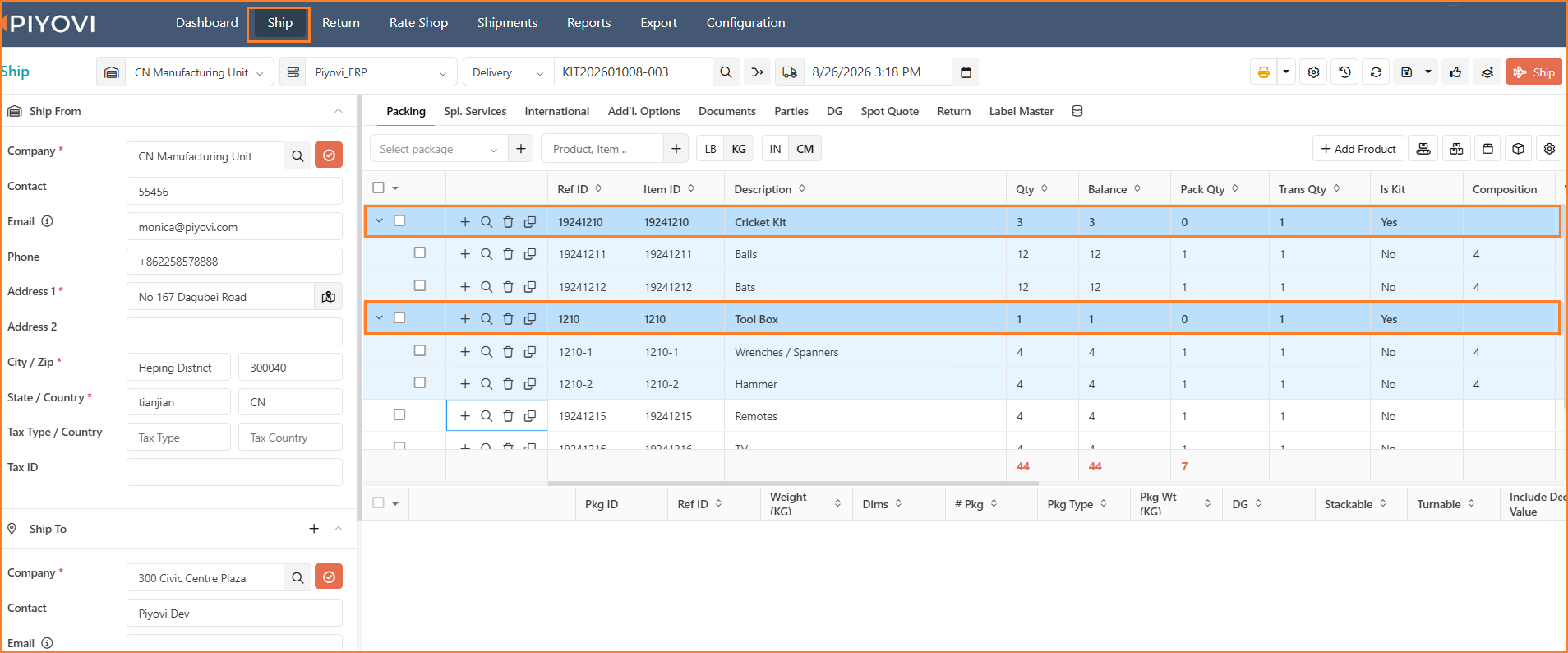 Kit lines (bold, darker blue) with their components (indented, lighter blue) expanded, followed by uncolored standalone items on the Packing screen.
Quantities on a kit line
Read the kit line as a progress indicator, not as something to fill in.
| Column | On a kit line |
|---|---|
| Qty | The number of kits ordered. If the order does not state one, it shows 1. |
| Balance Qty | How many complete kits are still outstanding. It only drops when a whole kit's worth of every component has been packed. |
| Pack Qty | Starts at 0. You may type a number here to pack whole kits in one go (Pack components one at a time) |
Note:
Balance moves in whole kits only - If a kit needs 3 bats and 6 balls and you have packed 3 bats but only 4 balls, no complete kit exists yet, so the kit line's Balance Qty does not change. Pack the remaining 2 balls and the balance drops by 1 immediately.
The totals row
The totals row at the bottom of the item grid counts components and standalone items only. Kit lines are deliberately left out, because counting both the kit and its components would double the order.
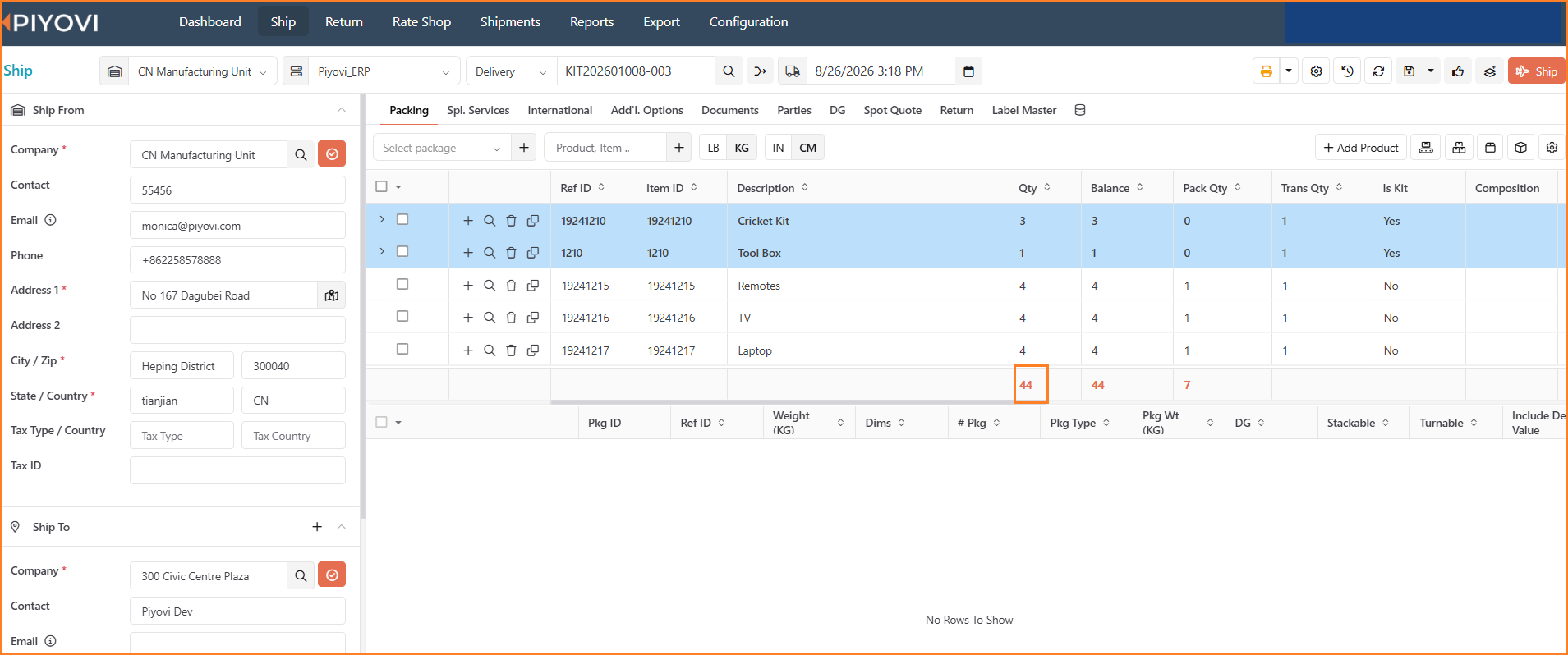 The totals row counts only components and standalone items — the collapsed kit lines above it are not included in the totals.
Selecting kit rows
On a kit order the tick box moves into the same column as the expand arrow.
- Ticking a kit line automatically ticks every one of its components. This is the quickest way to select a whole kit.
- Ticking components individually leaves the kit line unticked, which is fine — you can still pack them.
Packing a kit
There are three ways to pack, and they all work with kits. Whichever you use, the rule is the same: It packs components, never the kit line itself.
Pack whole kits from the kit line
This is the fastest route when you are packing a complete kit
- Select or create the package.
- Type the number of kits into Pack Qty on the kit line — not on the components.
- Click Pack.
Pack components one at a time
- Select or create the package you want to pack into.
- Expand the kit.
- Type a quantity into Pack Qty on the component rows you are packing.
- Click Pack.
The components move into the package. The kit line's Balance Qty updates itself as soon as a full kit's worth of every component is in.
Pack All
Pack All packs every row where you have a quantity. If a row is a kit line, Pack All packs the kit's components instead of the kit line, so a kit line never ends up inside a package.
Scanning kits
Scanning works as it always has. The differences below only apply when the shipment contains kits.
Scanning a component
Scan the component barcode and it packs into the selected package. Nothing special to do.
- Scan a component barcode, with or without a quantity entered in Pack Qty, and the component is added to the selected package.
Scanning the kit barcode
Scanning the kit's own barcode packs its components in one action, provided a package is selected.
- With a package selected, scan the kit's own barcode. It automatically adds that kit's components to the selected package, in the quantities defined by the kit composition.
- If the kit cannot be completed — a component is short, or a per-kit quantity is missing —a warning appears, nothing is packed, and the cursor returns to the scan box.
- If no package is selected, the kit barcode is treated like any ordinary scan and no components are expanded.
Packing an ordinary item into a kit box
You are asked to confirm before an ordinary item goes into a package when either of the following is true:
- the same barcode also exists as a kit component on this order and that component has nothing left to pack, or
- the barcode is not a kit component at all, and the order does contain kits.
Choose Ok to pack it or cancel to avoid packing. Cancelling packs nothing and puts the cursor back in the scan box.
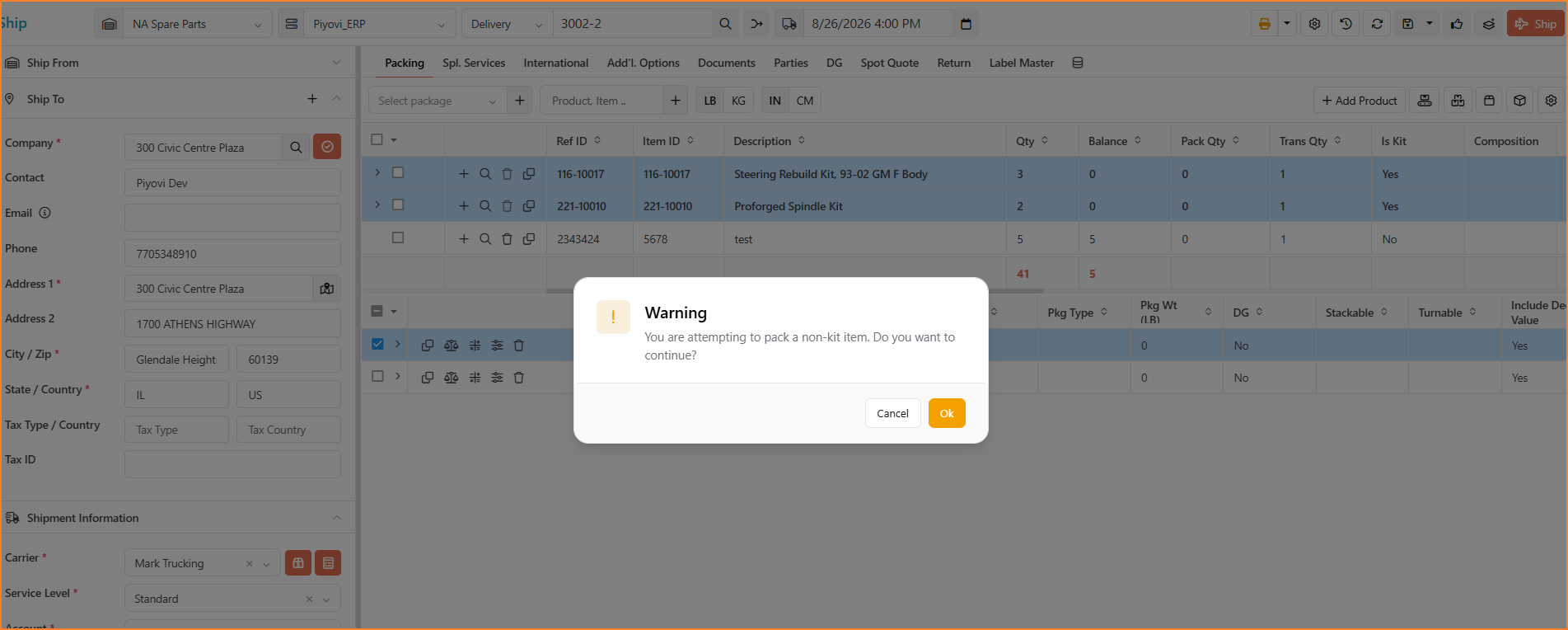
Confirmation prompt shown when scanning or packing an ordinary item into a box that contains kit components.
Packing one kit across several boxes
A kit does not have to fit in one box. Bats in box 1, balls and gloves in box 2 is perfectly valid.
- Select box 1 and pack the components that go in it.
- Add or select box 2 and pack the remaining components.
The kit line's Balance Qty only drops once every component of that kit has been packed, no matter how many boxes they ended up in. There is no requirement to keep a kit together and no warning for splitting one.
The Kit Packing Slip
Kit shipments have own packing slip, separate from the standard one.
It prints the kit structure the way it appears on screen: each kit followed by its components, and then the standalone items.
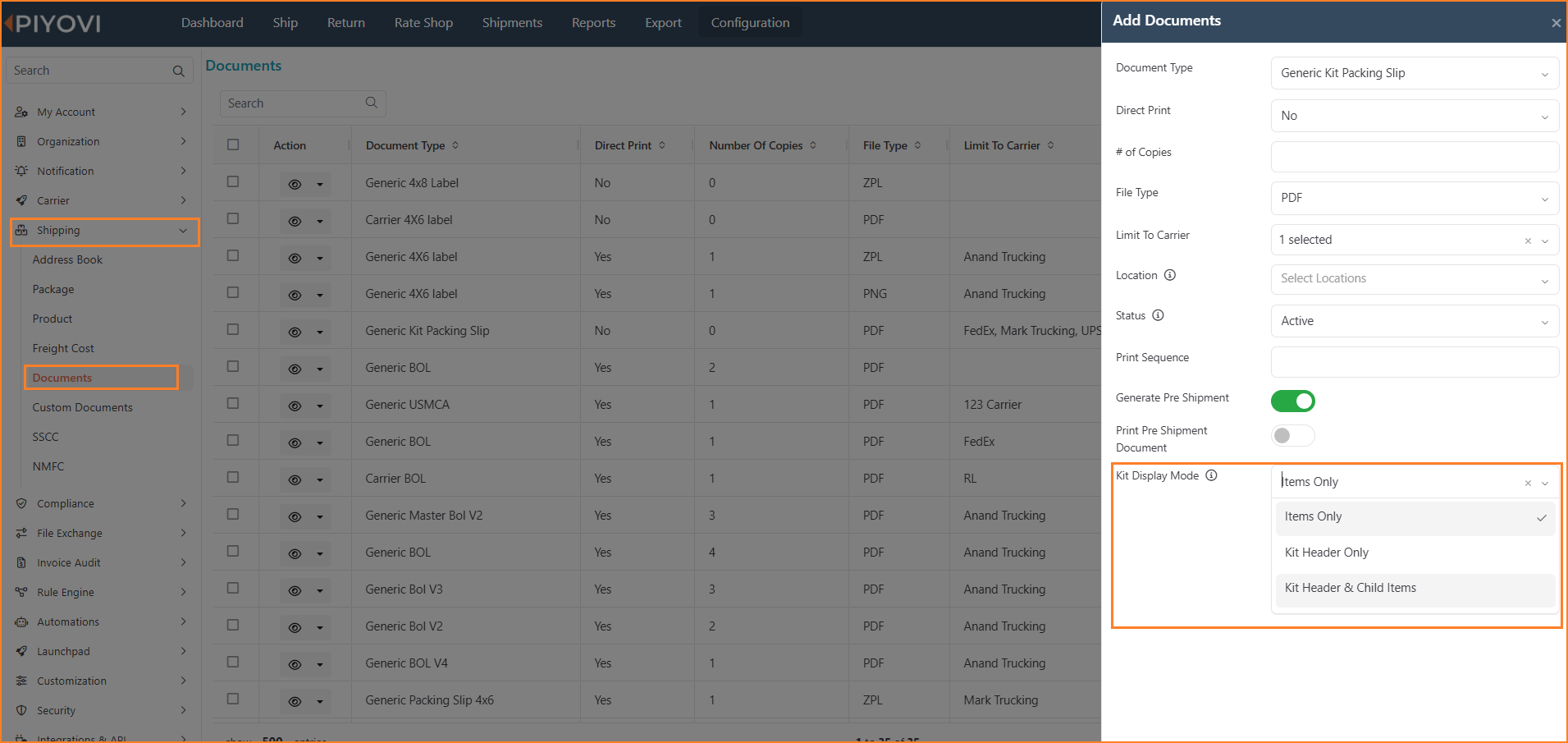 Setting the Kit Display Mode for the Generic Kit Packing Slip document on the Documents configuration screen.
| Layout | What prints |
|---|---|
| Kit Headers & Child Items | Each kit line followed by its components, then standalone items. This is the default. |
| Kit Headers Only | Kit lines and standalone items. |
| Items Only | Components and standalone items. |
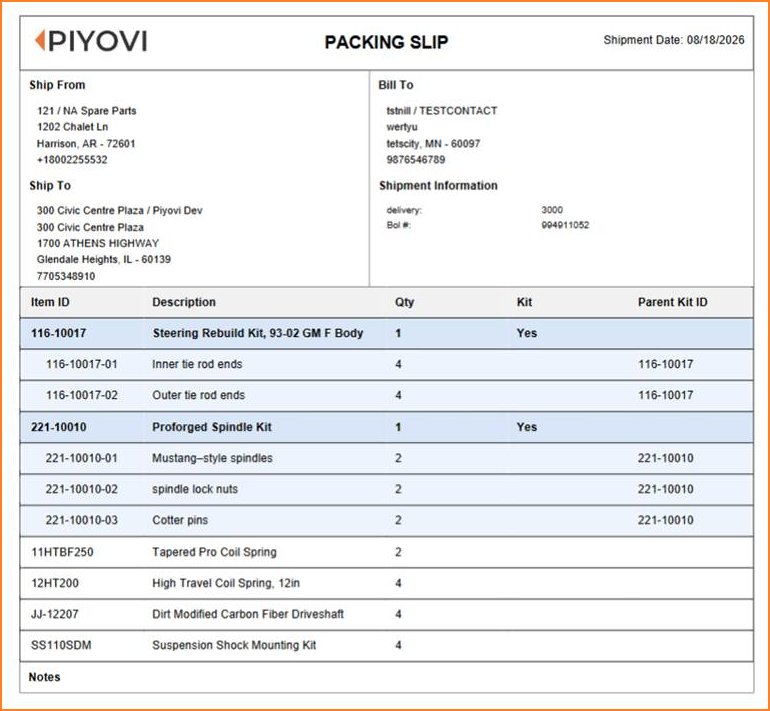
Kit Headers & Child Items layout: prints each kit line followed by its components, then standalone items. This is the default.
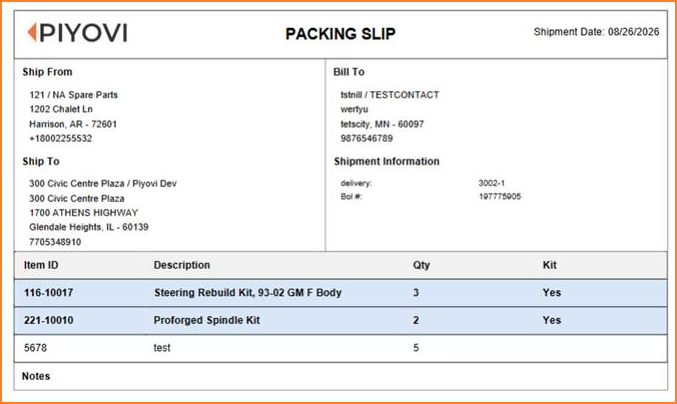
Kit Headers Only layout: prints kit lines and standalone items only; their components are omitted.
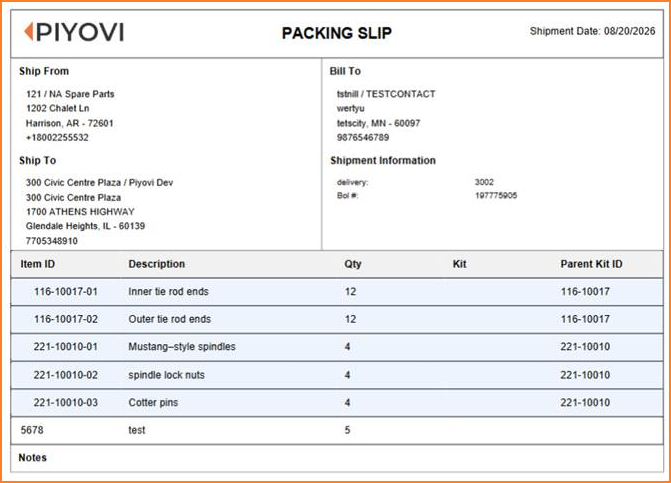
Items Only layout: prints component and standalone item lines only; kit header lines are omitted.
Notes:
- You never pack a kit line. application decides the kit is complete from its components.
- Kit composition comes from your order system. You cannot add, remove or re-quantity components at the packing station.
- Partial kits are allowed. It will not stop you shipping a box with only some of a kit's components in it, but the kit will not count as complete until the rest are packed.
- Mixing ordinary items into a box with kit components is allowed. You are asked to confirm so that it is never accidental.
- A pre-assembled kit that arrives as one unit is an ordinary item. Nothing in this guide applies to it.
- Kit lines never appear inside a package, on a package label, or as a packed line anywhere.