Paccurate
Paccurate is a cartonization engine that automatically selects the best packaging for shipments based on item dimensions and weight. It helps reduce shipping costs and provides a 3D view of how items are packed inside a carton.
For more information about Paccurate and its features, please visit:
Setup
Before using Paccurate, it must be connected and configured.
Navigation Path Configuration → Connectors → Connector Library
Steps
- Locate Paccurate and click Connect
- Open it from the connectors list
- Enter the API Key
- Enable the connector
- Click Save Once configured, Paccurate is ready to use in shipment workflows.
Navigation path: Configuration → Connectors → Connector Library
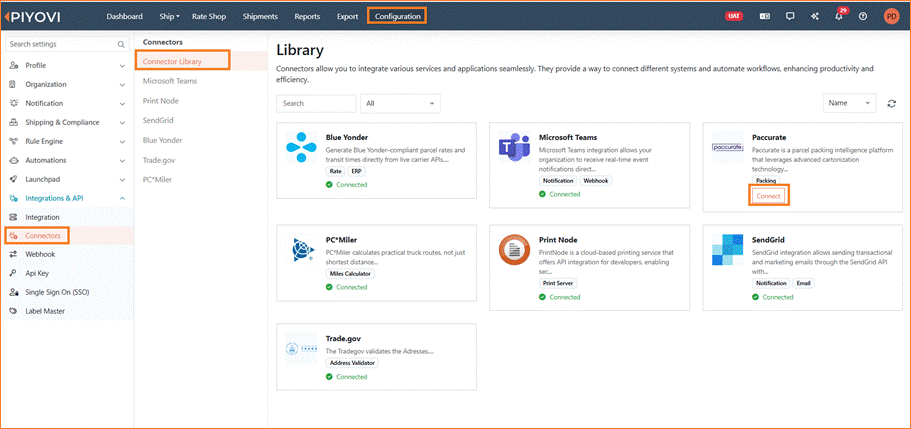
| ① Navigate to Configuration → Connectors → Connector Library ② Locate Paccurate in the available connectors list and click on connect |
|---|
| Figure 1 - Connector Library showing available integrations. |
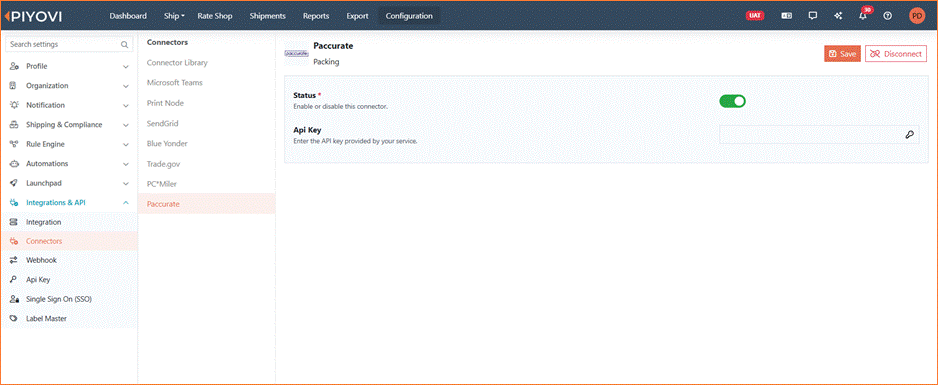
Figure 2 –Enter the Api-key and save the configuration.
Once configured, Paccurate becomes available across all shipment workflows in Piyovi.
How to use
Paccurate must be set as the cartonization provider at both company and user levels. The sections below walk through preferences, running a pack, reviewing results, package rules, and prerequisites.
Company preferences
Navigation Path:
Company Preferences → Shipment → Third Party Cartonization Provider
- Select Paccurate
- Click Save This applies Paccurate as the default for all users.
Navigation path: ompany Preferences → Shipment → Third Party Cartonization Provider
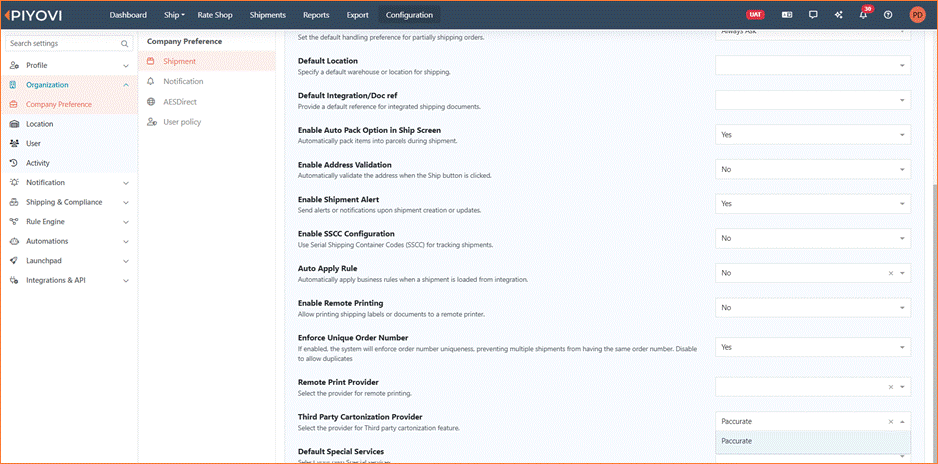
Figure 3 -Company Preferences: selecting Paccurate as the active cartonization provider
User preferences
Navigation Path:
User Preferences → Shipment → Third Party Cartonization Provider
- Select Paccurate
- Click Save This ensures Paccurate is active at the user level.
Navigation path: User Preferences → Shipment → Third Party Cartonization Provider
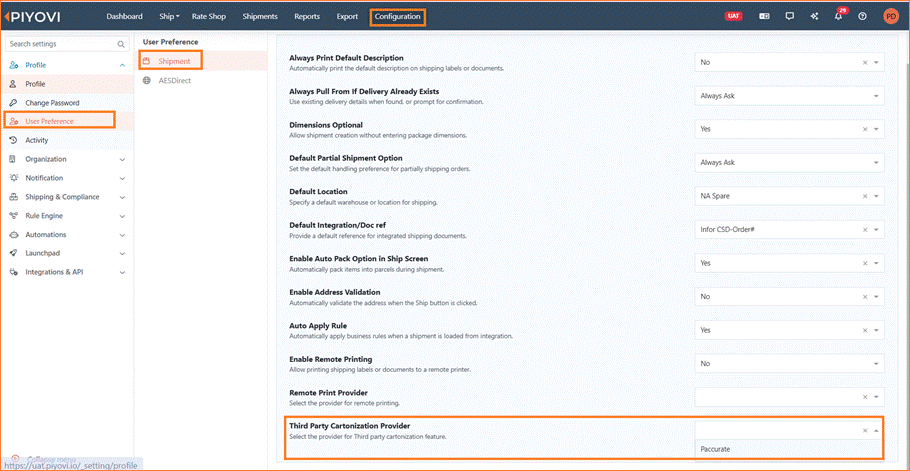
| ① Go to User Preferences → Shipment ② Select Paccurate under Third Party Cartonization Provider ③ Save your preferences to activate Paccurate |
|---|
| Figure 4 - User Preferences: selecting Paccurate as the active cartonization provider |
Initiating packing
- Open or create a shipment
- Add items
- Enter:
- Length (L)
- Width (W)
- Height (H)
- Weight
- Click Paccurate Pack
Note: Dimensions and weight are required.
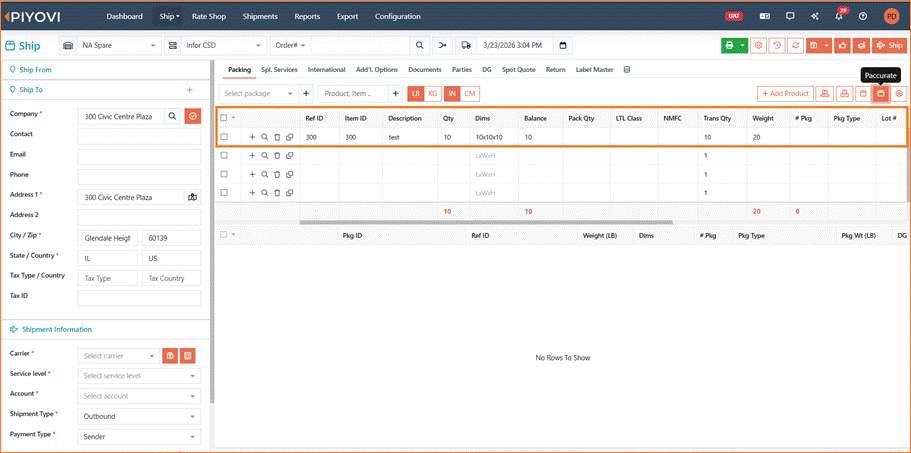
| ① Enter item details including quantity and description② Ensure each item has L × W × H dimensions — this is mandatory for cartonization③ Weight values are also required for accurate package selection |
|---|
Figure 5 - Item entry with dimensions (L × W × H) filled in for each item
Packing results
After packing:
- The system evaluates available packages
- Selects the best option
- Displays package details and item summary
A 3D visualization shows how items are arranged inside the carton.
Click Confirm to apply the packing.
Package evaluation
Paccurate evaluates all configured packages in the system and determines the optimal packaging combination based on item dimensions and weight.
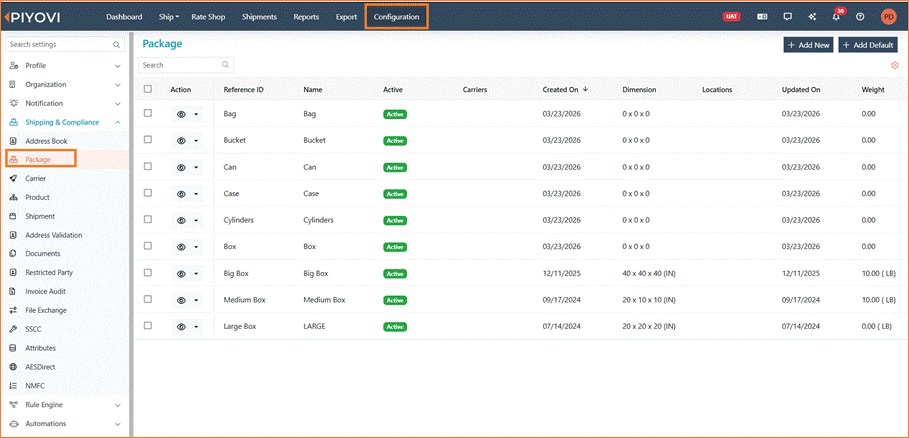
| ① Paccurate evaluates all available packages with Max Weight configured② The engine calculates the best-fit combination for the given items |
|---|
Figure 6 - Paccurate evaluating configured packages in the system
Optimal packaging result
After evaluation, Paccurate returns the optimal packaging combination. The package details, item list, dimensions, and quantities are shown in a summary table.
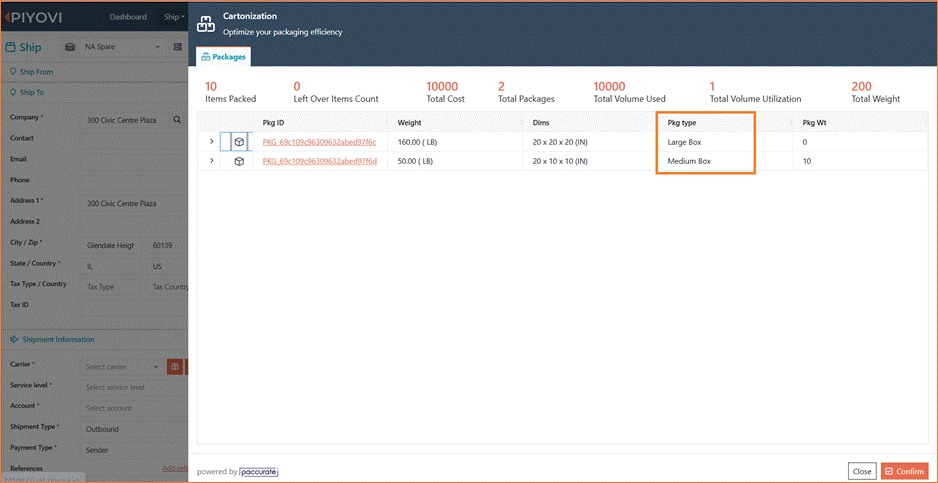
| ① Optimal package combination is displayed② Item list, dimensions, and quantities are shown in the summary③ Review the suggested packaging before confirming |
|---|
Figure 7 - Paccurate result showing optimal package selection and item summary
3D visualization of packed carton
A 3D visualization of the packed carton is displayed, showing exactly how items are arranged inside the selected package. This gives you a clear preview before confirming the packing plan.
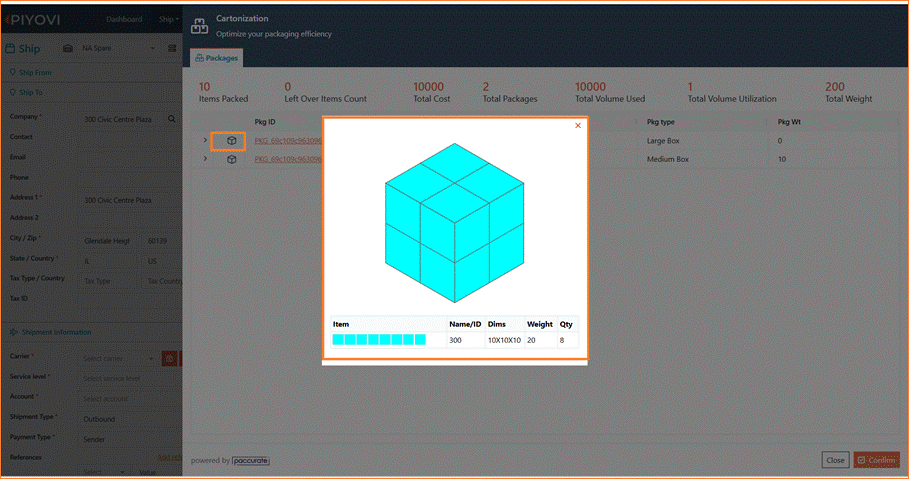
| ① 3D visualization shows how items are arranged in the selected carton②Visual confirmation ensures optimal space utilization③Click Confirm to apply the Paccurate packing plan to the shipment |
|---|
Figure 8 - 3D visualization of items packed inside the selected carton
Confirm and view package-level visualization
Once you click Confirm, the packing plan is applied to the shipment. The 3D visualization is also available at the package level, showing the finalized packing layout for each carton.
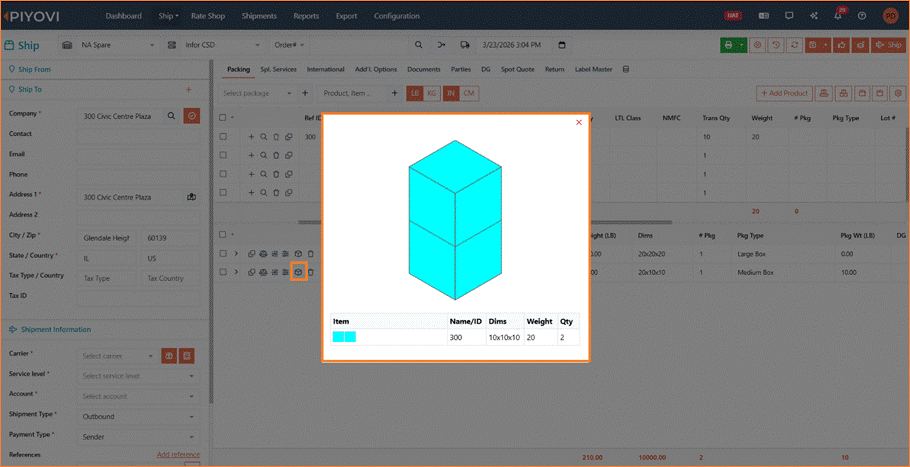
| ①Package-level visualization shows the finalized carton arrangement |
|---|
Figure 9 - Package-level view after confirming the Paccurate packing result
Package selection rules
- Packages without Max Weight are ignored
Navigation Path
Configuration → Package
Ensure all required packages are properly configured.
Navigation path: Configuration Package Section
Note: Ensure all intended packages have Max Weight configured. Missing this value will cause those packages to be skipped during cartonization, potentially resulting in suboptimal or failed packing.
Important notes & prerequisites
Before using Paccurate, ensure the following requirements are in place. Missing any of these will prevent cartonization from working correctly.
Required Configuration Checklist
- Item dimensions (L × W × H) are mandatory for cartonization to function
- All usable packages must have Max Weight configured in the system
- Incorrect or missing package configuration may result in suboptimal or skipped packing
- A valid Paccurate API Key must be configured in the connector settings
- Paccurate must be selected under User Preferences for it to be used as the active engine
End of Paccurate Integration User Guide