Launchpad
Overview
Launchpad is a self-service module within Piyovi that lets you build your own branded shipment-tracking experience for your customers. Instead of sending customers to different carrier websites, you provide one customized page on your own domain where customers search and track shipments using their shipment details, regardless of which carrier shipped the order.
Organizations typically ship using multiple carriers. Launchpad gives them a single branded tracking page where a customer enters shipment information and sees tracking updates, without ever navigating to a carrier's portal.
Key Capabilities
- Create branded tracking pages.
- Configure logo, header, footer, layout, and which shipment information is displayed.
- Design pages with a drag-and-drop Page Builder built from predefined components where no development work required.
- Support multiple carriers from a single tracking page.
- Register and use a custom domain (e.g.,
tracking.companyname.com) for a seamless, branded experience. - Control access to domains and pages through role-based permissions.
This guide walks through Launchpad in the order you'll actually set it up: how to access it, how to register a Domain, how to build a Page, how to configure global Settings, and finally what your customers see once it's all published.
Accessing Launchpad
Launchpad is found under Configuration → Launchpad. It opens into three tabs:
- Domain – Register and manage the domain(s) your pages live on.
- Page – Create and design the tracking / order-lookup pages themselves.
- Setting – Configure Launchpad-wide defaults such as default domain and language.
Roles and Permissions
Access to each part of Launchpad is controlled through Roles. When adding or editing a role, open the Permission tab and search (e.g., "laun") to find the Launchpad-related permissions:
- Manage Launchpad – Full access to the Launchpad module.
- Manage Launchpad - Readonly – View-only access to the Launchpad module.
- Manage Domain – Full access to create, edit, and configure domains.
- Manage Domain - Readonly – View-only access to domains.
- Manage Page – Full access to create, edit, publish, and delete pages.
- Manage Page - Readonly – View-only access to pages.
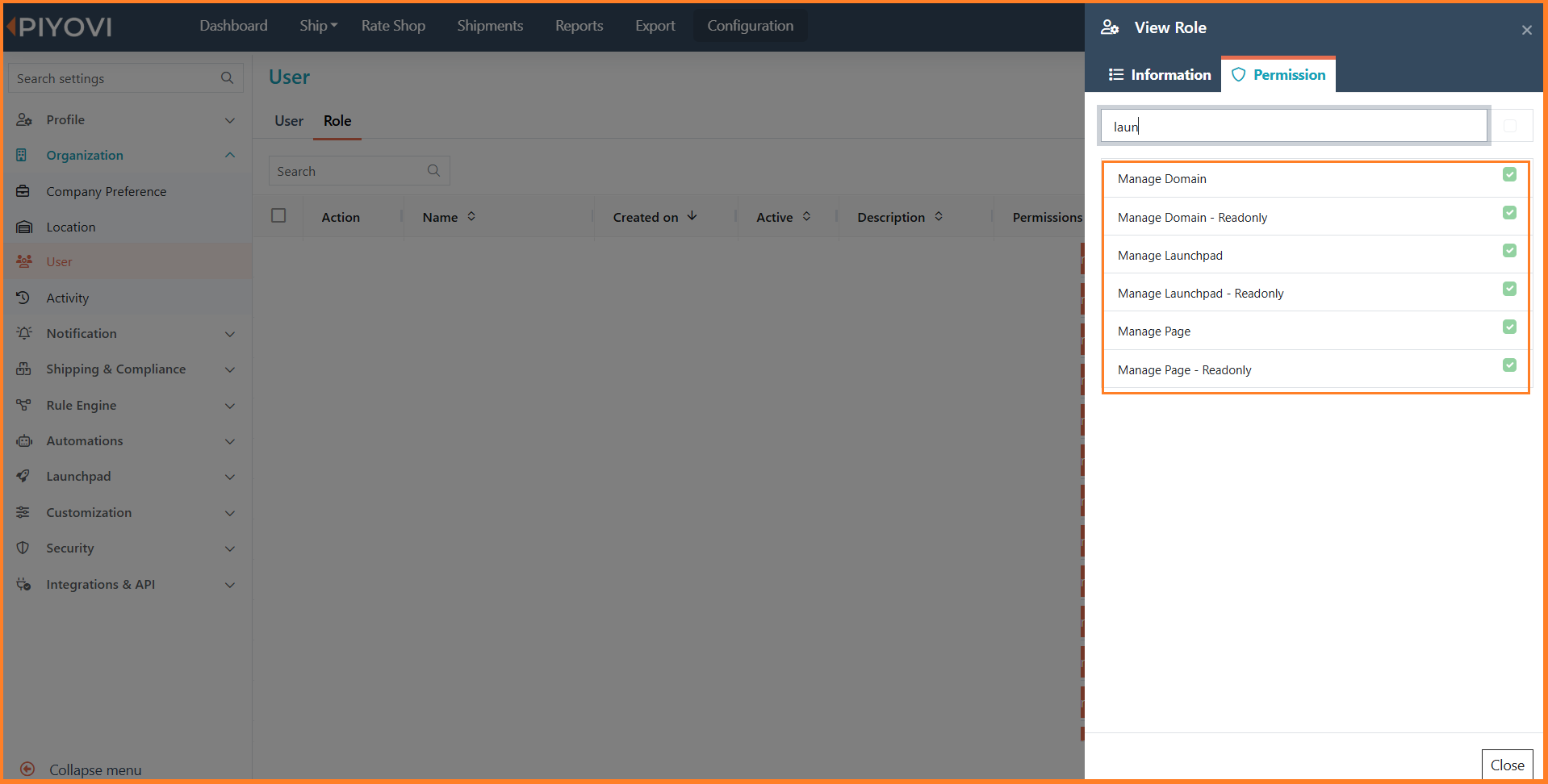
Assign the appropriate combination of these permissions to a role depending on whether a user should be able to manage or only view Launchpad domains and pages. Confirm your role has the permissions above before continuing without them, the Domain, Page, and Setting tabs will not be editable.
Domain
Start by registering the domain your branded pages will live on. The Domain tab lists every domain registered for Launchpad, along with its verification status, enabled features, and active state.
| Column | Description |
|---|---|
| Action | View, edit, or configure the domain. |
| Domain | The registered domain or subdomain (e.g., piyovi.piyovi.com). Click the external-link icon next to it to open the live domain in a new tab. |
| Status | Verification status of the domain (e.g., Verified). |
| Features | Page types enabled on the domain (e.g., tracking, find-order). |
| Active | Whether the domain is currently active and accessible to users. |
| Created By | User who created the domain record. |
| Updated By | User who last updated the domain record. |
| Tags | Tags assigned to the domain for organization. |
| Default | true if this is the default domain used when no specific domain is configured. |
| System | true if this is a system-managed domain rather than one you created manually — system domains typically cannot be deleted. |
| Verified By | User who verified the domain's CNAME/ownership. |
| Created On | Date and time the domain record was created. |
| Updated On | Date and time the domain record was last updated. |
| Verified On | Date and time the domain was verified. |
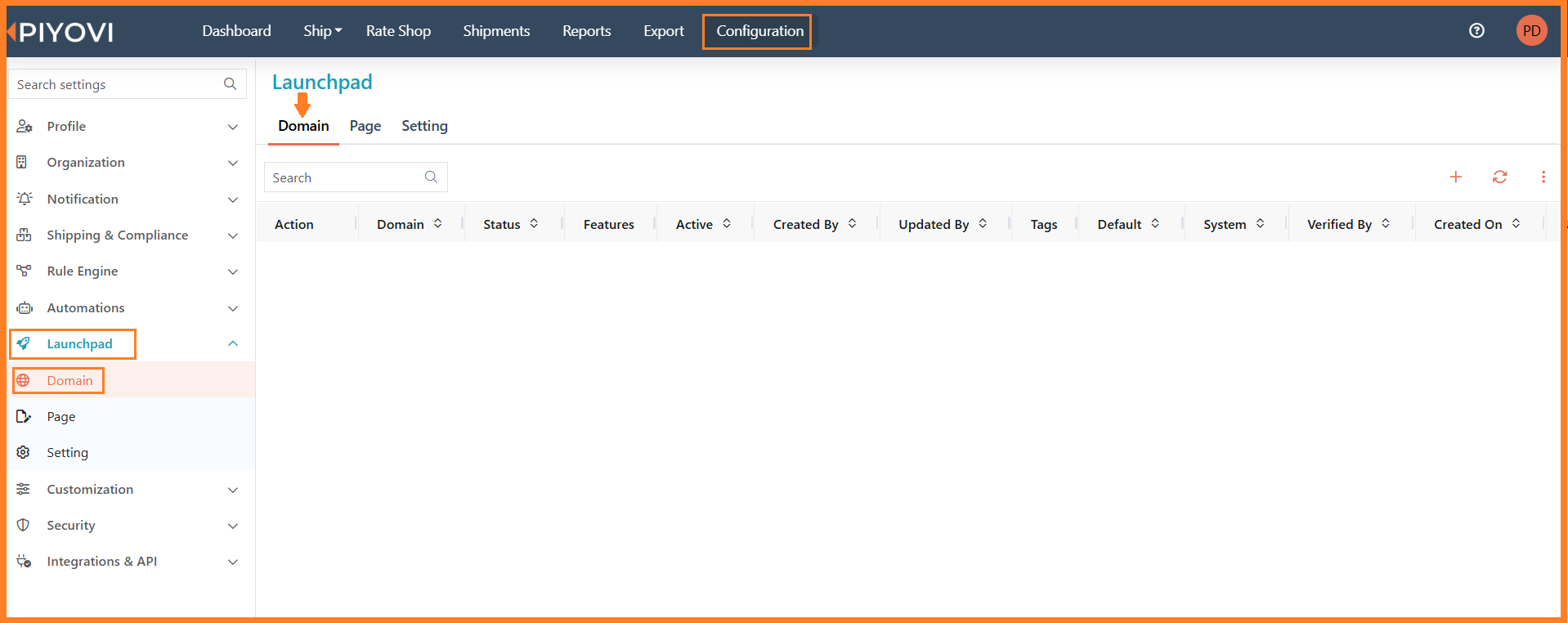
Add a Domain
-
From Configuration → Launchpad → Domain, click the + icon.
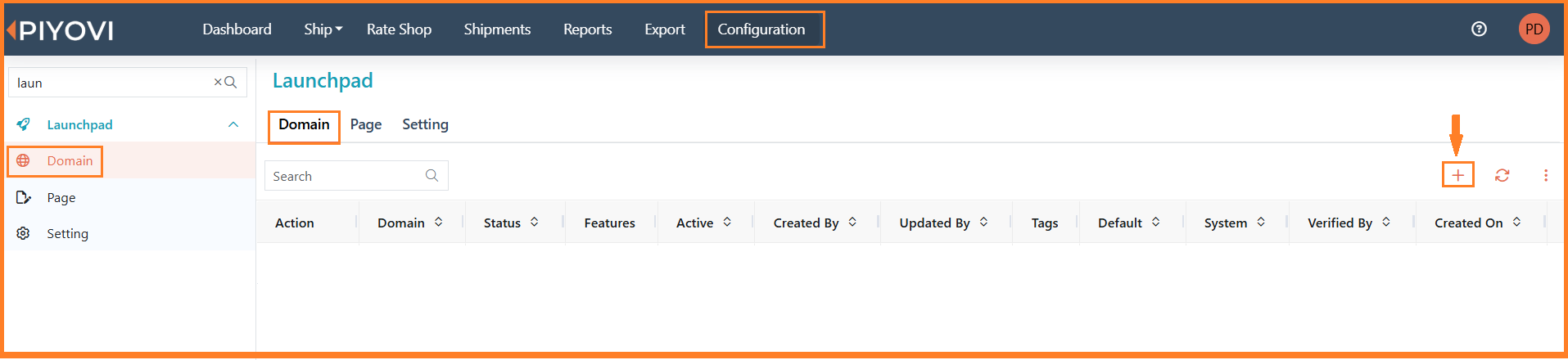
-
Enter the Domain (e.g.,
Piyovi.piyovi) you want to use for your customer facing pages. -
Note the CNAME Configuration guidance: to use a custom domain, create a CNAME record with your DNS provider pointing your subdomain to Piyovi's service endpoint (e.g.,
subdomain.yourdomain.com→launchpad.piyovi.com). -
Select the Types (features) this domain will support — choose one or more of:
- Tracking
- Find Order
-
Toggle Active Status on or off. Inactive domains are not accessible to users.
-
Optionally, assign Tags to the domain for organization.
-
Click Save to register the domain, or Close to discard.
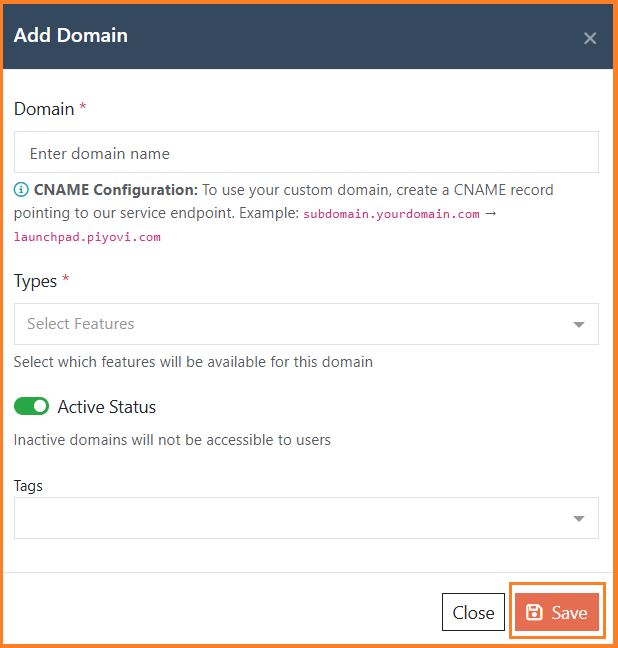
Domain Actions
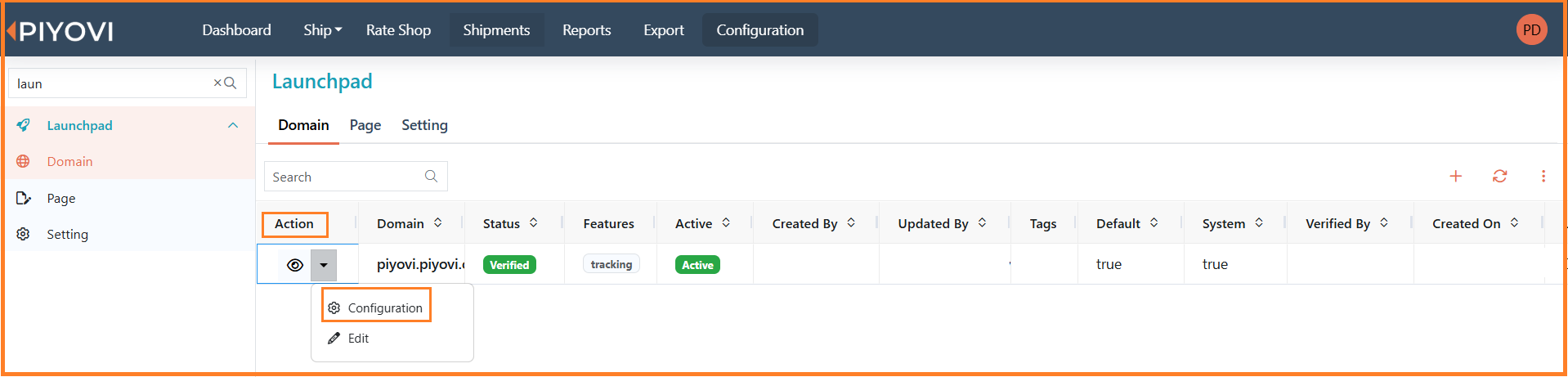
From the Domain list, use the Action column to manage an existing domain:
- View (eye icon) – View the domain's details.
- The dropdown arrow next to View provides:
- Configuration – Opens Domain Configuration, where you set domain-wide defaults and branding.
- Edit – Edit the domain's name, types, active status, and tags.
Domain Configuration
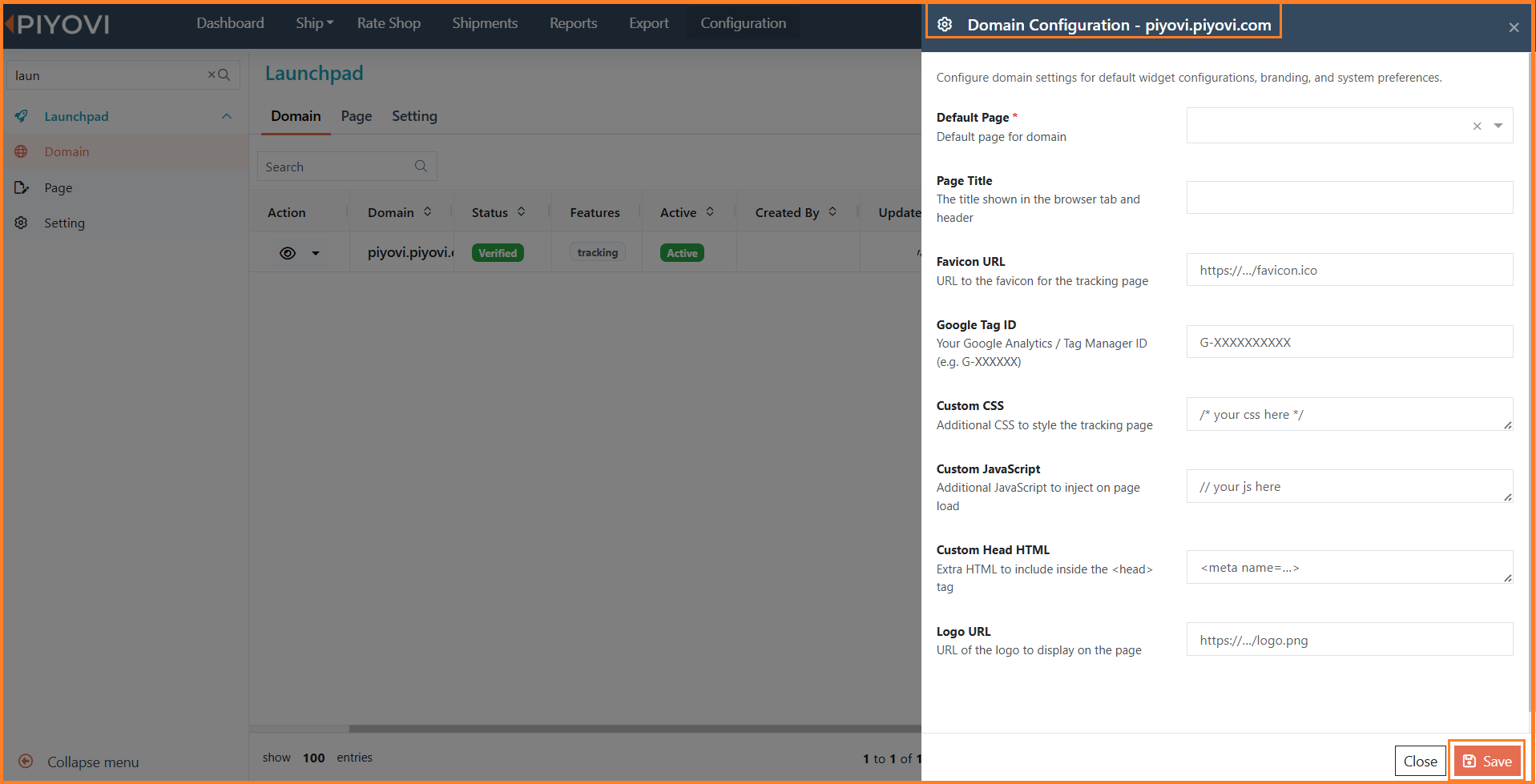
Domain Configuration controls the default widget behavior, branding, and system preferences applied across all pages on that domain. It is reached via Domain → Action → Configuration.
| Field | Description |
|---|---|
| Default Page | The page served by default for this domain. Required. |
| Page Title | The title shown in the browser tab and header. |
| Favicon URL | URL to the favicon for the tracking page. |
| Google Tag ID | Your Google Analytics / Tag Manager ID (e.g., G-XXXXXXXXXX). |
| Custom CSS | Additional CSS to style the tracking page. |
| Custom JavaScript | Additional JavaScript to inject on page load. |
| Custom Head HTML | Extra HTML to include inside the <head> tag. |
| Logo URL | URL of the logo to display on the page. |
Click Save to apply the configuration, or Close to discard.
Page
With a domain in place, create the page(s) that will live on it. The Page tab lists every page created under your domains, with its type, publishing status, and metadata.

| Column | Description |
|---|---|
| Action | Preview, edit in Page Builder, duplicate, or delete the page. |
| Name | The internal name of the page. |
| Slug | The URL-friendly identifier for the page. |
| Page Type | tracking or find-order. |
| Status | Draft (not yet live) or published (live on the domain). |
| Page Title | The browser-tab title configured for the page. |
| Language | Locale of the page content (e.g., en-US). |
| Version | The current version number of the page. |
| Created / Updated | Users who created and last updated the page. |
| Updated On | Date and time the domain record was last updated. |
| Tags | Tags assigned to the domain for organization. |
Add a Page
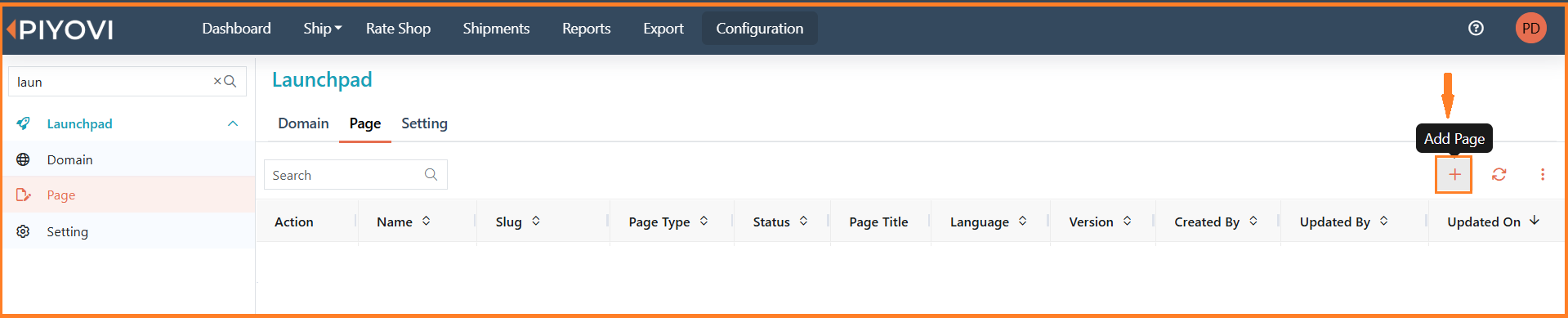
- From Configuration → Launchpad → Page, click the + icon.
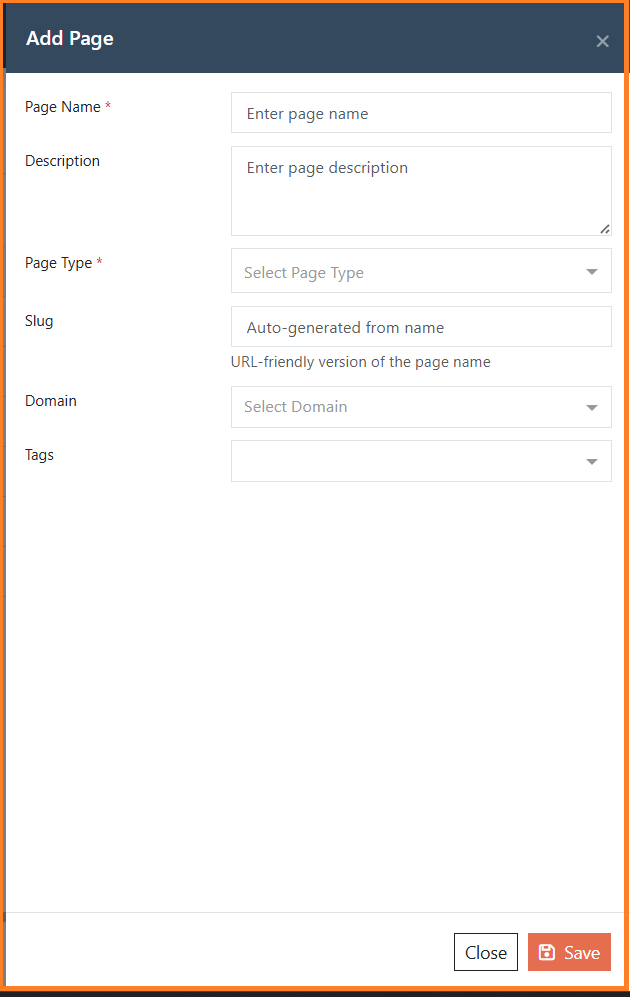
- Enter the Page Name. Required.
- Optionally enter a Description.
- Select the Page Type. Required. Choose one of:
- Tracking – A branded shipment-tracking page.
- Find Order – An order-lookup page.
- The Slug is auto-generated from the page name, or can be entered manually.
- Select the Domain the page belongs to (e.g.,
piyovi.piyovi.com). - Optionally assign Tags.
- Click Save to create the page (it is created in Draft status), or Close to discard.
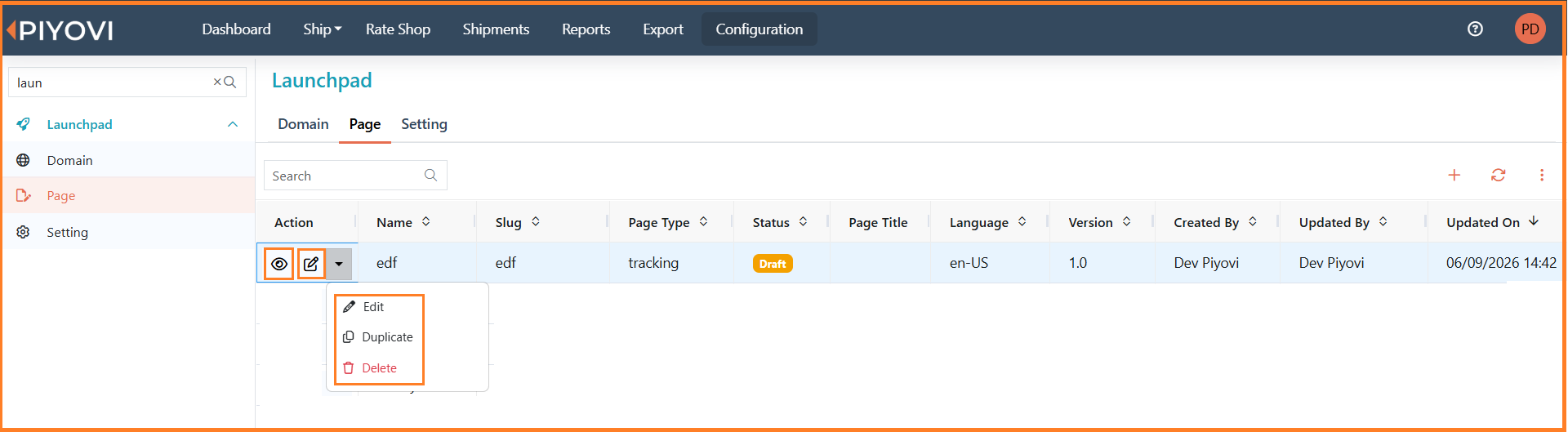
Page Actions
From the Page list, use the Action column icons to manage an existing page:
- Preview (eye icon) – Opens a live preview of the page exactly as it will appear to a customer, so you can check content and layout before publishing.
- Edit in Page Builder (pencil icon) – Opens the page in the drag-and-drop Page Builder for design changes.
- Dropdown arrow – Provides:
- Edit – Edit the page's name, description, type, slug, domain, or tags.
- Duplicate – Create a copy of the page.
- Delete – Permanently remove the page.
Page Builder
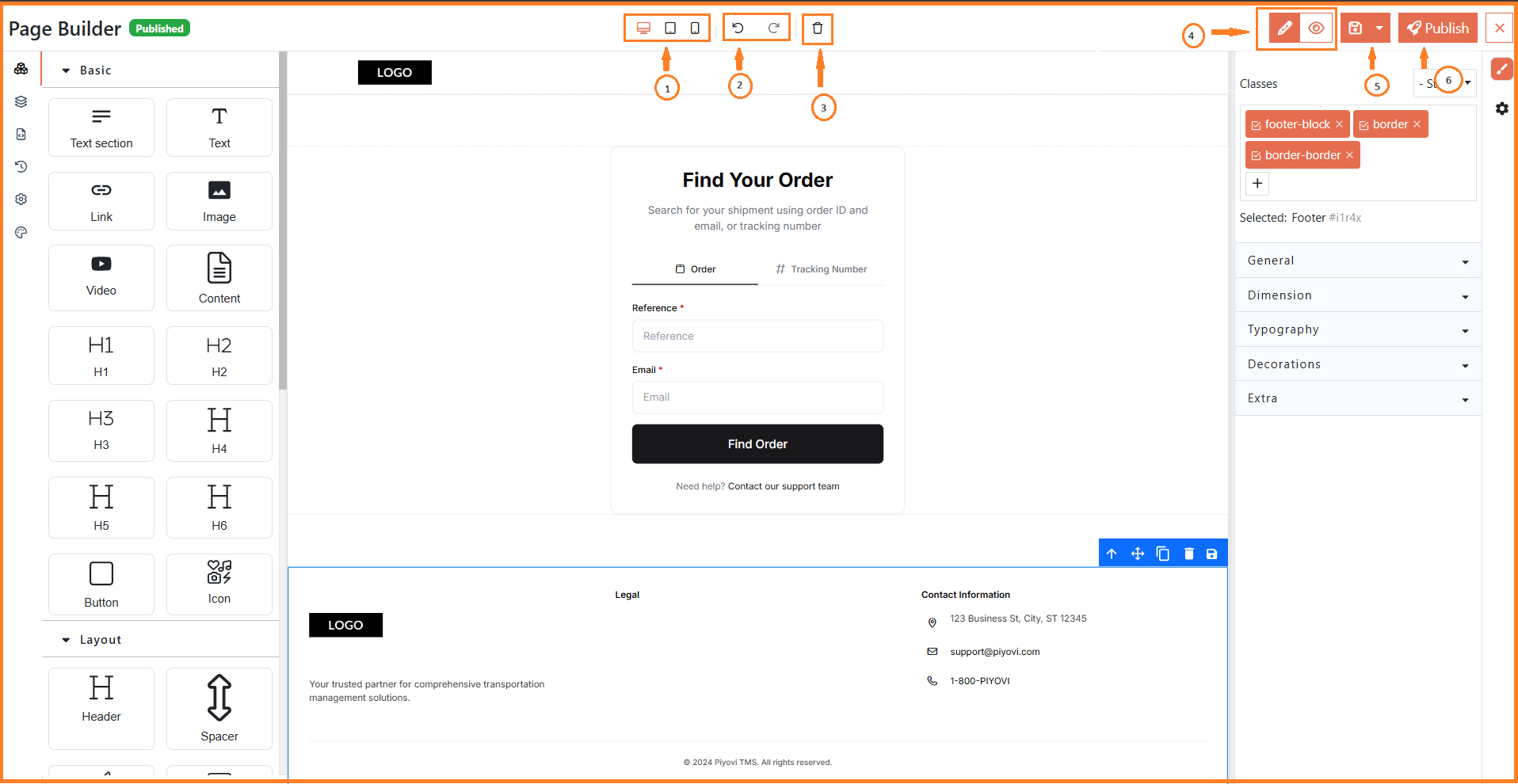
Page Builder is the drag-and-drop design surface for a page, opened via Page → Edit in Page Builder. A status badge next to the "Page Builder" title shows the page's current state — Draft (orange) while you're still working on it, or Published (green) once it has been made live.
Toolbar
- Device preview toggles – Switch the canvas between desktop, tablet, and mobile widths to check responsive layout.
- Undo / Redo – Step backward or forward through recent edits.
- Delete – Remove the currently selected element.
- Edit / Preview toggle (pencil / eye icons, top right) – Switch between editing the page and previewing it as a visitor would see it.
- Save (with dropdown) – Save your changes as a draft. The dropdown next to Save offers additional save options.
- Publish – Make the current version of the page live on its domain.
- Close (X) – Exit Page Builder and return to the Page list.
Left-Hand Panels
The left rail switches between six panels: Blocks, Layers, Templates, History, Page Settings, and Theme.
Blocks
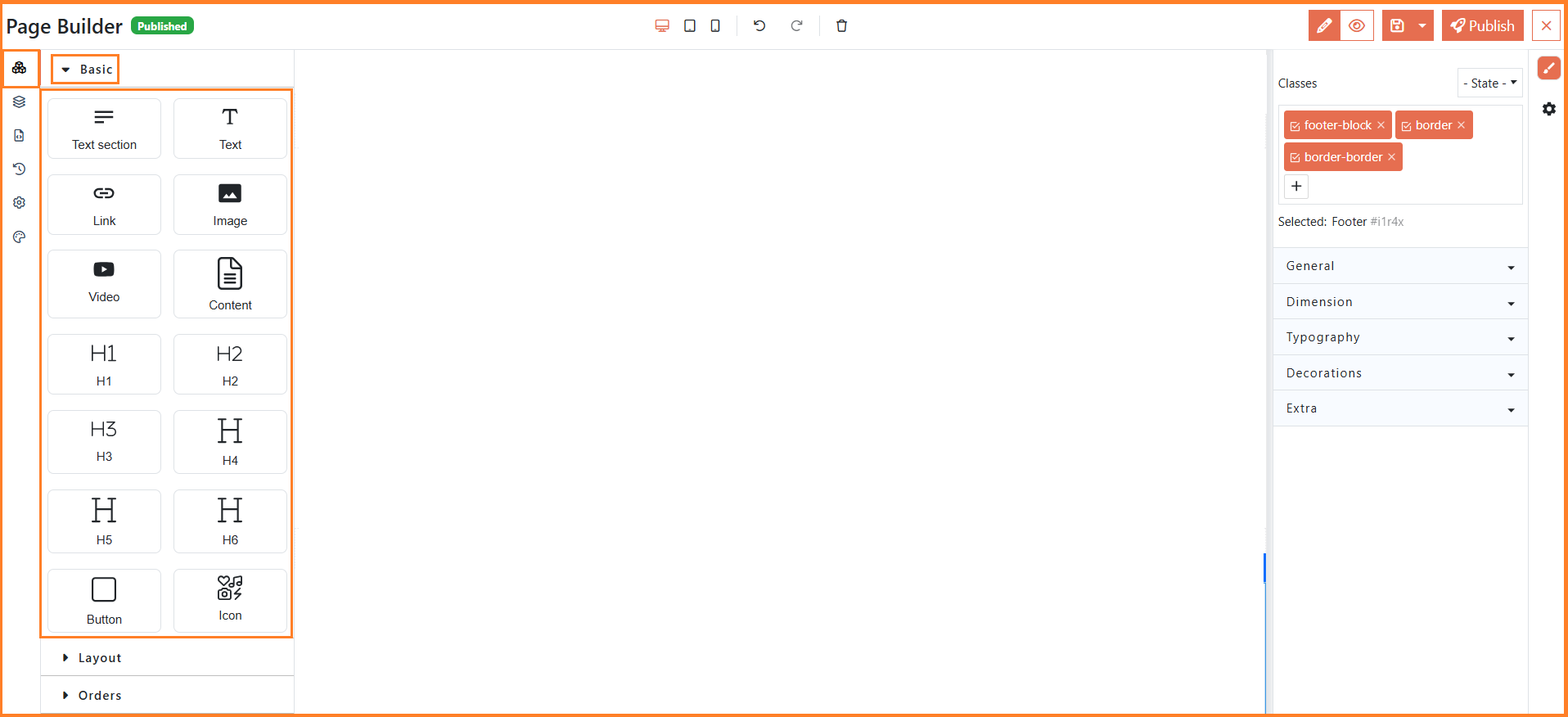
The Blocks panel is your component library, organized into collapsible categories. Drag any block onto the canvas to add it to the page.
a. Basic — general purpose content blocks:
- Text section, Text – paragraphs and blocks of copy.
- Link, Button – clickable elements.
- Image, Video – media.
- Content – a generic content container.
- H1–H6 – heading levels, for page/section titles.
- Icon – a single standalone icon.
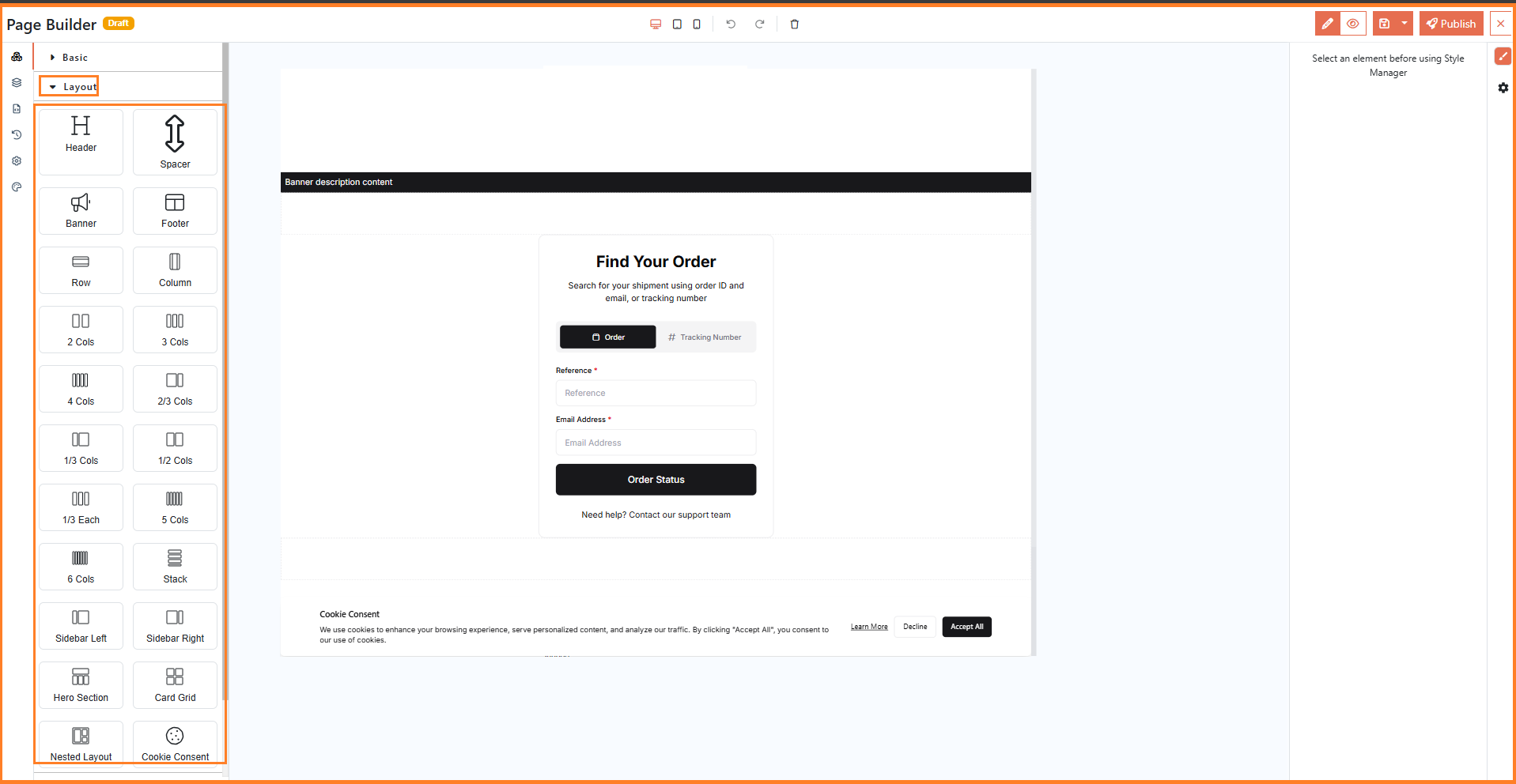
b. Layout — structural blocks for arranging the page:
- Header, Footer – page header/footer regions (used to hold the logo, navigation, legal text, and contact info).
- Banner – a full-width promotional/announcement strip.
- Spacer – blank vertical space between blocks.
- Row, Column – basic flex containers you build custom layouts from.
- 2 Cols, 3 Cols, 4 Cols, 5 Cols, 6 Cols – equal-width multi-column layouts.
- 2/3 Cols, 1/3 Cols, 1/2 Cols, 1/3 Each – uneven column splits for asymmetric layouts.
- Stack – stacks child blocks vertically.
- Sidebar Left, Sidebar Right – two-column layouts with a fixed side panel.
- Hero Section – a large introductory banner area, typically used at the top of a page.
- Card Grid – a responsive grid of cards.
- Nested Layout – a layout block that can itself contain other layout blocks, for more complex structures.
- Cookie Consent – a cookie-consent banner.
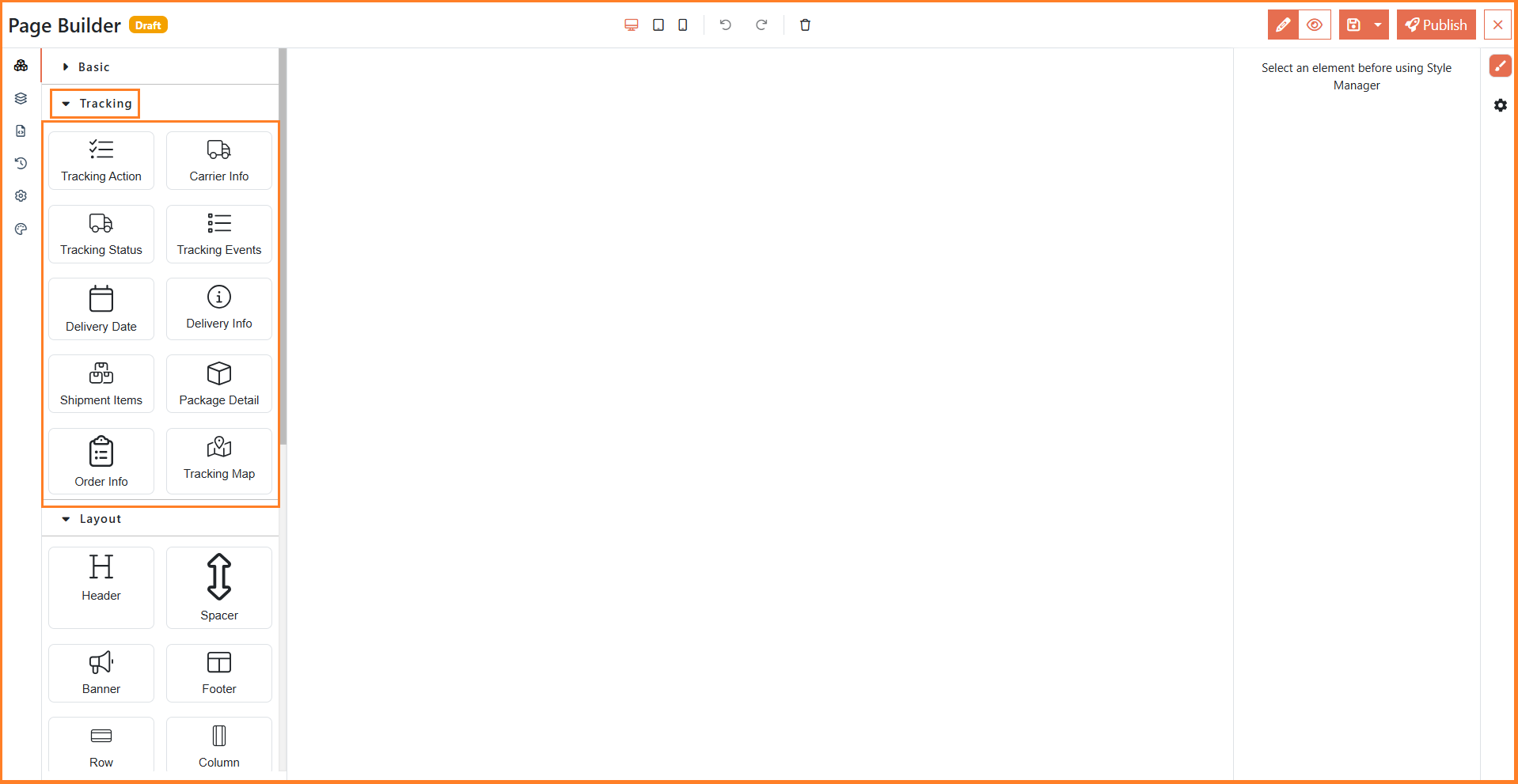
Tracking (available on Tracking pages) — Tracking Action, Carrier Info, and other shipment-tracking widgets (e.g., shipment map, event timeline).
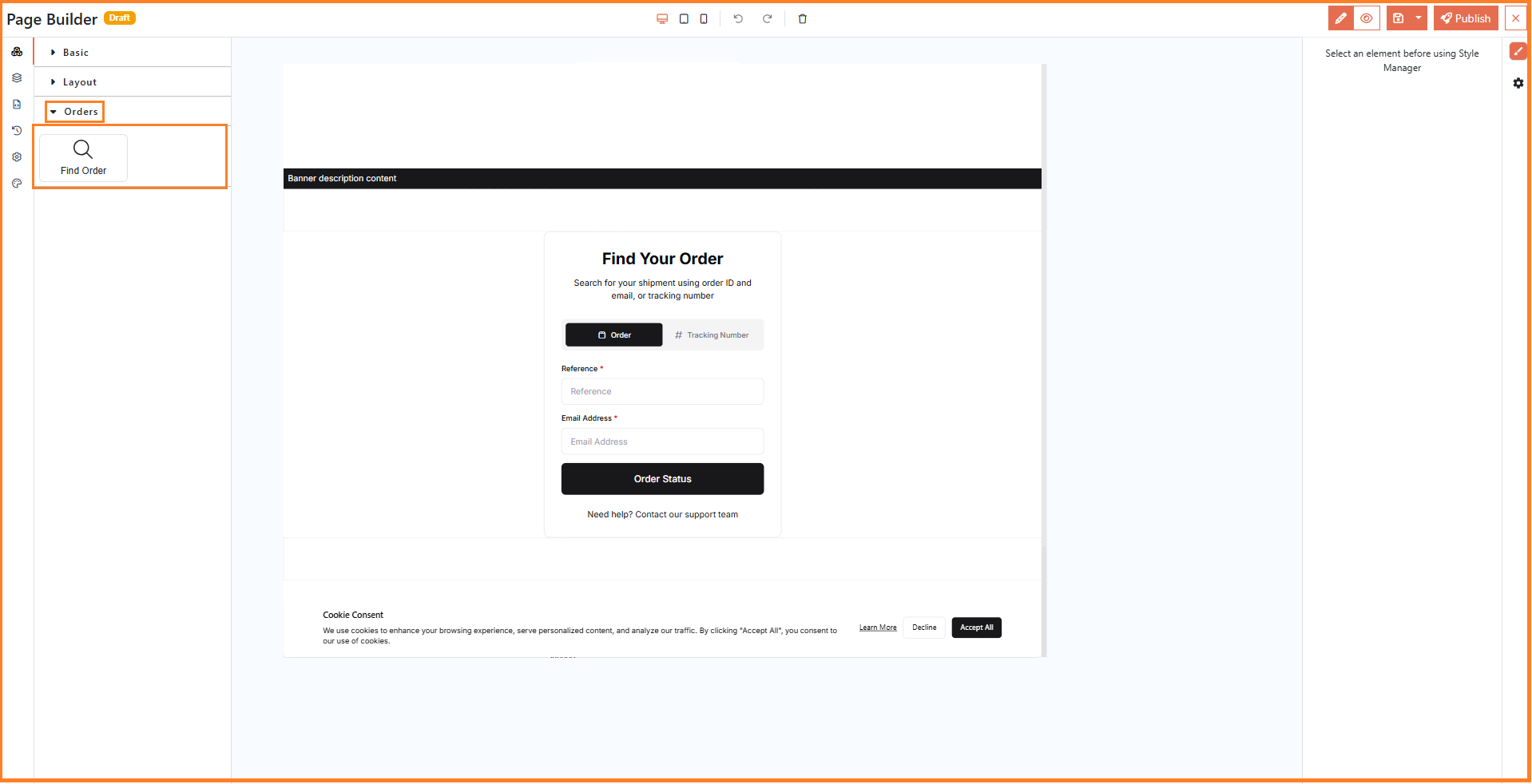
c. Orders (available on Find Order pages)
Find Order: the pre-built order-lookup card, the core widget of a Find Order page.
What the Find Order block renders
Dropped onto a page, the Find Order block renders as a centered card with:
- A title ("Find Your Order") and helper text explaining how to search.
- Two tabs: Order (search by order reference + email) and Tracking Number (search by tracking number alone).
- Under the Order tab: a required Reference field and a required Email field.
- A Find Order submit button.
- A "Need help? Contact our support team" link below the button.
On a finished page, this card typically sits between a Header block (logo) and a Footer block containing your logo, a Legal column, and a Contact Information column (address, email, phone), plus a copyright line — all populated from the blocks you configure, not hard-coded.
Layers
The Layers panel shows the page as a nested tree, rooted at Pages (1) → Layers → Body. Each node has:
- An eye icon to toggle that element's visibility on the canvas.
- A drag handle (crosshair icon) to reorder or re-nest it relative to its siblings.
For the Find Order page above, the tree looks like:
Body
├─ Header
├─ Flex-row
│ └─ Flex-col
│ ├─ Spacer
│ ├─ Find-order
│ └─ Spacer
└─ Footer
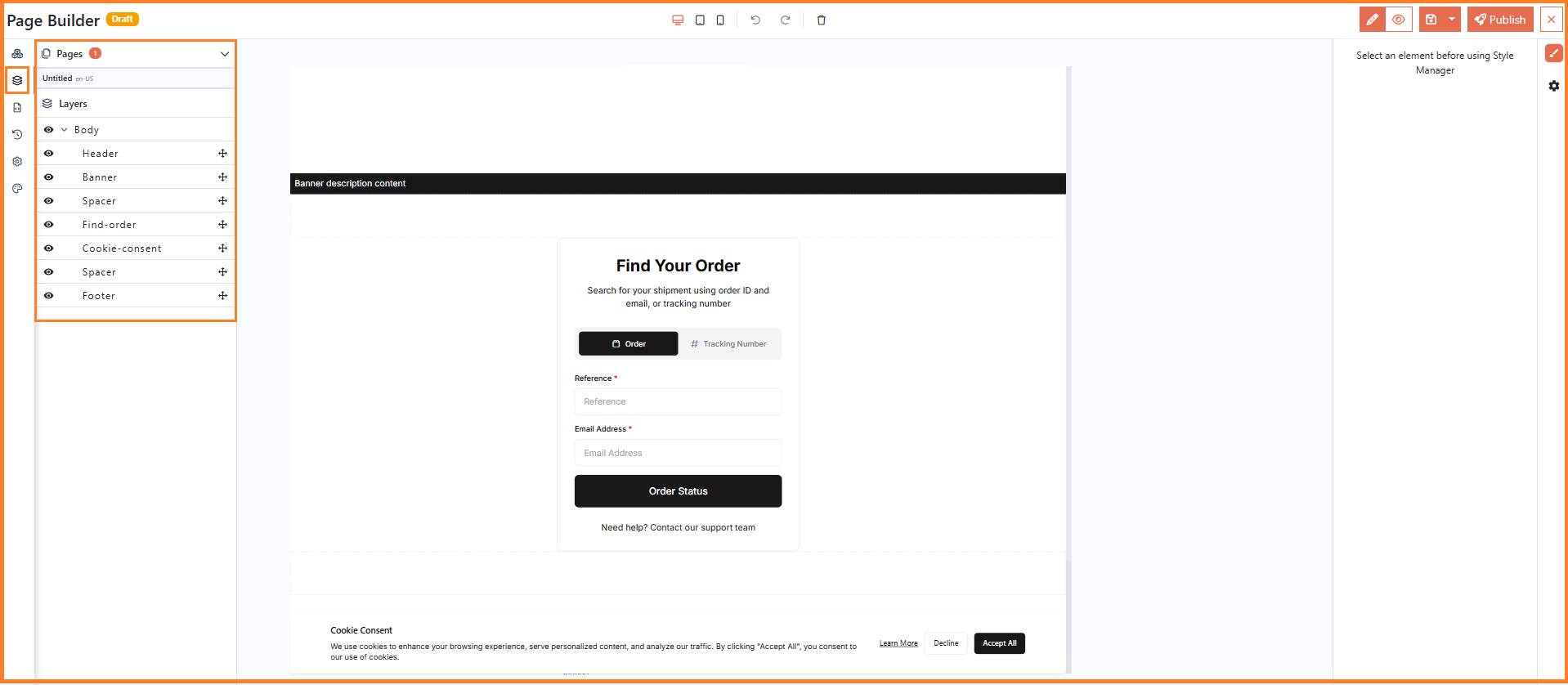
Use Layers instead of clicking around the canvas when you need to select a block that's hidden behind another, or reorder sections — for example, dragging Find-order above or below a banner block.
Templates
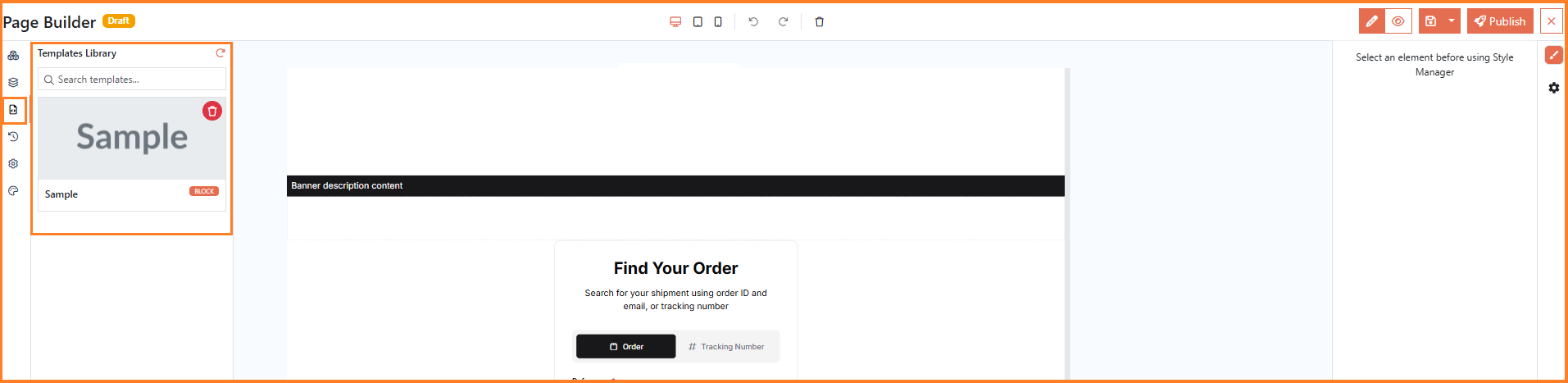
The Templates panel is a Templates Library you can search, containing reusable pre-built blocks (e.g., a Sample block) you can drag onto the canvas to speed up page building. Apply and Remove a template from the library with the delete icon in the corner of its card.
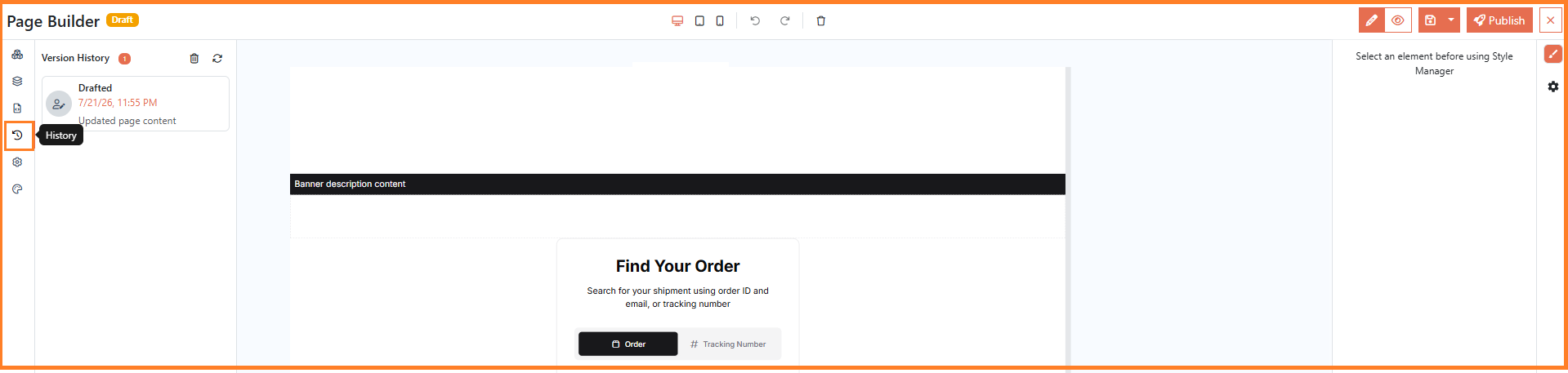
History
The History panel shows Version History for the page — a list of prior saved versions you can review or revert to. It reads "No history available" until at least one save has been made; after that, each save appears here as a restore point.
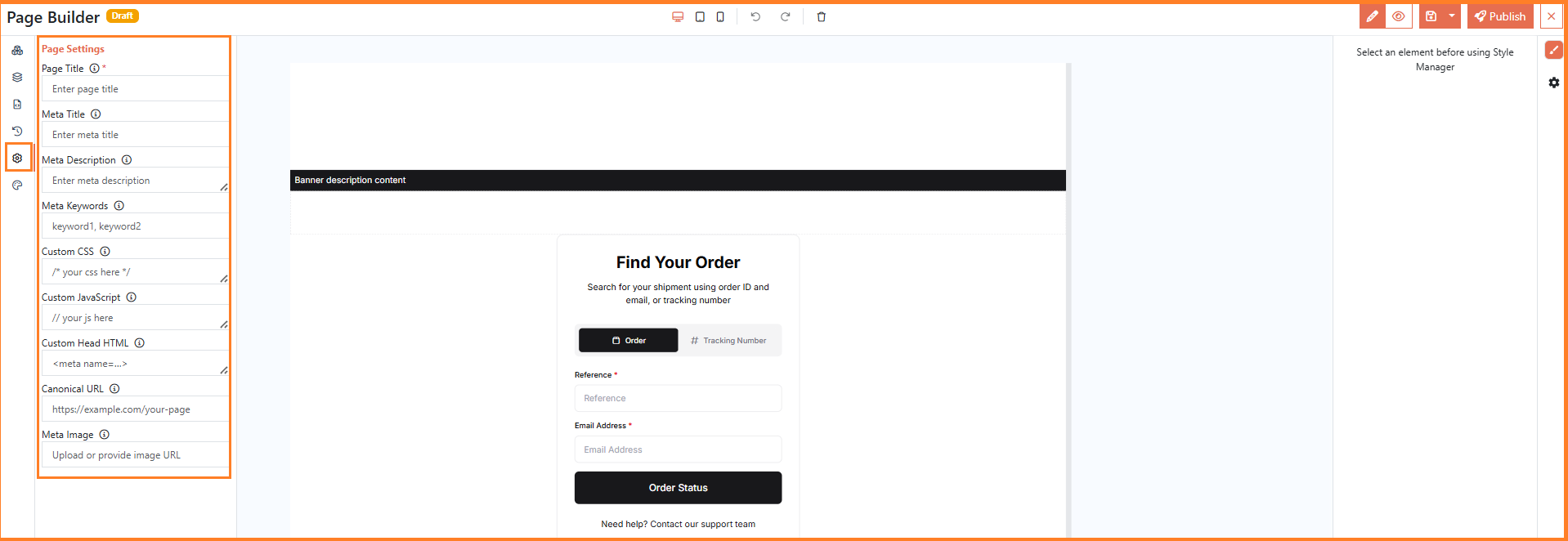
Page Settings
Page-level SEO and metadata:
| Field | Description |
|---|---|
| Page Title | Required. Title of the page. |
| Meta Title | SEO meta title. |
| Meta Description | SEO meta description. |
| Meta Keywords | Comma-separated keywords (e.g., keyword1, keyword2). |
| Custom CSS | Additional CSS scoped to this page. |
| Custom JavaScript | Additional JavaScript scoped to this page. |
| Custom Head HTML | Extra HTML injected into this page's <head>. |
| Canonical URL | The canonical URL for this page. |
| Meta Image | Image used for social/link previews. |
Page Style
The Page Stlye contains Theme panel which controls the branding and color system applied to the whole page — this is where you make a page match your company's look and feel without writing any CSS. It has three parts:
- A Theme selector at the top (Default unless you've created additional named themes).
- Global settings, which apply regardless of light/dark mode:
- Theme Mode – sets whether the page renders using its Light Theme or Dark Theme color set by default.
- Page Style:
- Border Radius – corner rounding applied across buttons, cards, and inputs.
- Focus Ring Color – the highlight color shown around an element when it's focused (e.g., tabbing into a field).
- Container Max Width – the maximum width of the page's content area, controlling how wide the layout stretches on large screens.
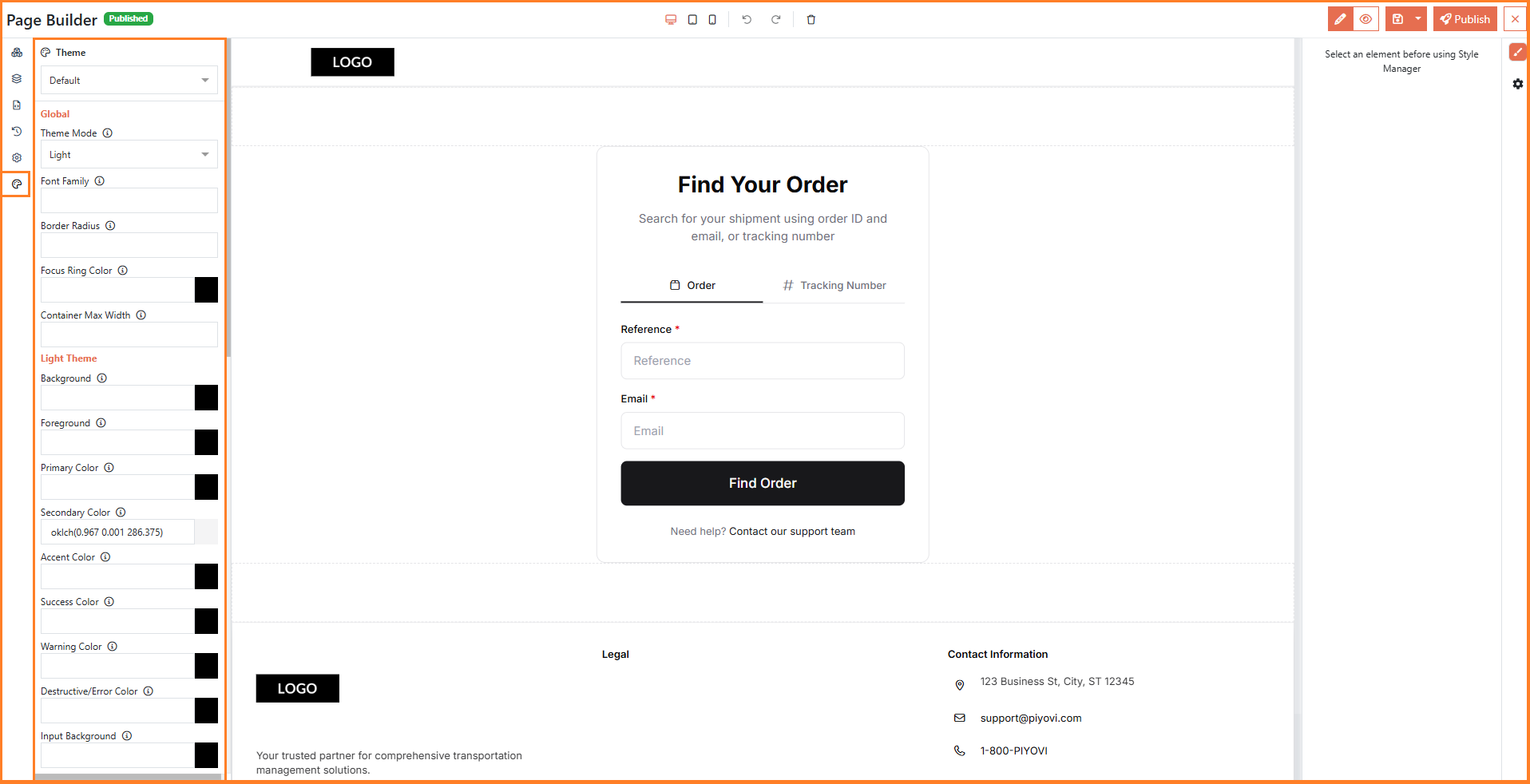
- Light Theme – the color tokens used when Theme Mode is Light:
| Token | Used for |
|---|---|
| Background | The page's base background color. |
| Foreground | The default text color. |
| Primary Color | Primary buttons, links, and key interactive elements (e.g., the Find Order button). |
| Secondary Color | Secondary buttons and less prominent interactive elements. |
| Accent Color | Highlights and accents (e.g., the active tab underline on Order / Tracking Number). |
| Success Color | Success states and messages. |
| Warning Color | Warning states and messages. |
| Destructive/Error Color | Error states and destructive actions (e.g., validation errors, delete buttons). |
| Input Background | Background color of form fields (e.g., Reference, Email). |
| Input Text Color | Color of text typed into form fields. |
| Placeholder Color | Color of placeholder text in empty form fields. |
| Border Color | Borders and dividers throughout the page. |
| Muted Color | Subdued text and backgrounds (e.g., helper text). |
| Card Background | Background color of card/panel containers (e.g., the Find Order card). |
| Overlay Color | Background color of modals and overlays. |
- Dark Theme – the exact same set of tokens, each suffixed (Dark Mode) :
Background (Dark Mode), Foreground (Dark Mode), Primary Color (Dark Mode), Secondary Color (Dark Mode), Accent Color (Dark Mode), Success Color (Dark Mode), Warning Color (Dark Mode), Destructive/Error Color (Dark Mode), Input Background (Dark Mode), Input Text Color (Dark Mode), Placeholder Color (Dark Mode), Border Color (Dark Mode), Muted Color (Dark Mode), Card Background (Dark Mode), and Overlay Color (Dark Mode) used when Theme Mode is Dark.
Configuring both sets up front means visitors get a correctly branded page in either mode without any extra design work.
Each color field accepts a value from the color picker swatch or a raw CSS color string as seen pre-filled.
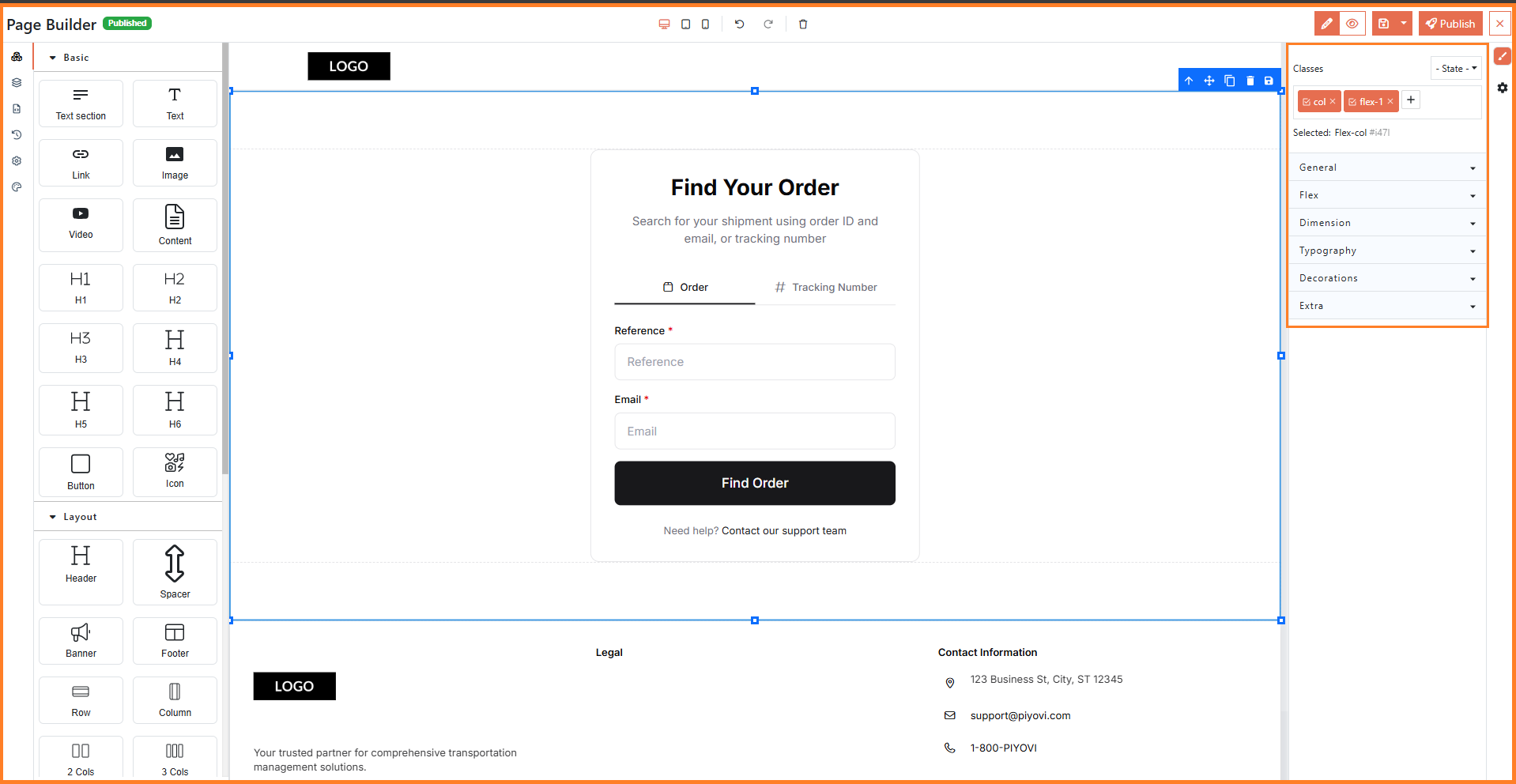
Style Manager
The right-hand Style Manager panel is where you fine-tune the styling of whatever is currently selected on the canvas. Until you click an element in the canvas, it shows "Select an element before using Style Manager." Selecting any block (text, image, tracking widget, Find Order card, etc.) activates the panel so you can adjust its specific styles; the gear icon next to it opens that element's settings.
Designing a Page
- Drag a block from the Blocks panel onto the canvas, start with Header and Footer, then add your main content block (e.g., Find Order or Tracking Action) in between.
- Select the element to activate the Style Manager and adjust its styling/settings.
- Use Layers to verify structure and nesting, and to reorder sections, as the page grows.
- Use the Theme panel to set Global styles and both Light Theme and Dark Theme color tokens to match your brand.
- Preview across desktop, tablet, and mobile using the device icons in the toolbar, and toggle to Preview mode to see it as a visitor would.
- Click Save to store your changes as a draft.
- Click Publish when the page is ready to go live on its domain — the status badge changes from Draft to Published.
- Close the builder with the X icon to return to the Page list.
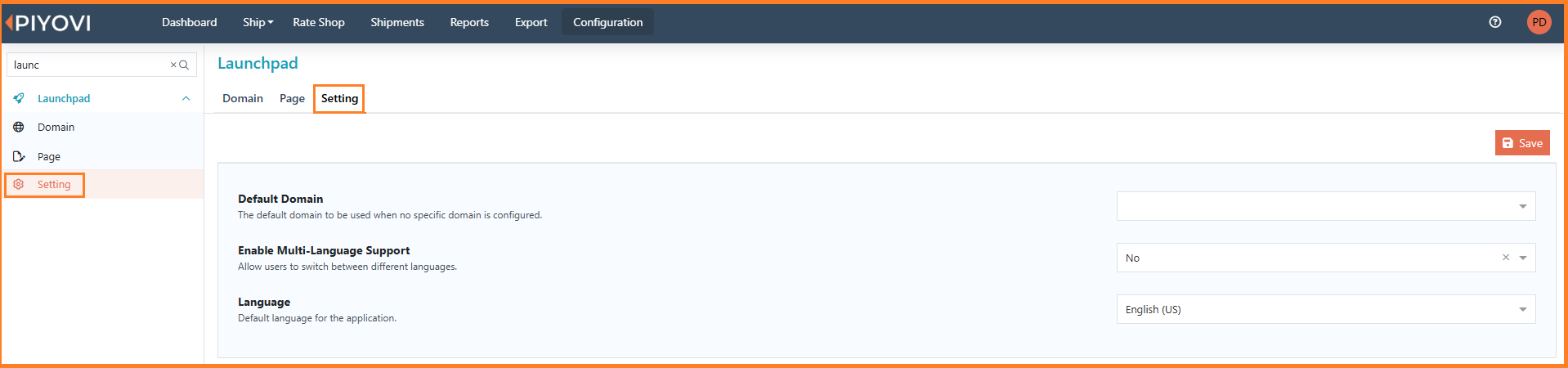
Setting
Once your domain and pages are set up, use the Setting tab to configure Launchpad-wide defaults that apply across all domains and pages.
| Field | Description |
|---|---|
| Default Domain | The default domain used when no specific domain is configured. |
| Enable Multi-Language Support | Whether users can switch between different languages on Launchpad pages (Yes/No). |
| Language | The default language for the application (e.g., English (US)). |
Click Save to apply the settings.
After Setup
What the Finished Page Looks Like
Once a domain is registered, a page is designed in Page Builder, and it's published, customers reach it directly on your branded domain — for example:
- Home page:
https://<your-domain>/( e.g., https://piyovi.launch-demo.piyovi.com/) - Tracking page:
https://<your-domain>/tracking?tracking=<tracking-number>( e.g., https://piyovi.launch-demo.piyovi.com/tracking?tracking=794998882351)