25.11.01
Introduction
We are pleased to announce the release of Piyovi v25.11.01, which includes key enhancements aimed at improving usability, operational efficiency, and shipment visibility. Below is a summary of the new features and updates included in this release.
1. Denied Parties Screening (Trade Government Integration)
We have introduced a new feature that enhances shipment safety and regulatory compliance through Denied Parties Screening. This functionality helps identify restricted or government-regulated addresses using the Trade.Gov API.
What this feature does
Certain Ship To addresses are restricted by Trade Government regulations.
With this feature, the system now validates these addresses and identifies any restricted (denied) parties before shipment processing.
This ensures that shipments do not proceed to prohibited or flagged destinations.
How it works
1. Connector Setup
-
Navigate to the Connectors screen.
-
Connect the Trade.Gov Validator connector.
-
Once connected, a new Trade.Gov option will appear under the Connectors menu.

2. API Key Configuration
-
Enter the valid Trade.Gov API Key in the API Key field.
-
Save the configuration to enable address validation.

3. Restricted Address Retrieval (Country-Specific – Currently US Only)
The system now supports retrieving restricted addresses for a specific country using the Trade.Gov API.
-
This capability is currently available only for the United States, as Trade.Gov does not yet provide complete restricted address data for other countries.
-
Using the provided API request, the system can fetch all restricted or government-regulated locations for the selected country.

4. Restricted Address Handling
When a restricted Ship To address is entered, the system automatically identifies it and notifies the user that the address is not eligible for shipping.
-
The shipment will be marked as Blocked, preventing any further processing.

5. Unblocking and Correcting Restricted Shipments
If a shipment is blocked due to a restricted Ship To address:
-
Navigate to the Shipments screen and Unblock the shipment by providing a valid reason.
-
Once unblocked, the shipment will return to Draft status.
-
You can then update the Ship To address to a valid location and proceed with processing the shipment.
This workflow ensures full compliance while still allowing corrections and continuation of valid shipments.
2. PC*Miler – Distance (Miles) Calculation Integration
We have introduced a new connector, PC*Miler, to support accurate distance-based rating for shipments and rate requests.
What this feature does
The system can now calculate the total miles between the origin and destination using the PC Miler API.
This mileage is used internally to compute shipping costs for carriers that follow mileage-based pricing models.
PC*Miler is carrier-specific and will only be triggered for carriers that require miles for rating.
If the API fails to return a distance or if an error occurs, the shipment process will stop to prevent incorrect data from being processed.

How it works
1. Connector Setup
-
Navigate to the Connectors screen and open the Connector Library.
Connect the PC*Miler connector. -
Once connected, a new PC*Miler option will appear under the Connectors menu with a Connected status.

2. API Key Configuration
-
Click on the PC_Miler connector from the left menu.
-
Enable the Status toggle.
-
Enter the valid PC_Miler API Key and click Save to activate mileage calculation.

3. Distance Calculation for Shipments and Ratings
- Once configured, the system will automatically call the PC*Miler API during:
- Shipment creation (UI & Headless)
- Rate Shop requests
- The returned miles are used internally to calculate the carrier’s shipping cost. At this time, the distance value is not displayed in the UI. The distance can only be verified through the carrier request or logs.
4. Error Handling
- If PC*Miler returns no distance or encounters an error:
- The shipment will be stopped.
- The user will be required to correct the address or resolve configuration issues before proceeding.
This ensures accuracy and prevents incomplete or incorrect ratings.
3. Company-Level Default Special Service Customization
We have introduced a new feature that offers greater flexibility in managing default special services during shipment creation.
Previously, a fixed set of default special services always appeared on the shipping screen when no carrier was selected.
What this feature does
You can now define your own default special services that will automatically appear in the Special Service tab when the carrier dropdown is unselected.
This allows each company to tailor the shipping workflow to match its unique business requirements.
How it works
1. Customization Option
-
A new Default Special Services dropdown has been added in: Configuration → Company Preferences → Shipment Options
-
This dropdown allows administrators to select which special services should appear by default.
2. Tailored Display
- Any services selected in this dropdown will automatically appear under the Special Service tab on the Ship screen when no carrier is chosen.
3. Standard Fallback
- If no services are selected in the new dropdown:
- The system will continue displaying the previous default special services, ensuring a smooth and consistent user experience.

4. Pallet Dimensions & BOL Summary Added to Pickup Notification Email
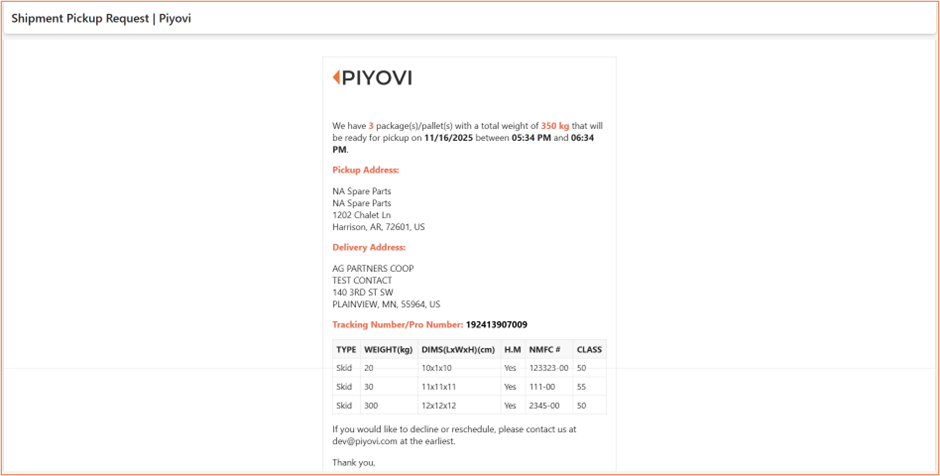
We have enhanced the Pickup Notification Email to include more detailed shipment information, providing improved clarity for customers and carriers.
Previous Behavior
- The pickup notification email previously included only:
-
Pickup date
-
Pickup From and Pickup To details
-
Pickup and Delivery addresses
-
Attached Generic BOL
-
- Package-level data was not included.
What’s New
- The email now includes detailed package information to improve transparency and accuracy.
The following fields have been added:-
Package Type
-
Weight
-
Dimensions
-
DG / Hazardous Material (H.M)
-
NMFC #
-
LTL Class
-
- In addition, the company name will now appear in both the Pickup and Delivery address sections. A sample pickup notification email layout is provided below for reference.
5. Cubic Aggregation Removed in Ship Screen
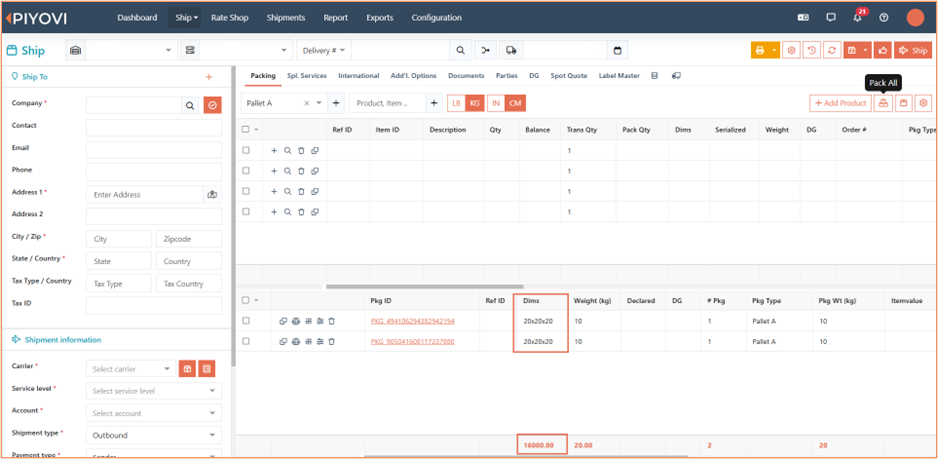
We have simplified the cubic calculation process on the Ship screen by removing the previous cubic aggregation logic.
How it works now
-
When dimensions (L × W × H) and package count are entered, the system calculates the cubic value for each package individually.
-
Cubic values from all packages are then summed together.
-
The Total Cubic Value is displayed at the bottom of the screen.
This update ensures clearer and more accurate visibility of total cubic volume without complex aggregation logic.
6. Location Group ID Support in Users Import
We have enhanced the Users Import functionality by adding support for Location Group ID.
This update simplifies user setup and ensures that location permissions are applied accurately and efficiently.
What’s New
- The Users Import Excel file now includes a Location Group ID column.
- When a valid Group ID is provided for a user, the system will automatically assign all locations under that group to the user's Allowed Locations list.
How it Works
-
Enter the Location Group ID in the new column within the Users Import Excel file.
-
Upload the file using the existing Users Import process.
-
The system will identify the group and fetch all associated locations.
-
All locations within that group will be automatically added to the user’s Allowed Locations configuration.
User Import Download Sample.xlsx
Benefits
-
Faster onboarding of new users
-
Reduced manual effort in assigning multiple locations
-
Eliminates errors caused by manual location selection
-
Ensures consistent and accurate permission assignment based on grouping structure
7. Rate Shop for International Shipments
We have enhanced the Rate Shop functionality to support international shipments more effectively.
Some international carriers require customs information even at the time of rating.
To ensure successful rate retrieval, the system will now automatically include the minimum required customs details when performing Rate Shop for international destinations.
What’s New
- When Rate Shop is triggered for an international shipment, the system will automatically insert a dummy item containing minimum customs-related data.
- This ensures carriers receive the required information and return rates without validation failures.
8. Carrier & Service Level SCAC Code Support
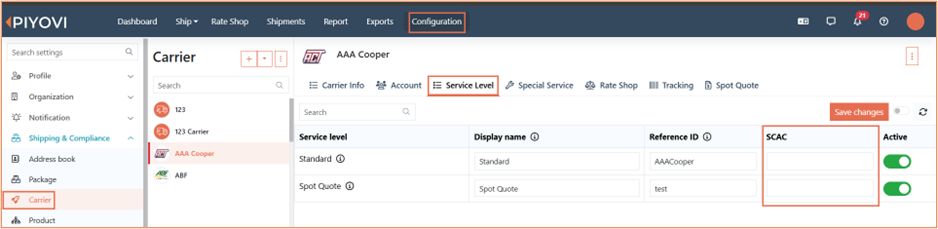
We have introduced new configuration options that allow users to add and update SCAC codes at both the Carrier level and Service Level.
This enhancement ensures accurate SCAC mapping for all carriers—integrated and generic—and improves downstream rating, manifesting, and EDI workflows.
What’s New
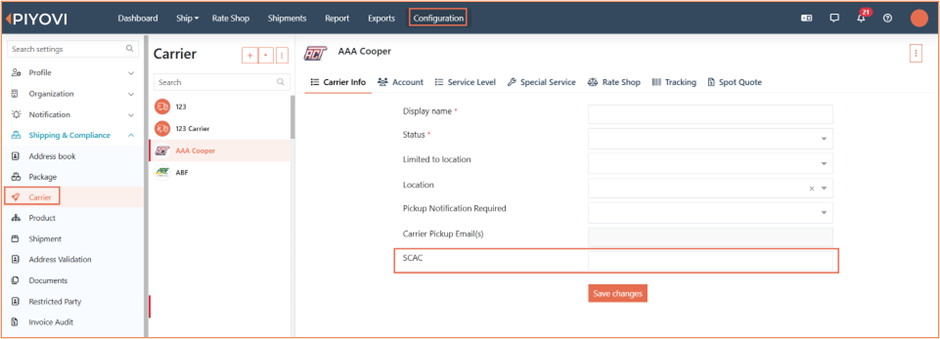
1. Carrier-Level SCAC Code
A new SCAC field has been added under the Carrier Info tab.
Navigation: Configuration → Shipping & Compliance → Carrier → Select a Carrier → Carrier Info
-
The field displays the default Carrier SCAC Code loaded by the system.
-
Users can edit and update the SCAC code as needed.
-
The SCAC value applies to the entire carrier.
2. Service-Level SCAC Code
A new SCAC column is now available for each service level under the Service Level tab.
Navigation: Configuration → Shipping & Compliance → Carrier → Select a Carrier → Service Level
-
Displays the default Service Level SCAC Code.
-
SCAC values can be fully edited and updated per service level.
-
Ensures each service level maintains its own SCAC identity for rating, EDI, and label generation.