26.10.01
Introduction
We are pleased to announce the release of Piyovi v26.10.01, which includes key enhancements aimed at improving usability, operational efficiency, and shipment visibility. Below is a summary of the new features and updates included in this release.
Spot Quote: Same as Shipment Notes
You can now carry shipment notes over to a Spot Quote by using the new Same as shipment notes checkbox in the Spot Quote creation window. When you select it, the Spot Quote Notes field is automatically filled with the notes entered on the shipment.
Benefits
- Eliminates manual re-entry of shipment notes for every spot quote.
- Keeps quote notes consistent with the shipment notes.
Navigation
Ship → Spot Quote → Add Quote → Same as shipment notes
Steps
- On the Ship screen, enter Notes in the Shipment Information section and save.
- Go to the Spot Quote tab and click Add Quote.
- Select the Same as shipment notes checkbox. The shipment notes are mapped into the Notes field and locked.
- To add new notes or remove the notes, clear the checkbox and update the Notes field.
- Click Save.
- The notes shown in the Notes field are saved with the quote.
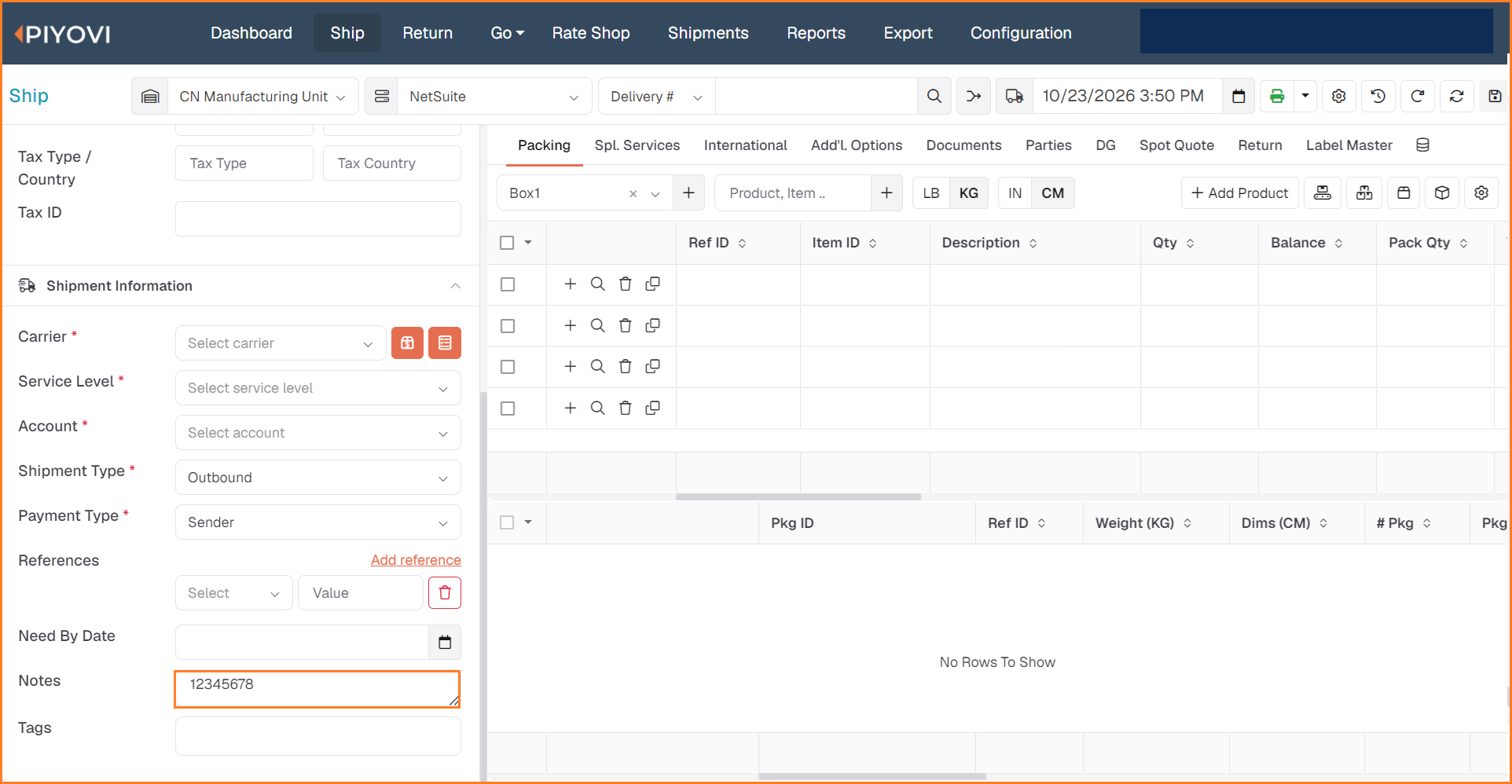
Ship screen: Notes entered in the Shipment Information section
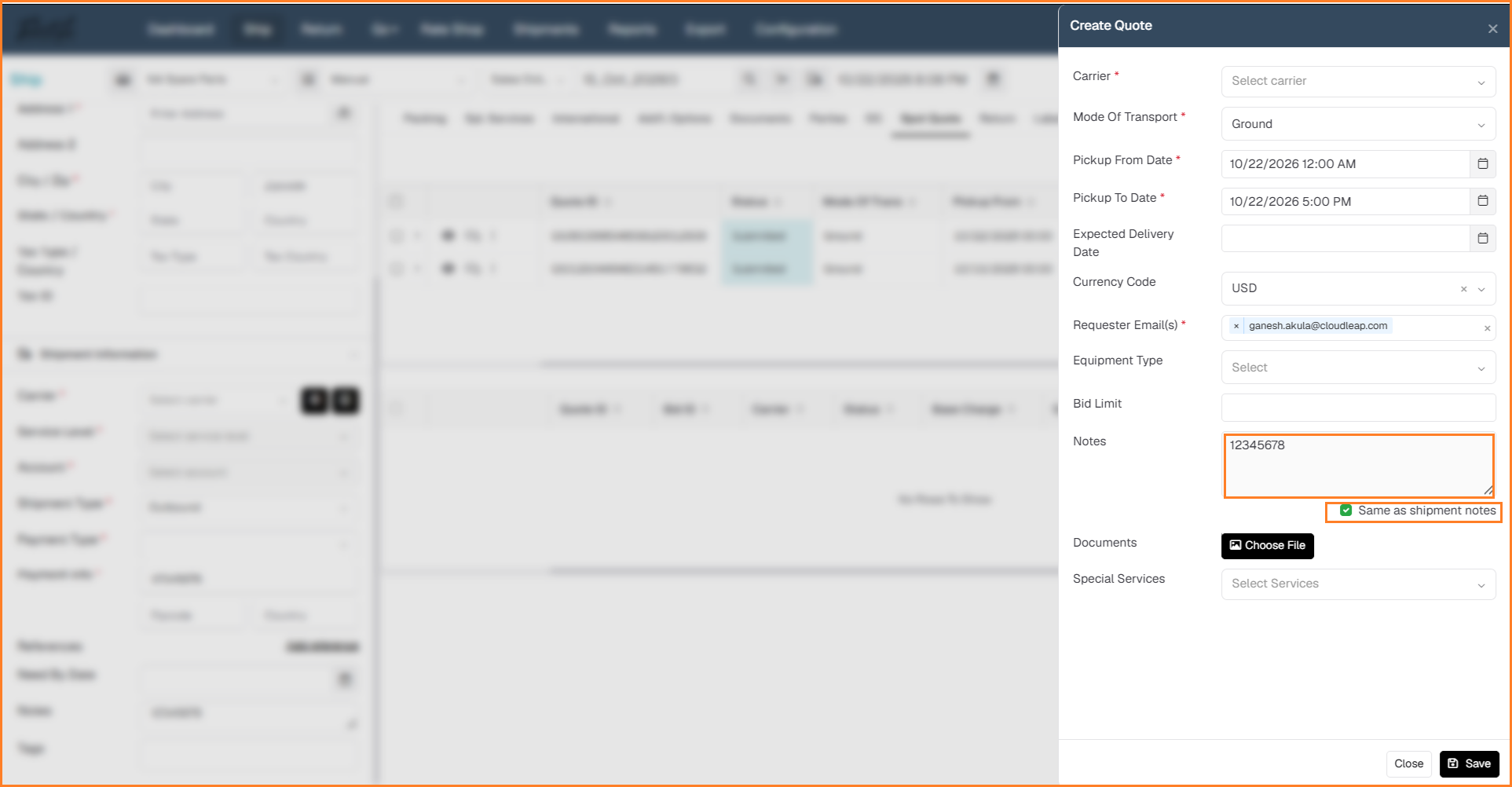
Create Quote window with Same as shipment notes selected
Notes: If the shipment has no notes, the checkbox is disabled.
Spot Quote: Master Export to Excel
A new Master Export option on the Spot Quote list lets you download quote data to Excel.
Benefits
- Download Spot Quote data to Excel in one click.
- Review, filter, and share quote data offline.
Navigation
Shipments → Spot Quote → ⋮ Menu → Master Export
Steps
- Go to Shipments → Spot Quote list.
- Click the three-dot (⋮) menu at the top-right of the grid.
- Click Master Export.
- Open the downloaded Excel file to view the Spot Quote data.
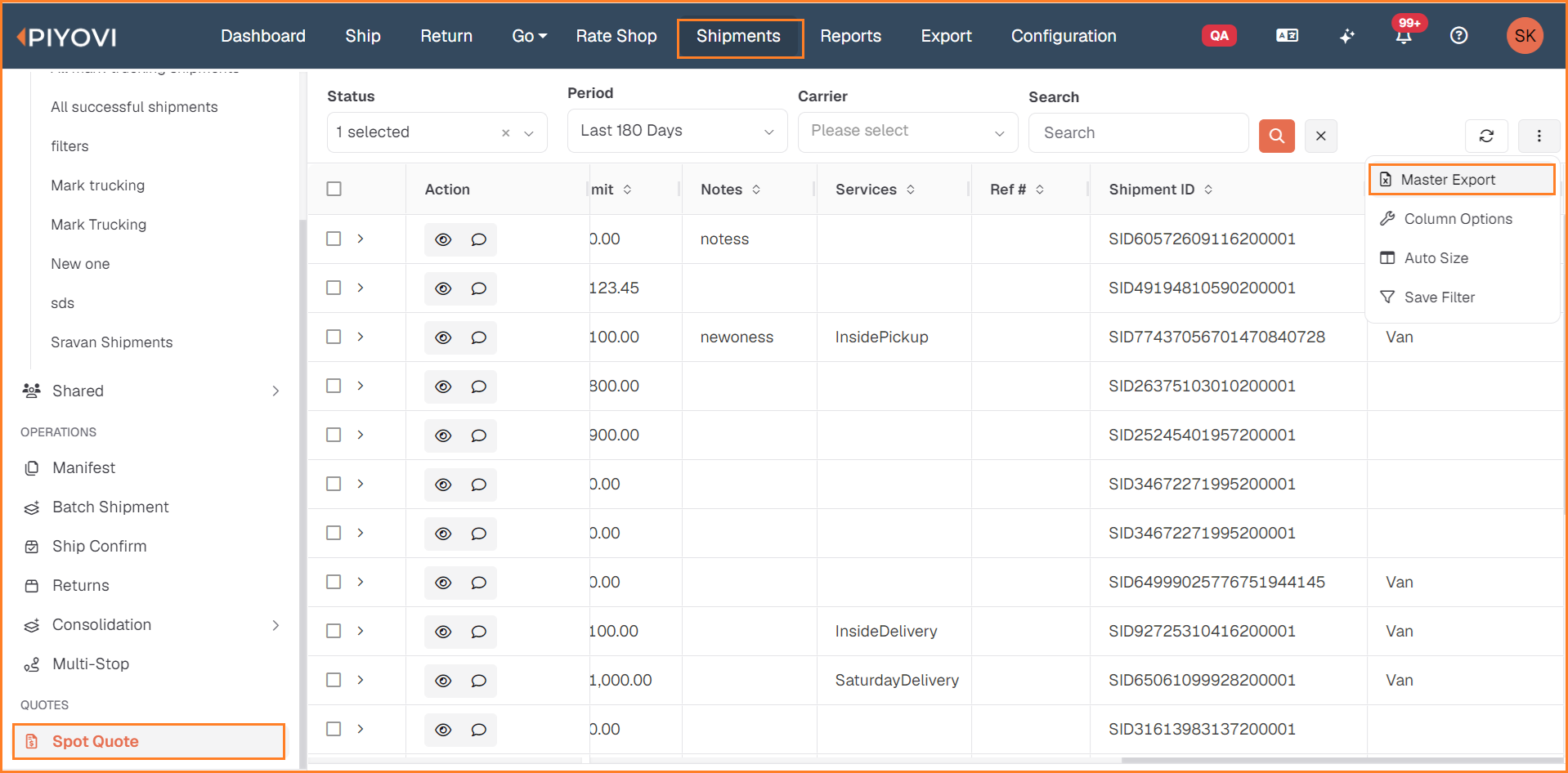
Spot Quote list: three-dot menu with the Master Export option
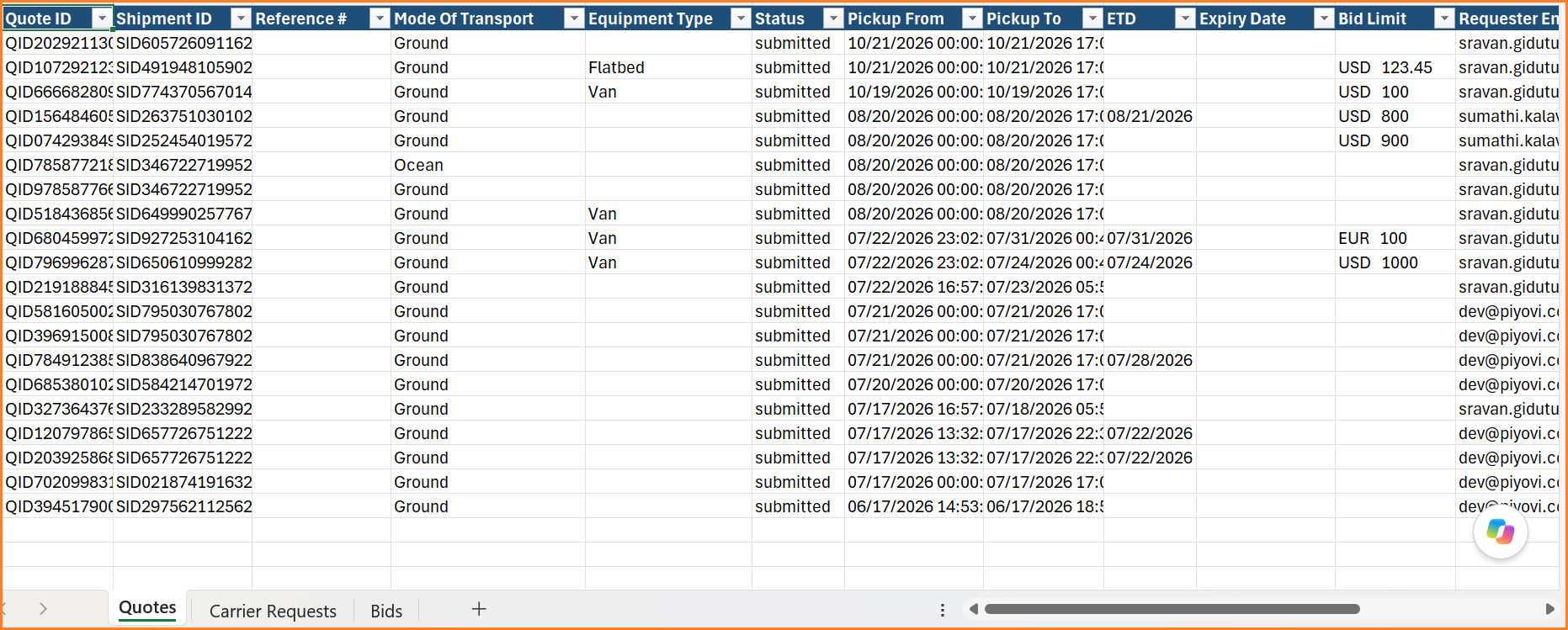
Exported Excel file with Quotes, Carrier Requests, and Bids sheets
Notes:
The Master Export option on the Spot Quote screen is controlled by the Ability to Export Spot Quote permission.
Document Share - Shipment Documents Access through API and Webhook Responses
Document Share URLs are now included in API and webhook responses. You can also access Document Share files by replacing the internal shipment ID in the URL with the Tracking Number or Ship ID, regardless of the access type.
Benefits
- Get shipment documents without a separate integration.
- Supports Public and Private links.
- Find shipments by Tracking Number, Integration Reference, Ship ID, or Address ID.
- Includes the Document Share link in the shipment data sent through the webhook and API.
Navigation
Shipments → View Shipment → Docs → Share
Steps
- Go to Shipments, then select and view the shipment.
- Go to the Docs tab.
- Select the documents you want to share.
- Click the Share icon.
- In the Create Document Share popup, select the access type and enter the email ID.
- Click Create Share.
- Click Done.
- Open the browser's Inspect tool, go to the Network tab, and click View for the shipment.
- Find the Document Share URL in the response. The same URL is also included in the webhook.
- Paste the URL in a browser and replace the internal shipment ID with the Tracking Number or Ship ID.
- View and download the documents.
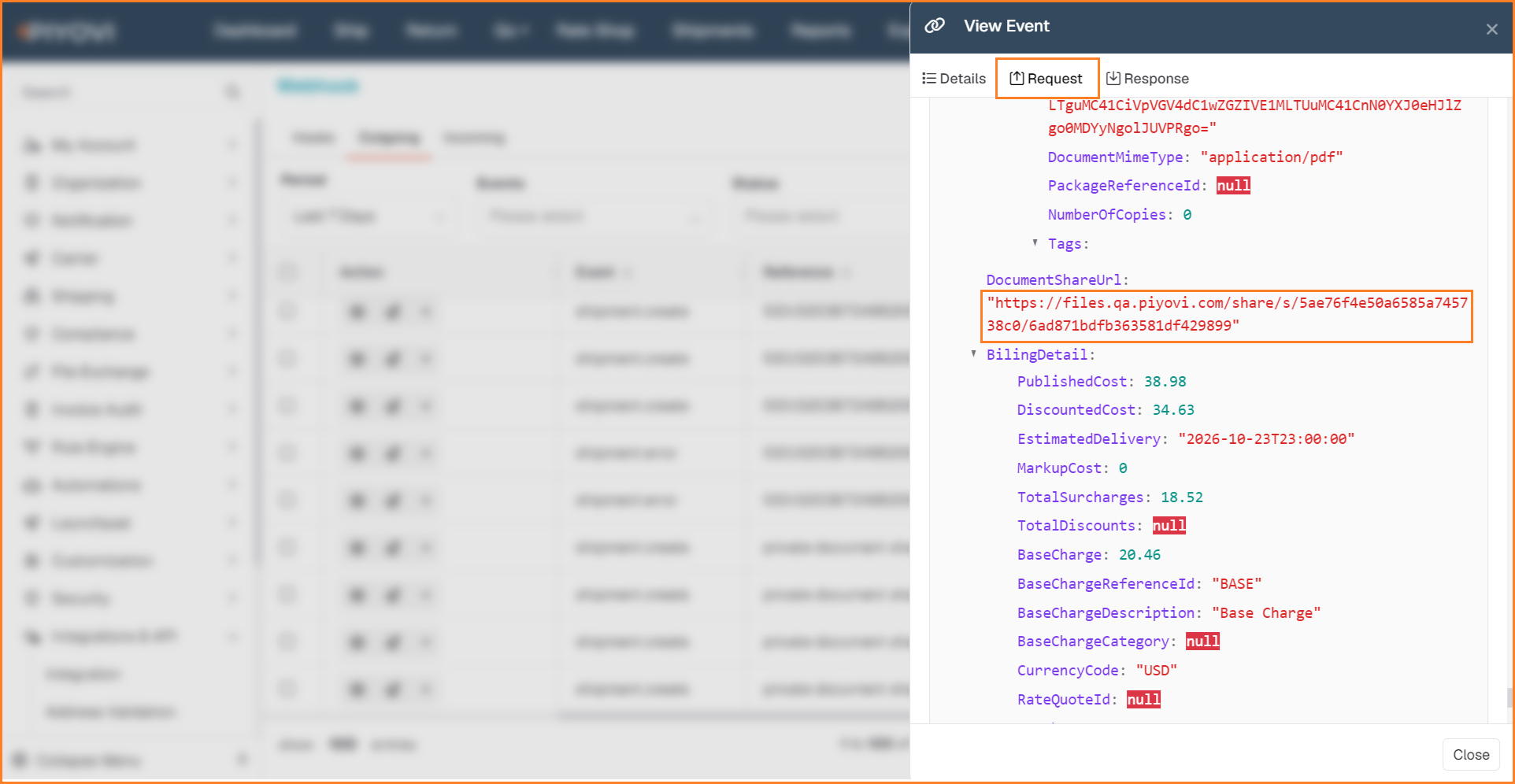
Webhook View Event: Request tab showing the Document Share URL
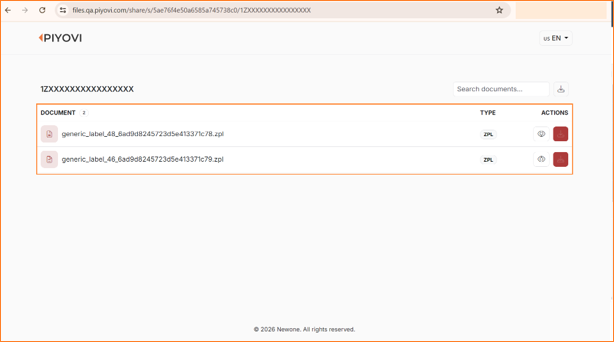
Shared documents opened using the Tracking Number in the URL
Notes:
- Document Share is set at the company level, not per user.
- Private links use the shipment tracking number as the access code.
- OTP and custom access codes are not supported.
- Only POD and AWB are available for now.
Number Series for Shipments
Number Series can now be used for shipments as well. A new Shipment category has been added to the existing Number Series configuration, so Piyovi can automatically generate the shipment's Reference Number when a shipment is processed without one.
Previously, Number Series was supported only for categories such as Merge, Consolidation, and Batch. With this enhancement, you can also configure a Shipment number series to automatically assign the reference number (for example, SHP-00001) whenever a new shipment is saved without a reference number.
Benefits
- Assigns a reference number to shipments automatically, so you don't have to type it manually.
- Supports different numbering formats per location, with a company-wide series as the default.
- Never overwrites reference numbers entered by users or sent by integrations.
Navigation
Set up the series: Configuration → Customization → Number Series → Add → Category: Shipment
Steps
Create a Shipment Number Series
- Navigate to Configuration → Customization → Number Series.
- Click + Add to open the Add Number Series panel.
- Enter a Name and select Category = Shipment.
- Optionally, select a Location to use this series only for that location. Leave it empty for a company-wide series.
- Configure Prefix, Suffix, Start Number, Increment By, Number Length, and Padding Character as needed (for example, Prefix SHP-, Start Number 1, Number Length 5).
- Set Status to Active and click Save.
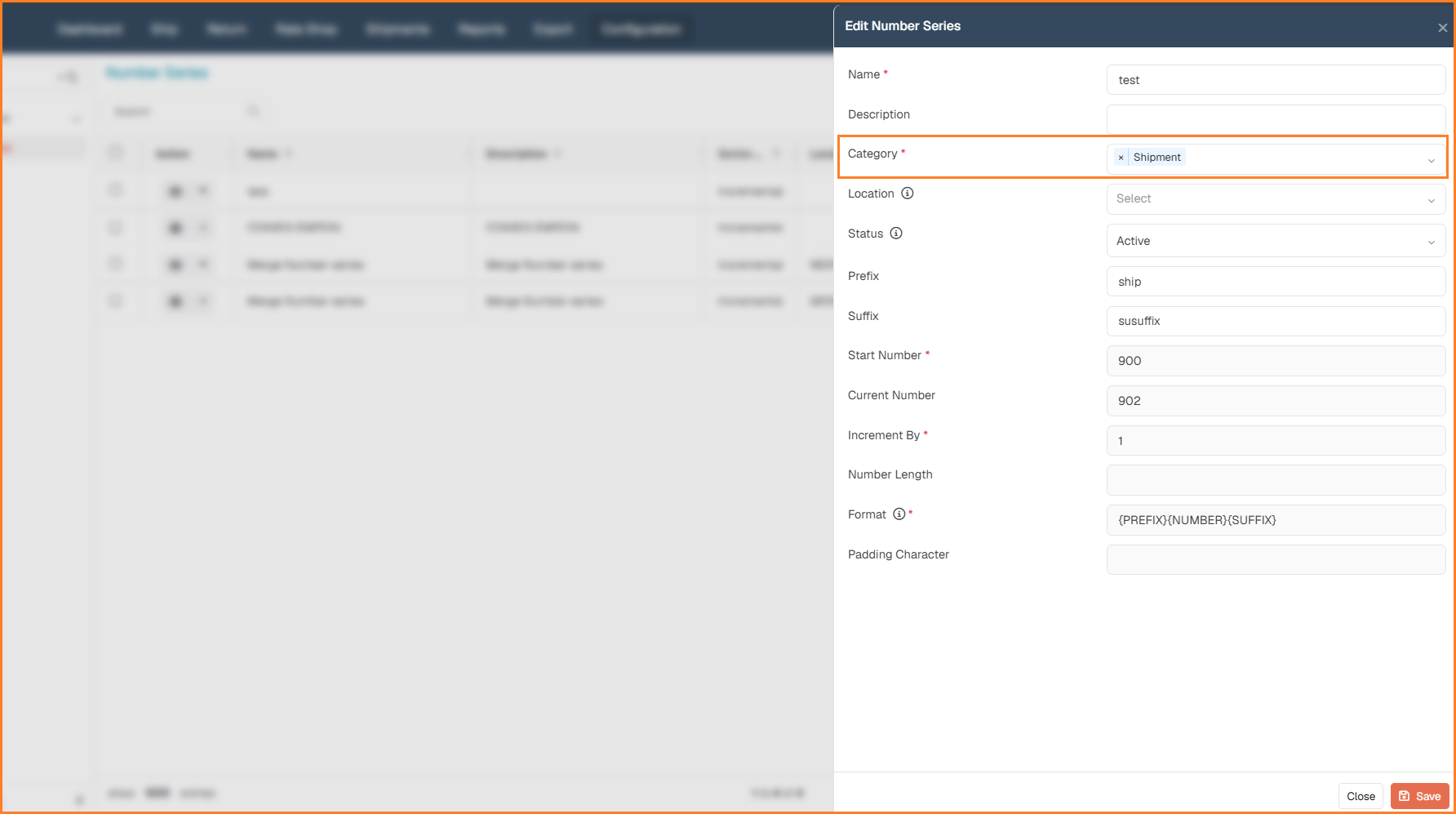
Number Series panel with the Shipment category selected
Create a Shipment
- Open the Ship screen and select a location covered by the series.
- Fill in the shipment details and leave the reference number blank.
- Click Save as Draft or Ship.
- Open the shipment from the Shipments list. The reference number shows the generated value, for example SHP-00001.
- Create another shipment the same way. It receives the next number, for example SHP-00002.
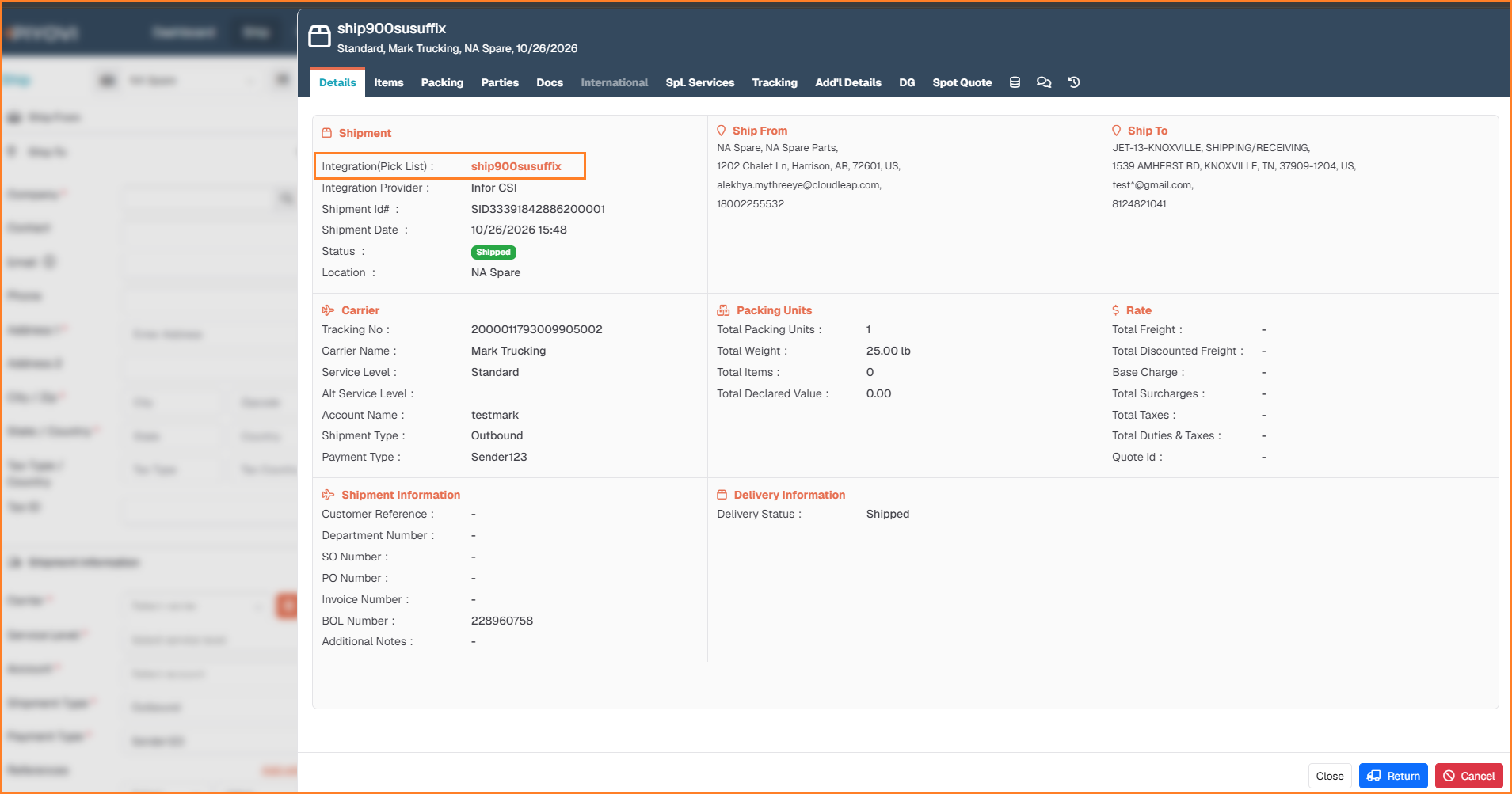
Shipment details showing the number generated from the series
Notes:
- Existing values are kept: If a shipment already has a reference number, Piyovi keeps it. This includes numbers typed by users or sent by an integration or API. The number does not change when the shipment is saved again.
- New and existing shipments: The number is generated when a shipment is saved with a blank reference, whether it is a new shipment or an existing draft being saved again.
- Viewing the number: After Save as Draft, the generated number is stored on the shipment and appears when the shipment is reopened from the Shipments list.
- Location priority: A series assigned to the shipment's location is used before a company-wide series. If no active Shipment series exists, the reference stays blank.
Company-Level Signature on Commercial Invoices
A Signature field has been added to the Generic Commercial Invoice and Generic Commercial Invoice V2 in document configuration. An admin user with document configuration permissions uploads the signature for the commercial invoice, and it is printed in the Signature line of the Commercial Invoice for every international shipment that uses that document.
Previously, a signature appeared on the Commercial Invoice only when the user creating the shipment had their own signature set up in their account. Users who already have their own signature set up continue to see their own signature on the invoice.
Benefits
- Lets every Commercial Invoice carry a signature without setting one up for each user.
- Keeps the signature on invoices consistent across all users of the company.
- Keeps user-level signatures working as before, so existing setups are not affected.
Navigation
Company signature: Configuration → Shipping → Documents → Add Document / Edit Document (Generic Commercial Invoices) → Signature
How to Use
An admin uploads the company signature once, and it prints automatically on every Generic Commercial Invoice.
Steps
- Navigate to Configuration → Documents.
- Click Add Document or open an existing Generic Commercial Invoice or Generic Commercial Invoice V2 document.
- Select Document Type = Generic Commercial Invoice or Generic Commercial Invoice V2. The Signature field appears.
- Click Click to upload (or drag and drop) and select the signature image.
- Complete the other fields as usual and click Save.
- Reopen the document and confirm the signature preview is shown.
- Create and ship an international shipment as a user who does not have their own signature set up.
- Open the Commercial Invoice. The company signature is printed in the Signature line.
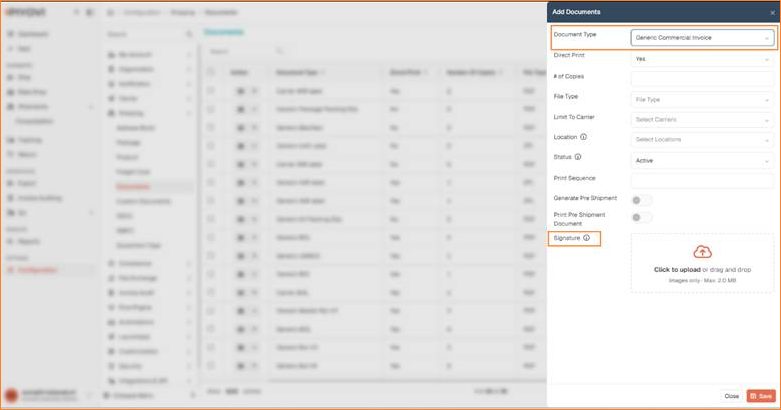
Add Documents panel: Signature field for Generic Commercial Invoice
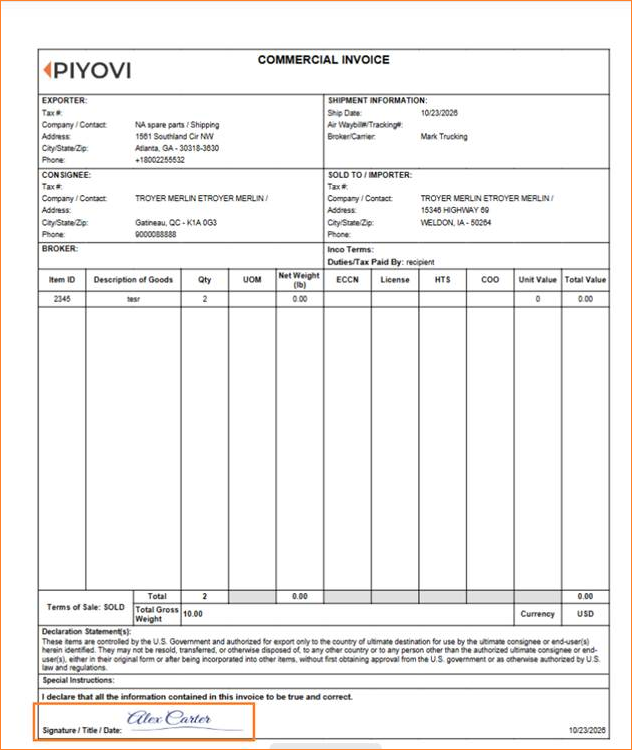
Commercial Invoice with the company signature in the Signature line
Notes:
- Priority order: A user's own signature always takes priority over the company signature.
- The user's signature is used only for the invoice types selected under Document in their account. For example, if only Generic Commercial Invoice is selected, the company signature is used on Generic Commercial Invoice V2.
- Validation: Only image files up to 2.0 MB can be uploaded. Other file types show the message "Invalid file type. Allowed: Images only".
Hyperlink for Custom Attribute
A new Hyperlink attribute type has been added to Custom Attributes. You can now store web links, such as tracking pages, supplier portals, or order documents, on Shipments, Shipment Packages, Shipment Items, Carriers, and Carrier Accounts, and open them with a single click.
Previously, links could only be saved as plain text and had to be copied into a browser to open. Hyperlink attributes are now shown as clickable links on the Ship screen, in the package and item grids, and on the Carrier and Carrier Account screens.
Benefits
- Opens related web pages directly from Piyovi, with no copying and pasting of links.
- Keeps grids easy to read, because a short Link Text (for example, Track Order) can be shown instead of a long URL.
- Reduces errors, because only valid web links starting with http:// or https:// are accepted.
- Leaves existing custom attributes and attribute types unaffected.
Navigation
Create the attribute: Configuration → Custom Attributes → Add Attribute → Attribute Type: Hyperlink
Use the attribute:
- Shipment: Ship → Attributes tab
- Shipment Package / Shipment Item: Ship → Packing → package and item grids
- Carrier: Configuration → Carrier → select a carrier → Attributes
- Carrier Account: Configuration → Carrier → select a carrier → Account → Add / Edit Account → Attributes
Steps
Create a Hyperlink Attribute
- Navigate to Configuration → Custom Attributes.
- Click Add Attribute.
- Select the entity: Shipment, Shipment Package, Shipment Item, Carrier, or Carrier Account.
- Enter the attribute name and select Attribute Type = Hyperlink.
- Optionally, enter a Link Text (up to 100 characters), for example Track Order. This text is shown in grids instead of the full URL.
- Leave Open in New Tab on (default) to open the link in a new browser tab, or turn it off to open it in the same tab.
- Click Save.
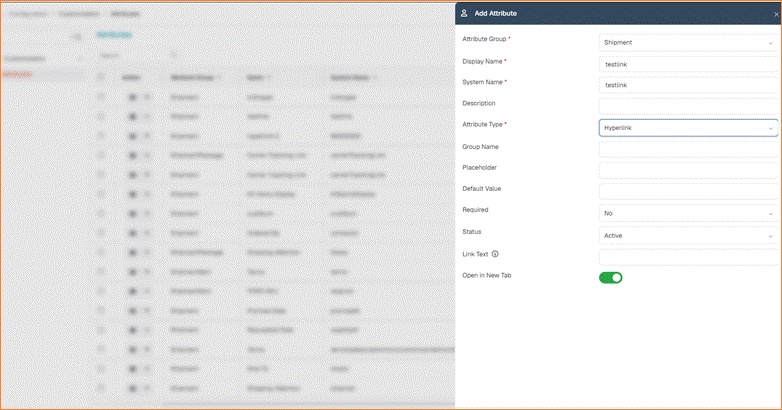
Add Attribute panel with the Hyperlink attribute type
Enter and Open a Link
- Open the screen where the attribute is used, for example the Ship screen → Attributes tab.
- Enter the full web link, starting with http:// or https:// (for example, https://www.example.com/track/12345).
- Click the Open in New Tab icon next to the field to check the link.
- Save or ship as usual.
- In the package or item grid, the value is shown as a clickable link. Hover over it to see the full URL.
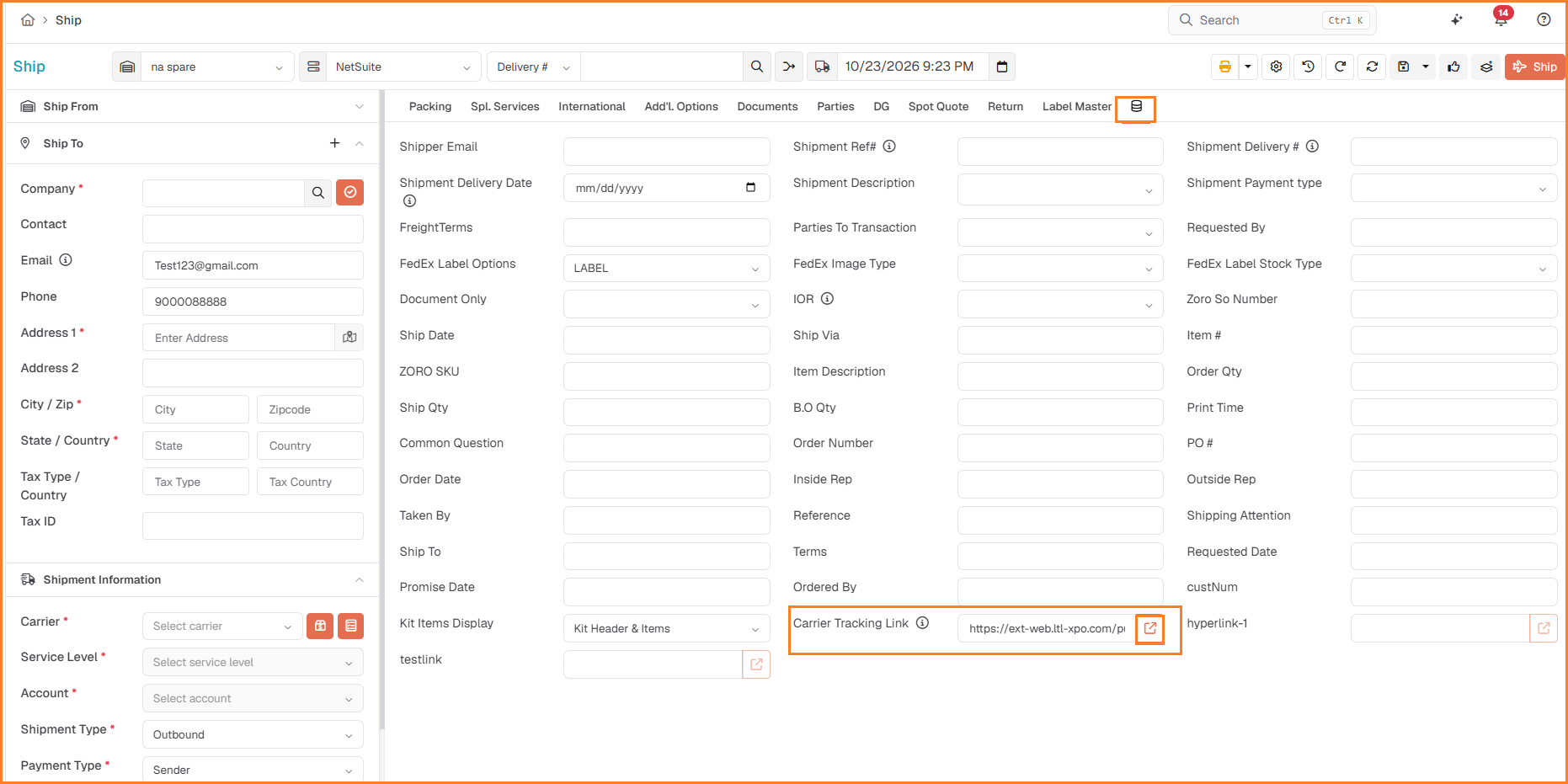
Ship screen: Attributes tab - hyperlink value with the Open in New Tab icon
Notes:
- Valid links only: Only links that start with http:// or https:// are accepted. Values such as www.example.com or ftp://example.com show the message "Enter a valid link starting with http:// or https://" and cannot be saved until corrected. The Open in New Tab icon stays disabled until the link is valid.
- Link Text in grids: When Link Text is set, the grid shows that text as the link, and the full URL appears on hover. Without Link Text, the full URL is shown as the link.
- Open in New Tab: This setting controls how links open from grids. The open icon next to a form field always opens the link in a new tab, so any unsaved changes on the screen are kept.
Billing Account on Shipment Details
A Billing Account # field has been added to the shipment View → Details screen. It shows the billing account number the shipment was billed to, directly below Payment Type in the Carrier section.
Previously, the billing account number could be entered or received for a shipment but was not shown when viewing the shipment, so you could not see from the shipment details which account it was billed to.
Benefits
- Shows which account a shipment was billed to, for Collect, Third Party, and other payment types.
- Keeps billing information protected, because the field is shown only to users who are allowed to view cost information.
Navigation
Shipment details: Shipments → select a shipment → View → Details → Carrier → Billing Account #
How to Use
No setup is needed. When a shipment has a billing account number, it is shown automatically on the shipment details for users who have a cost-view permission.
The billing account number comes from any of these sources:
- The Account field under Payment Info on the Ship screen.
- A shipment rule that sets the payment account.
Steps
- Navigate to the Ship screen and create a shipment.
- Select a Payment Type (for example, Collect or Third Party) and enter the billing account number in the Account field under Payment Info.
- Ship the shipment.
- Go to Shipments, select the shipment, and click View.
- On the Details tab, check the Carrier section. Billing Account # shows the account number, directly below Payment Type.
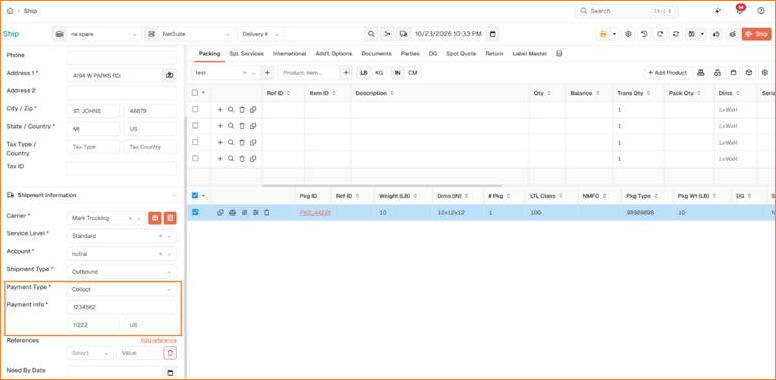
Ship screen: Payment Type and billing account number under Payment Info
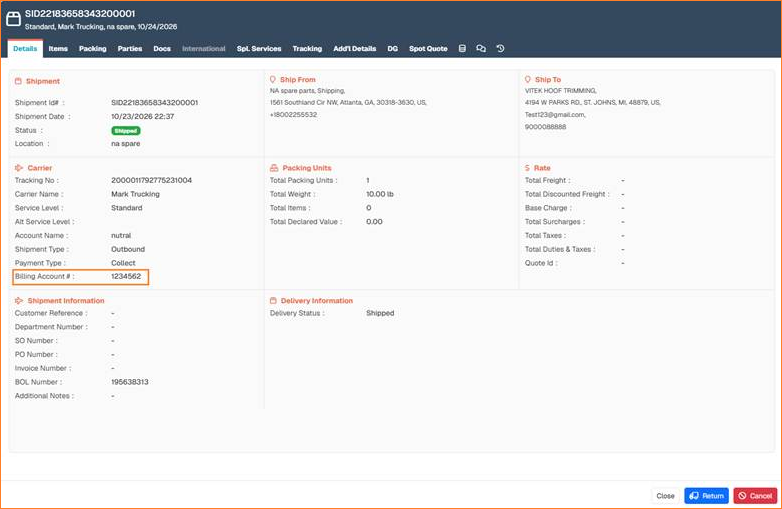
Shipment details: Billing Account # in the Carrier section
Notes:
- Permissions: Billing Account # is shown only to users whose role has at least one of the cost-view permissions: View Freight Cost, View Publish Cost, or View Discount Cost. Users without any of these permissions do not see the field.
- All payment types: The field is shown for any payment type when the shipment has a billing account number.
- No account number: If the shipment has no billing account number, the field is not shown on the Details screen.
Applied Rules Visibility
Applied-rule visibility now extends beyond Business Rules. Every rule applied to a shipment is now shown on the shipment and in Shipment Reports.
Previously, only the applied Business Rule name was shown, in Shipment View → Additional Options.
Benefits
- Complete rule visibility: You can see every rule applied to a shipment, along with the Business Rule.
- Better reporting: You can see applied rules in both the Shipment Report and the Shipment export.
Navigation
- Shipment View → Additional Options
- Shipment Reports → Add Columns, then select the rule columns to show them in the grid
- Shipment Reports → Export, where the rule columns appear in the exported file
How to Use
- Rule types covered: Business, Rate Shop, Freight, Document, and Consolidation rules.
- Shipment View → Additional Options: Lists all rules applied to the shipment.
- Shipment Reports → Grid: Shows a separate column for each rule type.
- Shipment Reports → Export: Includes the same rule columns in the export file.
Update Location for Orphan Invoices
Some orphan invoices don't have location details. You can now add or update the location on an orphan invoice directly in Piyovi.
Benefits
- Complete invoice details: Orphan invoices can be assigned to a location when the location data is missing.
Navigation
Reports → Orphan Invoices → Edit → Location
Multi-Stop Shipments
Piyovi introduces Multi-Stop Shipments, which let you combine multiple draft shipments into a single truck route with multiple pickup and delivery stops. You can visualize and optimize routes, manage stop sequences, configure equipment, and ship multiple shipments as one consolidated load.
Navigation
Create a Run: Shipments → Select Draft Shipments → Actions → Multi-Stop
Manage Runs: Shipments → Operations → Multi-Stop
How to Use
Select at least two eligible draft shipments to create a Multi-Stop run. Review and optimize the route, configure the required settings, and save the run for shipping.
For detailed instructions, prerequisites, and configuration options, see the Multi-Stop Shipments User Guide.
Expandable Shipment Grid for Ship Confirm and Batch Shipping
The Ship Confirm and Batch Shipping pages now have an expandable shipment grid.
Previously, shipment details opened in a separate pop-up. Now you can expand a record directly within the main grid to view its associated shipments and perform the available actions, without opening a separate window.
Benefits
- View shipments directly within the Ship Confirm and Batch Shipping grids.
- Access shipment-level actions without navigating to a separate pop-up.
- Review shipment statuses, errors, and warnings more easily.
- Customize the main and expanded shipment grids independently.
Navigation
Ship Confirm: Shipments → Operations → Ship Confirm
Batch Shipping: Shipments → Operations → Batch Shipment
How to Use
Select the expand arrow next to a record's checkbox, or click its Ship Confirm ID / Batch ID, to display the associated shipments.
The expanded grid provides the following actions:
| Page | Available Shipment Actions |
|---|---|
| Ship Confirm | View Shipment, View Errors, Resubmit (shipped shipments only) |
| Batch Shipping | View Shipment, Print, Delete from Batch, View Errors and Warnings |
The existing record-level actions remain available.
Grid Customization
The grid menu (⋮) now provides separate Column Options and Auto Size settings for:
- Master Grid – Main Ship Confirm or Batch Shipping records.
- Child Grid – Shipments displayed within expanded records.
Steps
- Navigate to Ship Confirm or Batch Shipment.
- Locate the required record.
- Click the expand arrow or the record's ID link.
- Review the associated shipments in the expanded grid.
- Use the available shipment-level actions as needed.
- Click the arrow again to collapse the grid.
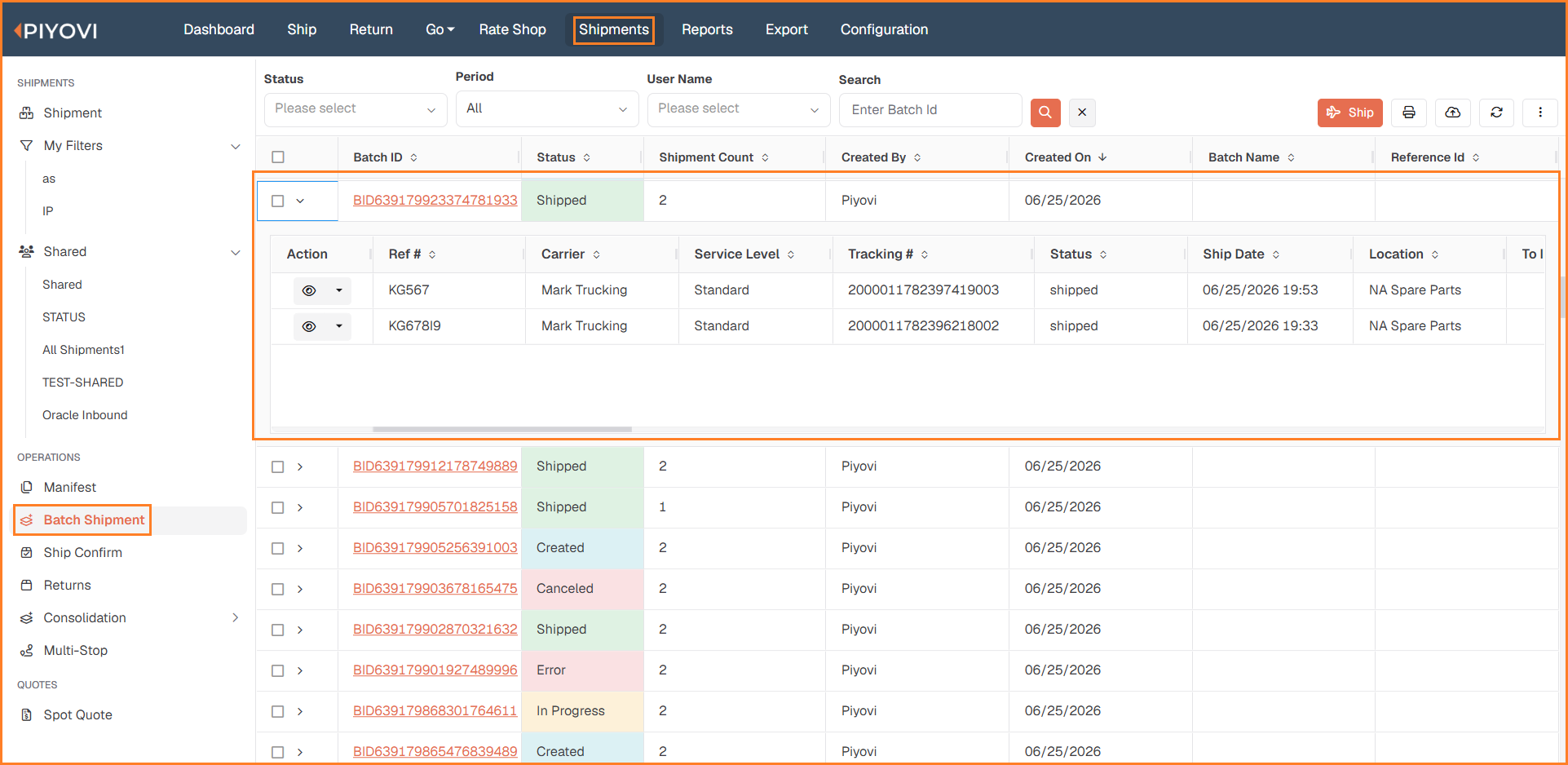
Batch Shipment: expanded shipment grid
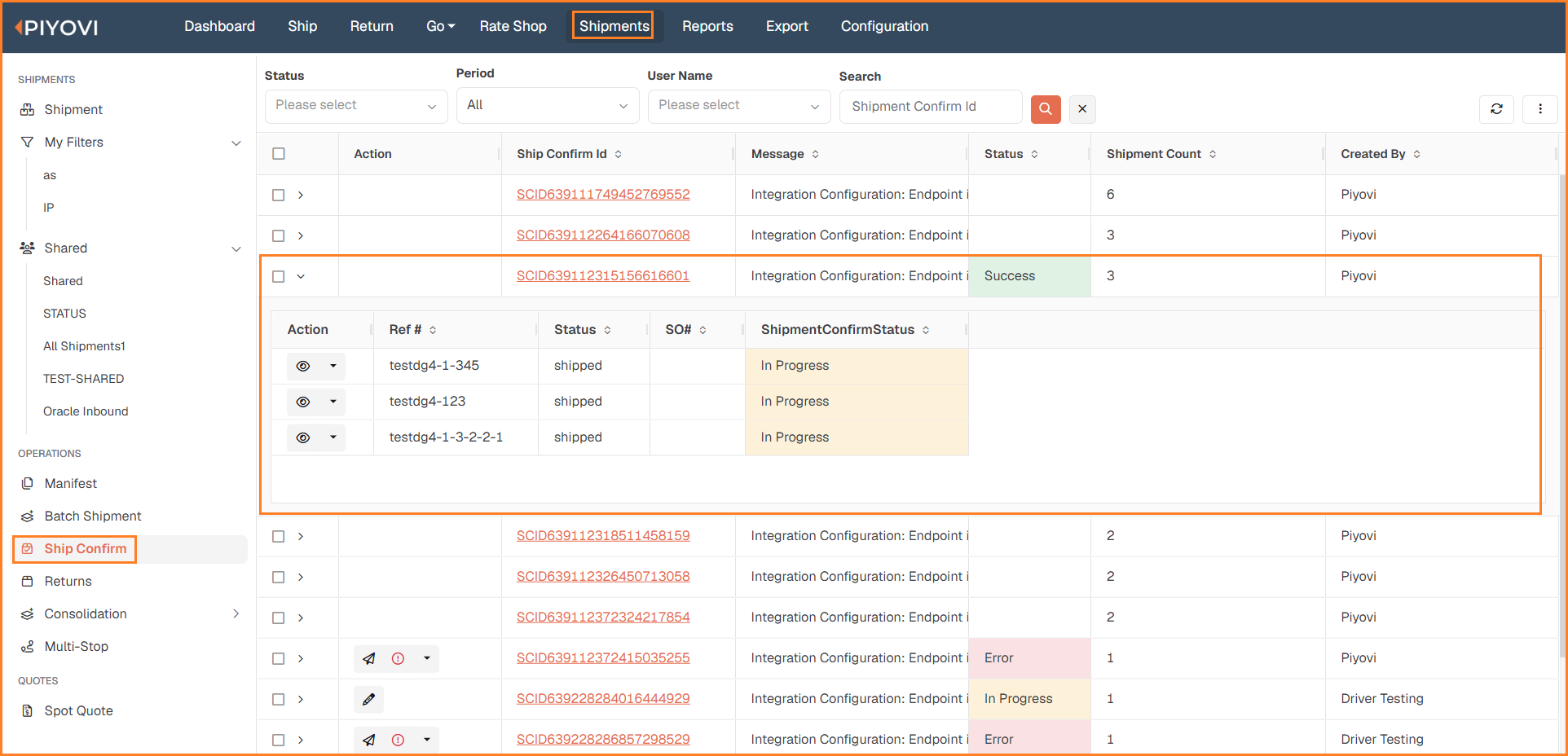
Ship Confirm: expanded shipment grid
Notes:
- Shipment-level actions: Resubmit in Ship Confirm, and Print and Delete in Batch Shipping, now operate on one shipment at a time. Printing an entire batch from the main toolbar remains available.
- Batch deletion: A shipment can be removed only when the batch is in Created or Error status, the shipment is a draft, and at least two shipments remain in the batch after deletion. The Delete option is available only to users with Batch Shipping access.
- Grid refresh: After actions such as Resubmit, Delete, Ship, or Refresh, the list reloads and expanded rows collapse.
- Pop-up removed: The previous shipment pop-up, including its search field and row-level View button, has been removed.
Refresh Option on the Ship Screen
Piyovi introduces a Refresh option on the Ship screen, allowing users to reload the latest order or shipment information without leaving the page.
The Ship screen also supports automatic refresh when an integrated system returns updated order information after shipment validation, ensuring users can continue working with the latest data.
Benefits
- Retrieve updated order or shipment information without reopening the Ship screen.
- View the latest changes received from ERP or integrated systems.
- Automatically reload shipment details when required after validation
Navigation
Ship → Refresh Button
Steps
-
Navigate to the Ship screen.
-
Load an order using its reference number or open an existing shipment.
-
Click Refresh in the top toolbar.
-
Review the updated order or shipment details and continue processing.
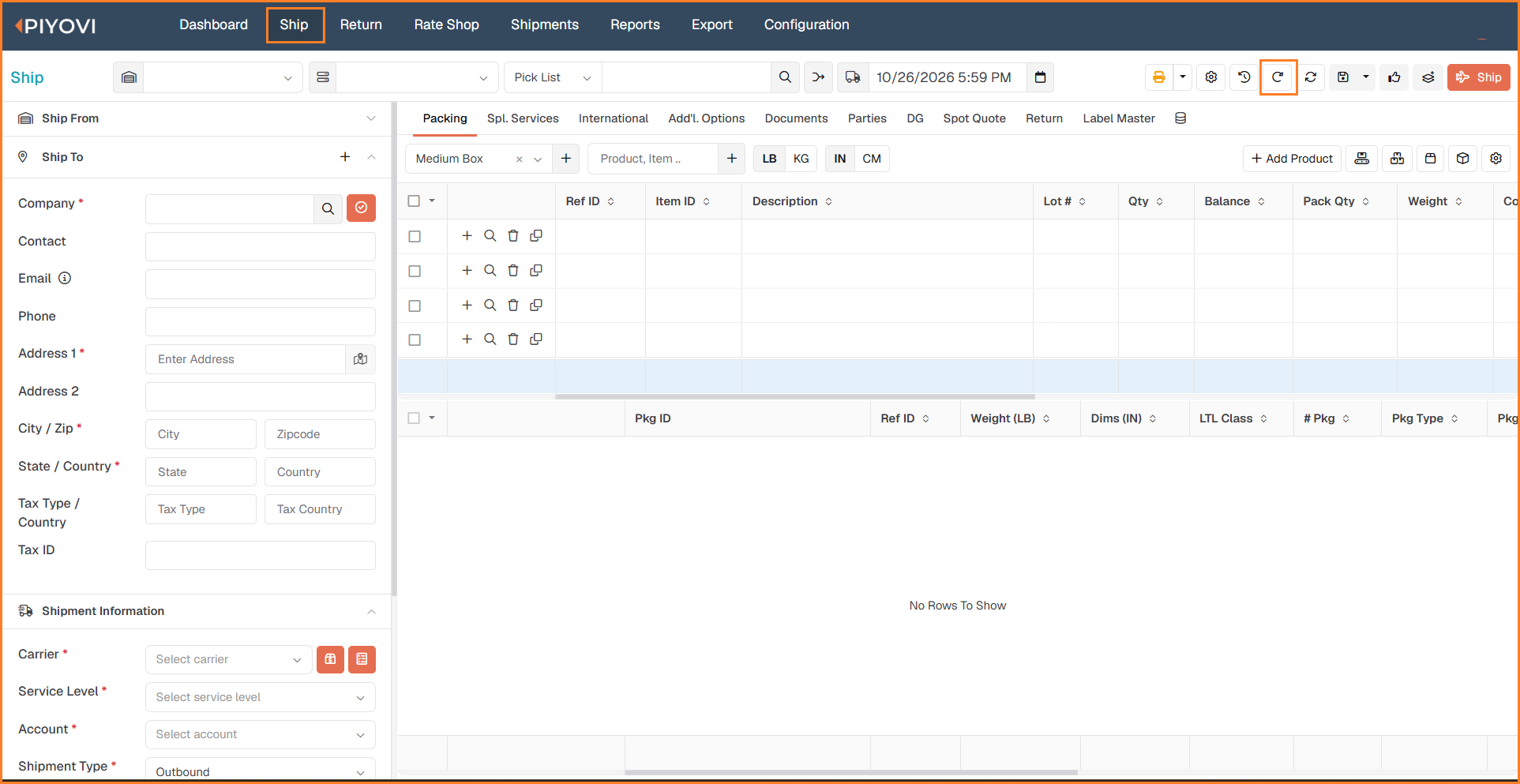
Ship screen: Refresh icon in the top toolbar
Notes:
Clicking Refresh when no order or shipment is loaded does not trigger any action.