26.09.01
Introduction
We are pleased to announce the release of Piyovi v26.09.01, which includes key enhancements aimed at improving usability, operational efficiency, and shipment visibility. Below is a summary of the new features and updates included in this release.
Default Ship to Phone Number at Location Level
A Default Ship to Phone Number field has been added to the Location's Settings tab. This lets users set a default phone number for each location, which is automatically used in the Ship To section of a shipment whenever the phone number field is left blank. Users can still type a different number in the Ship To section if needed, and that manual entry will take priority.
Benefits
- Saves time by removing the need to manually enter the phone number for every shipment from the same location.
- Keeps contact information consistent across all shipments tied to a location.
- Value is preserved correctly during export and import of location data.
- Reflected accurately when shared with external systems.
Navigation
Location → Settings → Default Ship to Phone Number
Steps
- Navigate to the Location and open the Settings .
- Enter a phone number in the Default Ship to Phone Number field.
- Click Save and confirm the value is saved.
- Create a new shipment and select the same Location.
- In the Ship To , leave the phone number blank and fill in the rest as usual, then Ship it.
- Open the details page for the created shipment.
- Check the Ship To: the phone number shown will match the Default Ship to Phone Number set on the Location.
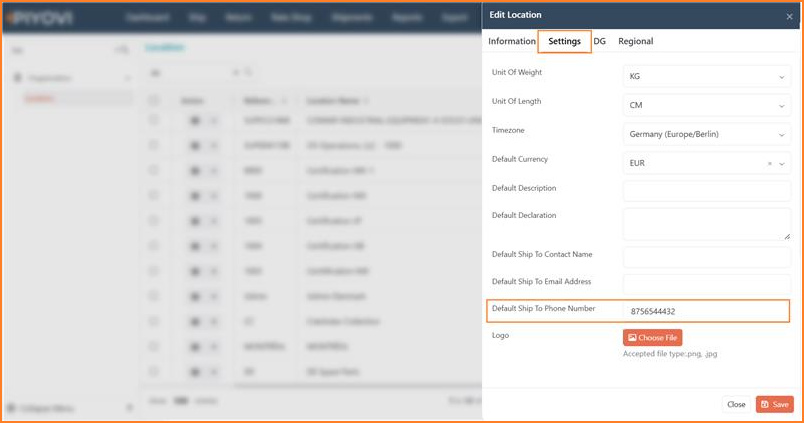
Edit Location dialog, Settings tab, showing Default Ship to Phone Number field
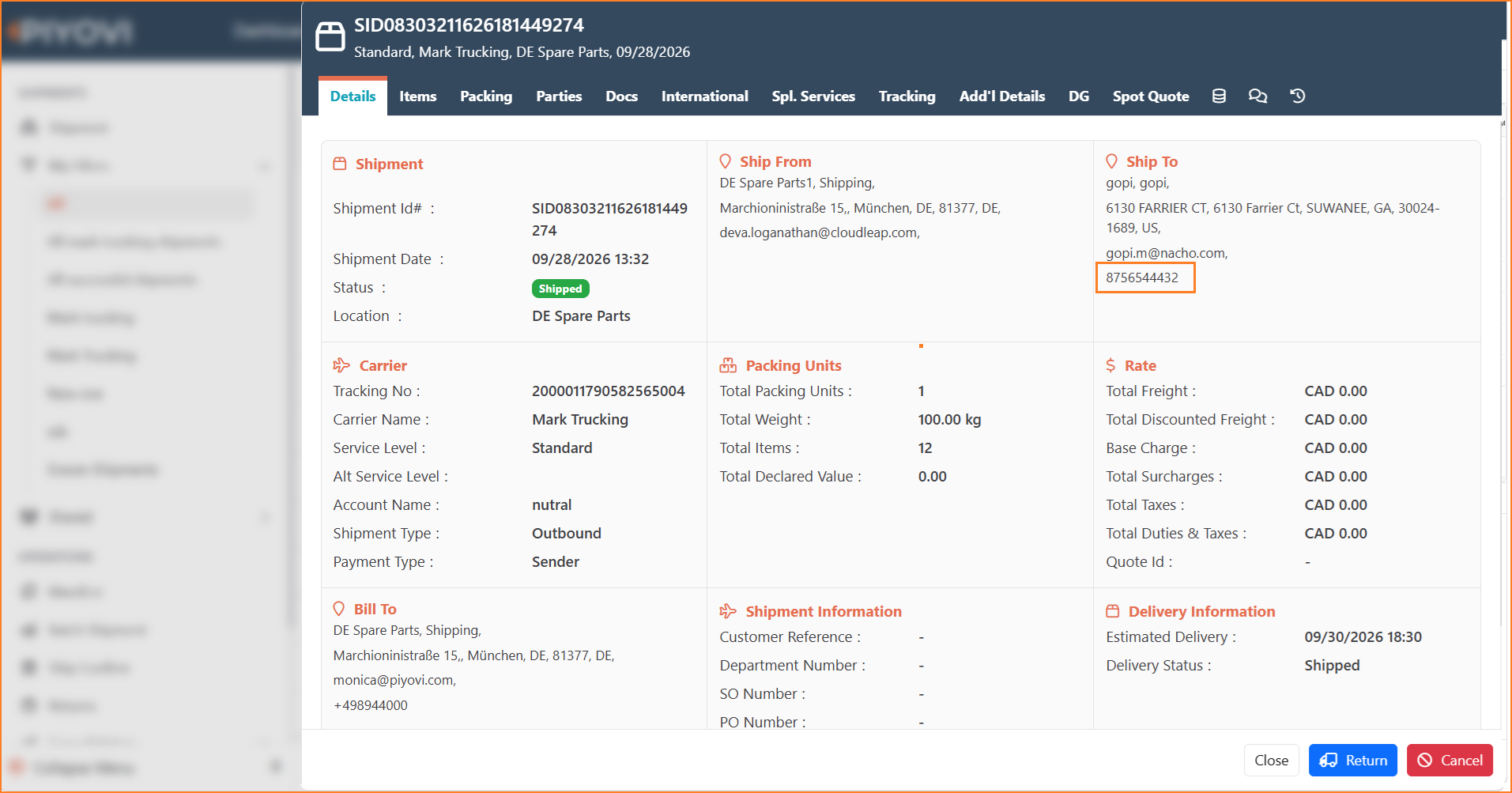
Shipment details page, Ship To section, showing the phone number auto-populated from the Location's default
Note:
If the Ship To phone number field is left blank while creating a shipment, the system automatically fills it in with the Default Ship to Phone Number set at the Location level. This value also stays intact when location data is exported, imported, or sent to an external system.
Base Charge and Tax Columns in Shipment Master Export
Base Charge and Total Tax now appear as separate columns in the Shipment Master Export, along with each accessorial charge.
Benefits
- Full cost breakdown visible per shipment; helps reconcile against carrier invoices.
- Correct currency/decimal format; existing export data unaffected.
Navigation
Shipments → Export → Shipment Master Export
How to Use
- Go to Shipments and use Search or Filter to narrow the list to the shipments you need.
- Click the three dots menu in the top-right toolbar and select Master Export.
- Open the downloaded file : each shipment row shows Base Charge, Total Tax, and a separate column for each accessorial charge.
- Use these columns to review the full cost breakdown and reconcile shipments against carrier invoices.
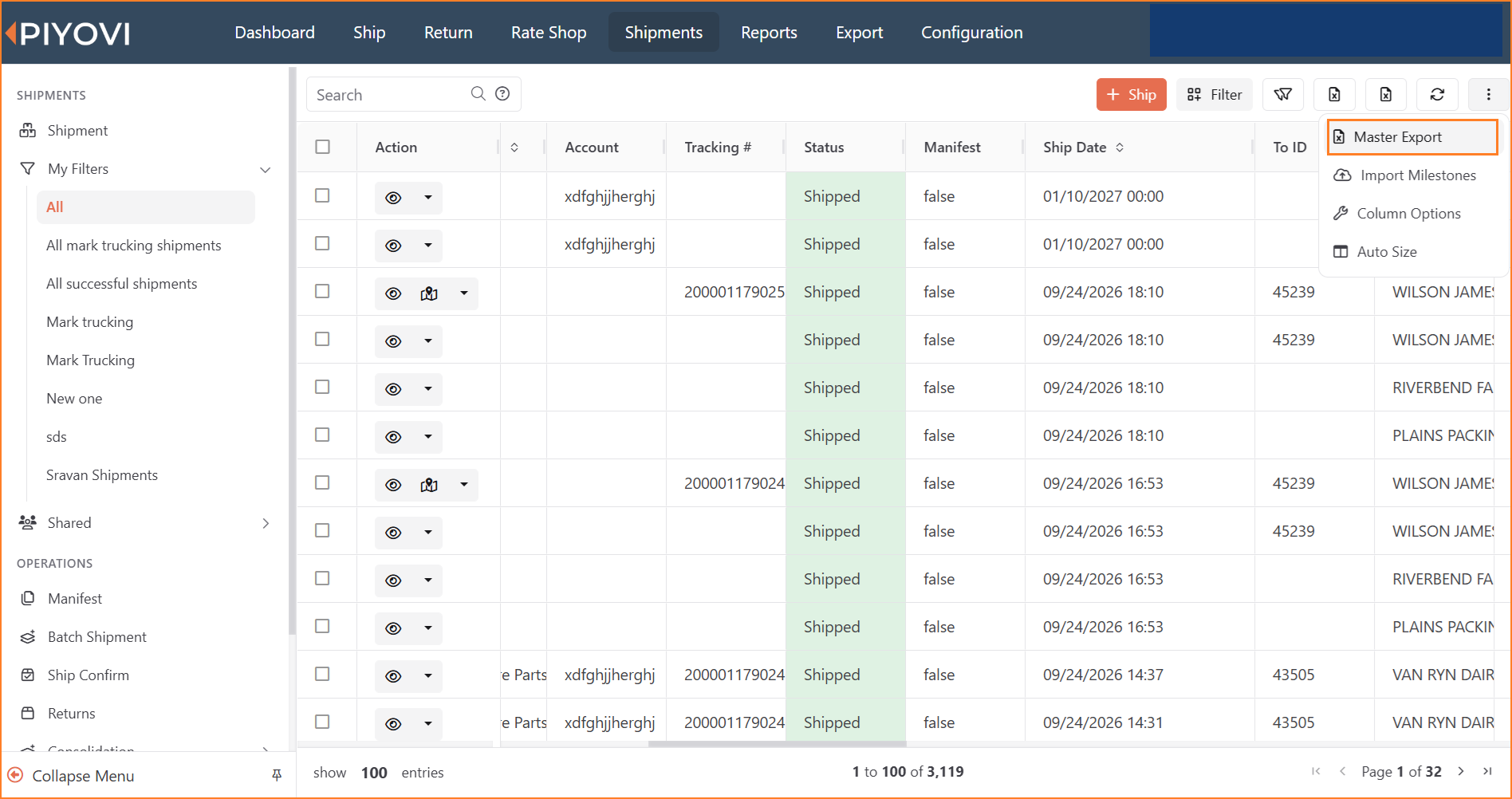
Shipments list, three-dot menu, showing the Master Export option
Bulk Shipment Print
Users can now select multiple shipments from the Shipment list and print all their documents together in a single print job, instead of printing each shipment one at a time.
Benefits
- Saves time by printing documents for multiple shipments in a single action instead of one at a time.
- Keeps the same order as the user's shipment selection in the generated print job.
- Produces the same documents as the existing single-shipment Print option, so results stay consistent.
Navigation
Shipments → Select Shipments → Actions → Print
Steps
- Navigate to the Shipments.
- Select the checkboxes for the shipments to print (all must be in Shipped status).
- Click on Actions and choose Print.
- Confirm the print job is initiated : a single merged print job is generated for all selected shipments; in the order they were selected.
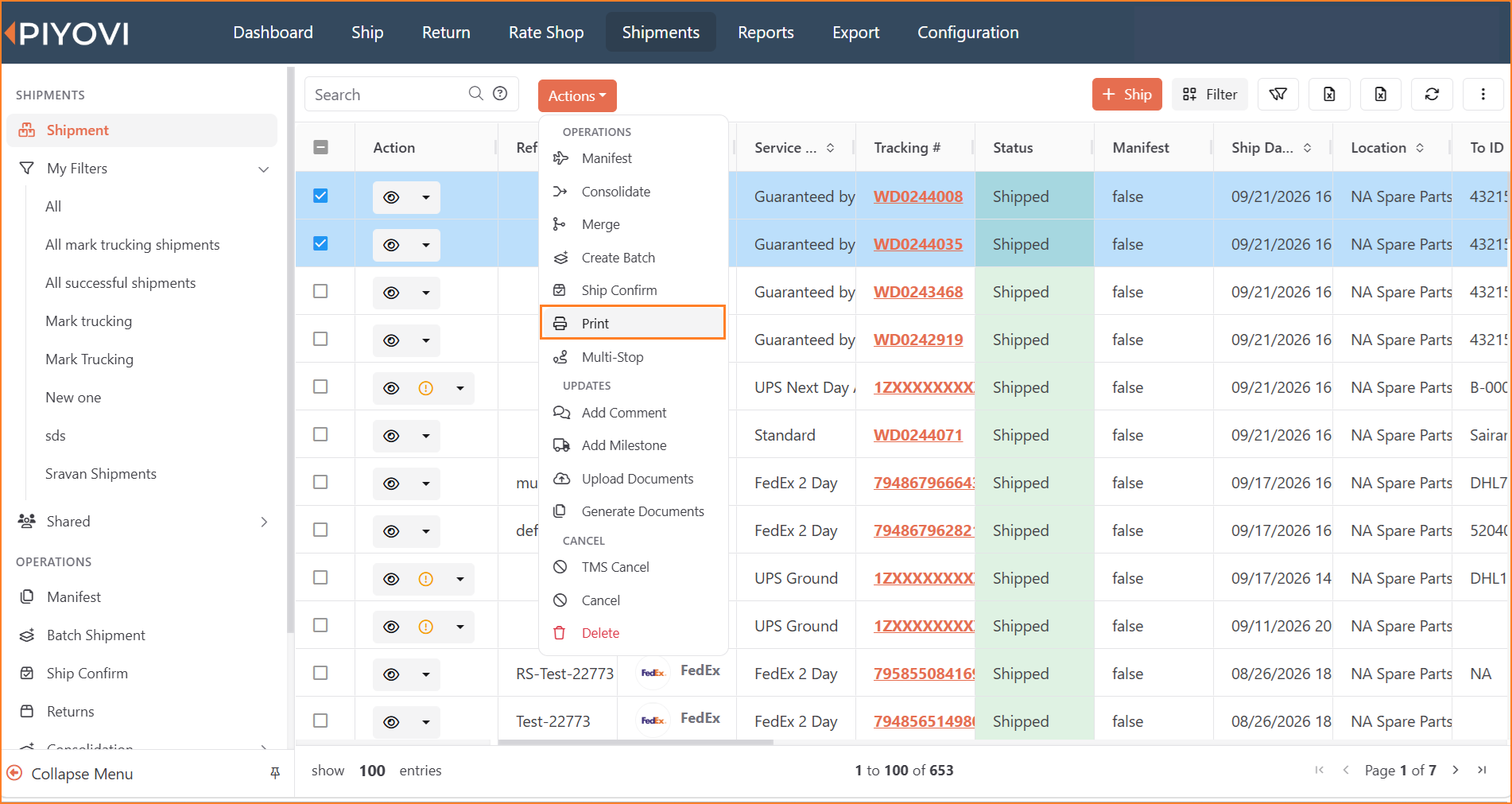
Shipment list with multiple shipments selected and Print highlighted under Actions
Notes:
Only shipments belonging to the current company are included. Up to 100 distinct shipments can be selected per print request; selecting duplicates does not count against this limit.
Default LTL Class Display
The Default Freight Class set on a location is now shown in the LTL Class column of the packages grid. Previously, this default could be saved in location settings but did not appear on screen.
When Auto Calculate Freight Class is turned off for a location, new packages now show the location’s Default Freight Class in the LTL Class column, and users can see or change it before shipping.
Benefits
- Users can see the LTL class that will be used for each package, with no hidden defaults applied in the background.
- Saves time by filling in the LTL class automatically for locations that normally ship the same freight class.
- Reduces errors, because users can review and correct the class before the shipment is processed.
Navigation
Set the default: Location → Regional → Default Freight Class
How to Use
This feature has two parts:
- One-time setup: When user sets the Default Freight Class for the location and makes sure Auto Calculate Freight Class is turned off.
- Everyday use: When users add a package the LTL Class column is filled in automatically with the location’s default. Users can keep it or pick a different class from the dropdown.
Steps
- Navigate to Location → Regional.
- Set the Default Freight Class (for example, 77.5).
- Make sure Auto Calculate Freight Class is turned off, then save.
- Open the Ship, Return, or Rate Shop screen for that location.
- Add a package.
- The LTL Class column shows the Default Freight Class.
- If needed, select a different class from the LTL Class dropdown.
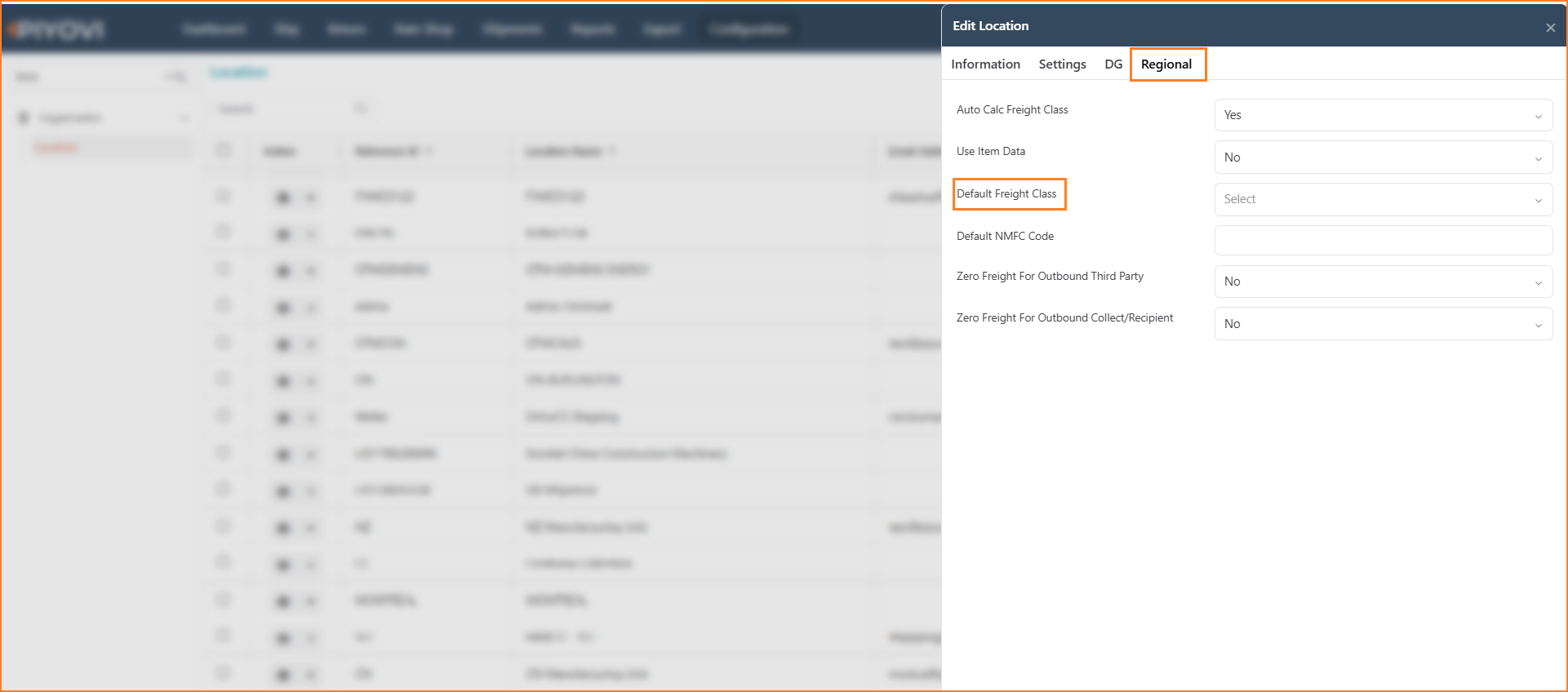
Edit Location dialog, Regional tab, showing the Default Freight Class field
Notes:
- Priority order: The Default Freight Class is used only when Auto Calculate Freight Class is turned off.
- When Auto Calculate is on, the LTL class is calculated from package weight and dimensions, as before.
- When Auto Calculate is off and Use Item Data is on, the item’s freight class is used first. The default is used only if the item has no class.
- When Auto Calculate is off, the LTL class does not change when weight, dimensions, or package count is edited. A class the user selects manually stays as selected.
- NMFC codes: NMFC codes are not selected automatically. When a user selects an NMFC code, the LTL class mapped to it on the NMFC screen is applied automatically, replacing the current class, whatever the location settings are. If no LTL class is mapped to that NMFC code, the current LTL class is kept.
Partial Shipment IDs in Webhooks
When an order is shipped in multiple parts using partial shipments, Piyovi now records every successfully shipped partial shipment on the master shipment. The list of partial shipment IDs is included in the shipment webhooks that Piyovi sends to connected systems (ERP).
This lets the customer’s integration (for example, an ERP writeback) identify which partial shipments belong to an order. When the final shipment for that order is processed, the integration can make the correct freight updates without applying the same update twice.
Benefits
- Gives integrations a complete picture of every partial shipment linked to an order.
- Requires no change to the existing webhook setup. The information is added to the existing shipment webhook payload.
How to Use
Users create partial shipments as they do today. No extra steps are needed. Each time a partial shipment is shipped successfully, Piyovi adds its ID to the master shipment. The connected system can then read the PartialShipment_Ids list from the webhook to decide which freight updates to make.
Steps
- Open a shipment and create a partial shipment for part of the order, as usual.
- Ship the partial shipment.
- Piyovi adds the partial shipment’s ID to the master shipment’s list of partial shipments.
- Repeat for any other partial shipments on the same order.
- When shipment webhooks are sent for the master shipment, the payload includes PartialShipment_Ids under Custom Properties.
- The connected system uses this list to identify the related partial shipments.
Notes:
- Only successful partial shipments are added: A partial shipment is added to the list only after it ships successfully. Failed attempts are not included.
- Where the list appears: The list is stored on the master shipment and sent in its webhooks. Individual partial shipments do not carry the list themselves.
- Webhook events: The field is included in these webhook events: Shipment Create, Shipment Update, Shipment In Progress, Shipment Cancel, Shipment Error, Shipment Tracking Update, Shipment Consolidation
Rate Shop Rules – Apply Need By Date
You can now control whether Piyovi considers the Need By Date when calculating rates during Rate Shop. A new Apply Need By Date flag has been introduced in Rate Shop Rules:
- Enabled: Piyovi considers the Need By Date when applying the Rate Shop Rule.
- Disabled: Piyovi does not consider the Need By Date when applying the Rate Shop Rule.
Benefits
- Greater flexibility in configuring Rate Shop Rules based on user preferences.
- Prevents unintended filtering when the Need By Date is not relevant to a rule.
Navigation
Configuration → Rule Engine → Rate Shop Rules → Add Rule / Edit Rule
Steps
- Go to Configuration → Rule Engine → Rate Shop Rules.
- Click + Add Rule or open an existing rule to edit.
- In the Result, set Apply Need By Date to Yes or No.
- Fill in the remaining fields and click Save.
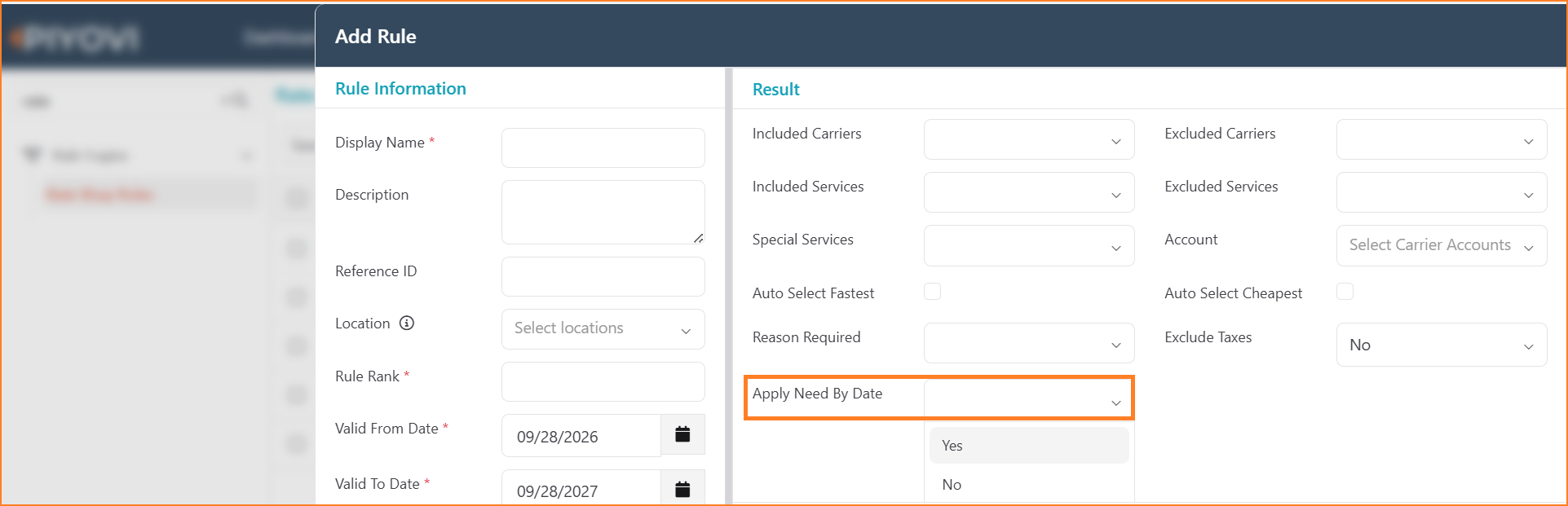
Add Rule dialog, Result section, showing the Apply Need By Date option
Note:
Existing Rate Shop Rules will continue to work as they do today. The new behavior applies when the Apply Need By Date flag is configured.
New Permissions- Manage Shipment Field Access Control
The Manage Shipment Field Access Control permission has been removed and replaced with individual permissions. When enabled, these permissions disable specific fields on the Ship screen, when shipment details are retrieved from the ERP or populated through an External API.
New Permissions Replacing the Existing Permission
- Integration Document Reference – Read only : When enabled, the Integration and Integration Reference Type fields on the Ship screen will be disabled.
- Shipment Item Qty – Read only : When enabled, the Item Quantity field in the shipment item line will be disabled.
- Ship To – Read only: When enabled, the Ship To section on the Ship screen will be disabled.
- Shipment Item – Read only: When enabled, the entire shipment item line on the Ship screen will be disabled.
- Ship Method – Read only: When enabled, the Ship Method field on the Ship screen will be disabled.
Benefits
- Individual control over each shipment field without affecting others.
- Enables precise access management for different user roles.
Navigation
Configuration→ Organization→ User → Role→ Add Role / Edit Role→ Permission tab
Steps
- Go to Configuration → Organization → User.
- Open the Role and select a role to edit or click + Add to create a new one.
- Open the Permission and search for the permission by name.
- Enable the required permissions and click Save.
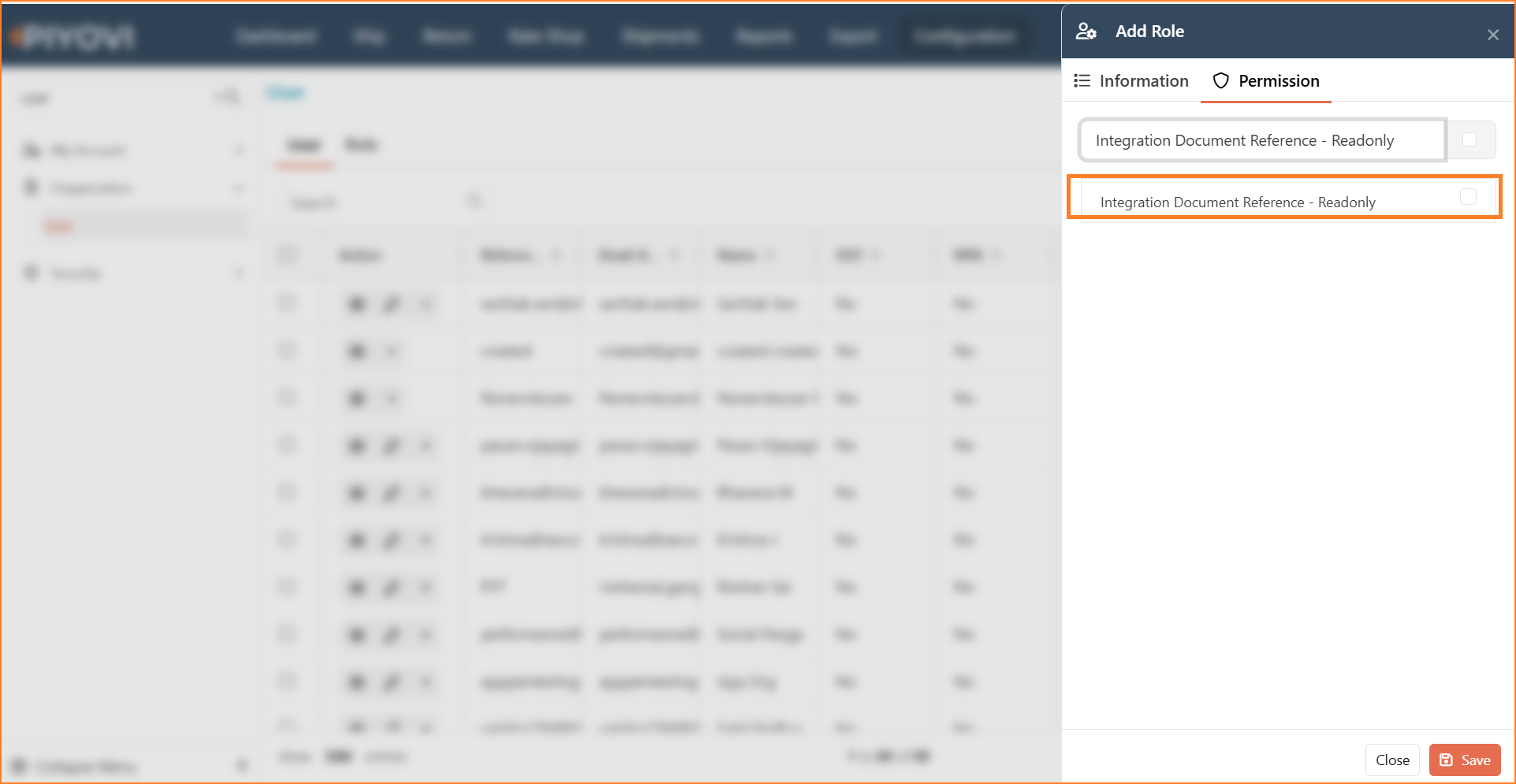
Add Role dialog, Permission tab, showing a search for one of the new read-only permissions
Form Type and Regulation – Dropdown Updates
Since Form Type and Regulation require a valid selection, the None option has been removed as it does not make sense to leave these fields unselected.
Benefits
- Ensures Label Master records are always configured with valid values.
- Reduces label generation failures caused by invalid field selections.
Navigation
Ship screen → Label Master tab
Steps
- On the Ship, open the Label Master.
- Select a valid Form Type from the dropdown.
- Select a valid Regulation from the dropdown.
- Complete the remaining fields and save the record.
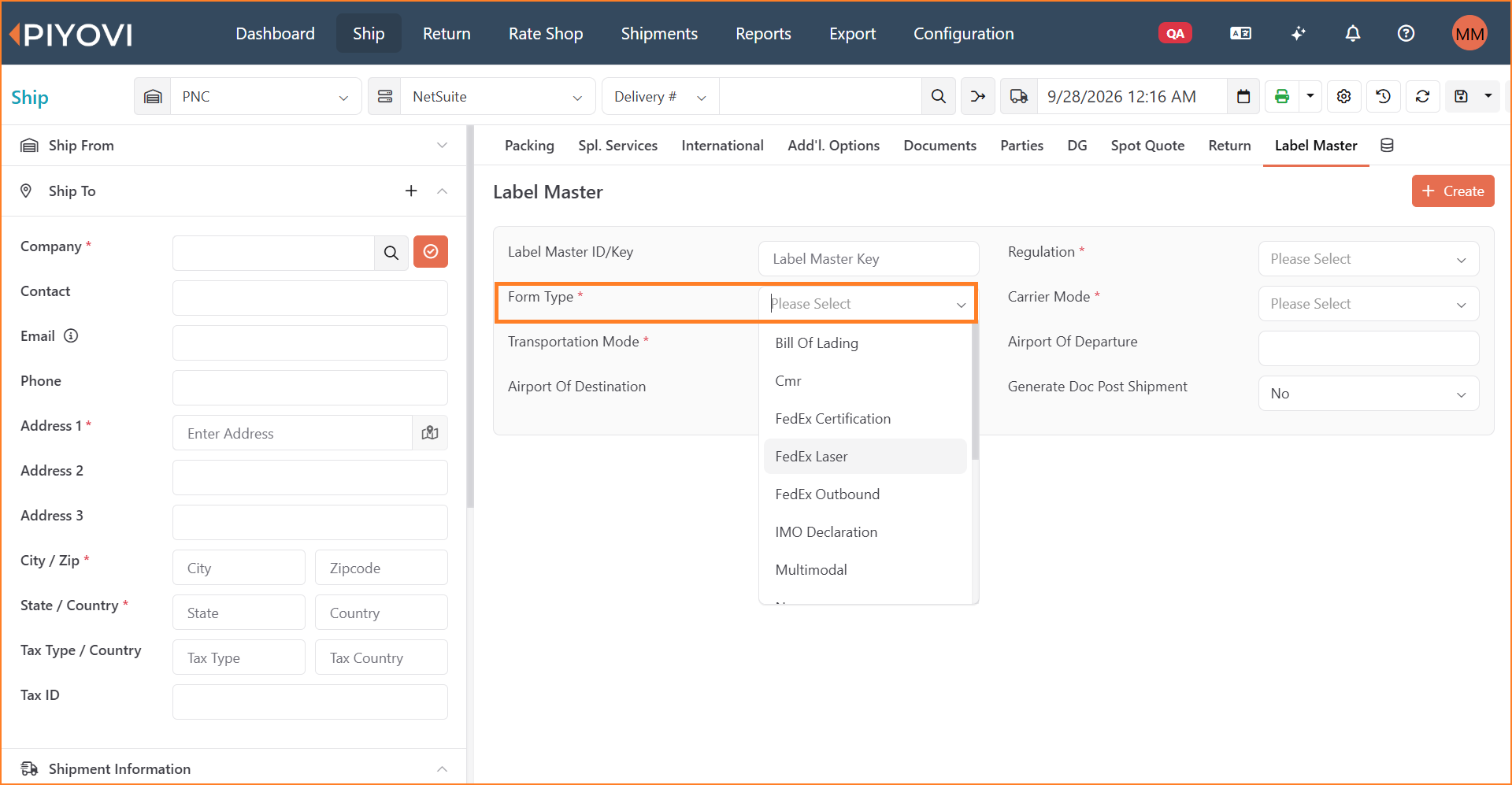
Label Master tab, Form Type dropdown
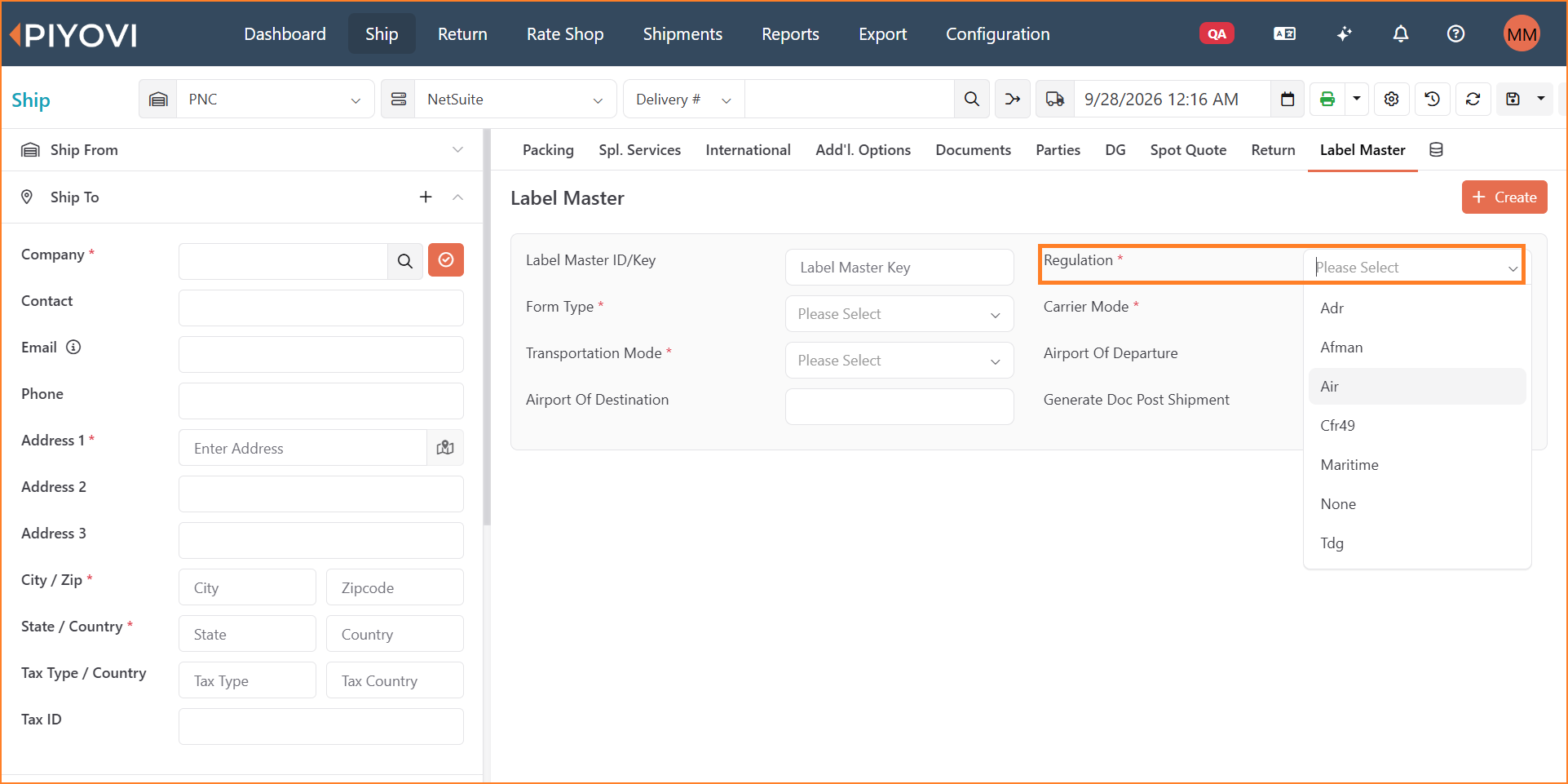
Label Master tab, Regulation dropdown
Default Stackable and Turnable Values for New Packages
You no longer need to set Stackable and Turnable by hand on every package. Set them once, for the whole company or just for yourself, and they fill in automatically when you add packages on the Ship and Rate Shop screens.
Benefits
- Fewer clicks when adding packages.
- Consistent handling details across your team.
- Your own defaults don't affect anyone else.
Navigation
- For the whole company: Configuration → Organization → Company Preference → Package
- For yourself: Configuration → My Account → User Preference → Package
How to Use
Each field can be Yes, No, or left blank:
- Stackable : whether other freight can be placed on top of the package.
- Turnable : whether the package can be rotated or laid on its side in transit.
User preference setting comes first. If you leave it blank, the company setting is used.
Steps
- Go to Configuration → Organization → Company Preference → Package.
- Select Yes or No for Stackable and Turnable, then click Save.
- To set your own defaults, go to Configuration → My Account → User Preference → Package, choose your values, and click Save.
- Reload the Ship or Rate Shop screen and add a package. Check that Stackable and Turnable are pre-filled.
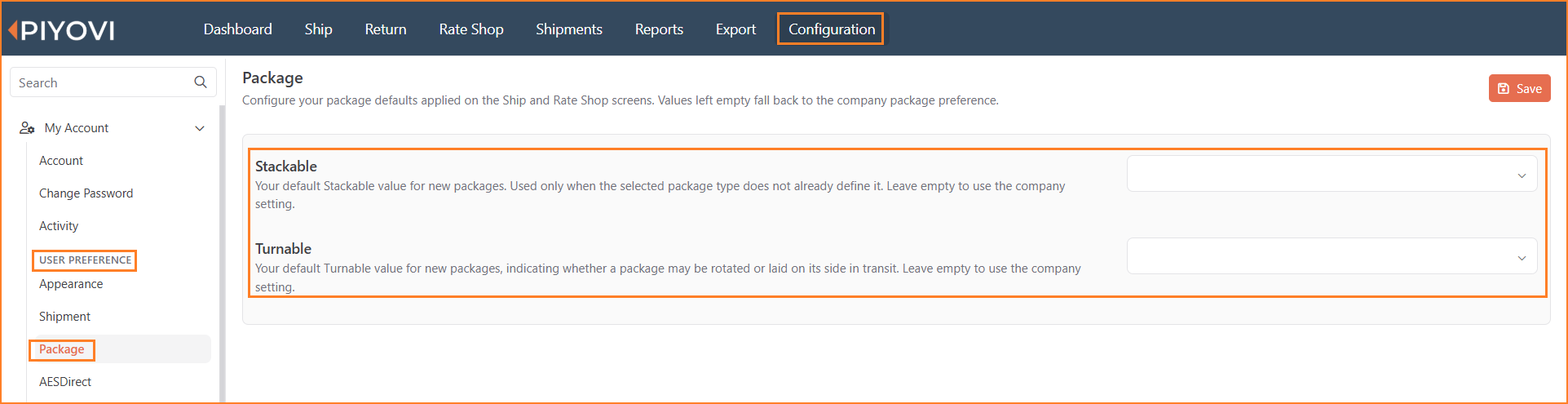
User Preference → Package, showing your personal Stackable and Turnable defaults
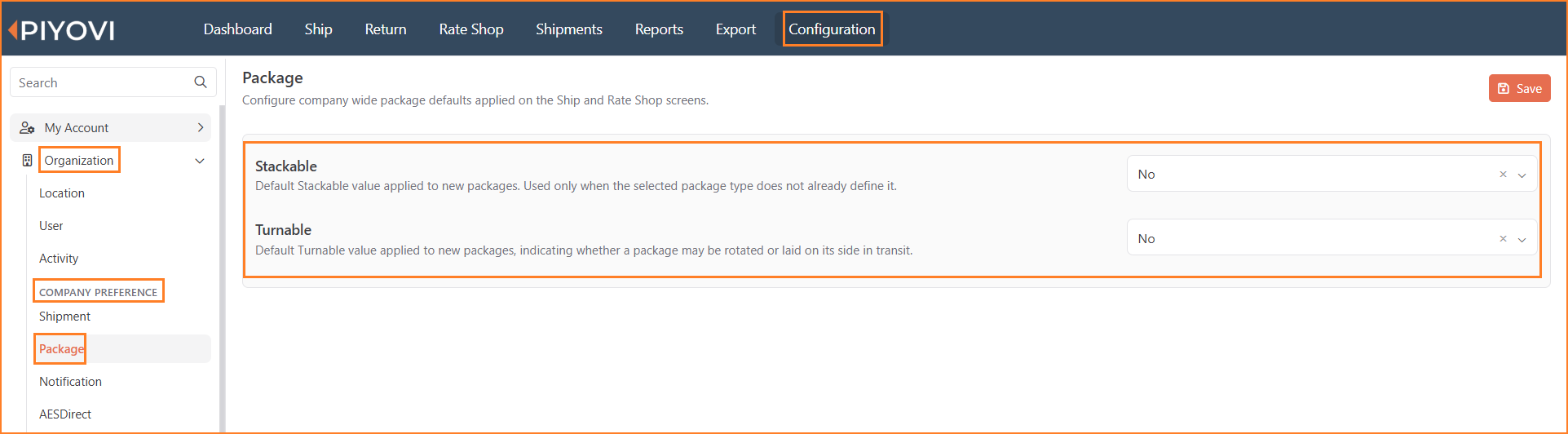
Company Preference → Package, showing the company-wide Stackable and Turnable defaults
Improved Ship, Pickup, and Need By Date Validation
Piyovi now provides improved date and time handling for Ship Date, Pickup Date, Need By Date, and Pickup Times. Ship and Pickup dates stay synchronized where needed, and additional validations help prevent invalid pickup information from being submitted to the carrier.
Benefits
- Keeps Ship Date and Pickup Date aligned automatically.
- Identifies invalid pickup dates and time windows before shipment processing.
- Prevents a Need By Date earlier than the shipment or pickup date.
- Prevents invalid pickup time defaults from being saved on carrier accounts.
Navigation
-
Shipment dates and pickup details: Ship / Rate Shop → Add'l. Options → Pickup
-
Need By Date: Ship / Rate Shop → Shipment Information → Need By Date
-
Carrier Account pickup defaults: Configuration → Carrier → Accounts → Pickup
How to Use
Ship Date and Pickup Date
When either date is changed, Piyovi automatically keeps the dates in a valid sequence:
- If the Ship Date is moved after the current Pickup Date, the Pickup Date moves forward to match.
- If the Pickup Date is moved before the current Ship Date, the Ship Date moves back to match while retaining its existing time.
- If the dates are already valid, no automatic adjustment is made.
Shipment Validation
When Pickup Request Required is set to Yes, Piyovi validates the pickup information when the shipment is processed.
| Validation | Message |
|---|---|
| Pickup Date is blank | Invalid Pickup Date |
| Pickup Close Time is earlier than Pickup Ready Time | Pickup ready time must be earlier than pickup close time. |
| Need By Date is before the Ship Date or Pickup Date | Need by date must be on or after the ship date and pickup date. |
If an issue is found, the Shipment Errors window identifies the affected field so it can be corrected before trying to ship again.
Carrier Account Pickup Validation
Carrier accounts now validate the default Pickup Ready Time and Pickup Close Time before saving.
If the Pickup Close Time is earlier than the Pickup Ready Time, the account cannot be saved until the time is corrected. The validation message appears directly under the field, and the Pickup tab is marked with a red indicator.
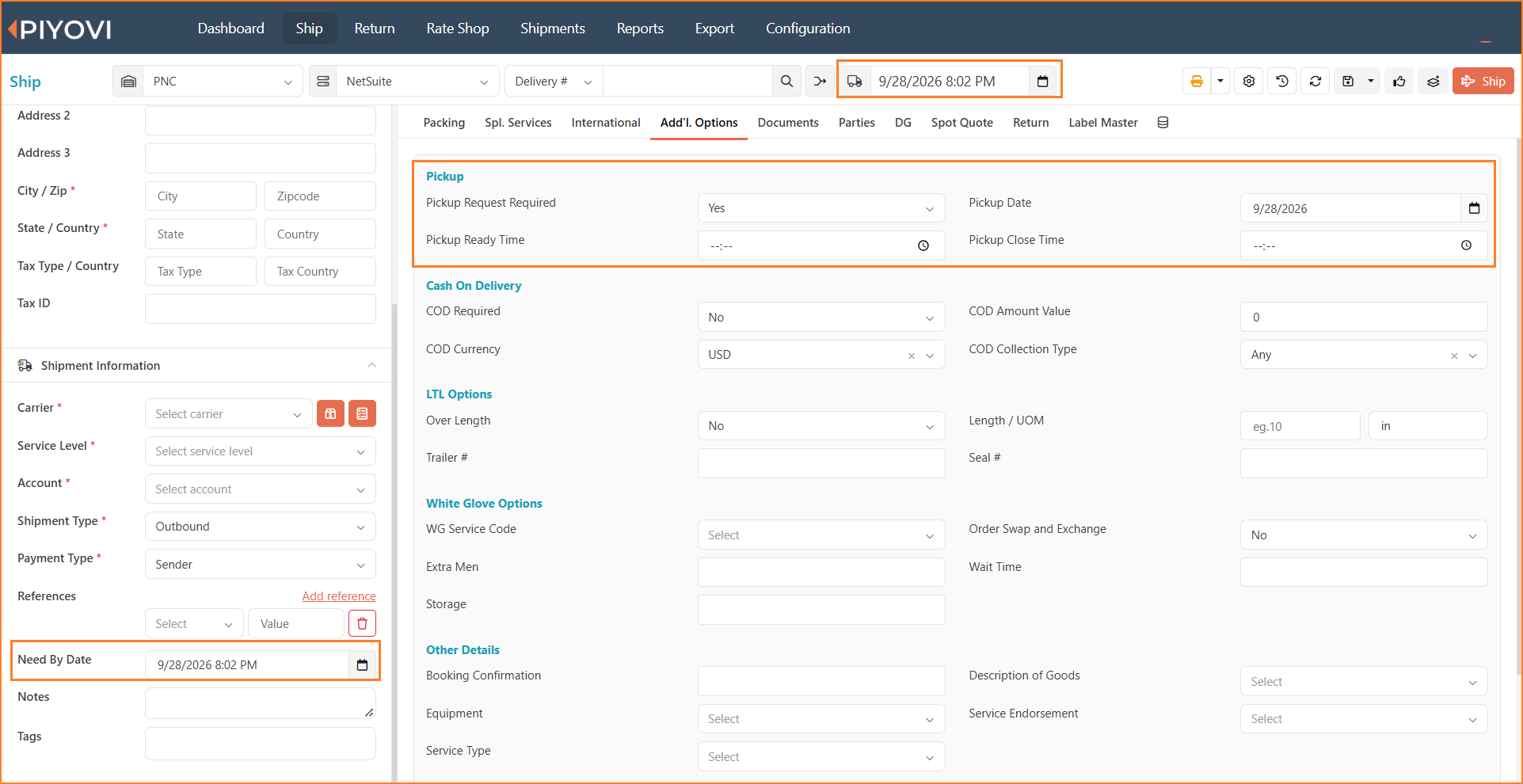
Ship screen showing the ship date, the pickup date and times, and the Need By Date
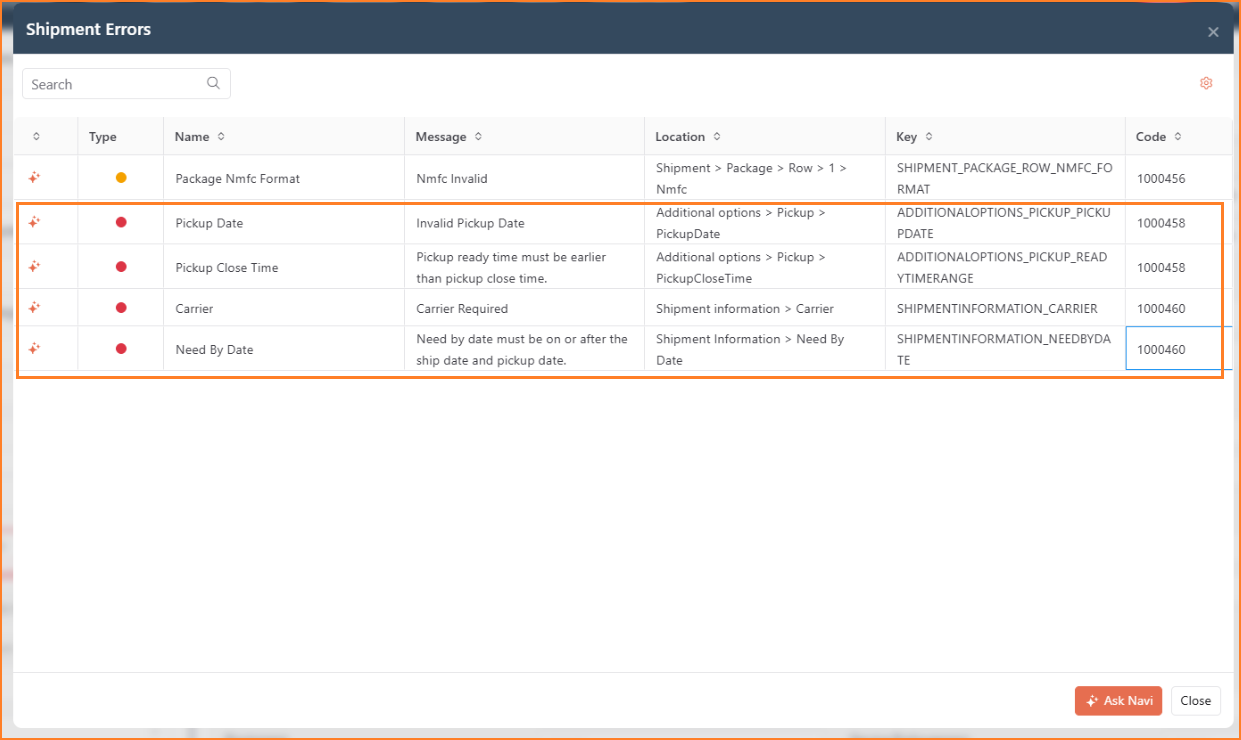
Shows validation messages for invalid Pickup Date, Pickup Close Time, and Need By Date.
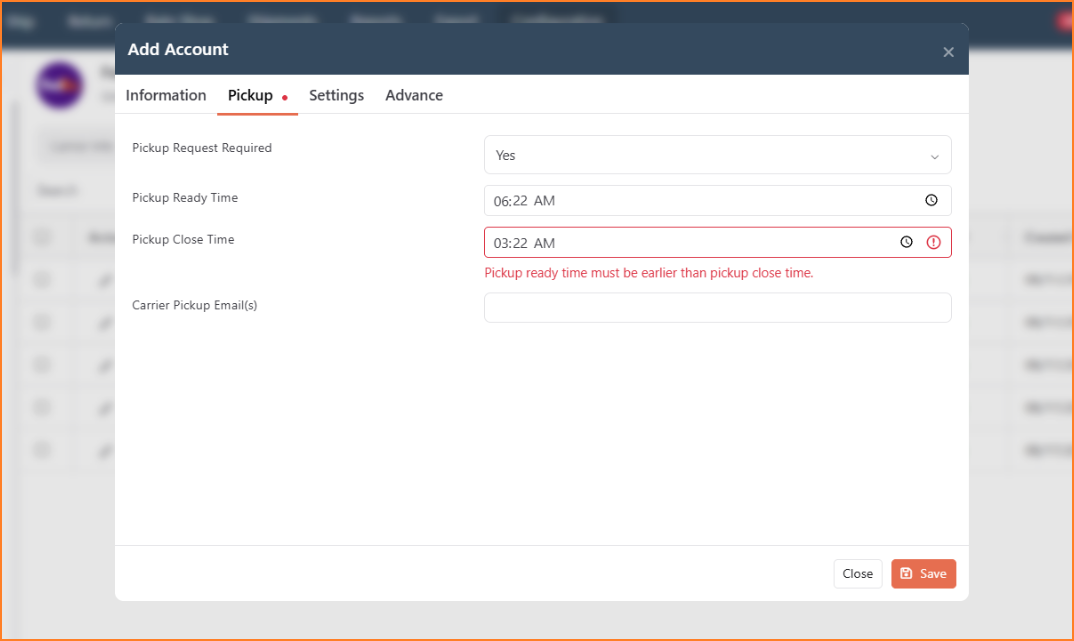
Shows the inline validation when Pickup Close Time is earlier than Pickup Ready Time.
Notes:
- The enhancements apply to both Ship and Rate Shop.
- Pickup validations apply when Pickup Request Required = Yes.
- Need By Date remains optional: validation is performed only when a value is provided.
- Piyovi does not automatically change Pickup Ready Time or Pickup Close Time. Users remain in control of the pickup window.
Enhanced Notification Templates with New Event Types
Piyovi has enhanced Notification Templates to provide more control over the messages sent for key business events.
Previously, notification templates primarily supported scheduled reports. With this release, 17 new Event Types have been introduced across Shipments, Spot Quotes, Document Sharing, and General Notifications.
Each Event Type includes a ready-to-use email template with relevant event information already included. Users can use the default design or customize the content, branding, layout, and event-specific details to meet their communication requirements.
New Event Types
- Shipment Events
| Event Type | Purpose |
|---|---|
| Shipment Created | Notifies the shipment contact when a shipment is created. |
| Shipment Pickup Request | Provides the carrier with pickup details and package information. |
| Shipment Documents | Sends shipment documents and related shipment information. |
| Shipment Delivered | Confirms successful shipment delivery. |
| Shipment Tracking Update | Provides the latest shipment status and tracking information. |
Shipment templates can include relevant carrier, tracking, package, weight, address, reference, item, pickup, and delivery information depending on the selected event.
- Spot Quote Events
| Event Type | Purpose |
|---|---|
| Spot Quote Request | Invites a carrier to submit or decline a bid. |
| Spot Quote Bid Submitted | Notifies your team when a carrier submits a bid. |
| Spot Quote Bid Accepted | Notifies the carrier that its bid has been accepted. |
| Spot Quote Bid Declined | Notifies your team when a carrier declines to bid. |
| Spot Quote Bid Rejected | Notifies the carrier when its bid is not accepted. |
| Spot Quote Canceled | Notifies the carrier when the quote request is canceled. |
| Spot Quote Bid Updated | Notifies your team when an existing bid is updated. |
| Spot Quote Company Message | Notifies the carrier about a message from your company. |
| Spot Quote Carrier Message | Notifies your team about a message from the carrier. |
These Event Types provide notification coverage throughout the Spot Quote process, from the initial request through bidding, decisions, updates, cancellations, and communication.
- Document Share Events
Document Share Notification – Notifies recipients when documents are shared and can include share details, expiry information, and a View Documents link. Document Share Access Code – Sends the one-time access code required to access a private document share.
- General Notifications
Generic Notification – Provides a general-purpose template for notifications that do not belong to a specific shipment, Spot Quote, or Document Share event.
Benefits
- Create customized notifications for key Piyovi events.
- Personalize notification content using event-specific Merge Tags.
- Customize branding, colors, fonts, content, buttons, and layout.
- Preview emails across desktop, tablet, and mobile before saving.
- Save template versions and reuse designs for future templates.
Navigation
Configuration → Notification → Template
Select Add Template to create a new notification template.
Notification Template
The enhanced Template Editor provides a visual interface for designing notification emails without requiring HTML.
When creating a template, users can configure:
- Display Name – Name used to identify the template.
- Reference ID – Unique reference for the template.
- Event Type – Determines the business event and available Merge Tags.
- Channel – Communication channel for the template.
- Format – Template format.
- Language – Language used for the notification.
- Status – Determines whether the template is active.
- Tags – Optional labels for organizing templates.
Template Editor
The Template Editor provides tools to customize both the content and appearance of a notification.
Ready-to-Use Templates
Selecting an Event Type automatically loads a ready-to-use email for that event. Users can keep the provided design or modify it based on their requirements.
Merge Tags
Each Event Type provides its own Merge Tags for adding dynamic information to the email. For example, a shipment notification can include information such as the carrier, tracking details, package information, addresses, and references. Piyovi replaces these tags with the actual event data when the notification is generated. Only Merge Tags relevant to the selected Event Type are displayed.
Drag-and-Drop Content
Additional content can be added using predefined blocks such as:
- Text
- Headings
- Buttons
- Images
- Dividers
- Layout sections
- Notification-specific components
- Conditional and repeating sections Blocks can be moved, copied, removed, and styled directly within the editor.
Theme and Styling
Templates can be customized to match company branding, including colors, fonts, backgrounds, spacing, buttons, and other visual elements.
Conditional Content
Templates support conditional content so information appears only when it is available. For example, a Track Shipment button can appear only when a tracking link exists. Repeating sections can also be used for information such as packages, addresses, references, or items.
Preview
Templates can be previewed before they are saved. Users can check how the email appears on Desktop, Tablet, and Mobile, and sample values can be provided to preview dynamic information.
Template Library and Version History
The Templates Library provides ready-made designs that can be applied to a template. Customized designs can also be saved for reuse. Version History allows users to save snapshots before making significant changes and return to an earlier version when needed.
How to Create a Template
- Navigate to Configuration → Notification → Template.
- Select Add Template.
- Enter the Display Name and Reference ID.
- Select the required Event Type. The corresponding ready-to-use email is loaded automatically.
- Customize the content, Merge Tags, layout, and branding as needed.
- Configure the email Subject.
- Use Preview to review the completed email.
- Set the template to Active and select Save.
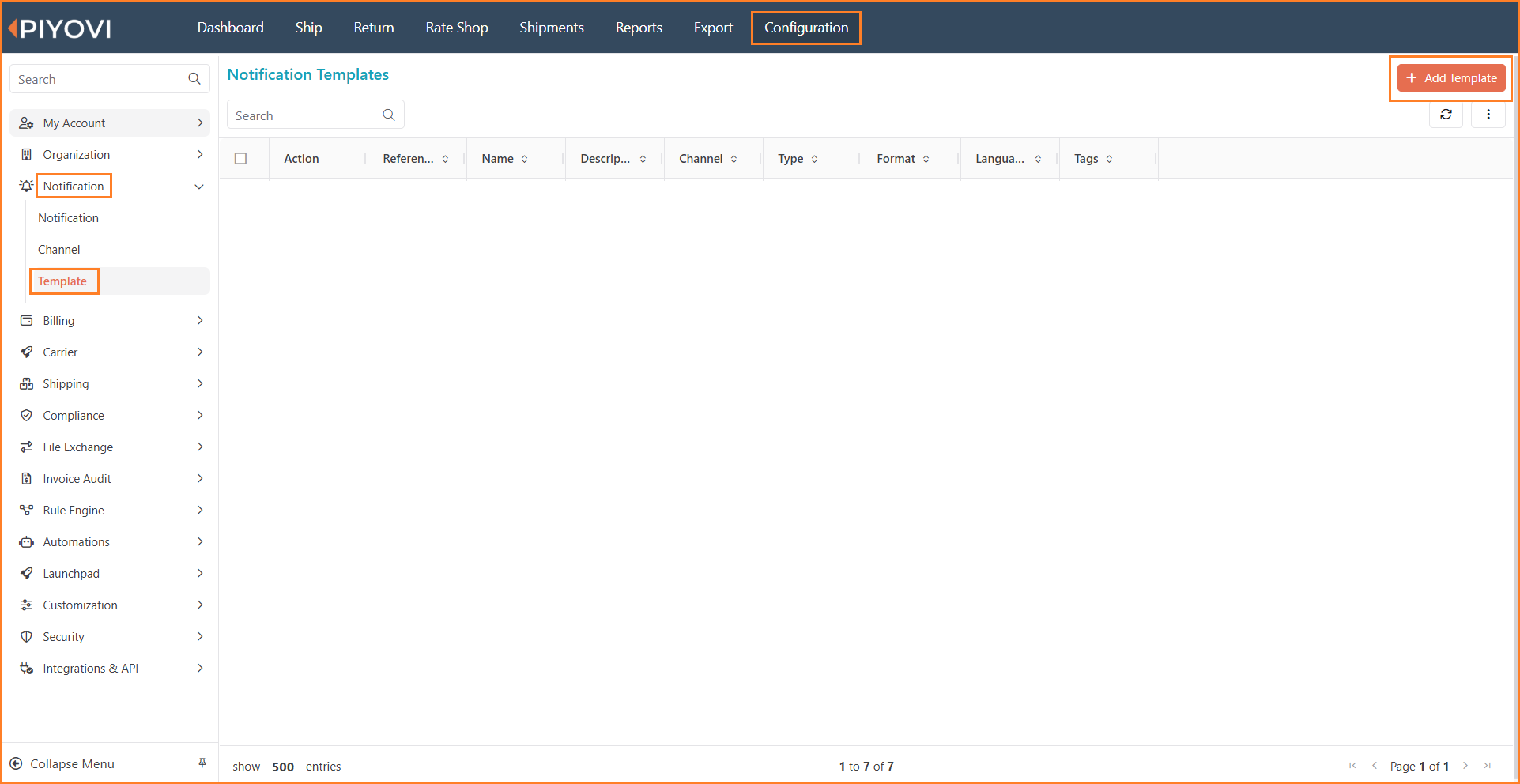
Notification Templates list with the Add Template button
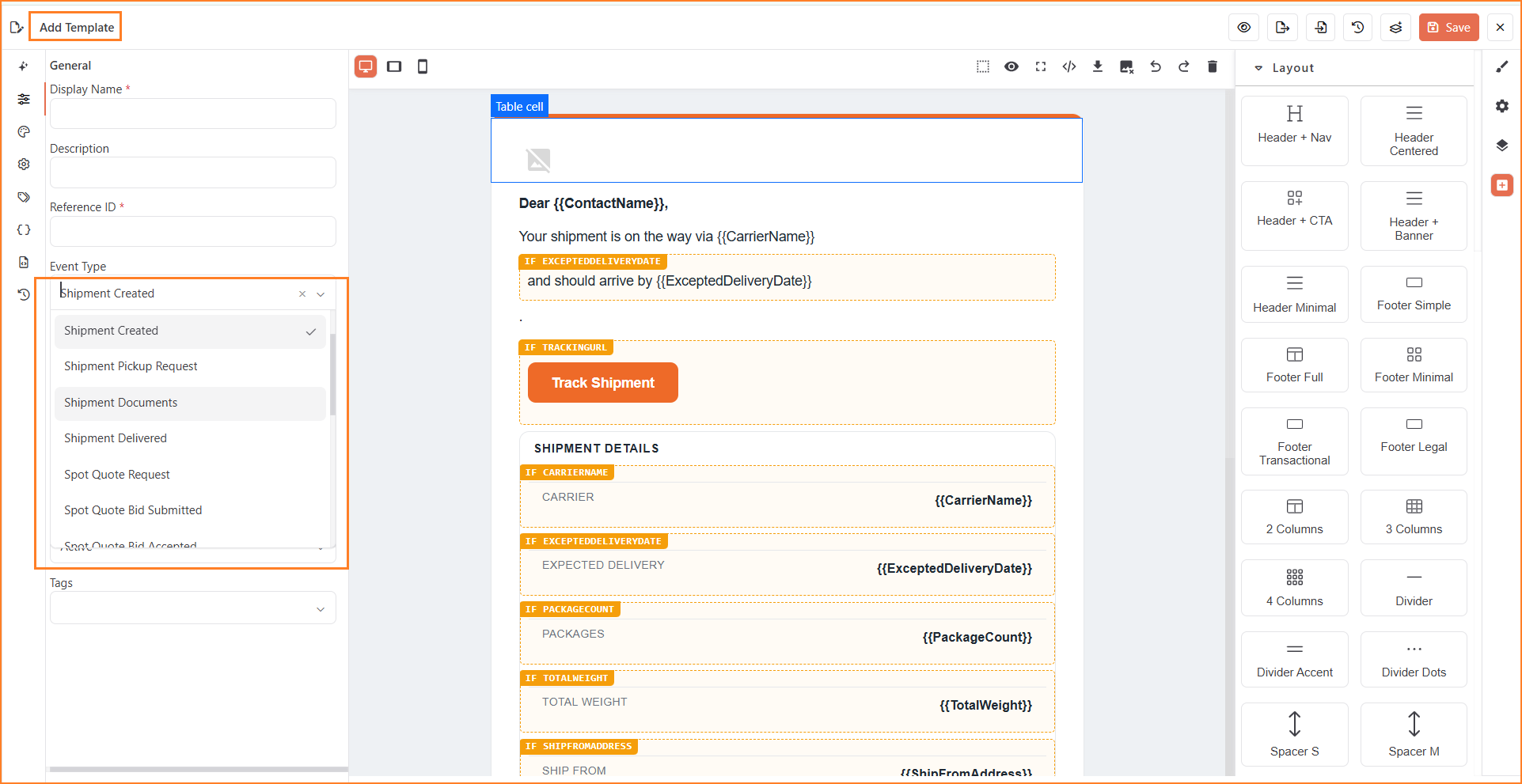
Template Editor, Event Type dropdown, showing the new event types
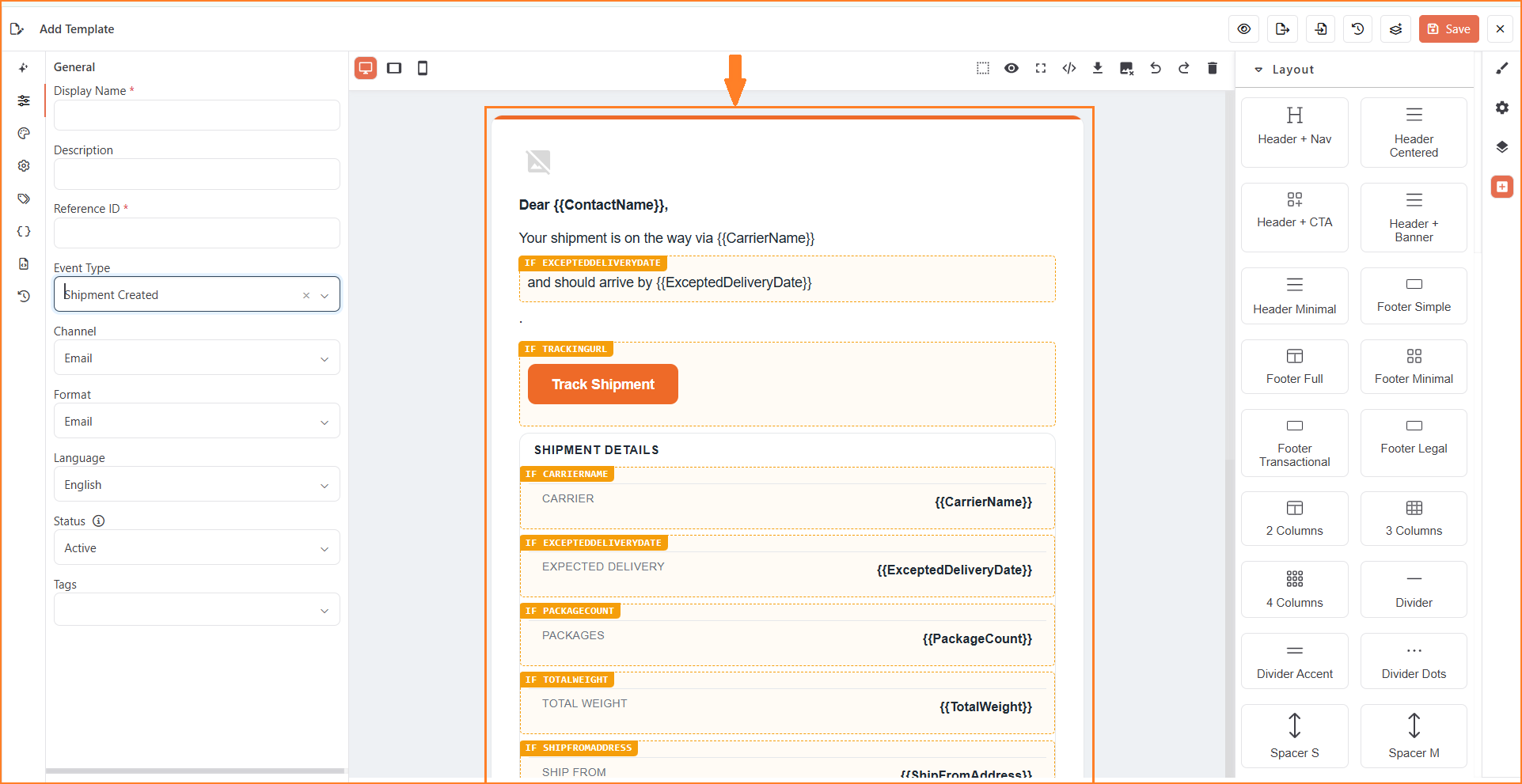
Template Editor showing the ready-to-use Shipment Created email, its Merge Tags, and the layout blocks for customizing it
Notes:
- Each template is created for a specific Event Type.
- Event Types provide their own relevant Merge Tags and default content.
- Existing Scheduled Report Generation and Scheduled Report Generation Failed templates continue to work as before.
- Notification Rules, including recipients, channels, schedules, locations, criteria, and rule priority, are covered separately.
Notification Rules
Piyovi introduces Notification Rules, providing a centralized way to control when notifications are triggered, who receives them, and how they are delivered.
Rules can be created for shipment, spotqQuote, report, compliance, and system events. Each rule can be limited by location, date range, time range, days of the week, and event-specific criteria, allowing notifications to reach the appropriate recipients only when relevant.
Permissions
Two permissions have been introduced for Notification Rules:
| Permission | Access |
|---|---|
| Manage Notification Rule | Create, view, edit, and delete Notification Rules. |
| Notification Rule - Readonly | View rules and their complete configuration without making changes. |
Benefits
- Automatically notify the appropriate users when important business events occur.
- Use criteria to limit notifications to relevant shipments and reduce unnecessary alerts.
- Send the same event through multiple channels, including Email and Microsoft Teams.
- Control when notifications are active using dates, business hours, and days of the week.
- Temporarily disable a rule without deleting its configuration.
- Provide read-only access for users who need visibility without configuration access.
Navigation
Configuration → Rule Engine → Notification Rules
Creating a Notification Rule
Select Add Rule and configure the event and conditions under Rule Information.
Key settings include:
| Field | Description |
|---|---|
| Display Name | Name used to identify the rule. |
| Event Type | Defines the event that triggers the notification. |
| Location | Optionally limits the rule to selected locations. |
| Rule Rank | Determines the priority of the notification rule. |
| Valid From / To Date | Defines the period during which the rule is active. |
| Valid Time Range | Limits notifications to a specific daily time window. |
| Days Of The Week | Defines which days the rule can send notifications. |
| Status | Set the rule to Active or Inactive. |
| Tags | Optional labels for organizing rules. |
This allows a notification to be configured for a specific business event and limited to the required operational period.
Supported Event Types
Notification Rules support events across multiple areas of Piyovi:
| Area | Examples |
|---|---|
| Shipments | Shipment Created, Pickup Request, Shipment Documents, Delivered, Tracking Update, Pickup Failed, Carrier Cancellation |
| Spot Quotes | Quote Request, Bid Submitted, Accepted, Declined, Rejected, Updated, Canceled, Company/Carrier Messages |
| Reports | Scheduled Report Generation and Generation Failed |
| Compliance | Restricted Party Screening Alert |
| System & Counters | Invoice Parse Error, Batch Creation Error, Webhook Failed, Tracking/SSCC Counter warnings, Carrier Credentials Generated |
This allows Notification Rules to cover both operational workflows and important system alerts from a single configuration area.
Channels and Recipients
The Channels section determines how and where the notification is delivered. A single rule can contain multiple channels, allowing the same event to notify different audiences through different communication methods. Supported channel types include Email and Chat, such as Microsoft Teams.
For an Email channel, users can configure:
- Template – Select the notification template to use.
- To – Primary recipients.
- CC – Optional copied recipients.
- BCC – Optional blind-copy recipients.
For a Teams channel, the destination is taken from the channel configuration.
Notification Template Selection
Existing templates created under: Notification Template can be selected directly from the notification rule.
Piyovi automatically filters the available templates based on the rule's Event Type and the selected Channel Type.
For example, a Shipment Created rule using an Email channel displays only email templates created for the Shipment Created event.
This allows the notification content to be maintained separately from the rule that controls when and where it is sent.
Notification Criteria
Criteria provides additional control over which occurrences of an event should generate a notification.
Rules can be filtered using shipment and address information such as:
- Location
- Carrier
- Shipment Type
- Source
- Dangerous Goods
- Declared Value
- Weight and Volume
- Ship To ID
- Origin City, State, Zip Code, and Country
- Destination City, State, Zip Code, and Country
If no criteria are configured, the rule applies whenever the selected event occurs, subject to the rule's location and schedule settings.
Additional Configuration
Some Event Types provide additional configuration options. For supported shipment notifications, Include Documents can be enabled to attach shipment documents to the email. The default is No.
Steps
- Navigate to Configuration → Rule Engine → Notification Rules.
- Select Add Rule.
- Enter a Display Name and select the required Event Type.
- Configure the Rule Rank, applicable location, validity dates, time range, and days of the week.
- Keep Status set to Active when the rule should begin processing.
- Under Channels, add the required Email or Chat channel.
- For Email, select the appropriate Template and configure the To, CC, and BCC recipients as required.
- Add additional channels when the same event should be delivered through multiple channels.
- Configure Criteria when the notification should apply only to specific shipments or conditions.
- Configure Configuration options, such as Include Documents, when applicable.
- Select Save to activate the rule.
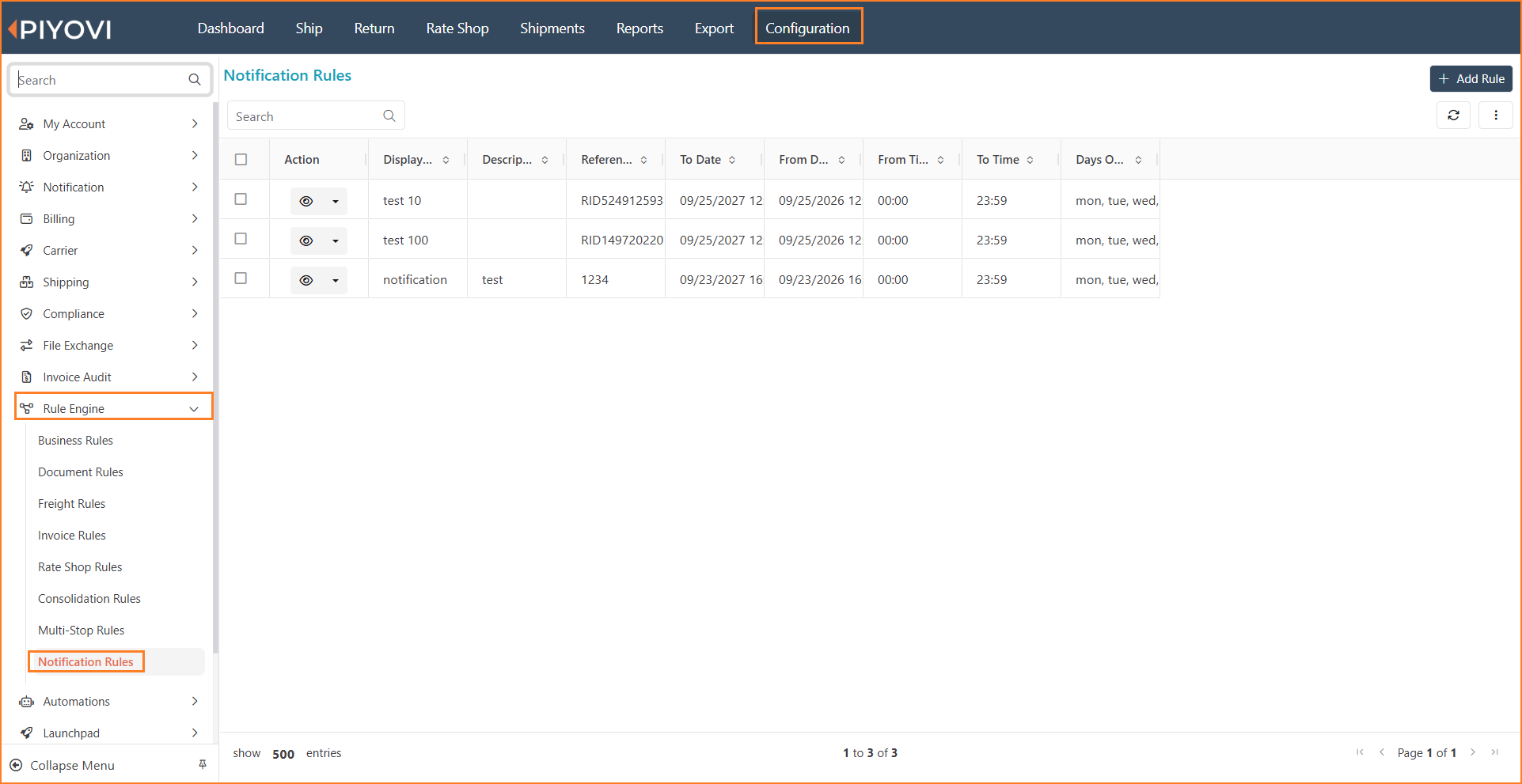
Configuration → Rule Engine → Notification Rules, listing existing rules
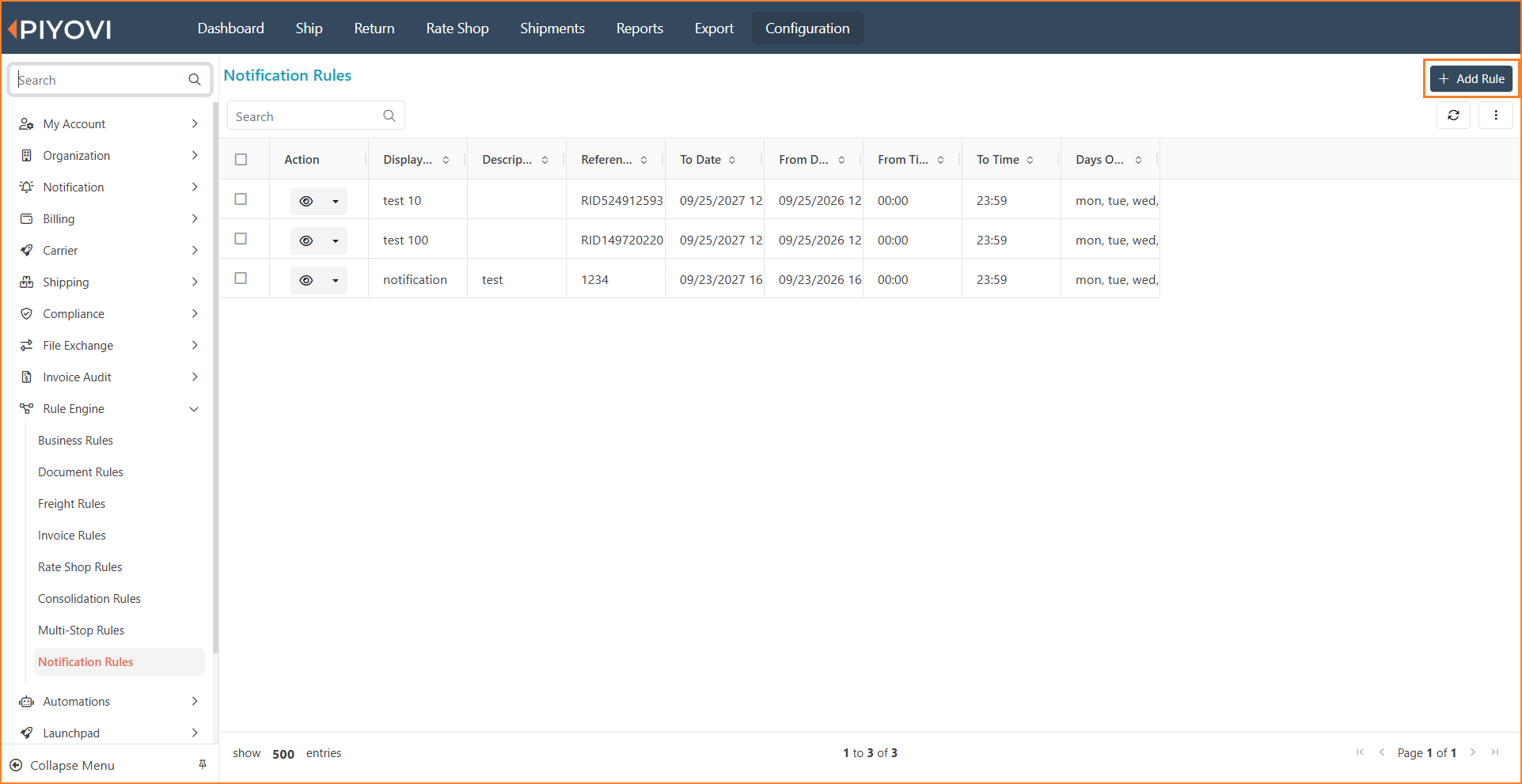
Notification Rules list with the Add Rule button
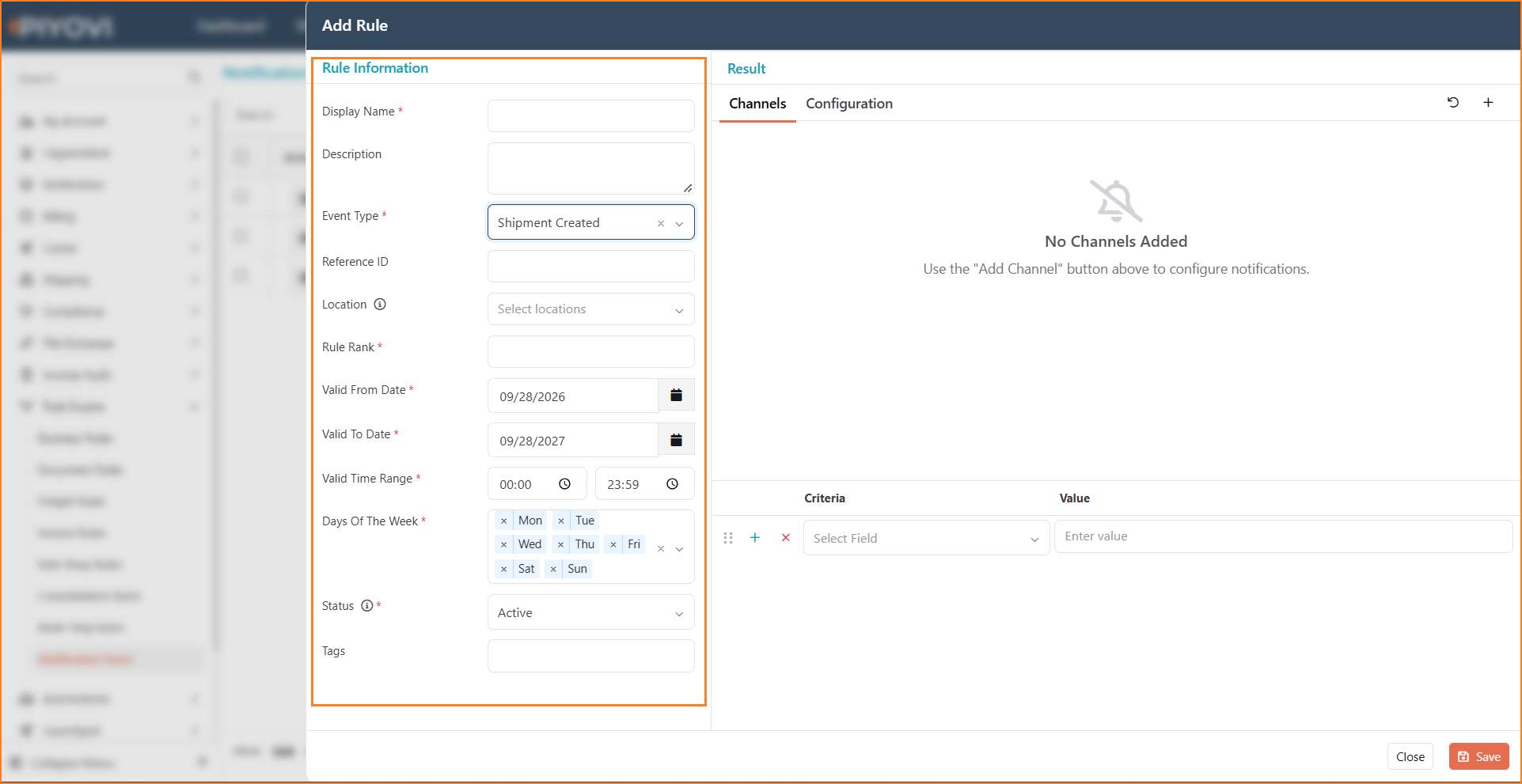
Add Rule dialog, Rule Information panel
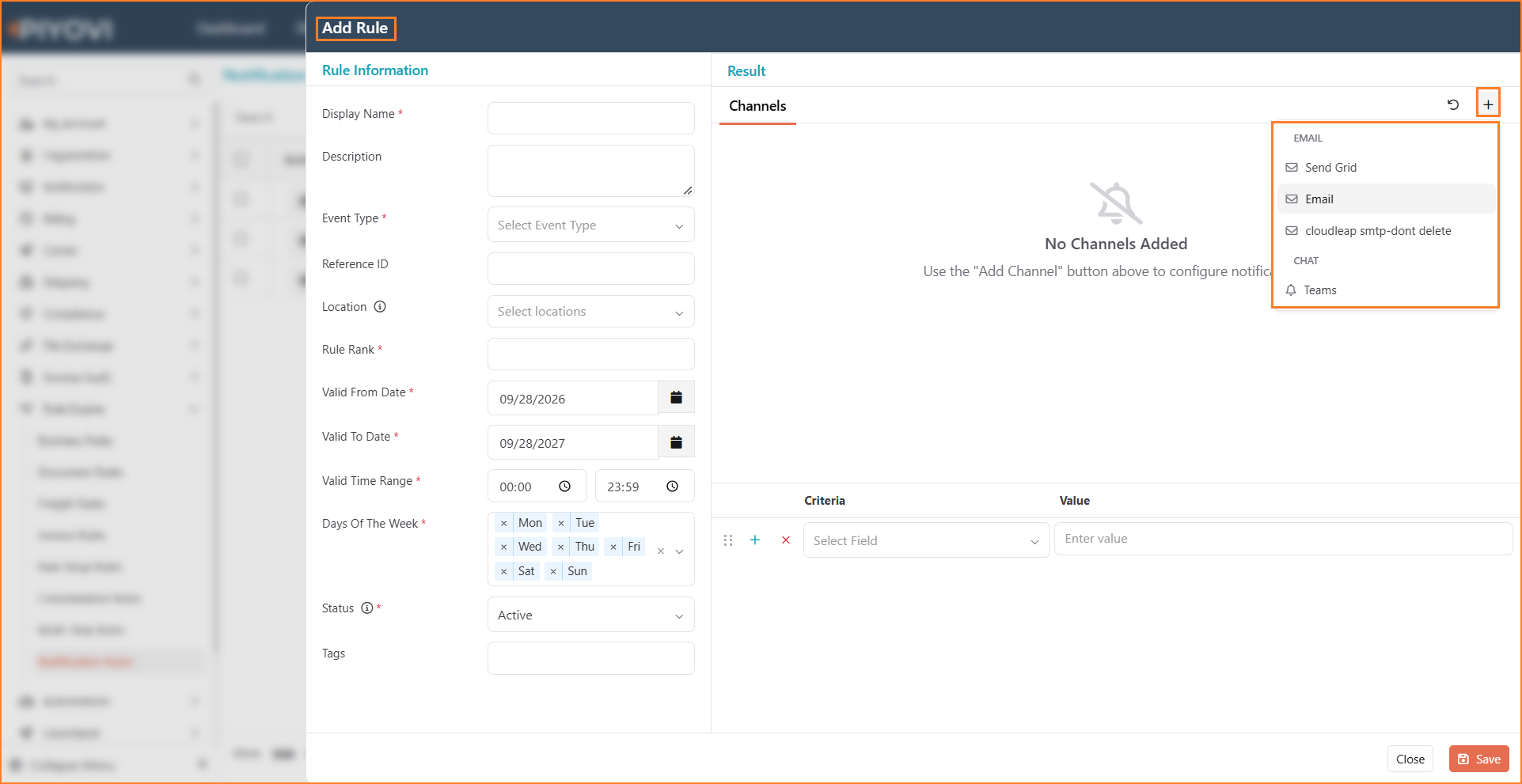
Add Rule dialog, adding a channel from the Email and Chat options
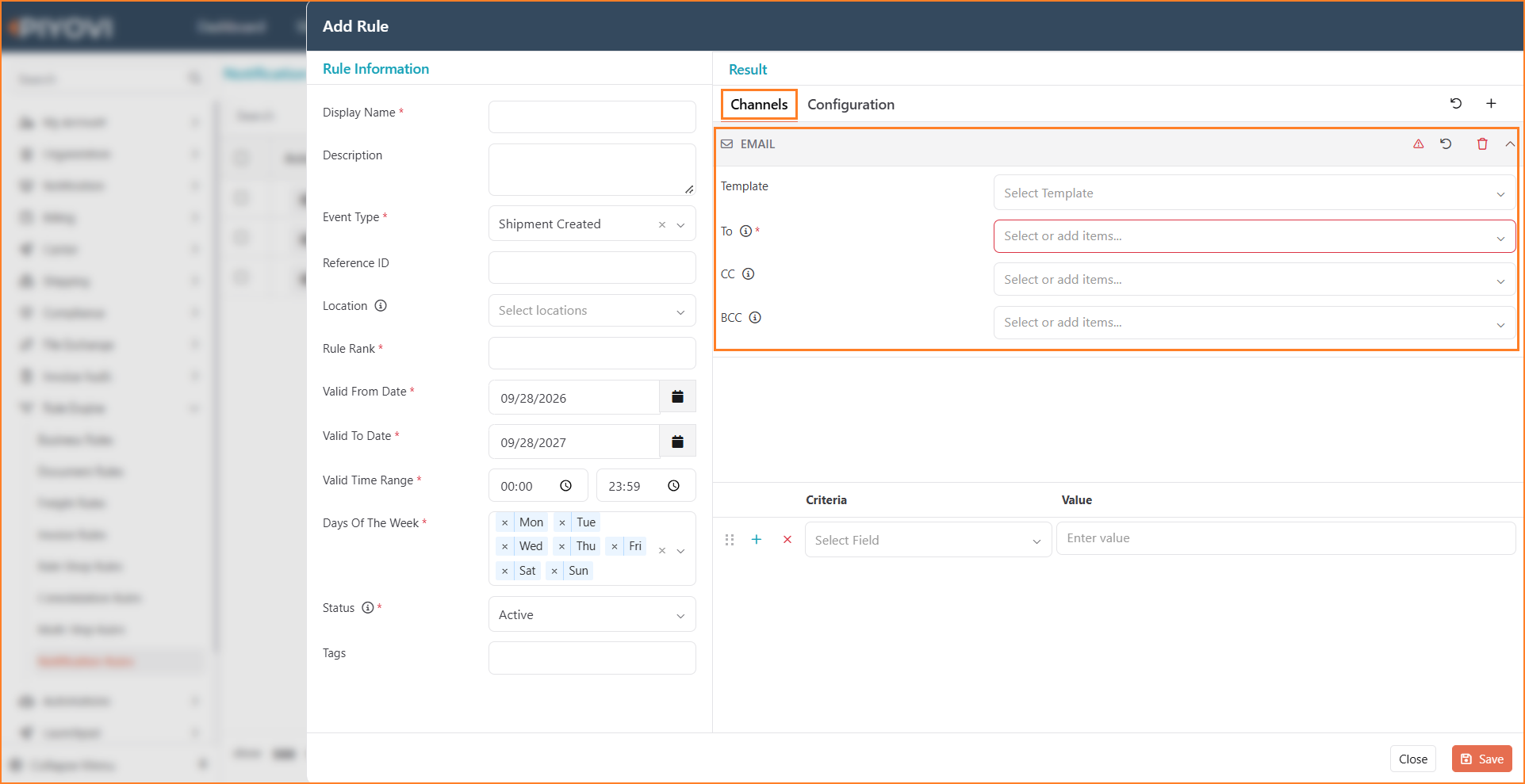
Channels tab, Email channel with Template and To, CC, and BCC recipients
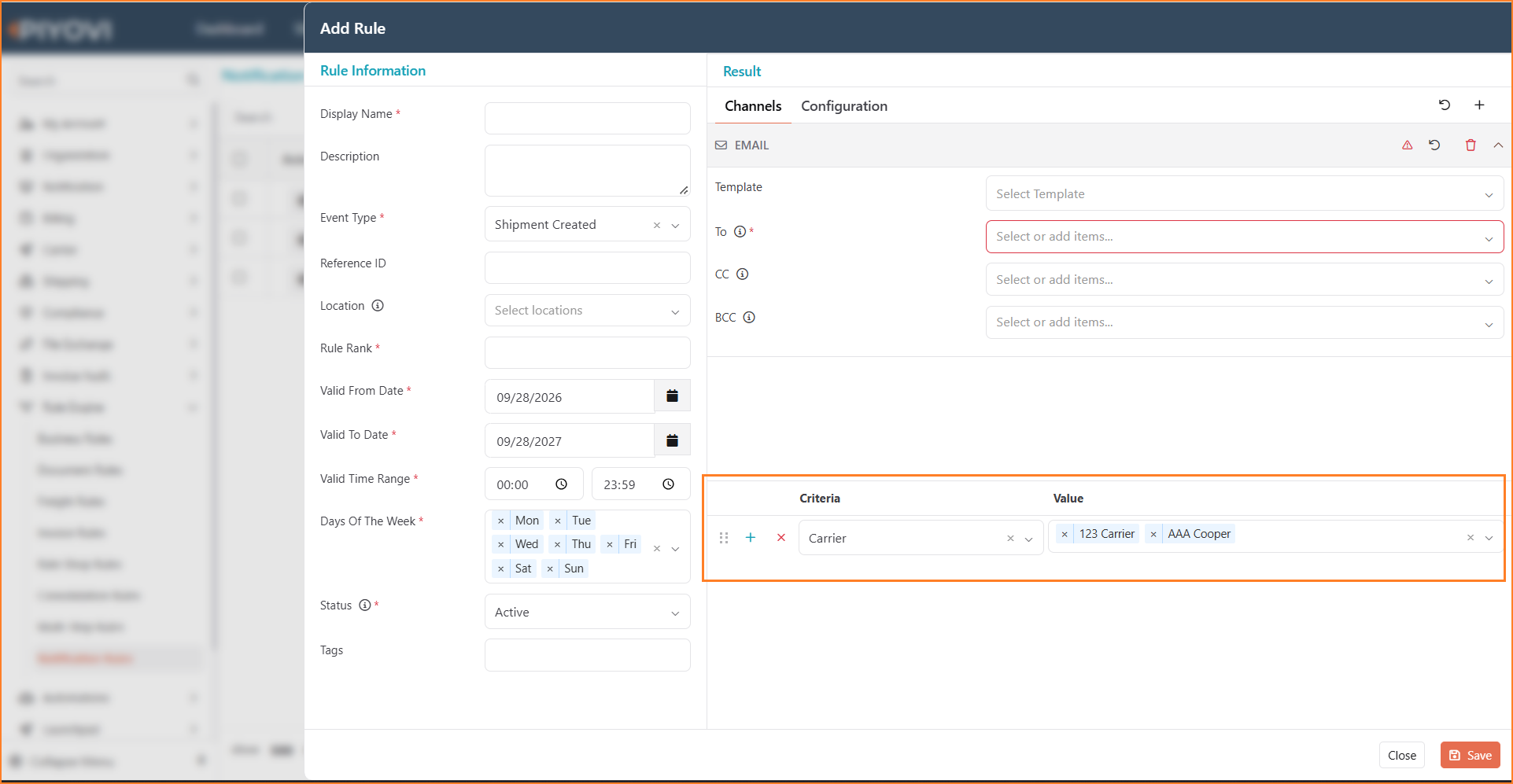
Criteria limiting the rule to selected carriers
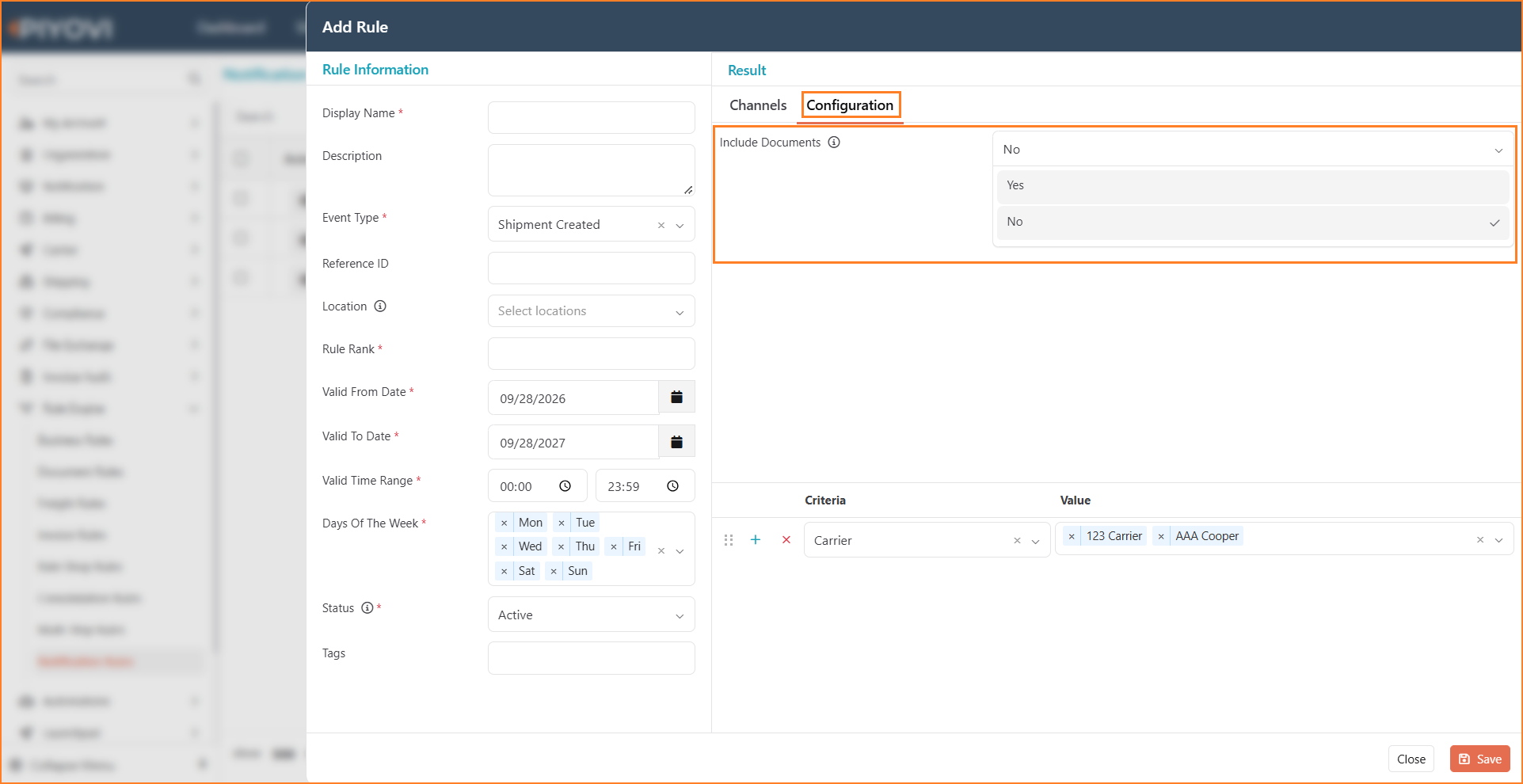
Configuration tab, Include Documents option
Notes:
-
Notification Rules is currently in Beta. The following recipient options are not yet supported:
- Party-Based: All
@partyrecipient options. - Role-Based: All
@rolerecipient options. - Other Email Options:
email@shipto,email@shipfrom,email@billto,email@shipper, andemail@triggered.
- Party-Based: All
-
Currently Supported: Only manually entered email addresses will receive notifications.
-
Setting a rule to Inactive pauses notifications while preserving the rule configuration.
-
Users with Notification Rule - Readonly can review the complete rule configuration but cannot add, edit, or delete rules.
-
All matching Notification Rules are executed. When multiple rules match the same event, they are processed by Rule Rank, with the highest rank first. If multiple rules have the same rank, the newest rule is processed first.
-
Each matching rule sends notifications through all channels configured for that rule.
Multilingual Support
Piyovi now supports multiple languages, allowing users to switch the application between English, French, and French - CA directly from the top header.
When a language is selected, supported menus, page titles, field labels, buttons, dates, and times are updated immediately without requiring a page refresh or new sign-in.
Benefits
-
Preferred language experience: Users can perform day-to-day activities such as creating shipments, comparing rates, and tracking deliveries in their preferred supported language.
-
Regional terminology: French - CA uses terminology appropriate for Canadian users, such as Province instead of État and Société instead of Entreprise.
-
Regional date and time formats – Dates and times are displayed according to the selected language:
- English: 9/29/2026 8:08 AM
- French: 29/9/2026 08:08
- French - CA: 2026-9-29 08:08
Navigation
Top Header → Language Icon
How to Use
- Select the Language icon from the top header.
- Choose English, French, or French - CA.
- The application immediately updates to the selected language.
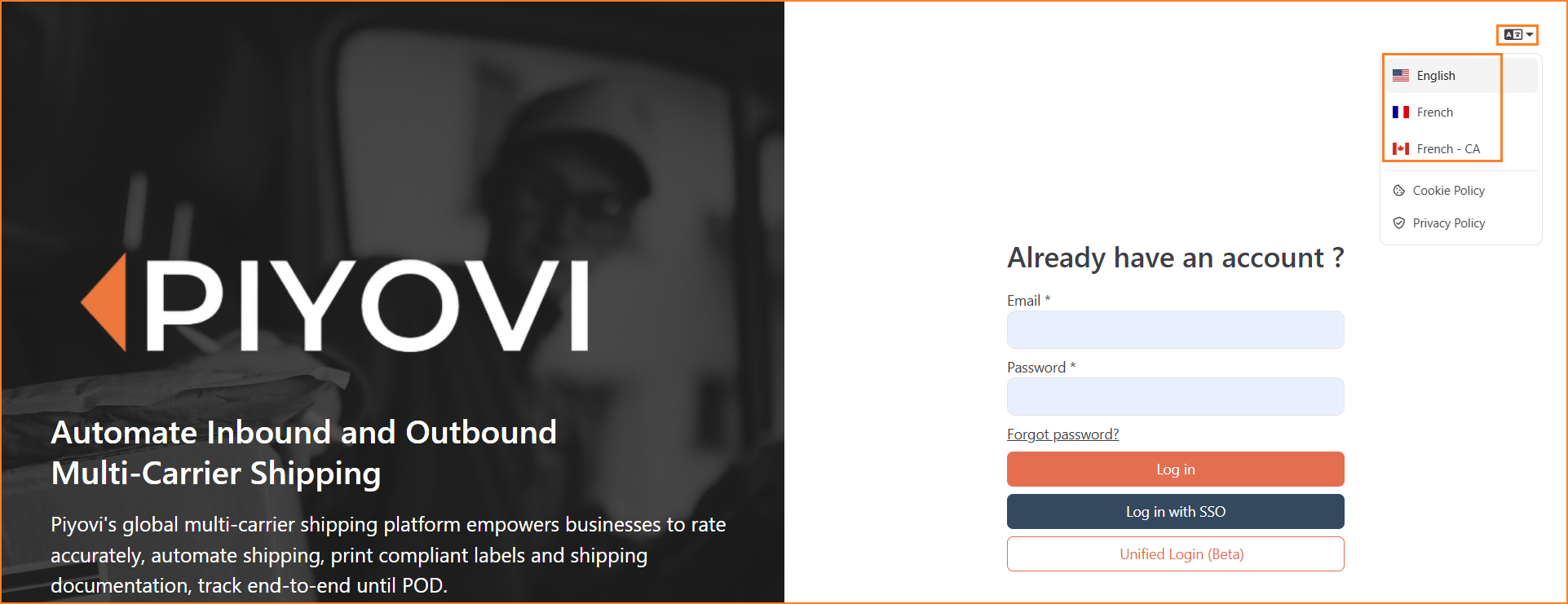
Sign-in page, language menu with English, French, and French - CA
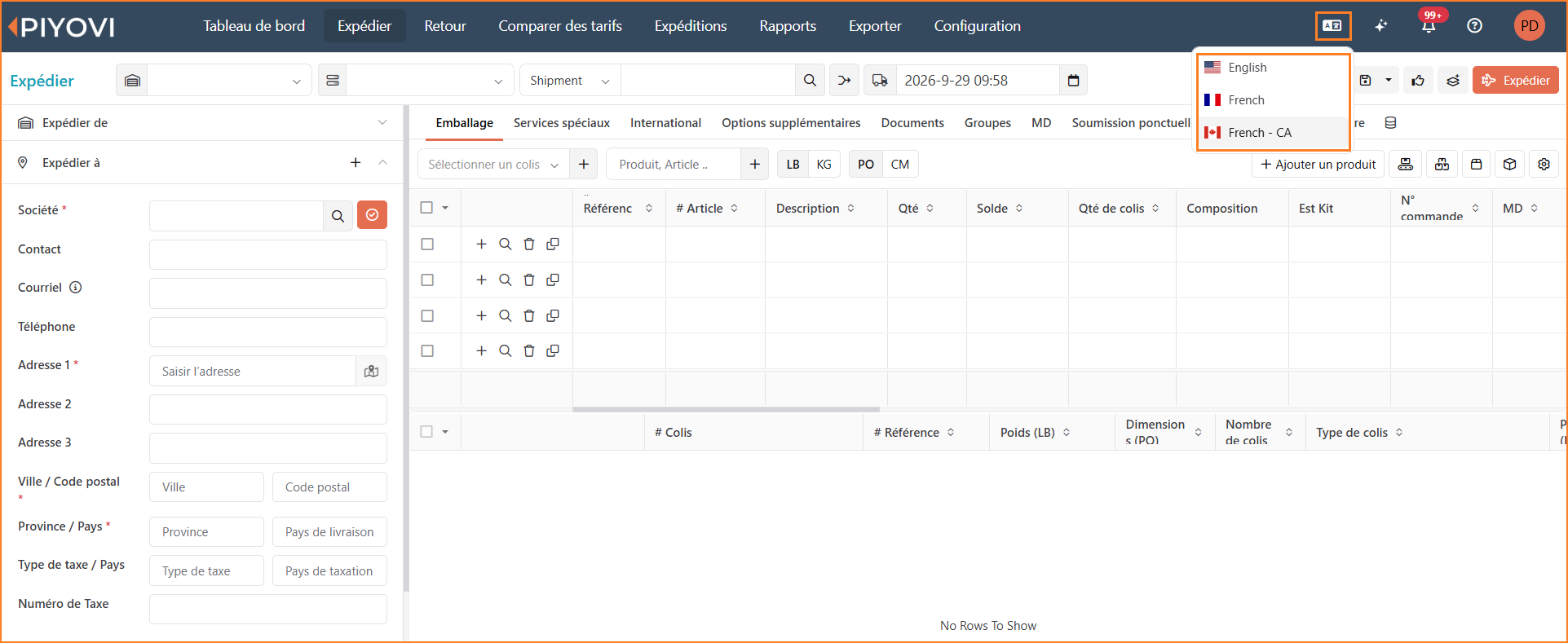
Ship screen in French, with the language menu open in the top header
Notes:
- Configuration pages are not currently translated and will continue to display in English.
- Users can change the language from any supported page without signing out or reloading the application.
Custom No-Reply Email Address for Notification Channels
Piyovi now allows organizations to configure their own no-reply email address for email notification channels.
Instead of notifications being sent from a generic sender, organizations can configure an address such as [email protected], allowing automated Piyovi emails to use a company-specific sender identity.
Navigation
Configuration → Notification → Channel → Add/Edit Channel
How to Use
Email Sender Configuration
When configuring an SMTP notification channel, the following sender information can be specified:
- From Email – Email address displayed as the sender, such as
[email protected]. - From Name – Name displayed to recipients as the sender.
The configured sender information is used for notification emails delivered through that channel.
This allows each organization to send automated notifications using its own recognizable email identity.
Steps
- Navigate to Configuration → Notification → Channel.
- Add a new SMTP channel or edit an existing one.
- Configure the required SMTP connection details.
- Enter the required no-reply address in From Email.
- Enter the company or preferred sender name in From Name.
- Save the channel.
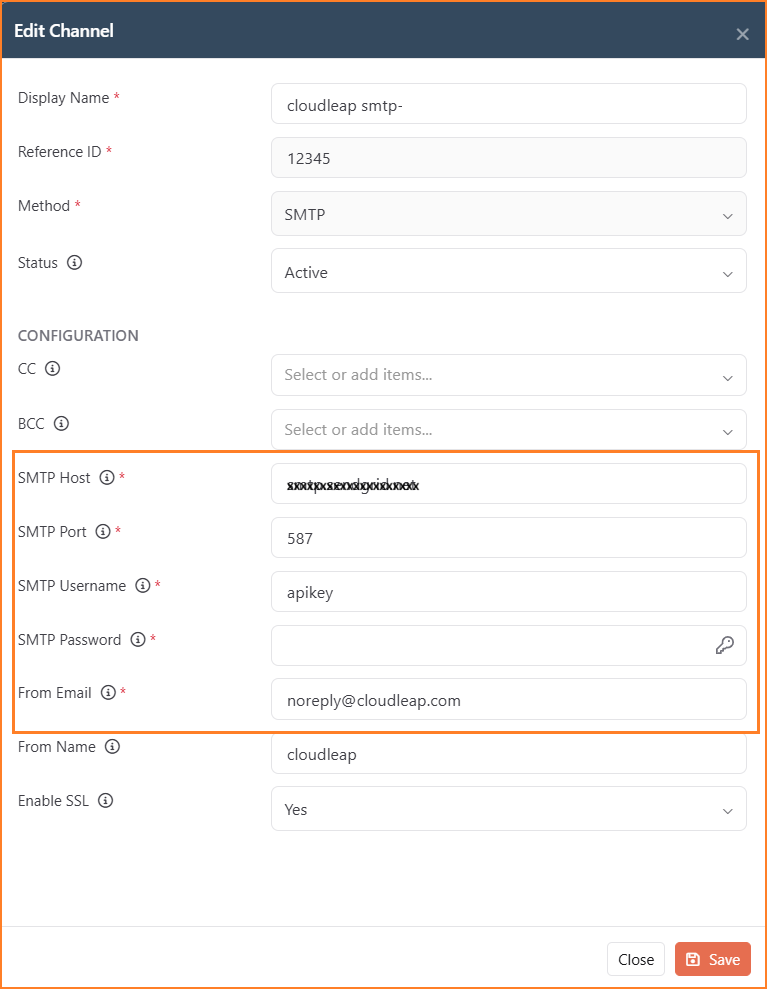
Edit Channel dialog, SMTP connection details and the no-reply From Email address
Notes: The configured From Email should be a valid sender address supported by the organization's SMTP/email provider.
Launchpad
Launchpad is a self-service module within Piyovi that lets you build your own branded shipment-tracking experience for your customers. Instead of sending customers to different carrier websites, you provide one customized page on your own domain where customers search and track shipments using their shipment details, regardless of which carrier shipped the order.
Organizations typically ship using multiple carriers. Launchpad gives them a single branded tracking page where a customer enters shipment information and sees tracking updates, without ever navigating to a carrier's portal.
Benefits
- Access available Piyovi applications from one location.
- Move between applications more easily without searching for separate application links.
- Provides a centralized and consistent application experience.
Navigation
Configuration → Launchpad
How to Use
For detailed information about Launchpad, including available features and usage instructions, see the Piyovi Launchpad User Guide:
Notes:
Application availability in Launchpad depends on the user's configured access and permissions.
Updated LTL Freight Class Calculation
We would like to inform you about an upcoming update to the LTL (Less-Than-Truckload) freight classification logic in Piyovi. As part of our ongoing product improvements, we are aligning the LTL freight class calculation with the NMFC freight classification changes introduced in 2025. This update ensures that the freight class used for new shipments and rate calculations reflects the updated classification structure. The updated calculation is currently available in UAT for validation and is scheduled to be promoted to Production on October 11, 2026.
What this means for you
- The LTL freight class calculation will incorporate the 2025 NMFC classification changes going forward.
- New shipments and rate calculations will use the updated freight class, where applicable.
- For certain shipments, the calculated freight class may differ from the classification previously displayed in Piyovi due to these updated standards.
- No action is required from your team unless you would like to validate specific scenarios in UAT.
| Sub Class | Density (lbs/ft³) | Freight Class |
|---|---|---|
| Sub 1 | Less than 1 | Class 400 |
| Sub 2 | 1 but less than 2 | Class 300 |
| Sub 3 | 2 but less than 4 | Class 250 |
| Sub 4 | 4 but less than 6 | Class 175 |
| Sub 5 | 6 but less than 8 | Class 125 |
| Sub 6 | 8 but less than 10 | Class 100 |
| Sub 7 | 10 but less than 12 | Class 92.5 |
| Sub 8 | 12 but less than 15 | Class 85 |
| Sub 9 | 15 but less than 22.5 | Class 70 |
| Sub 10 | 22.5 but less than 30 | Class 65 |
| Sub 11 | 30 but less than 35 | Class 60 |
| Sub 12 | 35 but less than 50 | Class 55 |
| Sub 13 | 50 or greater | Class 50 |
Email Unsubscribe and Notification Preferences
Piyovi notification templates now support an Unsubscribe option, allowing email recipients to manage their notification preferences directly from the emails they receive.
Users can add the unsubscribe option while designing a notification template. When a recipient clicks Unsubscribe in the delivered email, Piyovi opens a secure Notification Preferences page where they can unsubscribe from all notifications or selected notification types without signing in.
Benefits
- Add an unsubscribe option directly to notification templates.
- Allow recipients to manage preferences without a Piyovi login.
- Let recipients stop specific notification types instead of opting out of all emails.
- Allow recipients to resubscribe when needed.
Navigation
Template Configuration: Configuration → Notification → Template → Add/Edit Template
Recipient Preferences: Notification Email → Unsubscribe → Notification Preferences
How to Use
The Template Editor provides two options for adding an unsubscribe link:
- Unsubscribe Link – A ready-to-use component available in the Template Editor.
- Unsubscribe URL – A Merge Tag that can be used when creating a customized unsubscribe link.
Once the template is configured and used for a notification, the recipient receives the email with an Unsubscribe link. Selecting it securely opens the recipient's Notification Preferences page.
Steps
Configure the Unsubscribe Link in a Template
- Navigate to Configuration → Notification → Template.
- Select Add Template, or edit an existing notification template.
- Enter the required template information and select the appropriate Event Type.
- In the Template Editor, locate Unsubscribe Link under the available content blocks.
- Drag the Unsubscribe Link into the required location in the email, such as the footer.
- If creating a custom unsubscribe link instead, open Merge Tags and use Unsubscribe URL in the required link.
- Preview the template and verify that the unsubscribe option appears in the required location.
- Set the template to Active and select Save.
Manage Preferences from the Email
- When the configured notification is sent, the recipient receives an email containing the Unsubscribe link.
- Select Unsubscribe at the bottom of the email.
- Piyovi opens the secure Notification Preferences page for that recipient. No login is required.
- The recipient can choose to:
- Unsubscribe from all notifications, or
- Select individual notification types they no longer want to receive, such as Shipment Delivered, Shipment Tracking Updates, Pickup Failure, Carrier Cancellation Success, or Carrier Cancellation Failure.
- Select Save Preferences to apply the changes.
- Piyovi stops sending future emails that match the recipient's saved preferences.
- To start receiving all notifications again, select Resubscribe to all notifications from the same page.
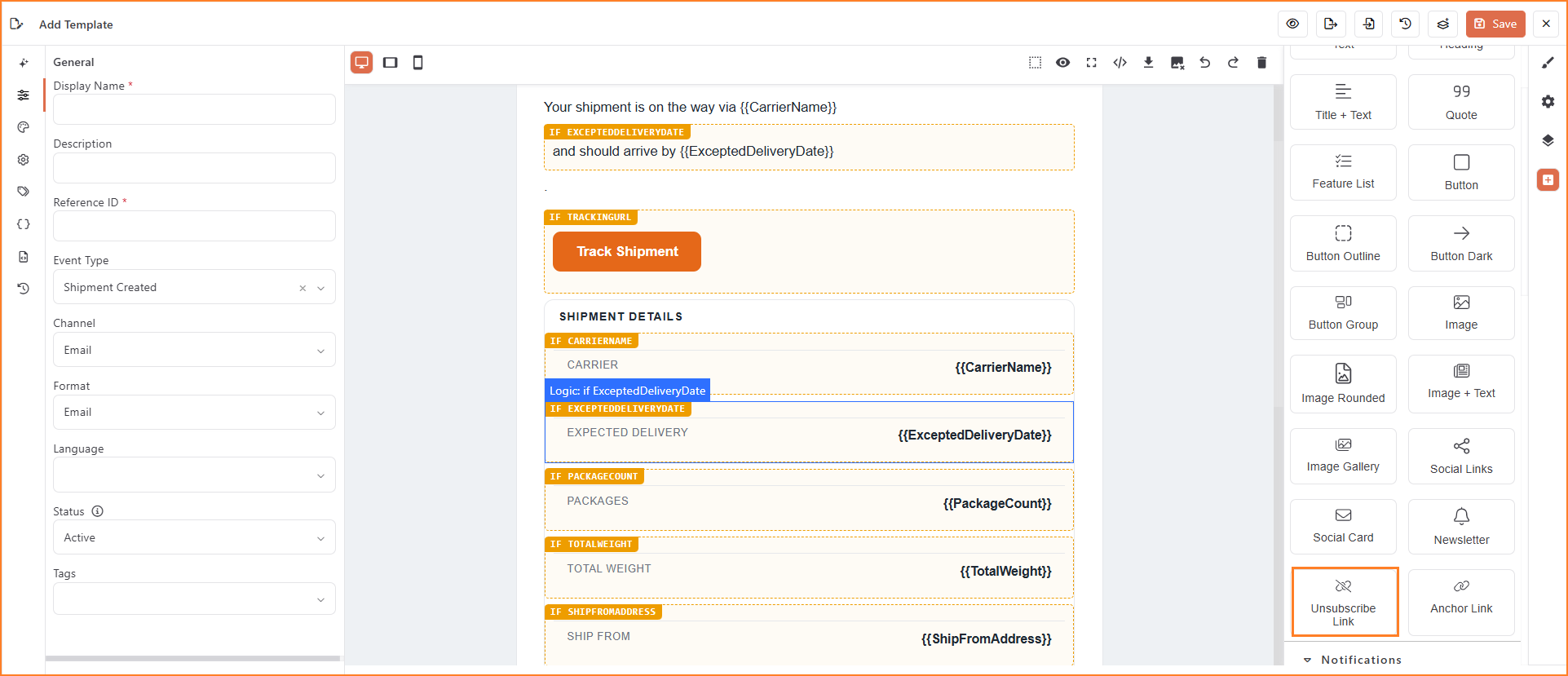
Template Editor, Unsubscribe Link block in the blocks panel
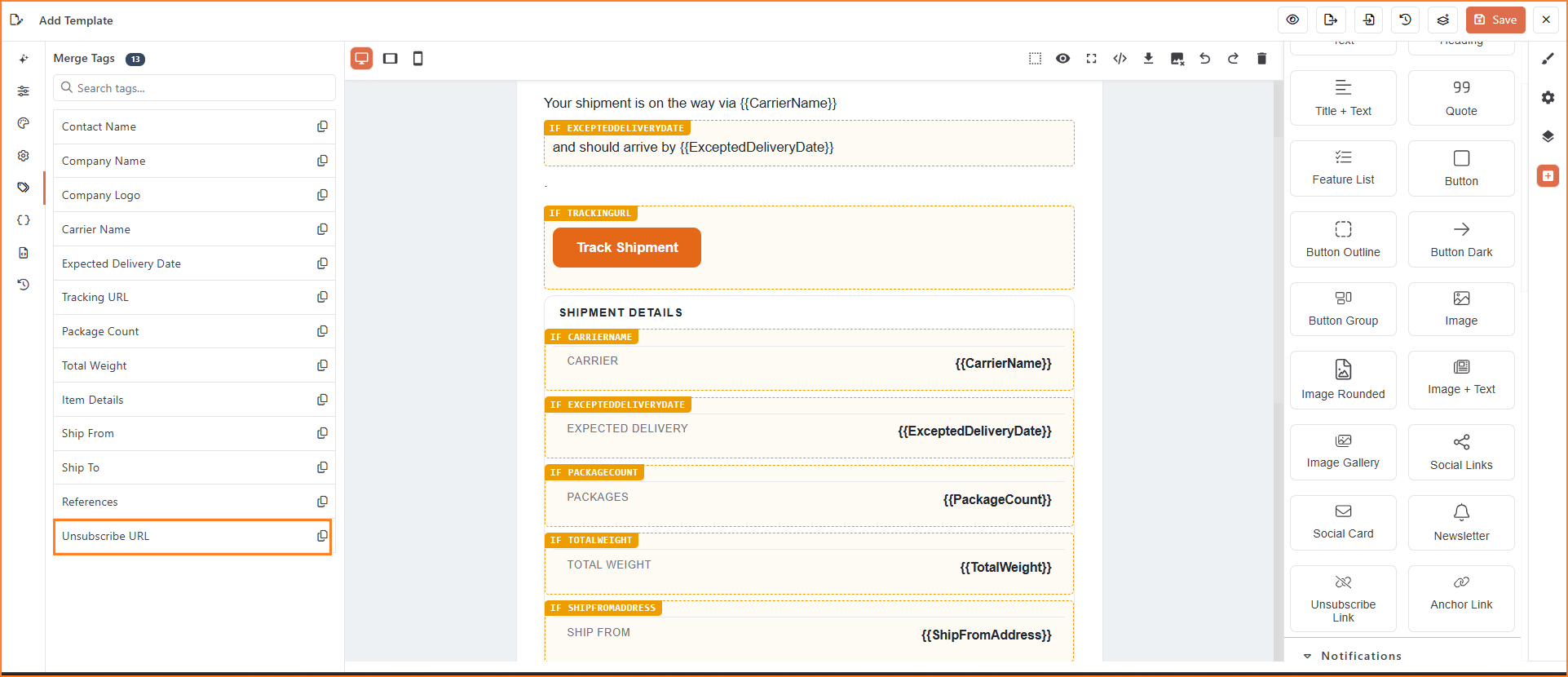
Template Editor, Merge Tags panel, showing the Unsubscribe URL merge tag
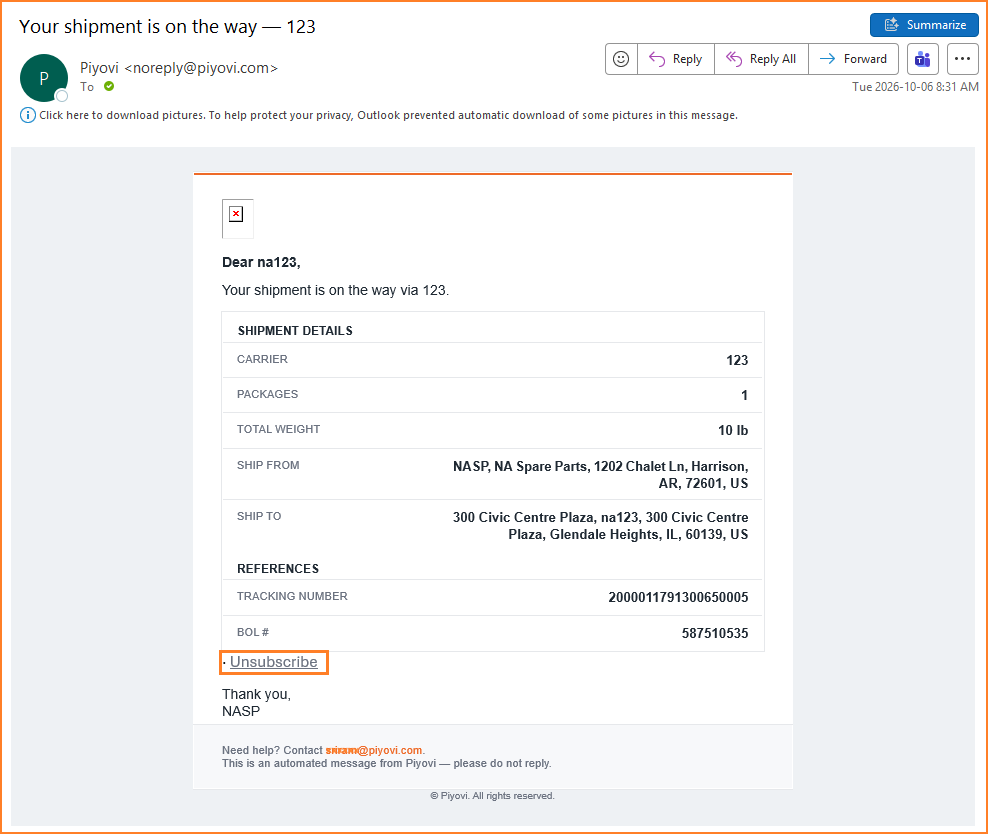
Notification email as received, with the Unsubscribe link
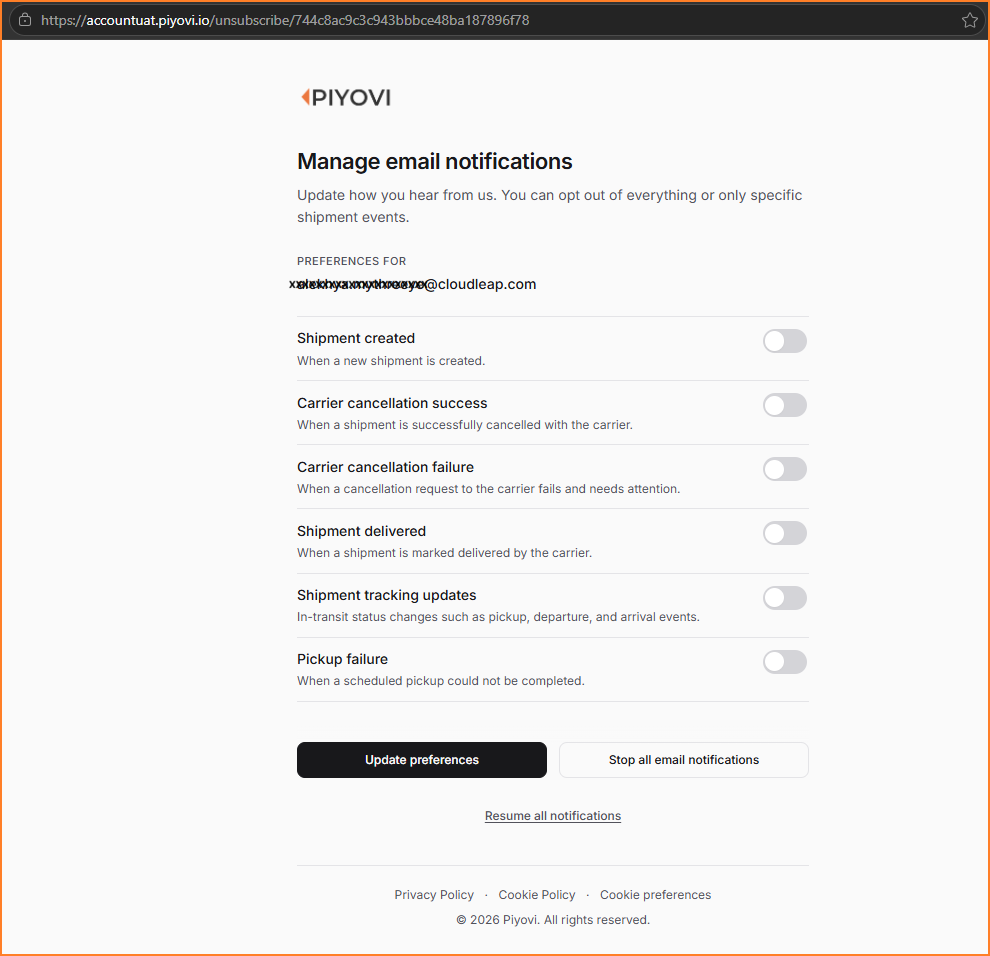
Notification Preferences page opened from the Unsubscribe link
Notes:
- The Notification Preferences page does not require a Piyovi login.
- Preferences are maintained separately for each recipient and company.
- To, CC, and BCC recipients are evaluated independently.
- An invalid or expired unsubscribe link does not change the recipient's existing preferences.
Shipment Package Import
We are introducing a new Shipment Package Import feature that allows users to upload multiple packages from Excel (.xlsx) or CSV files directly into the packing grid on the Ship screen, while continuing to support manual package entry.
- Users can upload .xlsx or .csv files to add shipment packages directly to the packing grid.
- Packages can also be entered individually using the existing manual package entry option.
- When importing packages from Excel, the system will check whether the Package Type matches an existing Package Type in the Package Master List.
- If there is a match, any missing information in the Excel, such as dimensions, weight, or units, will be populated using the corresponding details from the Package Master List.
- Values entered in the file always take priority.
Navigation
Ship → Packing Grid → Settings Icon → Import
Steps
- Navigate to the Ship screen and select the Location, Carrier and units of measure.
- On the Packing tab, click the settings icon on the packing grid and choose Import.
- In the Import Packages panel, Shipment Package is selected by default. Click the download icon next to it to download the sample file.
- Fill in the package details in the sample file (Package Type, dimensions, weight, Package Count, Freight Class, NMFC Code, etc.).
- Attach the completed file in the Attach your files here area (accepted file types: .xlsx and .csv only).
- Confirm the attached file is listed under Files.
- Click Import.
- Confirm the message "Packages imported successfully" appears and the packages are added to the package grid, with the totals (weight, dimensions and package count) updated.
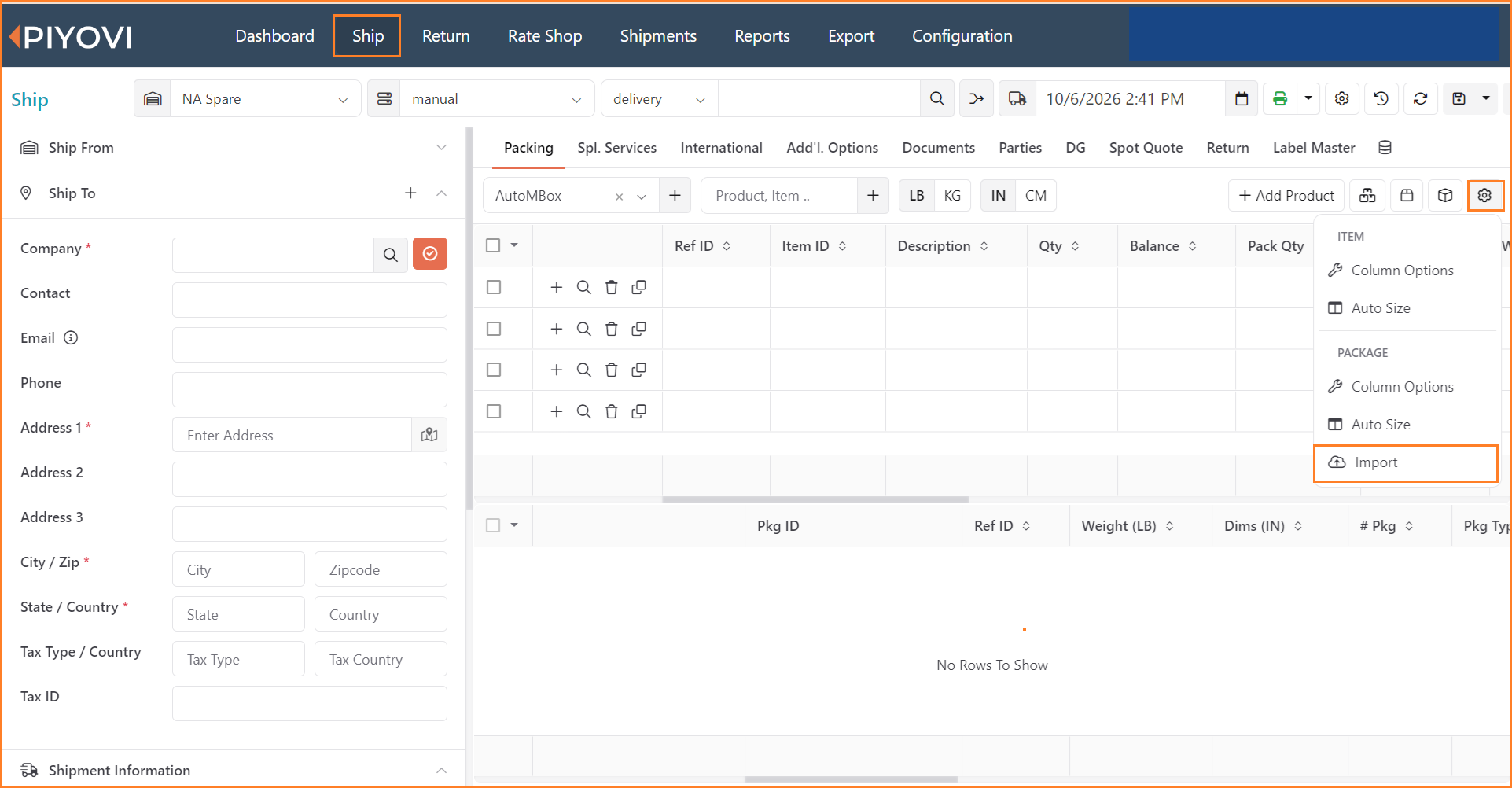
Ship screen, packing grid settings menu, showing the Import option
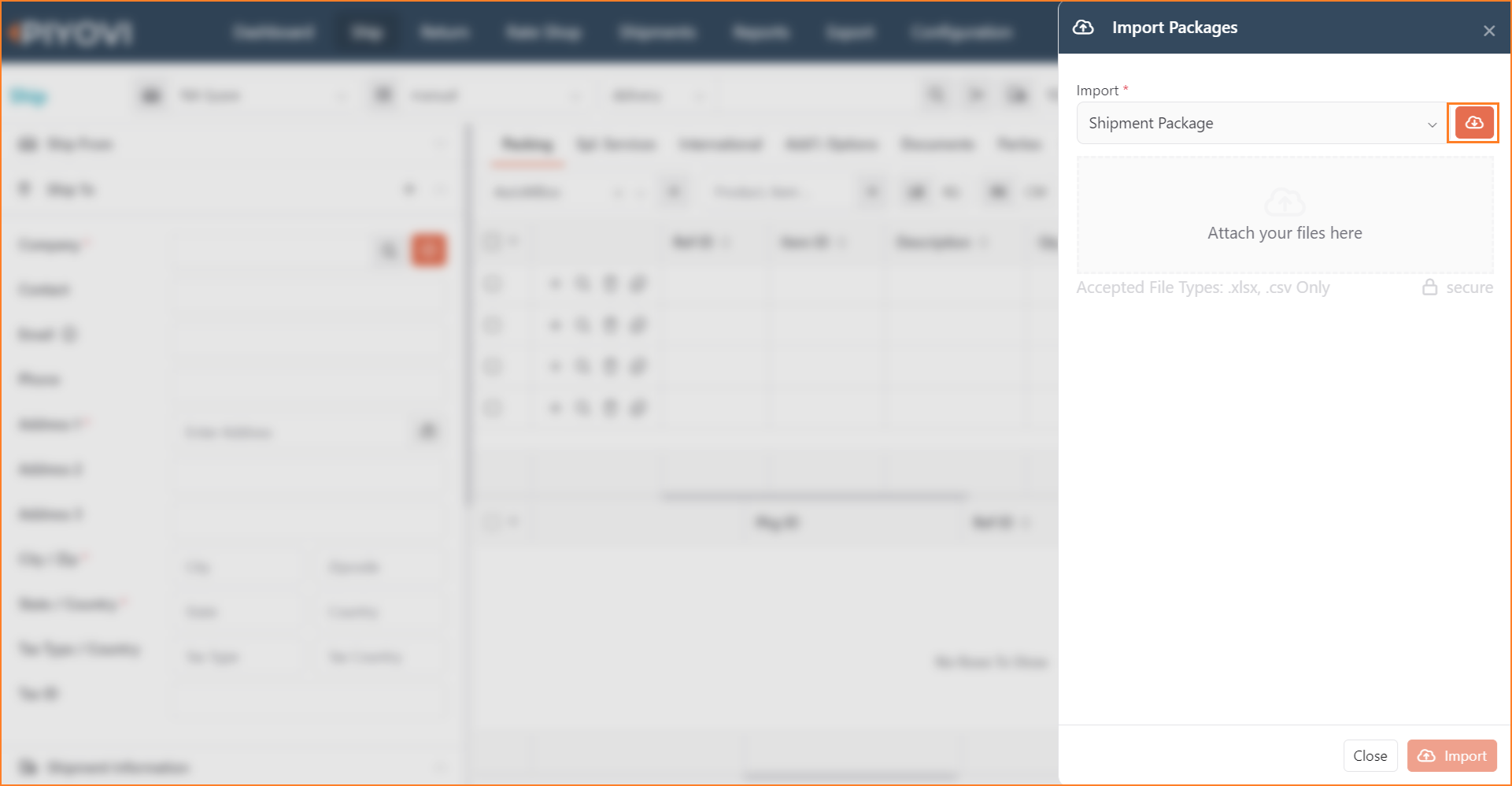
Import Packages panel, downloading the sample file
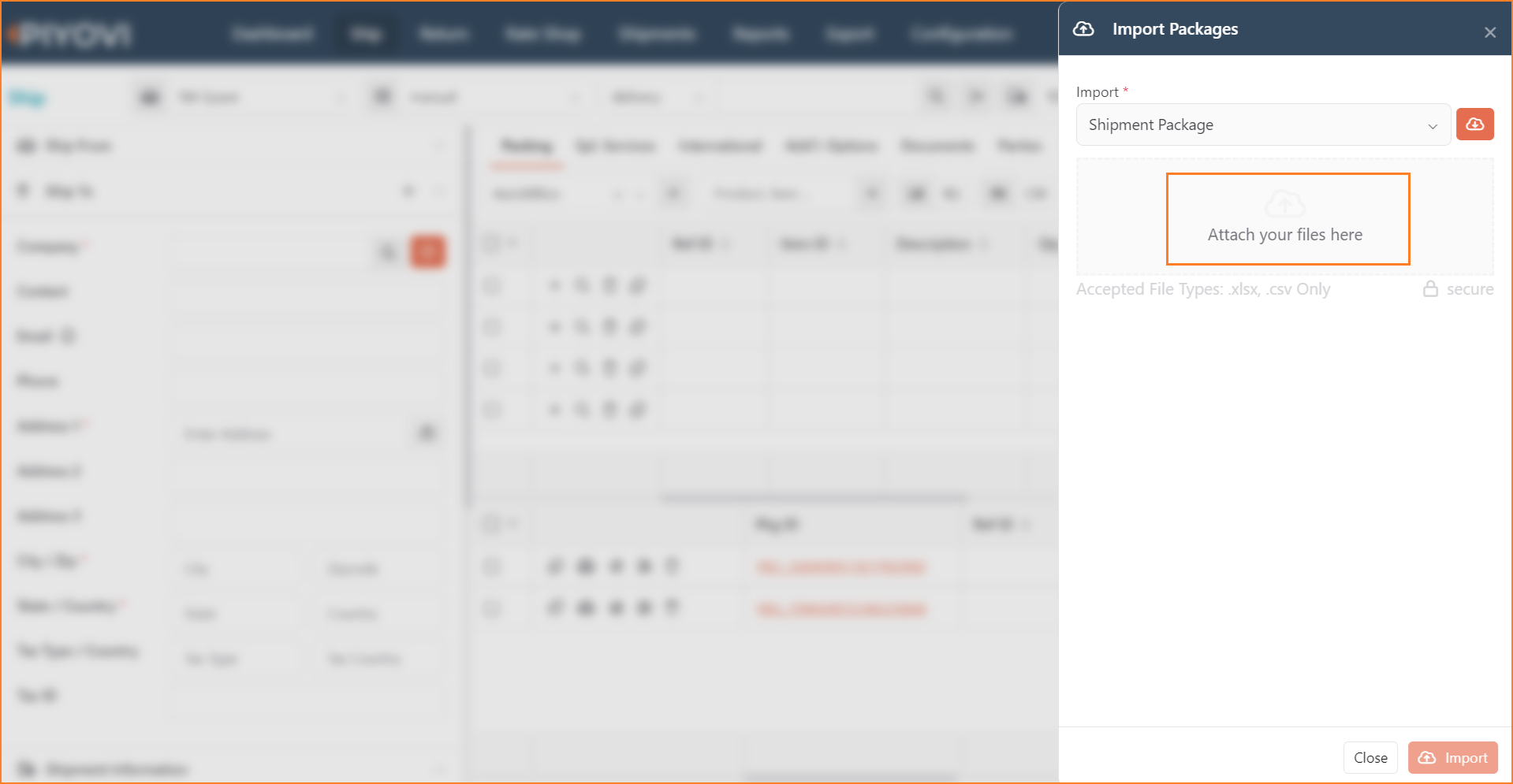
Import Packages panel, file attachment area
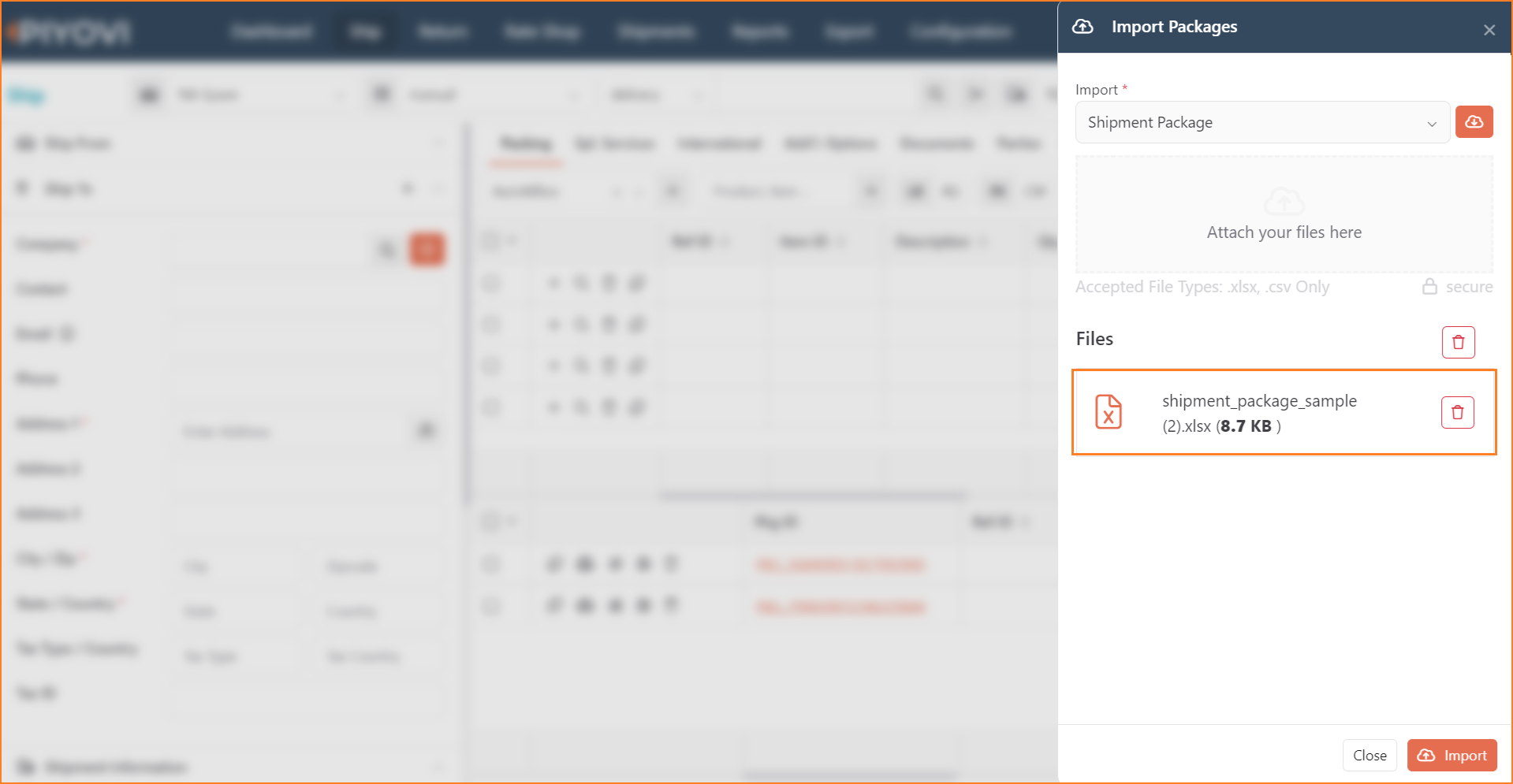
Import Packages panel, attached file listed under Files
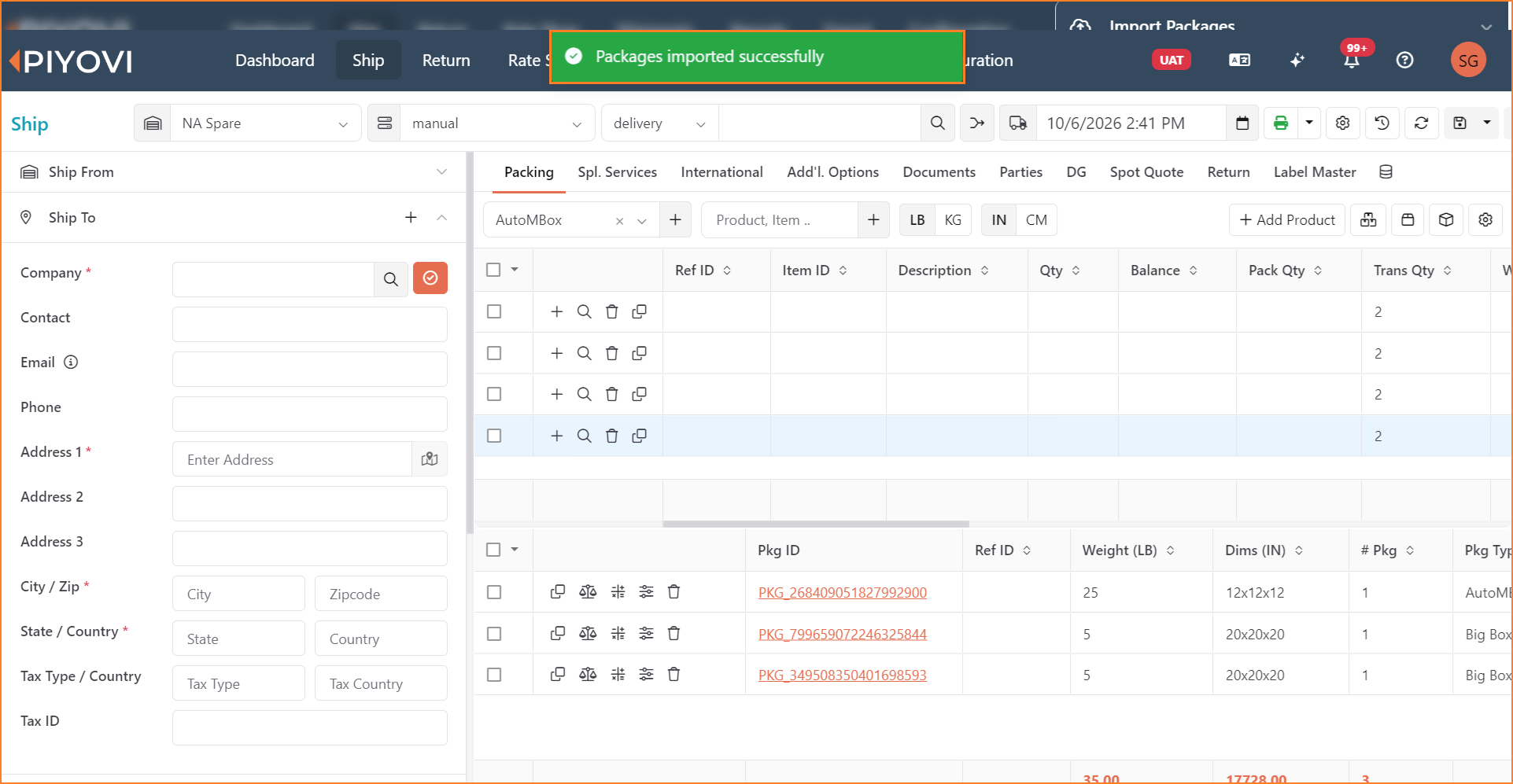
Ship screen after a successful import, with the packages added to the grid
Notes:
-
If any row in the uploaded file has a validation error, none of the rows are imported, and the errors are listed row by row in the import error window. Imported packages are added after the existing packages in the grid, and package master records are not created or updated by the import.
-
Validation :
-
Upload a file with an invalid value, such as a Freight Class outside 50–500, an NMFC Code not in the 12345-01 format, weight 0, or a unit that doesn't match the Ship screen.
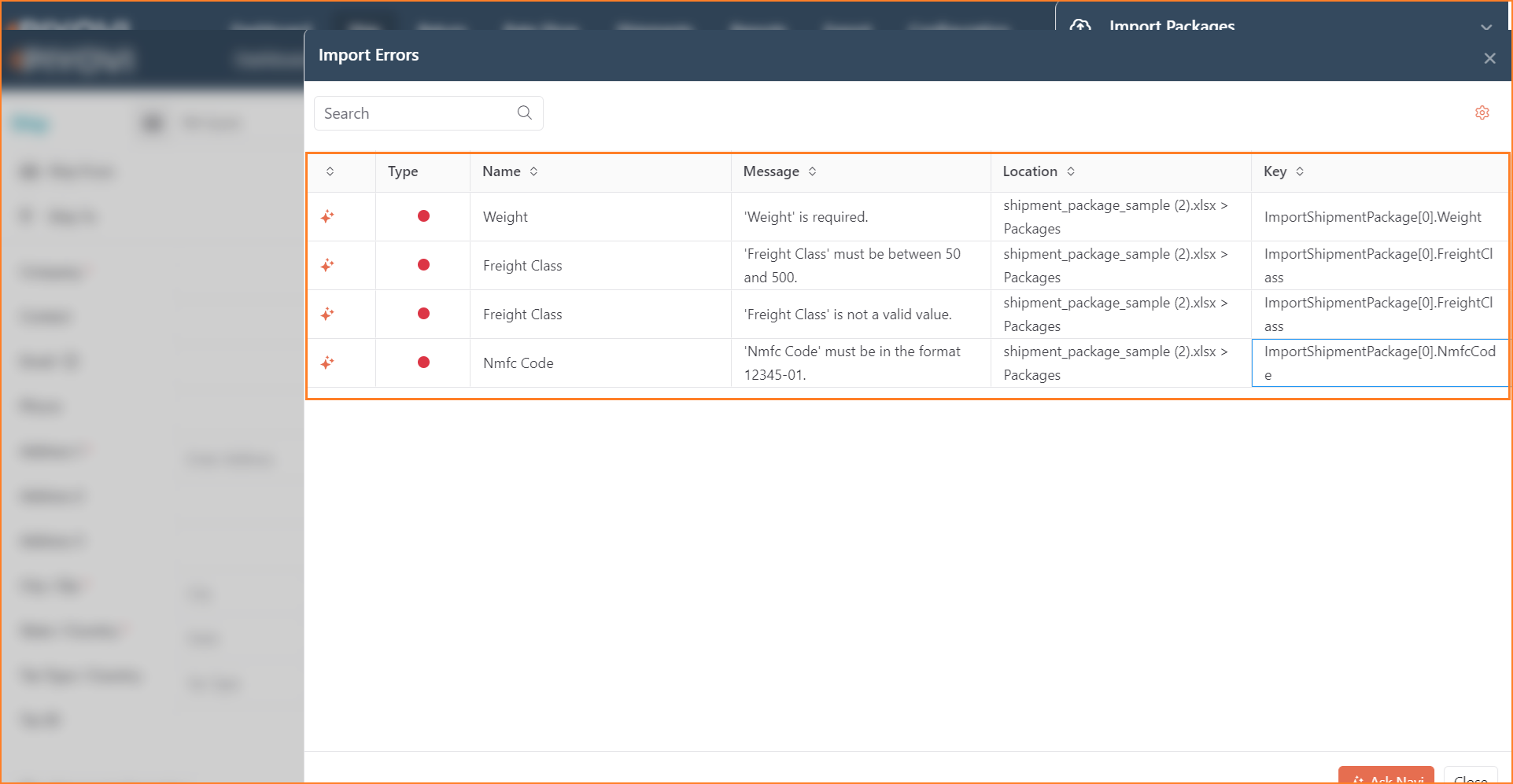
Import Errors window, listing each validation error by field and row
-
Confirm that no rows are imported and the Import Errors window lists each error with the field name, message, file location and row key.
-
Correct the file, upload it again and confirm the packages import successfully.
-